
This guide is interesting for you, if you just installed "SubSpace Navigation for Confluence" or if you want a better understanding of how to quickly configure your SubSpace Navigation. The guide explains the most important steps, but is not intended to be as complete and detailed as the User's and Administrator's Guide in our documentation.
To get started with the SubSpace Navigation you can experience how the add-on works with the already configured example navigation or you can start from scratch with your own navigation.
Get to Know the SubSpace Navigation with our Demo Navigation
We have created a little demo to show you what our add-on can do. After installing the add-on, you will see an example navigation at the top of your Confluence pages. It includes some sample navigation elements like personalized links to your favorite content ("saved for later") and your last modified content as well as an external link.
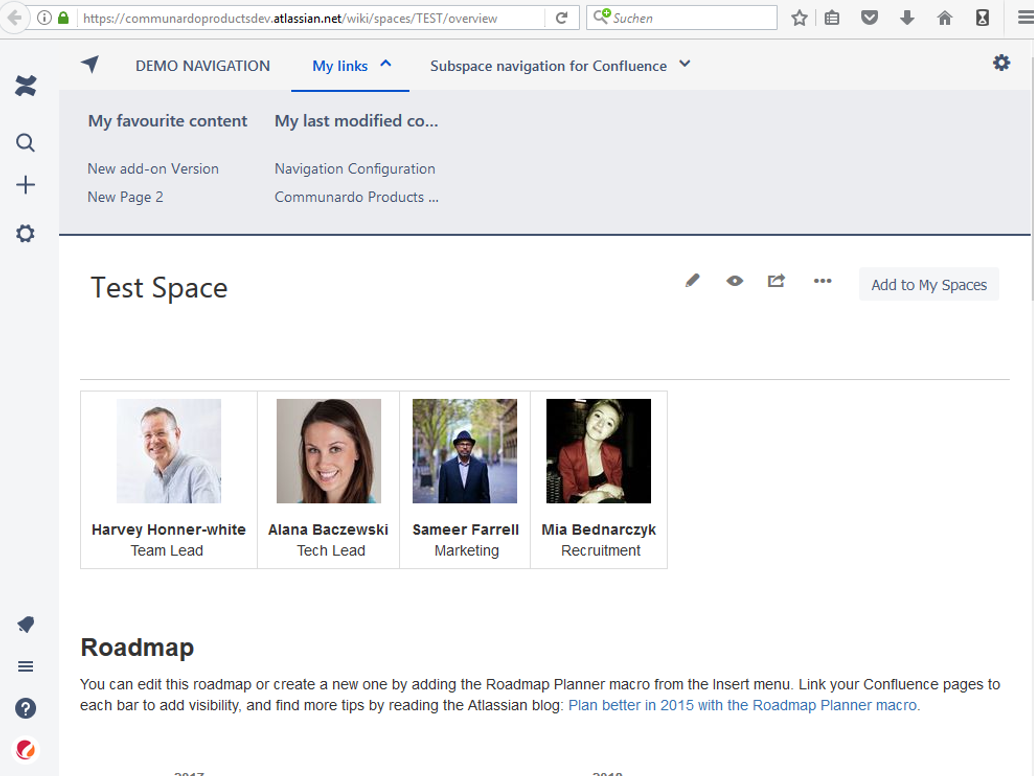
Image 1: Sample Navigation (click to enlarge)
To see how it is done, just click the little cog item on the right side and inspect all navigation elements. Make sure you have Confluence administrator permissions. To learn more you can refer to the documentation.
How to Create your own SubSpace Navigation
If you want to to adjust this demo navigation to your needs just follow these steps:
1) Design your Navigation
-
Use pen and paper 😉 and jot down which navigation elements you need. Which elements need to be on the top level? Which elements can be grouped under one navigation item? Are there navigation elements you would like to display dynamically, e.g. based on the current user's behavior (favorite pages, last modified, ...)? Are there external links you would like to add?
-
Example: We want (amongst others) links to
Create your Navigation Elements
Extend your navighation with integration (currently only for server)