
The Org Chart macro displays a hierarchy of a selected Microsoft user, showing the reporting relationship between that user and their subordinates, as defined by the Manager property in Microsoft Entra ID.
Configure the macro
After giving consent, select a user by typing their first or last name. If unsure, start typing a few characters; the macro will suggest relevant contacts.
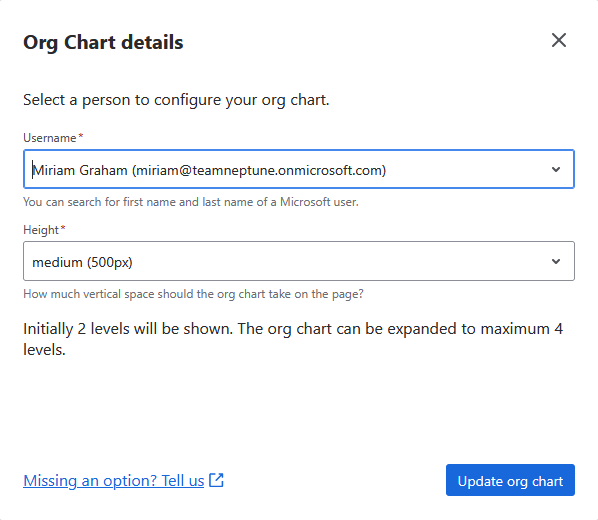
You can also select the org chart height. Four sizes are available:
-
small: 300px high
-
medium: 500px high (default)
-
large: 800px high
-
huge: 1200px high
You can set the macro’s width like other block-sized macros, using its built-in toolbar.
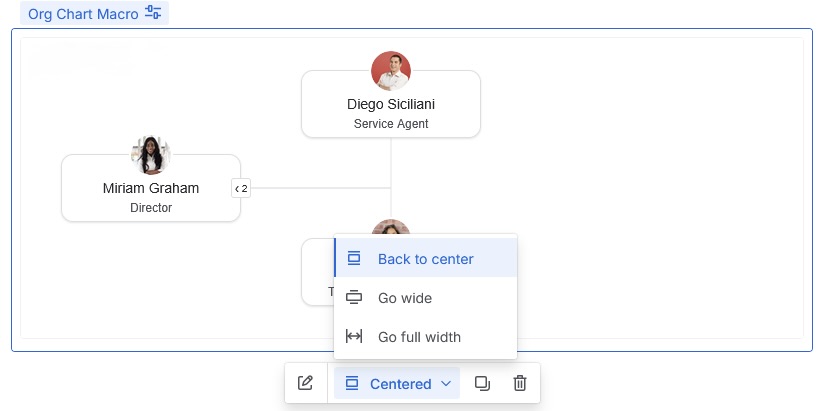
Using the Org Chart macro
The macro shows the selected user and their subordinates. Initially, it lists only direct subordinates, which you can expand to reveal up to four levels.
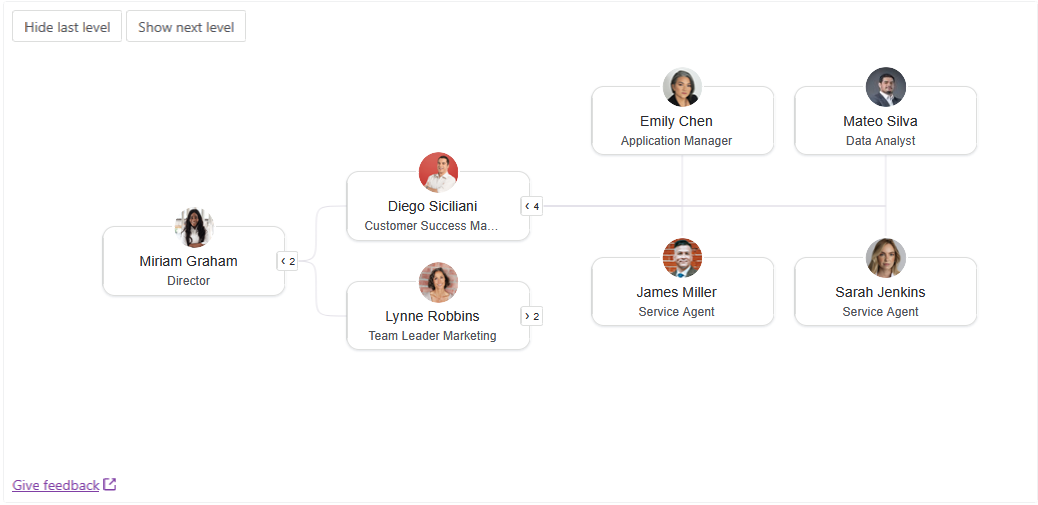
Each person is represented by a card containing:
-
the person’s avatar or initials
-
their name
-
their position (mapped to
jobTitleby default) -
their number of subordinates, if any
You can expand or collapse each card using the button showing the subordinate count.
Additionally, a whole level can be expanded or collapsed with buttons Show next level and Hide last level respectively.
Technical details
Org chart data is cached for about 24 hours. Changes to your reporting relationship, user data, and avatars in Microsoft Entra ID appear only after that.
Feedback
We have big plans for the org chart and welcome your feedback. Missing an option or have a specific use case or feature in mind? Please share it via https://communardo.app/kIogVx.