You can add data from one or several Bitbucket Data Center instances. For each instance, follow the instructions below.
Requirements
To include data from Bitbucket Data Center, it must fulfil these requirements:
-
It must be reachable via a public DNS entry and IP.
-
It must use HTTPS.
-
The HTTPS certificate must be valid. Self signed certificates or certificates signed by your own root certificate authority are not accepted.
-
The firewall has to allow traffic from the public internet. Or you can choose to use a static IP, so you can white list the IPs in the firewall.
Connection Options
You can choose how the app connects to your Bitbucket instance:
-
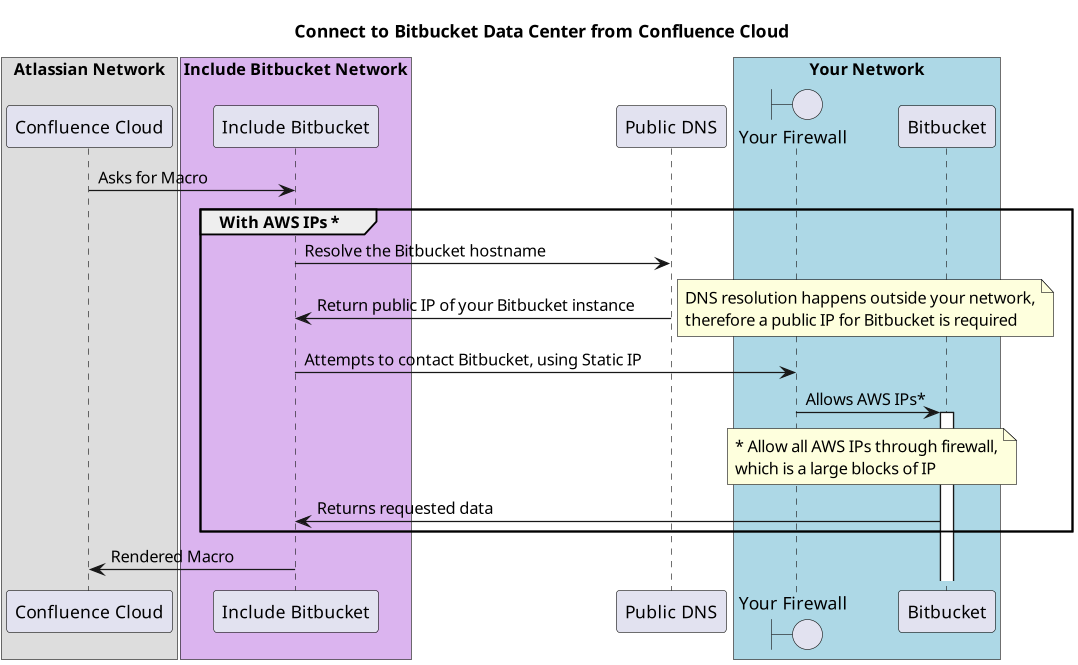
Default (AWS IP ranges):
Connections originate from dynamic AWS IP ranges, which may change over time. Your firewall must allow a broader set of IPs. -
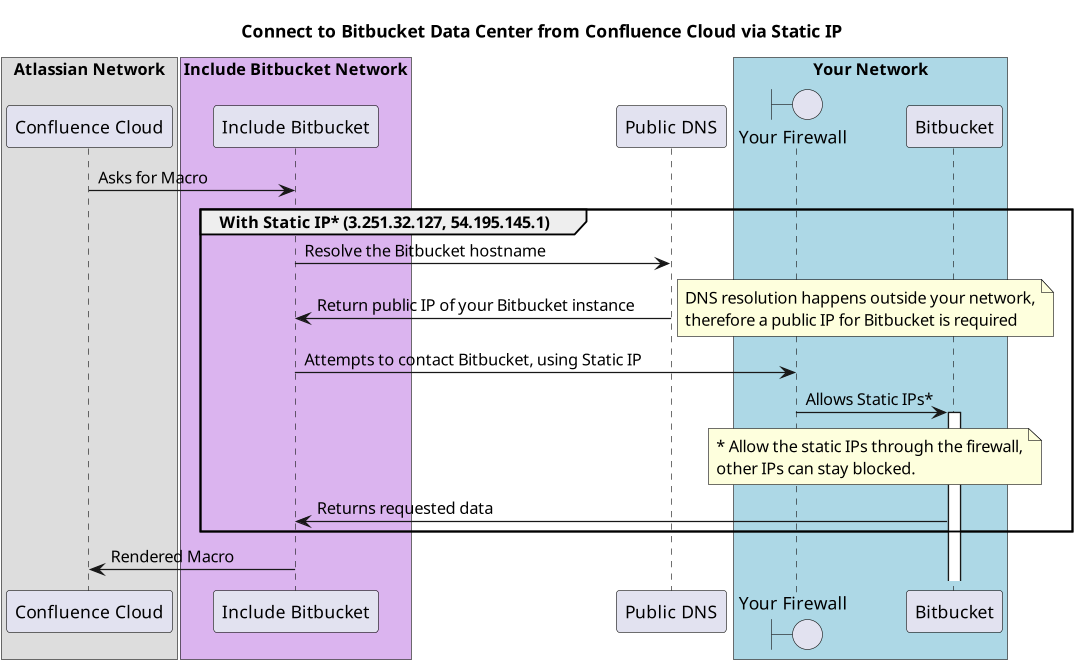
Static IPs (optional):
Connections originate from fixed IP addresses, allowing you to restrict firewall access to a small, known set of IPs. These IPs are shared across customers and are used only for network-level access.-
Customer Isolation
-
Although static IPs are shared, customer access is fully isolated at the application level. Each request is tied to a specific Confluence instance and uses its configured credentials, ensuring access is limited strictly to the repositories and permissions defined by your setup.
-
-
Connect to Bitbucket DC from AWS IP (Default)
When Bitbucket DC content is included in Confluence, Include Bitbucket will try to connect from the outside to your network. For that, it will find the IP via public DNS and try to connect to your Bitbucket instance. Therefore your firewall must allow traffic from the outside.
Connect to Bitbucket DC from dedicated Static IP (Optional)
The 'Static IP` option will ensure that Include Bitbucket connects the specified IPs, so that your firewall can limit incoming traffic to those IPs.The Static IPs are 3.251.32.127 and 54.195.145.1. When using the static IP option, QuotaGuard is used with its privacy and security policy. Bitbucket still must have a public IP and a public DNS entry.
Please ensure your firewall allows incoming HTTPS traffic from these IPs on the following ports:
-
443(standard HTTPS) -
8443(alternative HTTPS)
Security & Data Handling
-
All communication is secured over HTTPS
-
Access is authenticated using the Bitbucket credentials you configure
-
Credentials are stored encrypted; no repository content is stored or replicated
-
Data is fetched on demand per request and only used to render content in Confluence
-
Your Bitbucket data remains in your own instance at all times
Configuration in Bitbucket Data Center
To access files from Bitbucket Data Center repositories, use a HTTP access token.
Note that all Confluence users share this HTTP access token and view private repository content the Bitbucket Data Center user has access to.
We recommend using a user created specifically for the purpose of including data into Confluence Cloud through the macro. Avoid using an administrator Bitbucket user.
-
Log into your Bitbucket Data Center with the user you want to use to access data from Confluence Cloud.
-
Navigate to ‘Avatar on the Right Upper Corner’ → Manage Account → HTTP access tokens or Personal access tokens in older Bitbucket versions
-
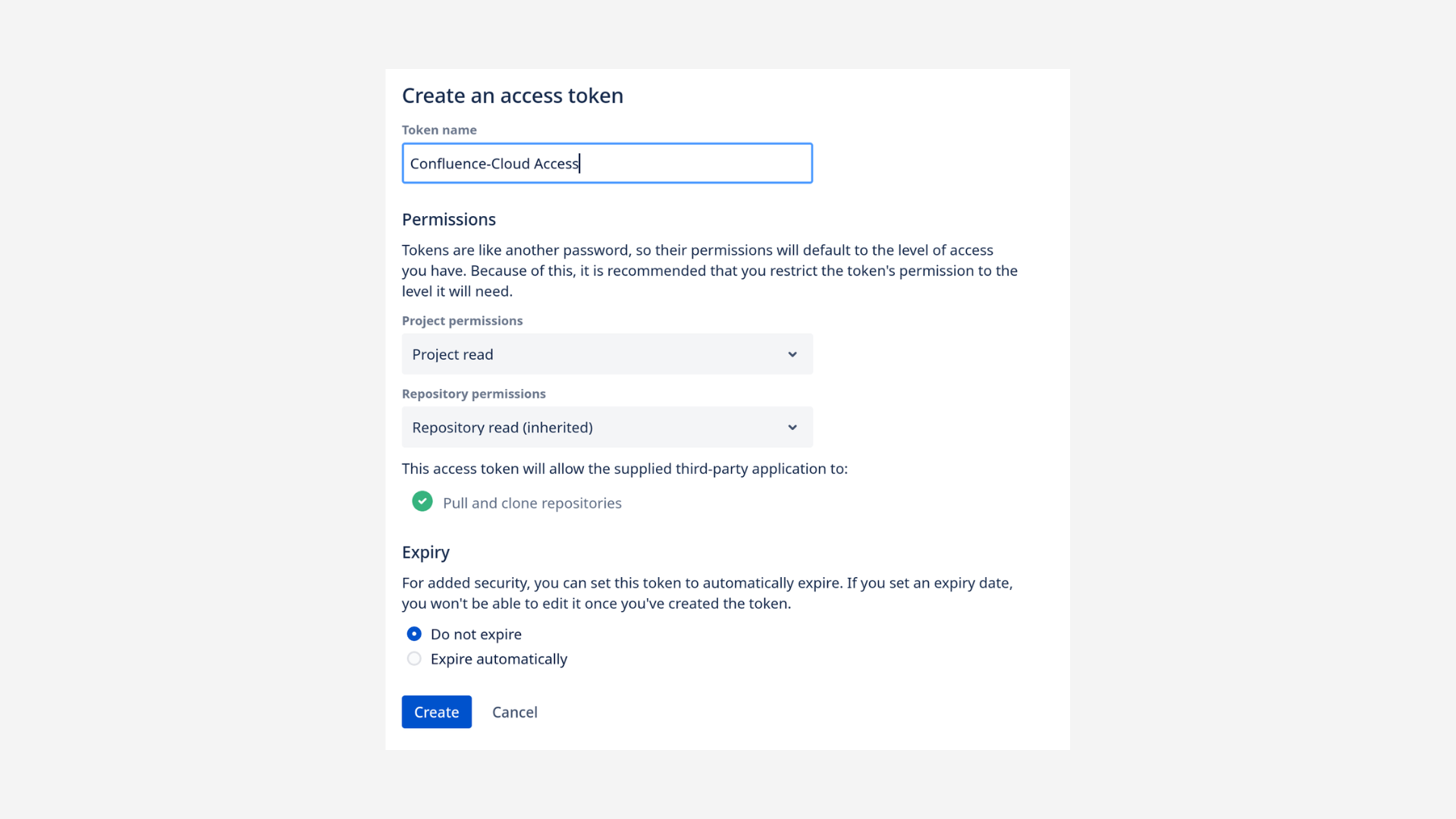
Create a new token. The default read permissions are enough. Save the token.
-
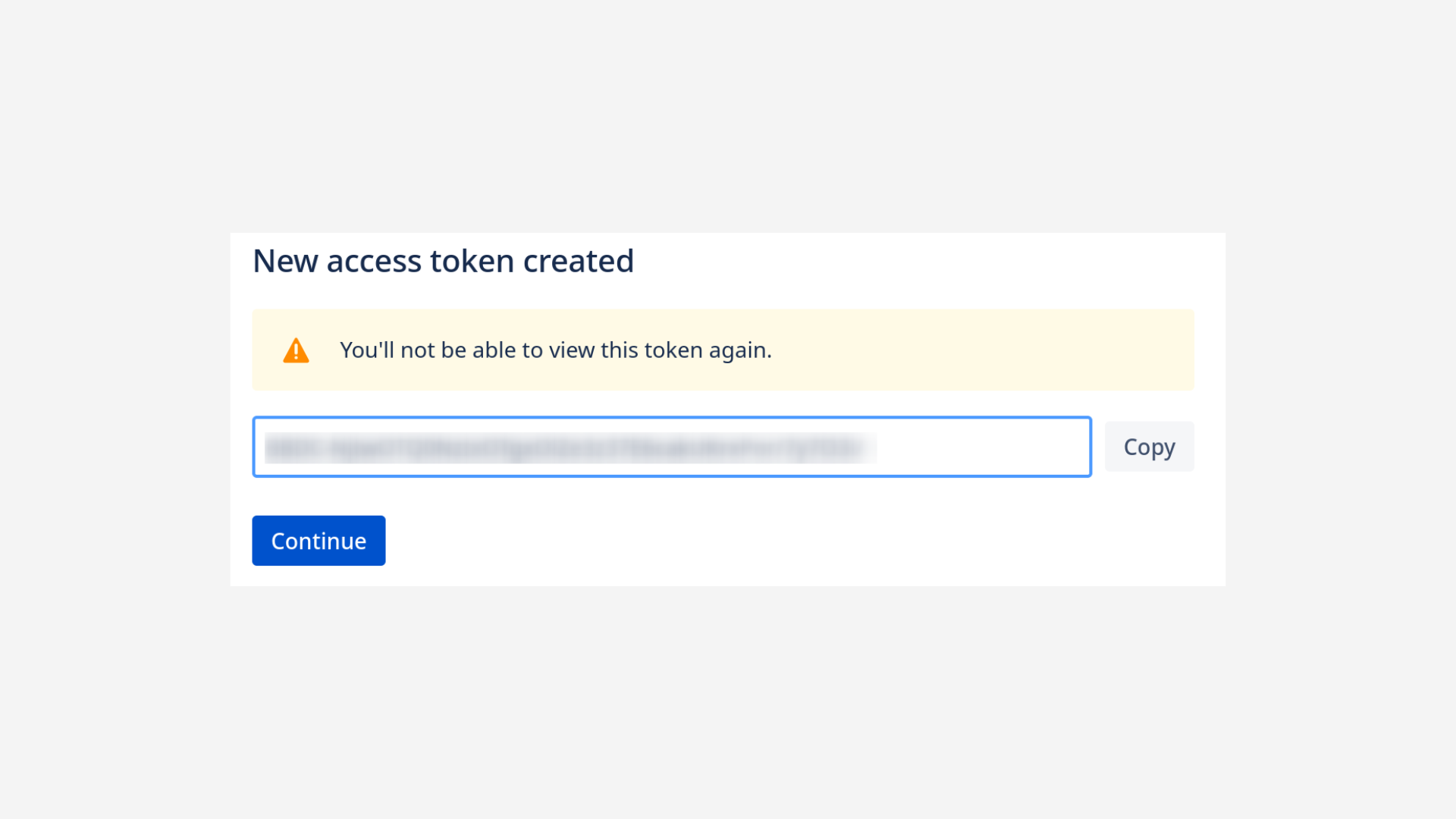
Copy the generated token. You won’t be able to see it again. If you loose it you have to revoke and recreate the token.
Configuration in Confluence Cloud
-
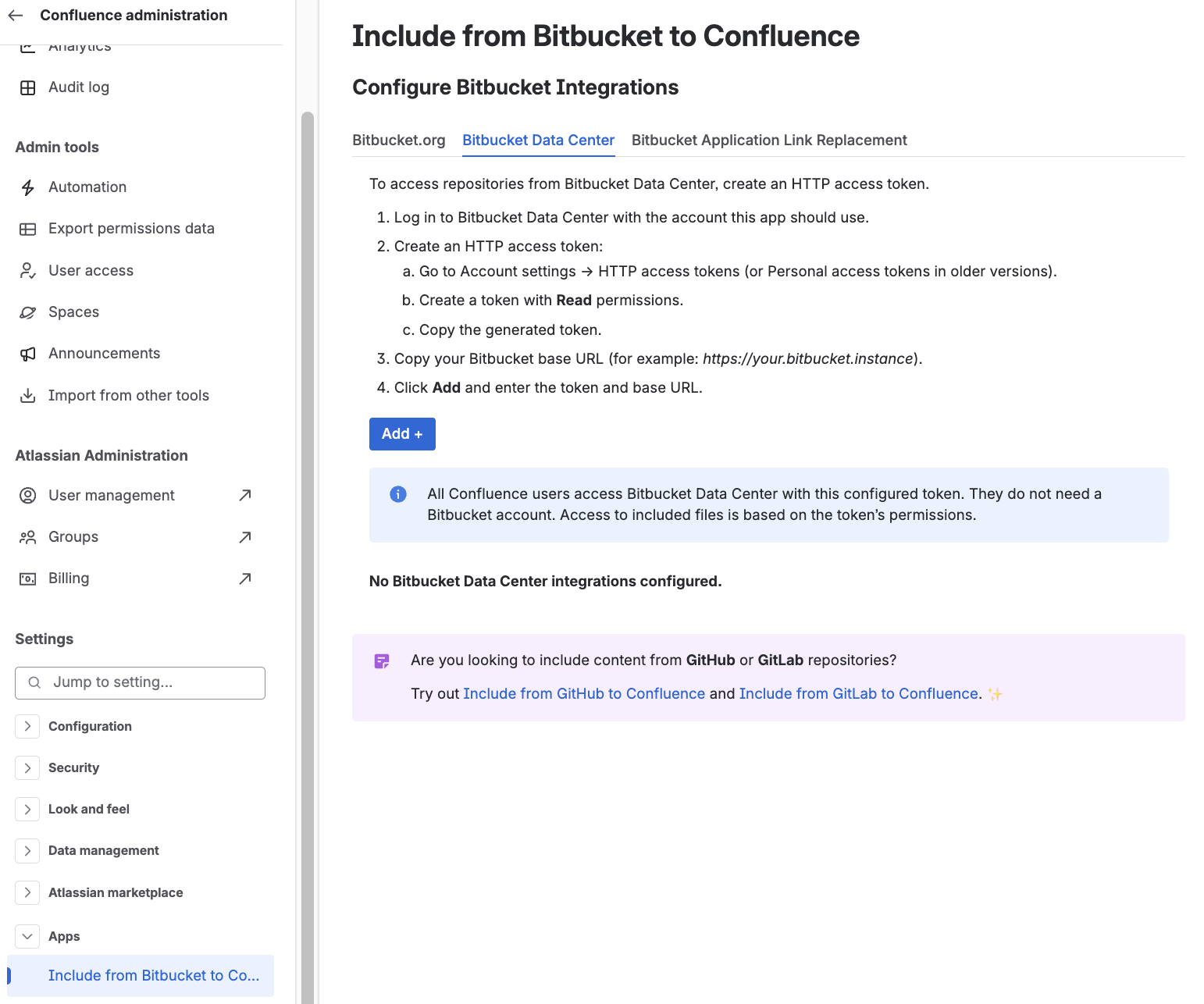
Go to Confluence settings → Apps → Include from Bitbucket to Confluence. You should then see the following page:
-
Click Add.
-
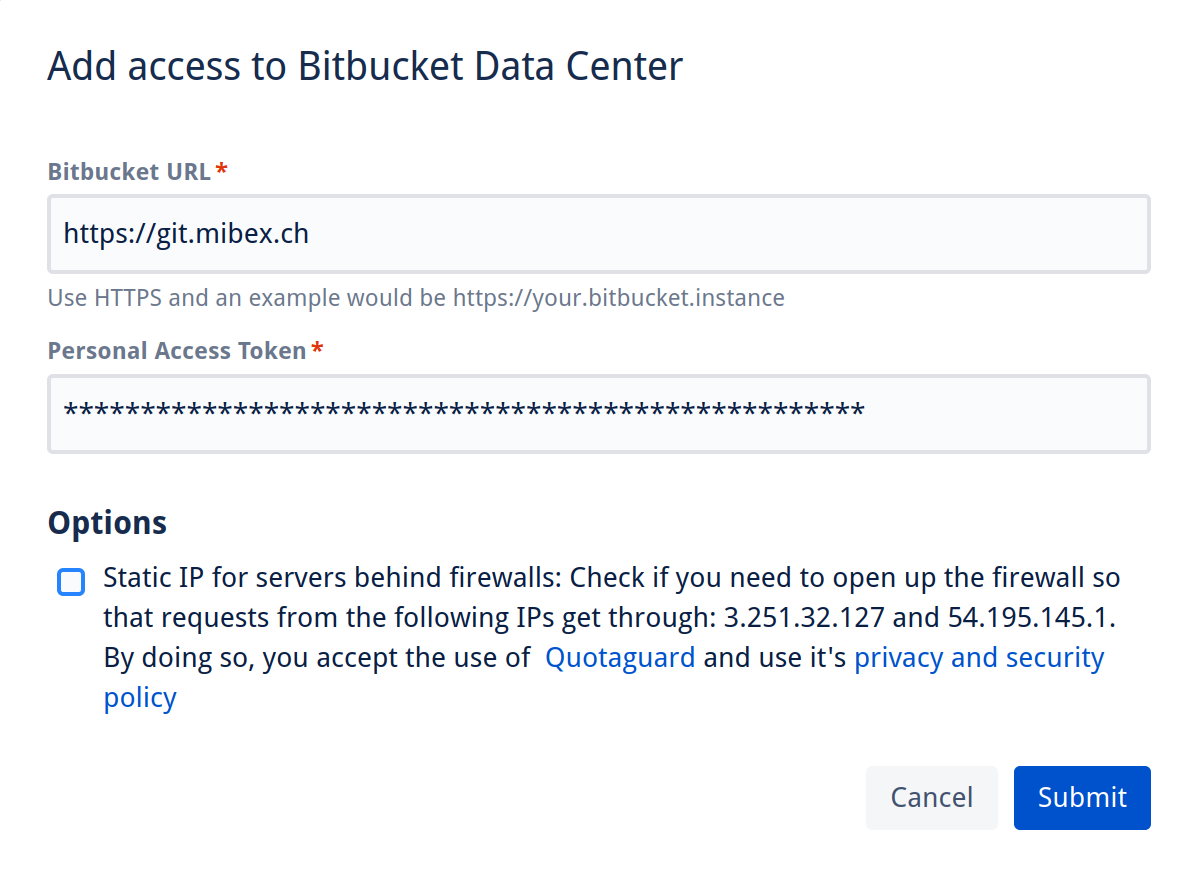
Add your Bitbucket Data Center URL and the HTTP access token. Then submit the configuration.
-
If your Bitbucket DC instance is behind a firewall, you use the ‘Static IP’ option to allow list the app. The IP’s used in this case are
3.251.32.127, 54.195.145.1. With the static IP, traffic will be routed via QuotaGuard and it’s privacy and security policy applies. -
Finished. Now you can include files from your Bitbucket Data Center/Server repositories.