
New to SharePoint Connector for Jira? This guide gives you a first look at how the app connects Jira with Microsoft 365, what you can do with it, and the first steps to start working with SharePoint content in Jira with confidence.
SharePoint Connector for Jira brings Jira and Microsoft 365 together. Access, edit, and connect SharePoint content directly from your Jira work items, and display Jira work items on SharePoint pages. Keep your documents in SharePoint while making them available where your team works -always up to date, without downloading, re-uploading, or maintaining duplicate copies.
One file, one version
Connected files always open in their latest version.
Work where you are
Edit SharePoint files from the Jira work item you already have open.
Same access as always
The app uses your existing Microsoft 365 permissions.
What you can do in Jira
-
Connect SharePoint documents, files, folders, and libraries to a work item.
-
Preview and edit connected Word, PowerPoint, and Excel files directly from Jira. Changes are saved back to SharePoint.
-
Upload files from your computer to SharePoint and connect them in one step.
-
See everything connected to a work item in the SharePoint Files section, in card or list view.
-
Find files in your recent items, space folders, SharePoint sites, and OneDrive, or search across SharePoint and OneDrive.
-
Edit, connect, and disconnect files with a few clicks.
-
Connect folders to a space so they are available on every work item in that space, with optional auto-connect by work item type.
-
Use Assistant for SharePoint, an Atlassian Rovo agent, to find, suggest, summarize, connect, or disconnect files.
What you can do in SharePoint
-
Add the Jira Issues and Filter web part to a SharePoint page.
-
Choose which work items to show with JQL or a manual selection, and display them as a table or as cards.
How access works
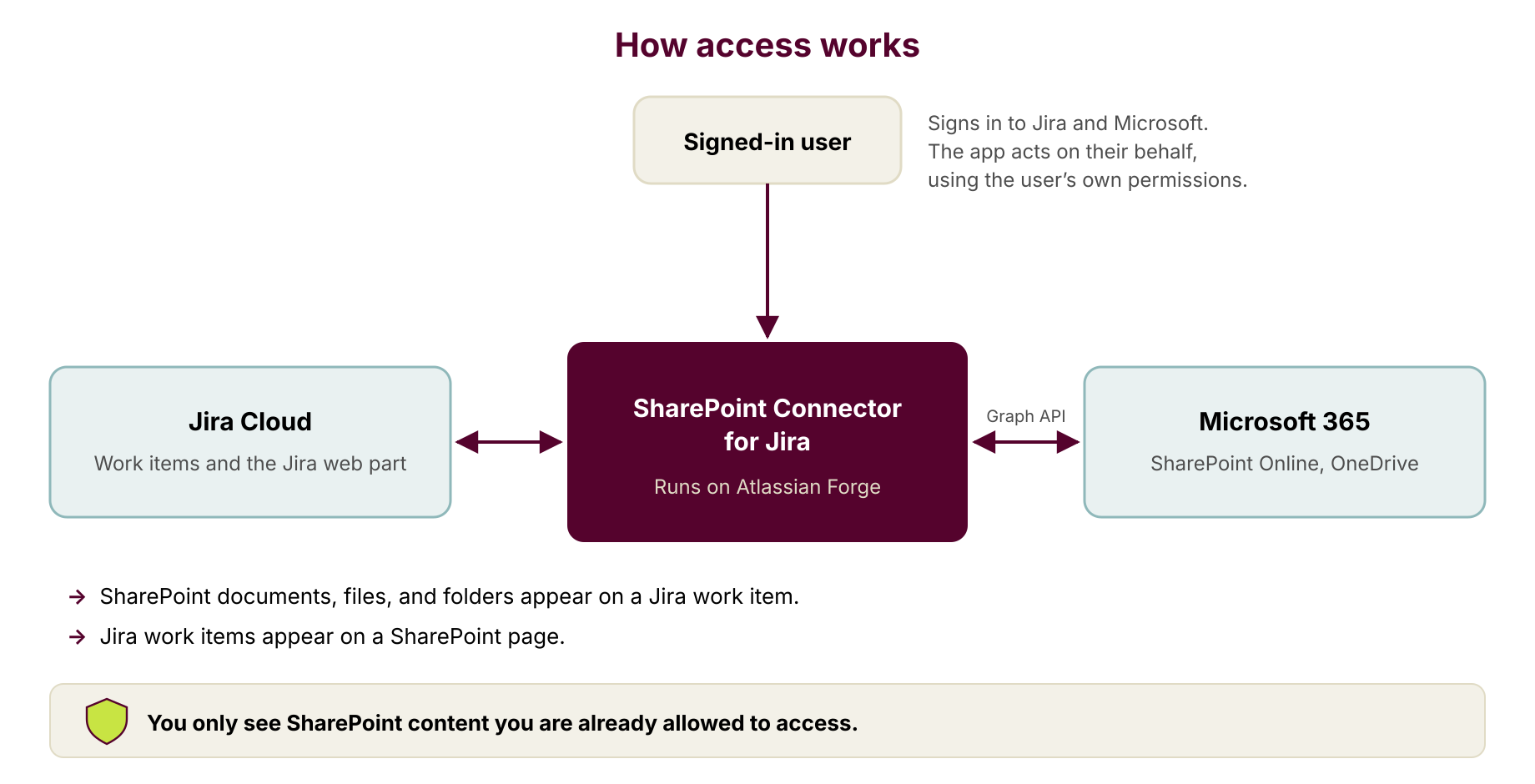
You only see SharePoint content that you are already allowed to access. The app signs you in to Microsoft and to Jira and acts on your behalf, using your existing permissions. There is no server to host: the app runs on Atlassian Forge and reaches Microsoft 365 through the Microsoft Graph API.
The Jira integration works as soon as a Jira admin installs the app from the Atlassian Marketplace. Each user consents to the app on first use. Admins do not need to take any company-wide action for the Jira integration.
Security and privacy
Elevatic does not collect or store any end-user data that the app does not need. Elevatic is certified to ISO 27001 and ISO 9001. For details, see the Trust Center. For information on how Assistant for SharePoint uses AI, see AI data privacy.
Who this is for
-
Jira admins install, license, and update the app.
-
Microsoft 365 and SharePoint admins set up the SharePoint web part.
-
Jira users, such as project managers, developers, and testers, connect and work with SharePoint content on work items.
Next steps
-
Install, license, set up, and update the app in the Admin guide.
-
Learn the day-to-day tasks in the User guide.
-
See typical scenarios in Use cases.
Need help?
-
Find answers in the frequently asked questions.
-
Contact customer support.
-
Learn more on the product website.