
This guide is for Jira admins and for Microsoft 365 and SharePoint admins. It covers what you need before you start, the permissions the app uses, and how to install, configure, and maintain the app.
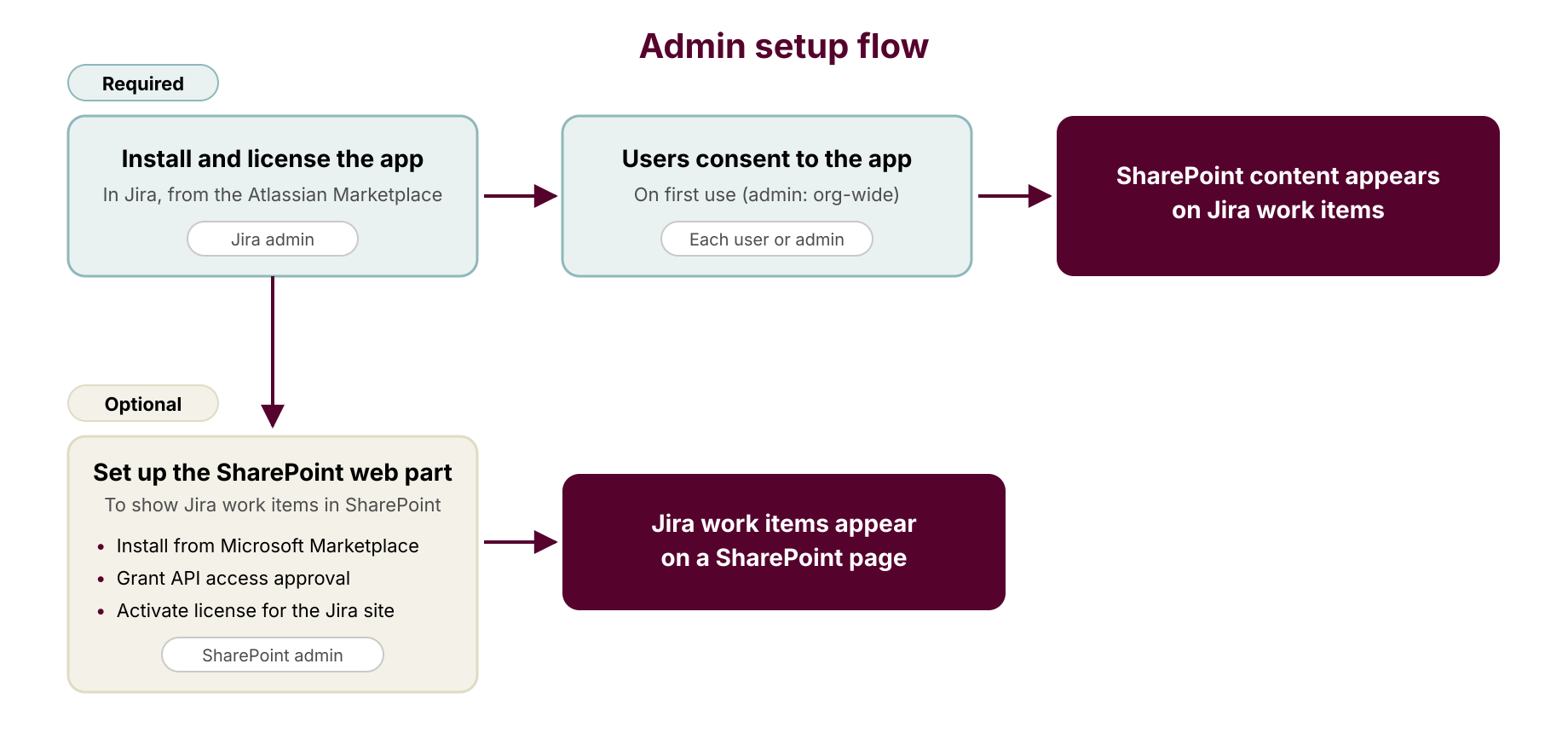
Prerequisites
-
A Jira Cloud site where you can install apps (Jira admin rights).
-
An active SharePoint Connector for Jira license on that Jira site (free trial or subscription).
-
For the SharePoint web part: a Microsoft 365 tenant and a SharePoint admin who can deploy the web part and grant API access approval.
-
For Assistant for SharePoint: Atlassian Rovo enabled on your site.
Jira integration
The Jira integration works as soon as the app is installed from the Atlassian Marketplace. Every user has to consent to the app before they can start using it, but the administrator does not need to perform any action company-wide.
Permissions the app uses
For the Jira integration to work correctly, the app has to access SharePoint content in the context of the current user. The app therefore requests the following permissions. All permissions are delegated, and none of them requires admin consent.
Microsoft Graph
|
Permission |
Type |
Description (official) |
Admin consent required |
Why the app needs it |
|---|---|---|---|---|
|
|
Delegated |
Allows users to sign in to the app, and allows the app to read the profile of signed-in users. It also allows the app to read basic company information of signed-in users. |
No |
Sign in to the app. |
|
|
Delegated |
Allows the app to read a basic set of profile properties of other users in your organization on behalf of the signed-in user. This includes display name, first and last name, email address, open extensions, and photo. Also allows the app to read the full profile of the signed-in user. |
No |
Show user information in lists and document libraries. |
|
|
Delegated |
Allows the app to edit or delete documents and list items in all site collections on behalf of the signed-in user. |
No |
Access the API to show content that the user is allowed to view. |
Atlassian
|
Scope |
Description (official) |
Admin consent required |
Why the app needs it |
|---|---|---|---|
|
|
View user information in Jira that the user has access to, including usernames, email addresses, and avatars. |
No |
Read Jira user information used by the app, and access user-specific app settings stored as Jira user properties, for example onboarding and feedback state. |
|
|
Read Jira project and issue data, search for issues and objects associated with issues like attachments and worklogs. |
No |
Read Jira work item and space data used by the app, including connected-item properties, space configuration, history information, permission checks, work item metadata, and migration task status. |
|
|
Create and edit issues in Jira, post comments as the user, create worklogs, and delete issues. |
No |
Store app data in Jira work items, including connected-file information, activity and history state, and work item property updates required during cloud migration. |
|
|
Create and edit project settings and create new project-level objects (for example, versions and components). |
No |
Store and read space-level app configuration in Jira, including connected folders and auto-connect settings for spaces. |
For detailed information about the permissions, see the official permission references from Microsoft and Atlassian.
Consent
When a user uses the app for the first time, or when the permissions the app requires have changed, a dialog shows all delegated permissions the app needs. The user has to grant these permissions for the app to work. An admin can select Consent on behalf of your organization to consent for every user in the organization at once. To grant or revoke app consent later, see Grant or revoke app consent for Jira.