
Please refer to our main documentation for the Cloud Migration Assistant for general instructions on migrating Communardo apps.
The following information is specific for the app SharePoint Connector for Jira.
Migrating SharePoint Connector for Jira content
Prerequisites
-
An admin user needs to be available to perform the data migration. This user needs to have access to all projects and Jira issues that will be migrated.
-
Jira Data Center full reindexing must be completed after updating the app to the latest version
Pre-migration
We have included pre migration checks in the migration process that will notify you in case there are any problem with the prechecks we have in place.
What is done during migration
-
We will get all the Jira work items from your Data Center instance which contain SharePoint connected files on them.
-
This Data is stored on custom Jira issue Entity Properties
-
All these Entity Properties will be exported and transferred to the respective Jira issues in your cloud instance.
Migration
Steps for migrating to the cloud.
-
Install SharePoint Connector for Jira in your Cloud instance.
-
Update the Data Center app to the latest available version (depending on your Jira version this will be either 1.1.x+ / 2.1.x+ or 3.x)
-
Run a full reindexing of Jira if you haven’t done it after installing the latest DC app version.
-
Migrate your content using the Jira Cloud Migration Assistant by Atlassian (automated path)
-
That’s it! The content you created in Jira Data Center with our app should now be in cloud.
-
Verify that the content is actually migrated by navigating to Jira work items in cloud where you expect SharePoint items to be connected.
Known Limitation
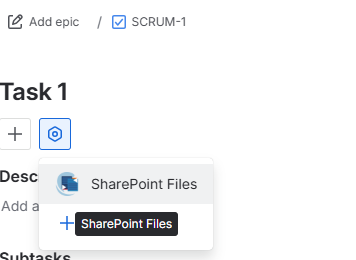
In order to view the content which was created in the Jira work items in Cloud you need to enable the app as below:
-
Open any work item
-
Click on the View app actions (gear icon)
-
Click on SharePoint files
-
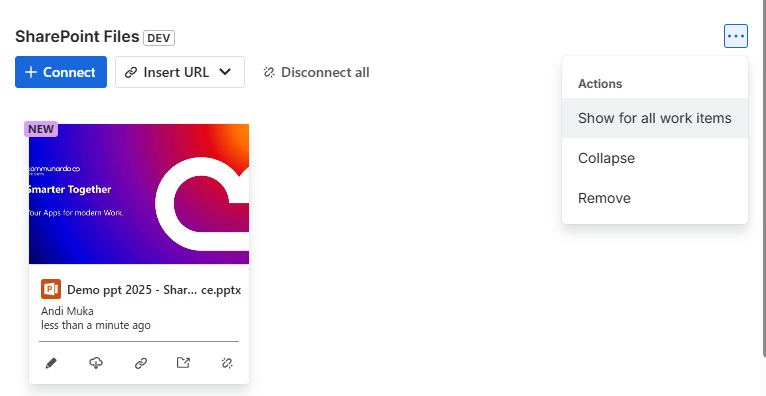
This enables the SharePoint Files Jira issue panel
-
Optionally by clicking on “Show for all work items” enable this panel for the whole project in every work item (requires project admin permissions)
-
This needs to be done in every project where you need the panel to be visible.
-
Error in the migration process
In case you encounter any errors during the migration please create a support ticket with us.