
This page describes what is specific to Elevatic apps when you migrate from Confluence Data Center to Cloud with the Confluence Cloud Migration Assistant (CCMA).
Before you start
-
All Cloud-ready Elevatic apps have an automated app data migration path. See App migration paths.
-
Follow the official Atlassian documentation to assess and migrate apps (see the section "Assessing your apps").
-
Use the latest version of the Cloud Migration Assistant.
Migrating from Server to Data Center? See .
Cloud Migration Assistant: Process to migrate apps
App assessment
1. Mark the apps as needed
Mark all Elevatic apps available in the cloud as Needed in cloud and click Continue.
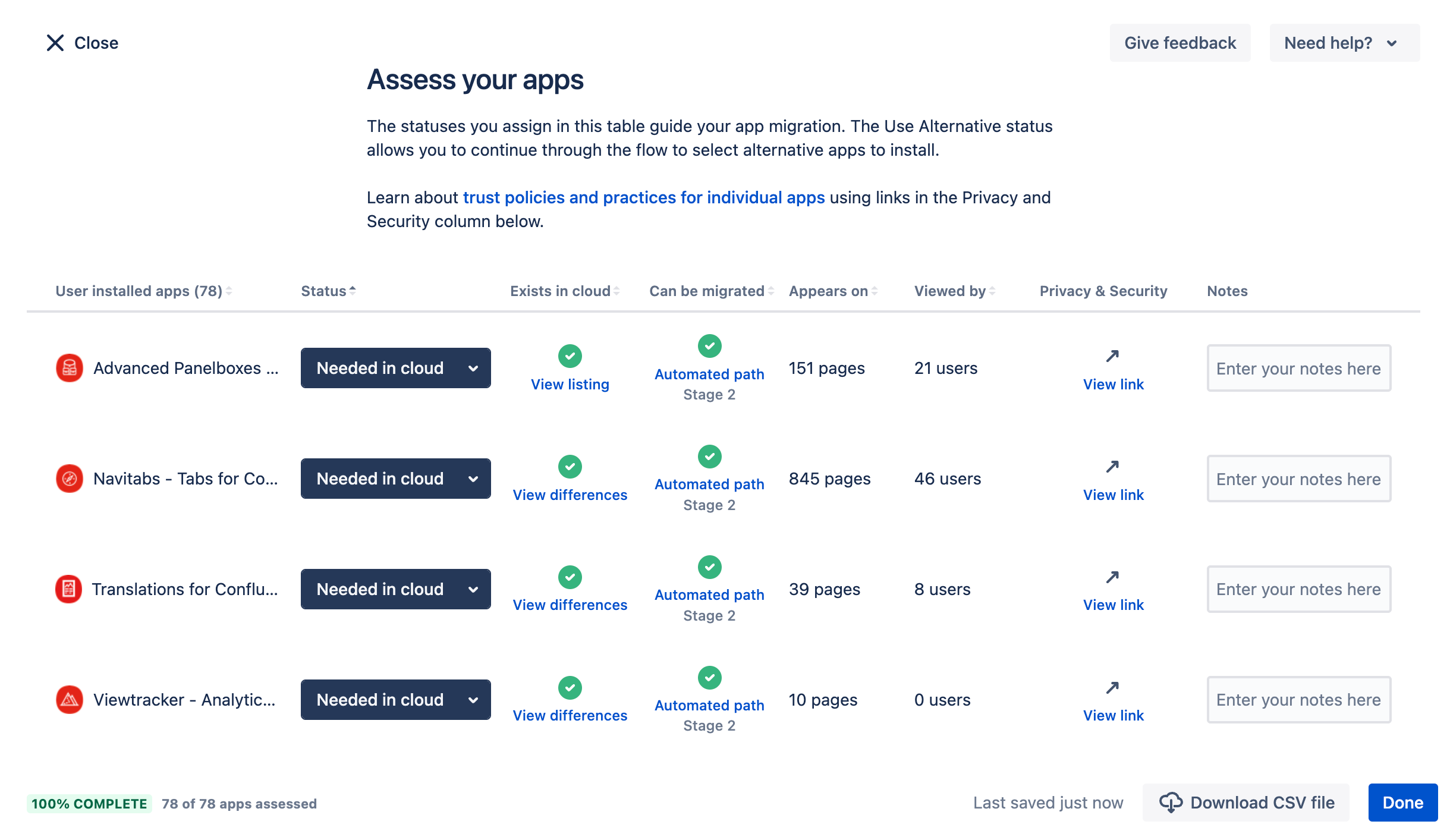
2. Confirm the installed apps
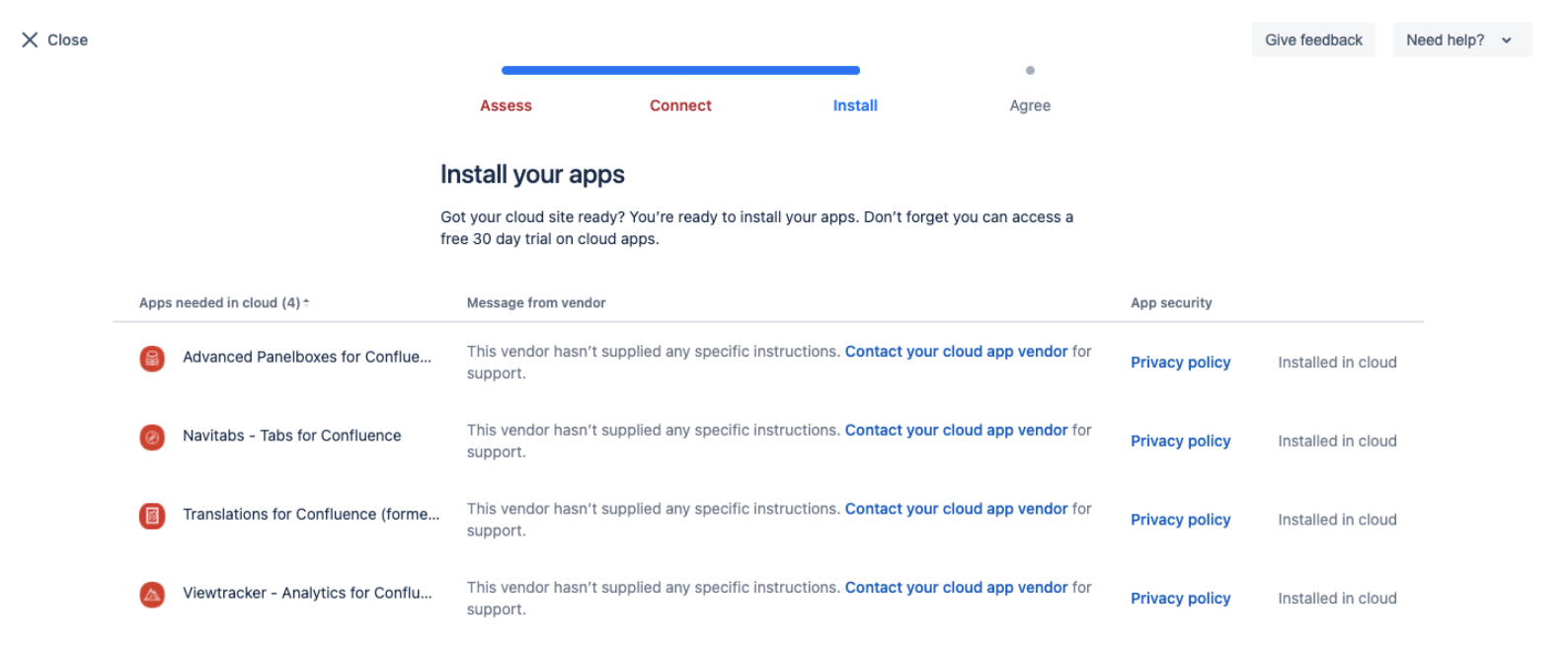
Make sure you have installed all selected Elevatic apps in your Cloud instance. Click Continue.
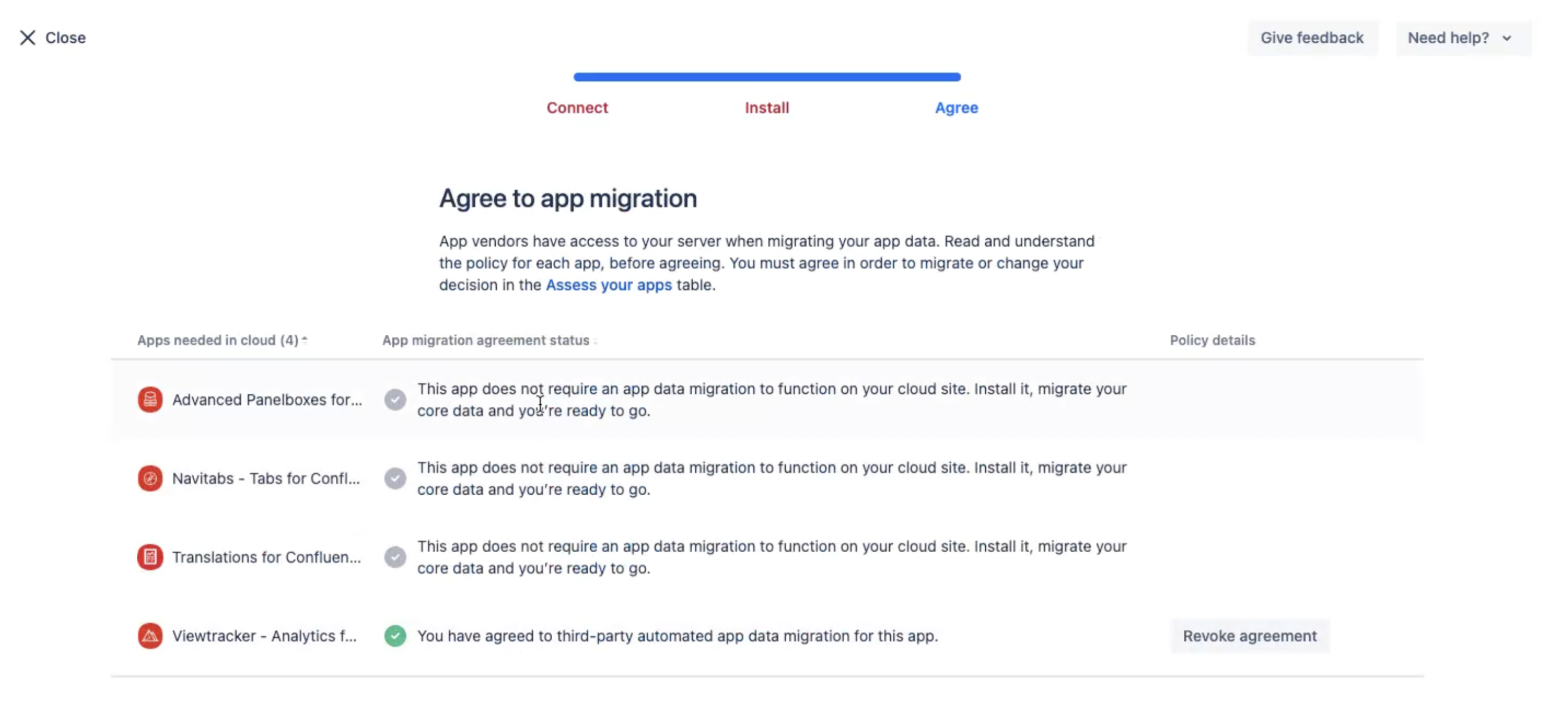
3. Agree to the app migration
Agree to the app migration and click Continue.
Migration process
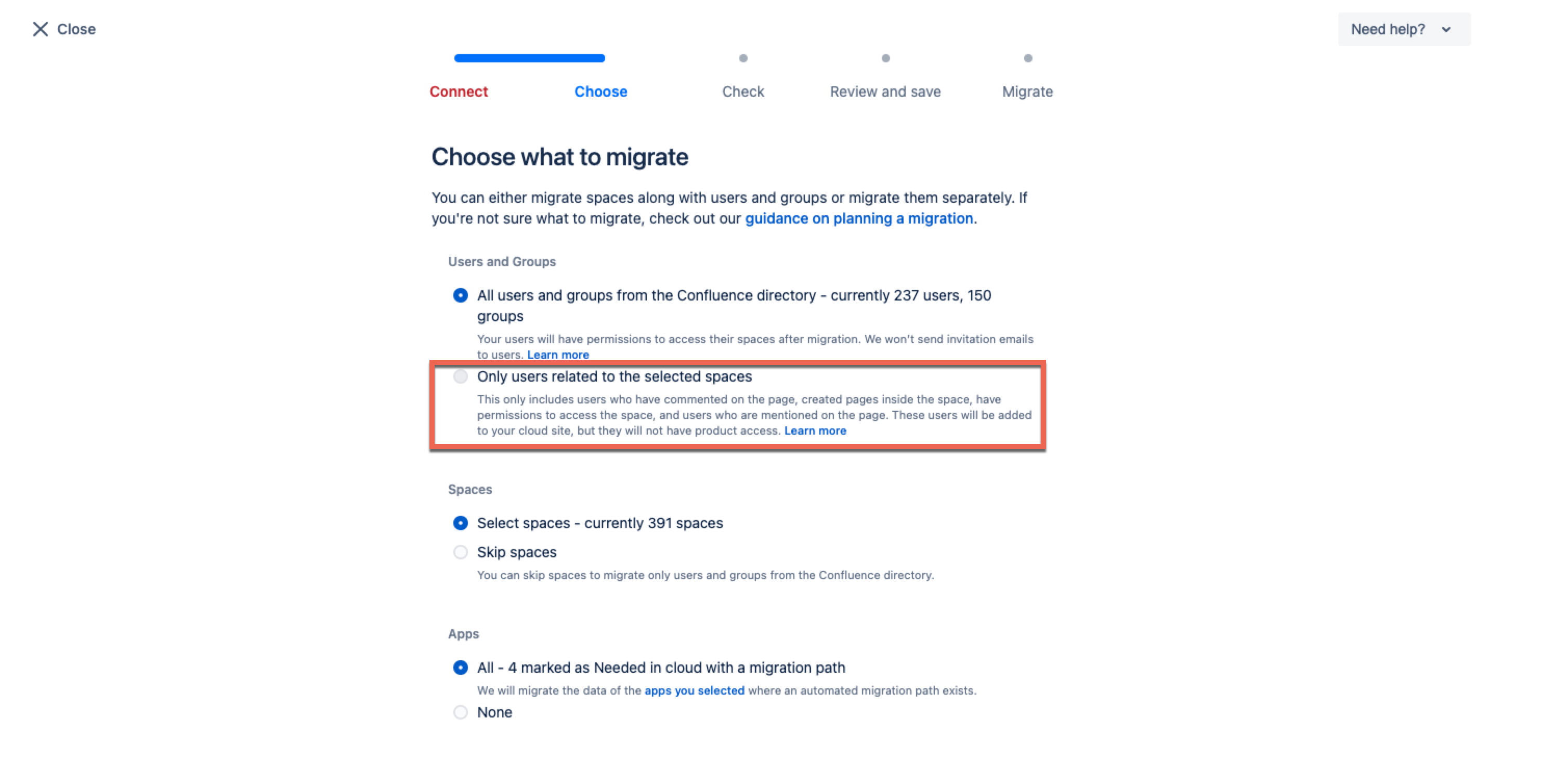
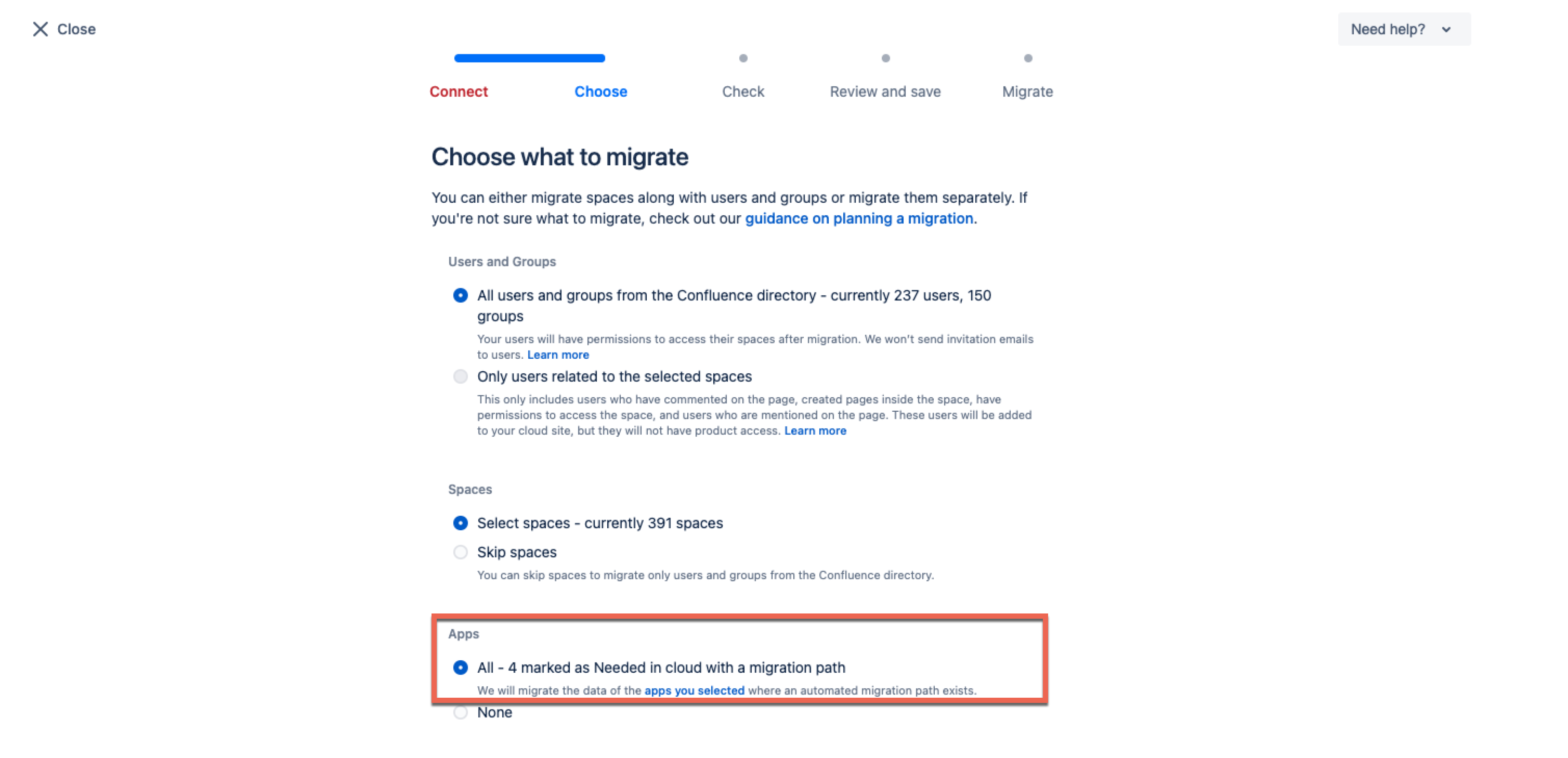
4. Select users and groups
Under Users and Groups, select Only users related to the selected spaces to avoid migrating too many users.
5. Select the apps
Under Apps, select All.
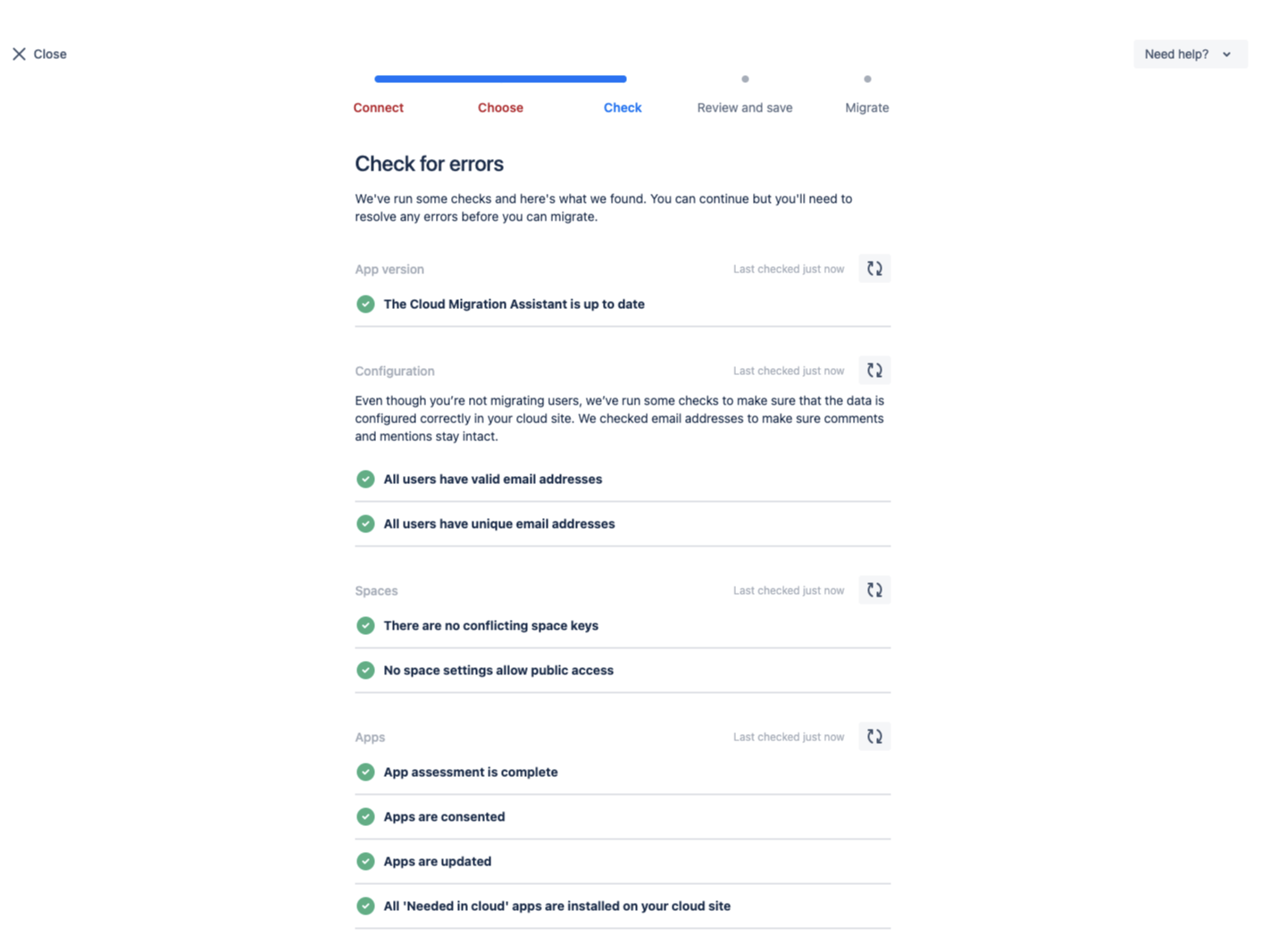
6. Check for errors
Check for errors. If everything looks fine, click Continue.
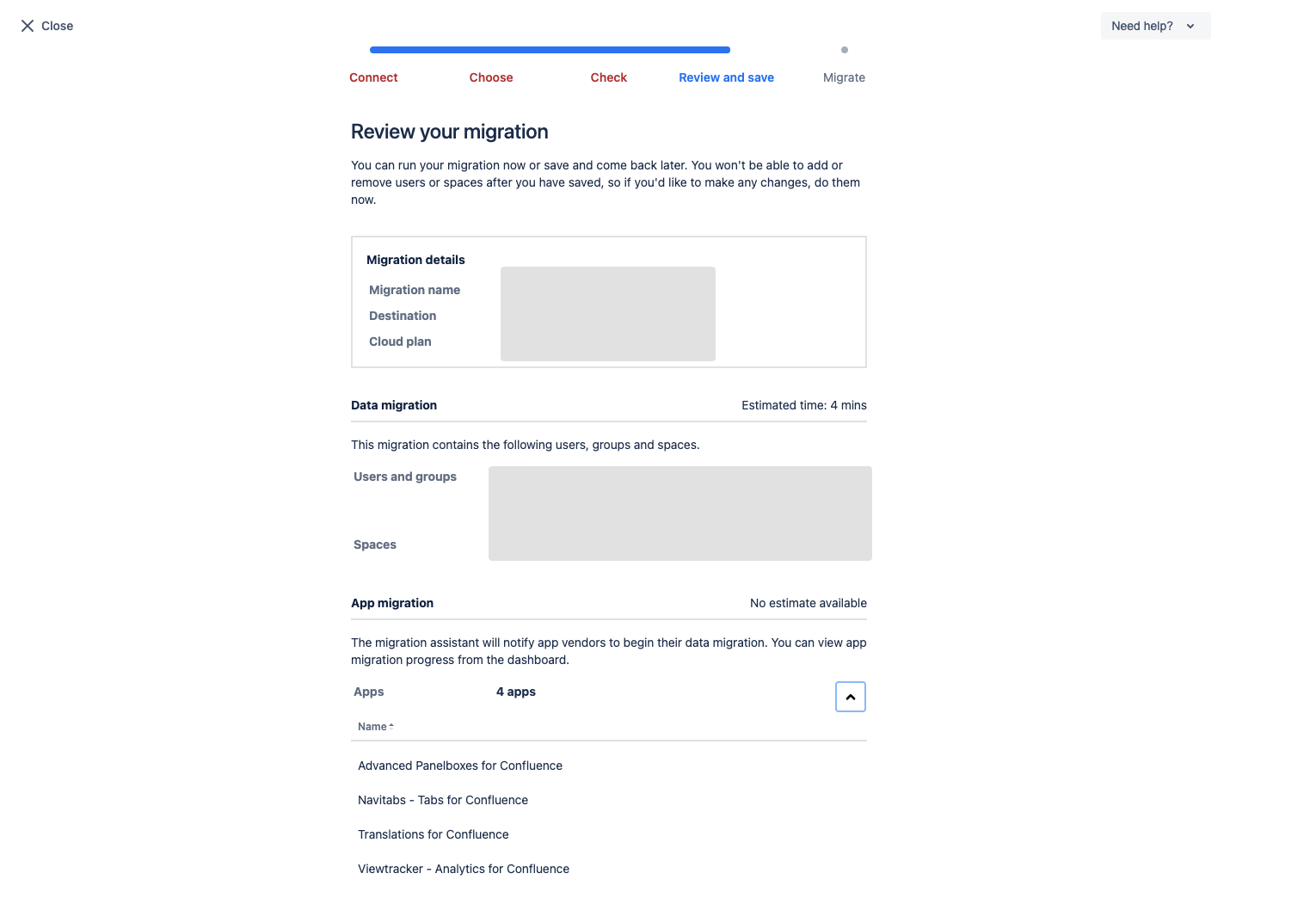
7. Review and run the migration
Review all settings. If everything looks fine, click Run now.
8. Check the result
If everything went well, you will be presented with this success screen:
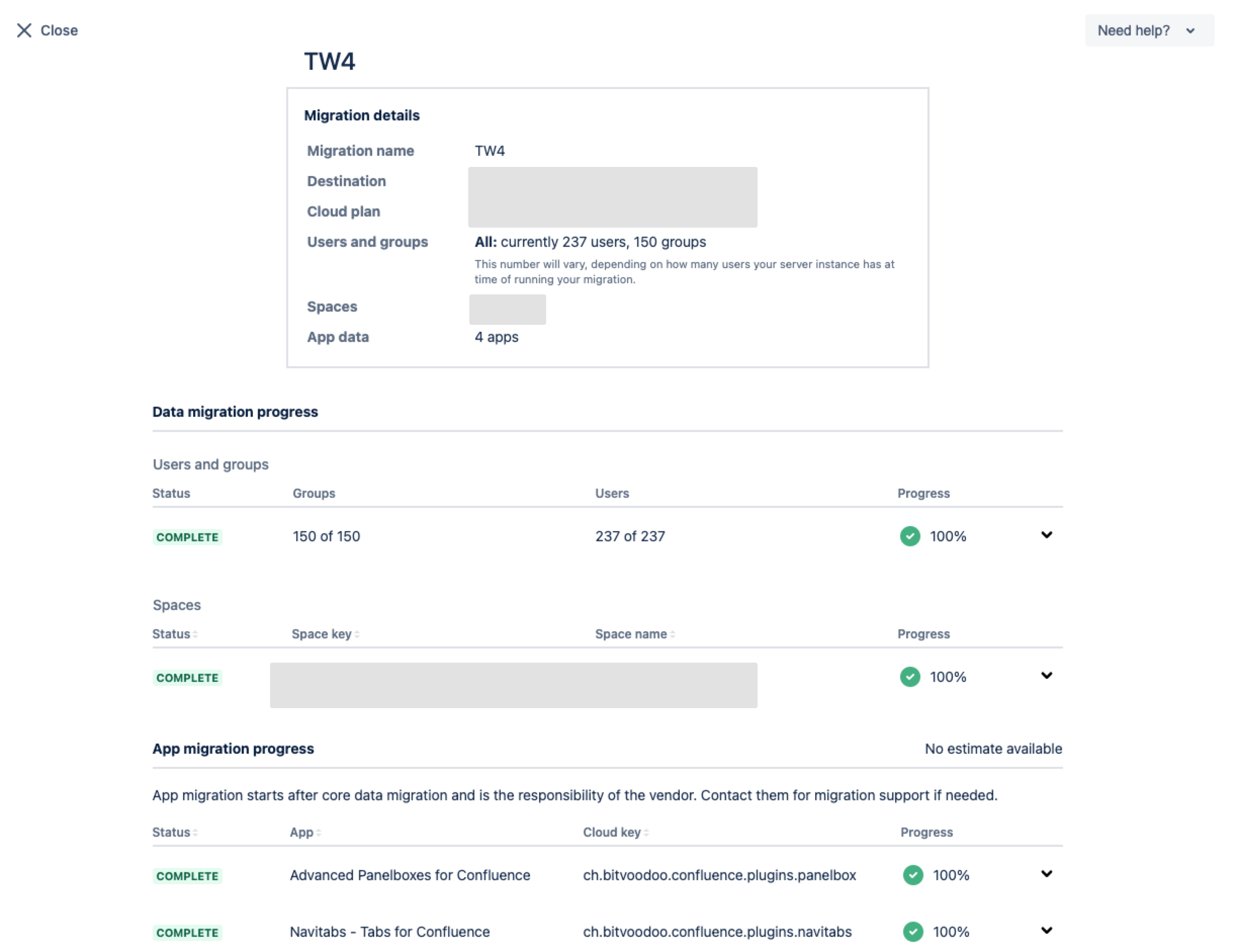
The migration is complete. If content isn't displayed as expected, see the errors below or contact support.
Errors in the migration process
Navitabs and Translations for Confluence
Some customers have encountered the error message “Migration has failed as the migration path of this app could not be determined” during the migration process of the Elevatic apps Navitabs and Translations for Confluence.
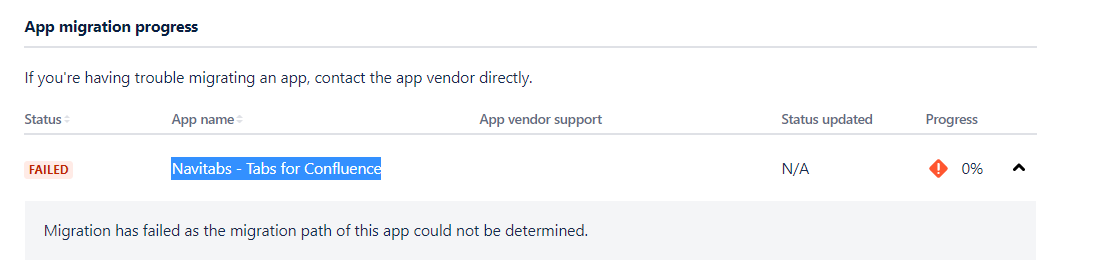
We don’t know why Atlassian will sometimes display this error. Navitabs and Translations macros are stored within the Confluence content and are therefore migrated with the normal content migration.
If you encounter the error above, please check the content of various migrated pages that contain Navitabs or Translations macros. If the macro content is displayed, you can safely ignore the error message.
If the macro content isn't displayed, please create a support ticket.
Search Analytics and Attachment Tracking
The apps “Search Analytics” and “Attachment Tracking” are bundled with Viewtracker - Analytics for Confluence. You can ignore the two apps in the migration process and simply select Viewtracker.
⚠️ However, please note that search queries will not be migrated to the Cloud. Please consider exporting and saving this information as a CSV for future reference. We are working on a solution to migrate this data in the future.
Please refer to the Viewtracker migration guide for all details.
Specific migration paths of Elevatic apps
We have additional migration information for each Elevatic app that is cloud-ready: