
Smart values carry results from one action to the next. Each SharePoint action stores its results as smart values, and later actions in the same rule can use them as input.
Good to know
-
A smart value is only filled if its action ran earlier in the same rule. Otherwise, it is empty, and the action that uses it fails.
-
The smart value list shows values from all SharePoint actions, including actions not in your rule.
-
Smart values are case-sensitive.
{{createdSharepointItem.folderUrl}}works,{{createdSharepointItem.folderurl}}does not. -
Smart values created inside a branch are only available inside that branch.
-
Jira’s own smart values, such as
{{issue.key}}, work in every field that accepts smart values.
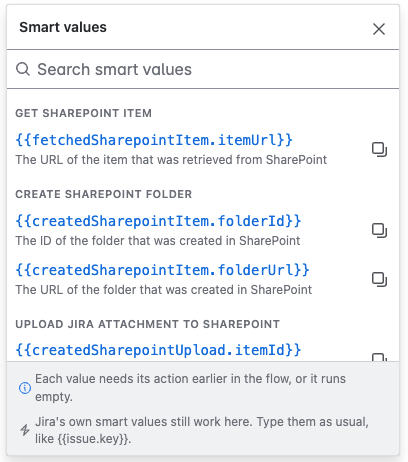
All SharePoint smart values
|
Smart value |
Description |
Type |
|---|---|---|
|
Create SharePoint folder |
||
|
|
URL of the folder |
URL |
|
Get SharePoint item |
||
|
|
URL of the item |
URL |
|
Upload Jira attachment to SharePoint |
||
|
|
URL of the uploaded file |
URL |
|
|
File name in SharePoint |
Text |
|
|
URL of the target folder |
URL |
|
|
Name of the site |
Text |
|
|
Name of the document library |
Text |
|
Disconnect SharePoint item from work item |
||
|
|
|
Boolean |
|
Delete SharePoint folder |
||
|
|
|
Boolean |
Connect SharePoint item to work item has no outputs.
Which value goes where
|
Action |
Input field |
Expects |
Example |
|---|---|---|---|
|
Create SharePoint folder |
Folder path |
Text: path within the library |
|
|
Folder name |
Text |
|
|
|
Get SharePoint item |
Item path |
Text: path within the library |
|
|
Upload Jira attachment to SharePoint |
Location |
URL of a folder |
|
|
Attachment name |
Text: file name of a Jira attachment |
|
|
|
Connect SharePoint item to work item
|
Work item |
Text: work item key |
|
|
Item URL |
URL of a file or folder |
|
|
|
Disconnect SharePoint item from work item |
Work item |
Text: work item key |
|
|
Item URL |
URL of a file or folder |
|
|
|
Delete SharePoint folder |
Folder URL |
URL of a folder |
|
Using results in conditions
Boolean values tell you whether an action actually did something. Use them in a Smart values condition to run the next steps only when it did.
The following rule adds a comment to the work item only if its folder was deleted:
-
ACTION Delete SharePoint folder, with Only delete if empty on
-
CONDITION Smart values condition:
{{deletedSharepointItem.wasFolderDeleted}}equalstrue -
ACTION Add comment: “The empty SharePoint folder was removed.”
Common Jira smart values for SharePoint rules
-
{{issue.key}}: Key of the work item, for exampleSUP-123. Use it in folder names, item paths, and Work item fields. -
{{issue.summary}}: Summary of the work item. -
{{project.key}}: Key of the space. -
{{changelog.Attachment.toString}}: Name of the attachment that was added to the work item. -
{{issue.attachment}}: All attachments of the work item.
For more Jira smart values, see Smart values in Atlassian Automation in the Atlassian documentation.