
Starting from Viewtracker 5.9.1, importing Viewtracker Views via CSV is possible. This is particularly handy if you migrate from one Confluence instance to another.
Viewtracker 8.1.1. and above detects whether the built-in Confluence Analytics was active before the Viewtracker installation. If this is the case, the collected data can be used for the Viewtracker reports. Read more about importing views into Viewtracker.
How to import Viewtracker Views
-
Make sure you have exported all the relevant Viewtracker Views from an existing Confluence instance.
-
In the new Confluence instance, go to the Global Report.
-
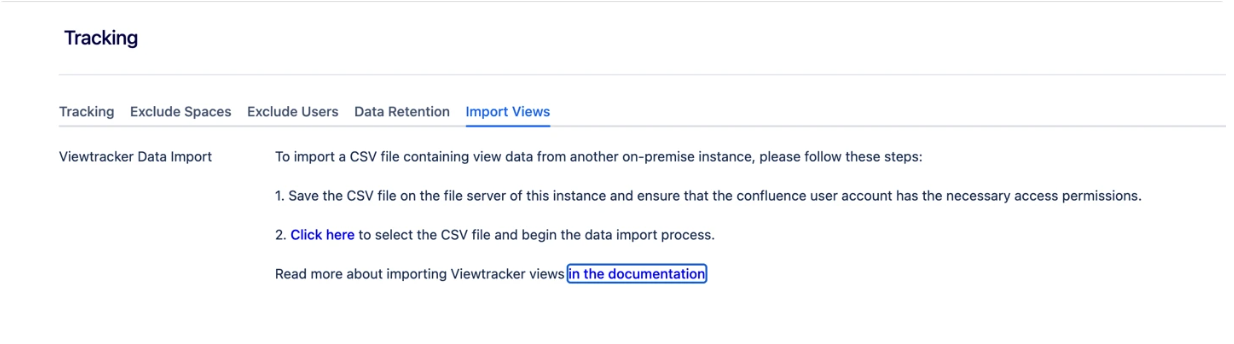
In the menu “Tracking”, switch to the tab “Import Views”.
.png?cb=d533eeb1edaa5a04b63bc465bb4ad4d4)
Confluence 9 and 10: Due to changes by Atlassian in Confluence 9 and 10, the CSV import no longer uses a file picker. Instead, you must provide the file path directly on the server.
-
Save the CSV file on the file server of this instance and ensure that the Confluence user account has the necessary access permissions.
-
Click "Click here" to select the CSV file and begin the data import process.
-
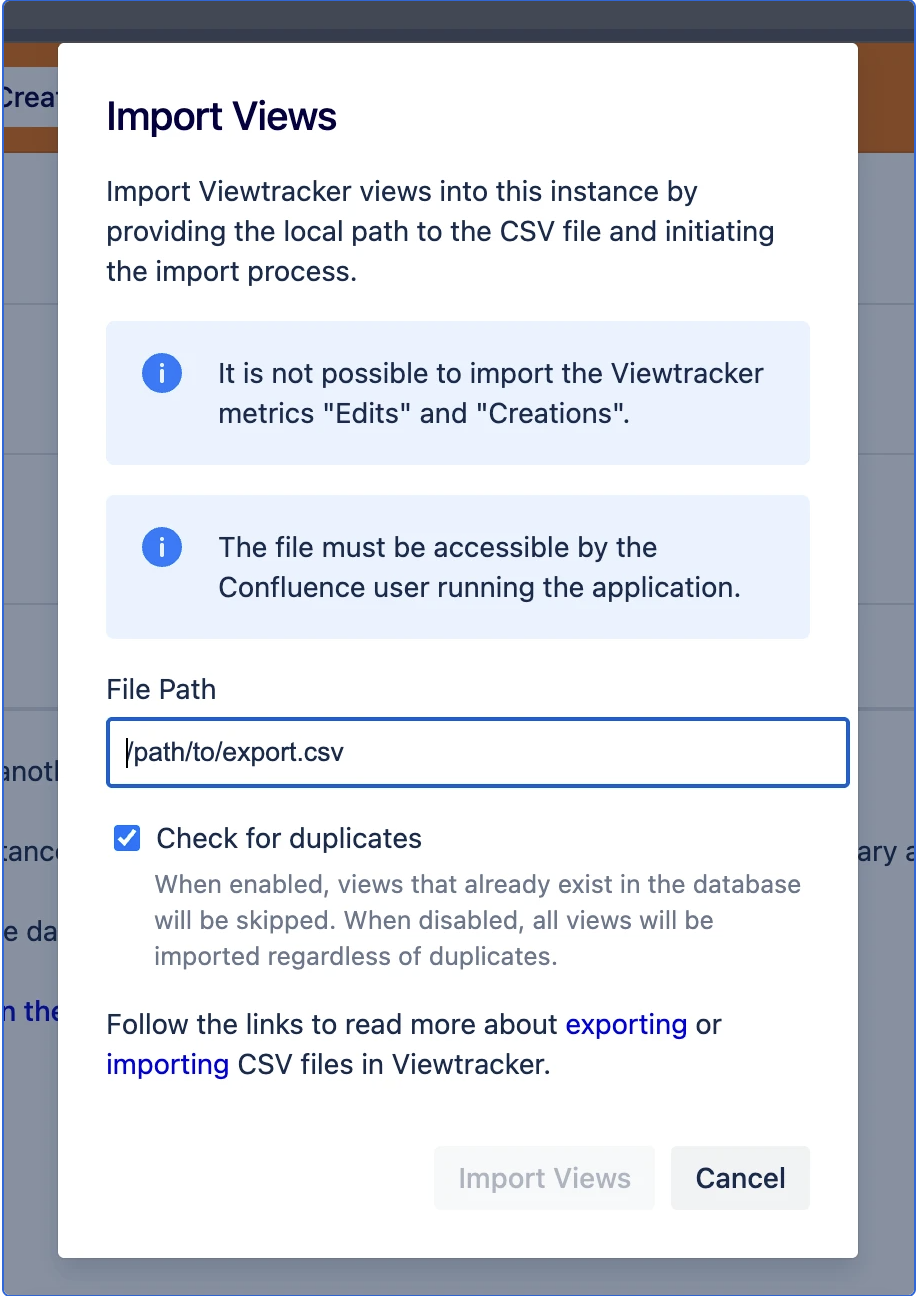
In the "Import Views" dialog that opens, enter the following:
-
File Path: Enter the full local path to the CSV file on the server (e.g.
/path/to/export.csv). The file must be accessible by the Confluence user running the application. -
Check for duplicates: Enable this checkbox to skip views that already exist in the database. When disabled, all views will be imported regardless of duplicates.
-
-
Click "Import Views" to start the import.
-
Wait until the message "x views were imported" appears.
The imported views will automatically appear in the Built-in Reports of Viewtracker.
Migrating Viewtracker data from Server/Data Center to Cloud
If you are migrating from Confluence Server or Data Center to Cloud, the Viewtracker views will be migrated automatically. It is not necessary to manually export and import the data. Please consult the Cloud Migration Guide for details.
Migrating Viewtracker views repeatedly
You can export and import Viewtracker views from one instance to another at any time. Viewtracker ensures that existing views from an earlier import are counted only once.
Restrictions on the Import
For technical reasons, it is not possible to import the Viewtracker metrics “Edits” and “Creations”. These metrics will be lost when migrating to another Confluence instance.
Related content