
SINCE 9.9
DevSensei offers Project Admins the ability to enforce a configuration on every repository in a project: from simple rules like requiring no failing builds to more involved scenarios like automatically creating tasks depending on the type of pull requests. This feature is called Shared Settings.
Shared Settings are configured using the same yaml file based configuration as the one used for repositories. The Project Admin needs to select a repository that will be used for the Shared Settings, and configure them there.
Once Shared Settings is turned on and a source repository is chosen, its workflows run in every repository of the project that is not explicitly excluded, in addition to each repository's own devsensei.yaml. In those repositories, DevSensei is always on and runs in DevSensei mode, even where a repository admin chose Code Owners mode; excluding the repository, or turning Shared Settings off, brings back the mode it had. Repository admins can still add workflows of their own, but cannot turn off the shared ones. Shared workflows run under names starting with "Project - ", and is prevented from conflicting with any repositories own workflow names. The source repository and excluded repositories keep their own configuration only. Follow the instructions below to complete the setup.
Enable Shared Settings
As Project Admin, go to the settings page of DevSensei in the project, and use the toggle under “Shared Settings”:

Select a repository
The next step is to select the repository the Shared Settings configuration will be read from.

The shared configuration will be read from the shared-devsensei.yaml file at the root of the repository, from the default branch.
If your repository does not have such a file, a warning message will ask for its creation.

shared-devsensei.yaml is not found
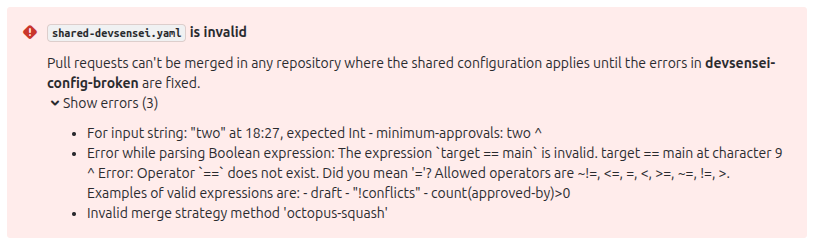
If the file is found but contains errors, an error message will report what needs fixing.
If your shared-devsensei.yaml file is present and valid, then you will see a message like the following:

If the selected repository contains an invalid shared-devsensei.yaml file in the default branch, all pull requests from all repositories in the project will be blocked until this is fixed. If it is absent, however, it will be considered as empty and won’t do anything.
Modify the existing configuration, if need be
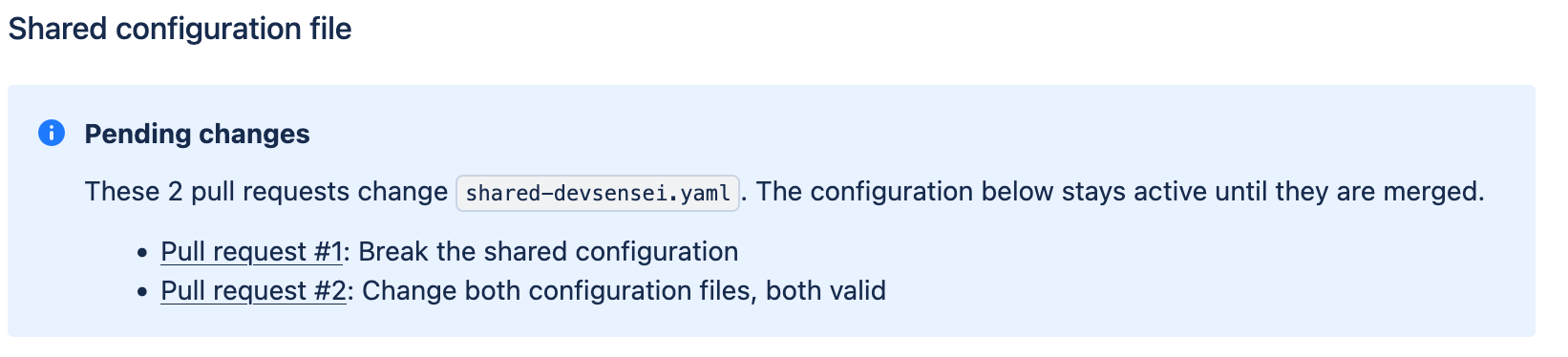
Once a repository with a shared-devsensei.yaml file is selected, the editor will display its content. It can be modified from there. By clicking “Save”, a pull request will be created with the modifications. Changes only take effect once that pull request is merged.

minimum-approvals from 2 to 3
If there are some pull requests in progress, then you can review them from the settings page.
Exclude some repositories from the Shared Settings
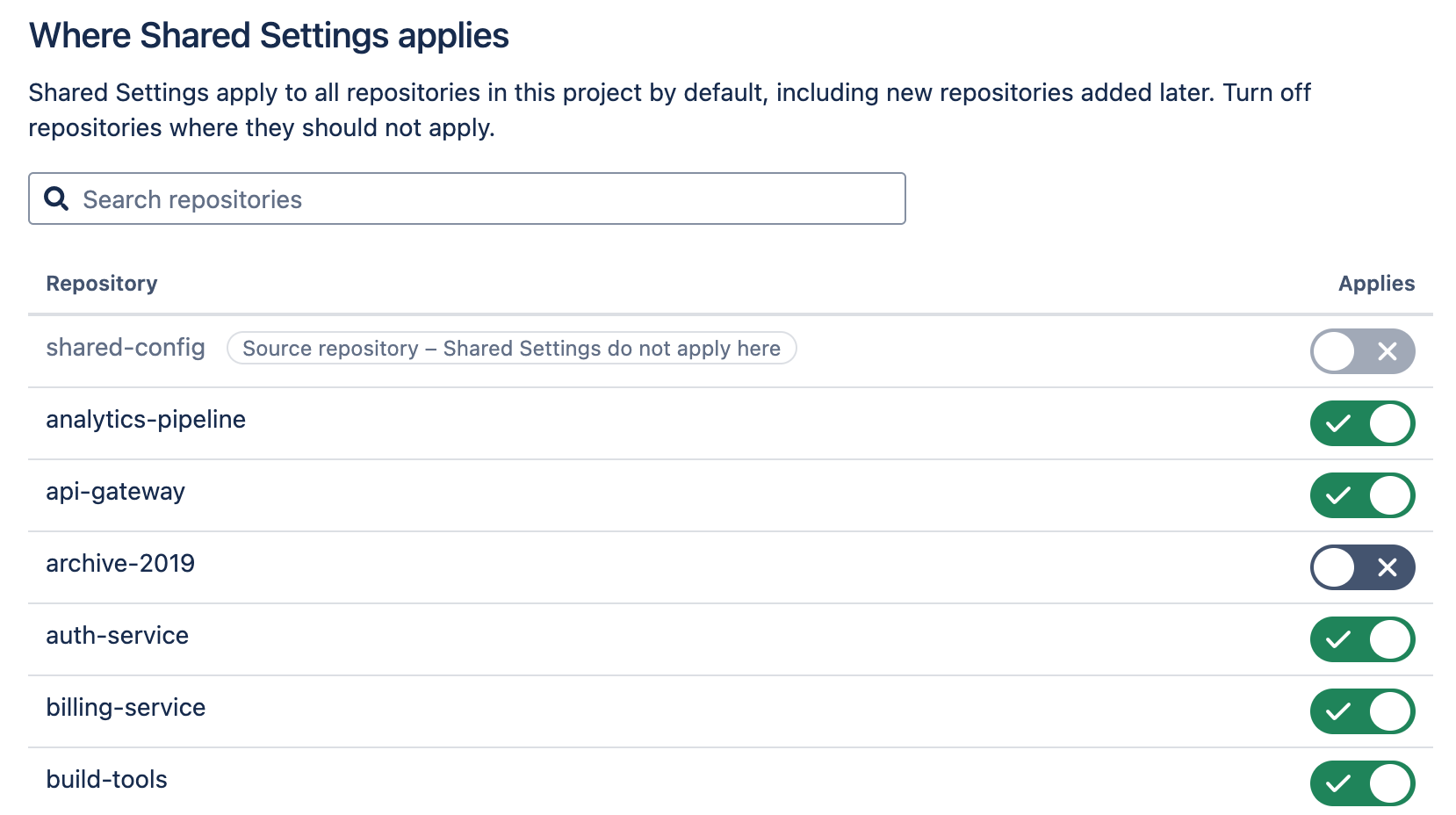
By default, the shared settings are enforced upon each repository in the project (even the ones created later on). If the shared settings should not be applied to some repositories, they need to be explicitly excluded using the associated toggle.
Protect the selected repository
Any user having write access to the selected repository can modify the configuration by modifying the shared-devsensei.yaml file, even without passing through the Project Settings page.
Therefore, we recommend to
-
review the repository permissions on the selected repository
-
define a
devsensei.yamlfile (not theshared-devsensei.yamlfile) for the repository itself, in order to protect against unwanted changes.