You can show any Confluence Cloud page inside a SharePoint page using the Confluence Page web part.
Before you start
A SharePoint admin must have completed the embedding setup. You need edit rights on the SharePoint page.
Copy the embed code from Confluence
-
Open the Confluence page you want to embed.
-
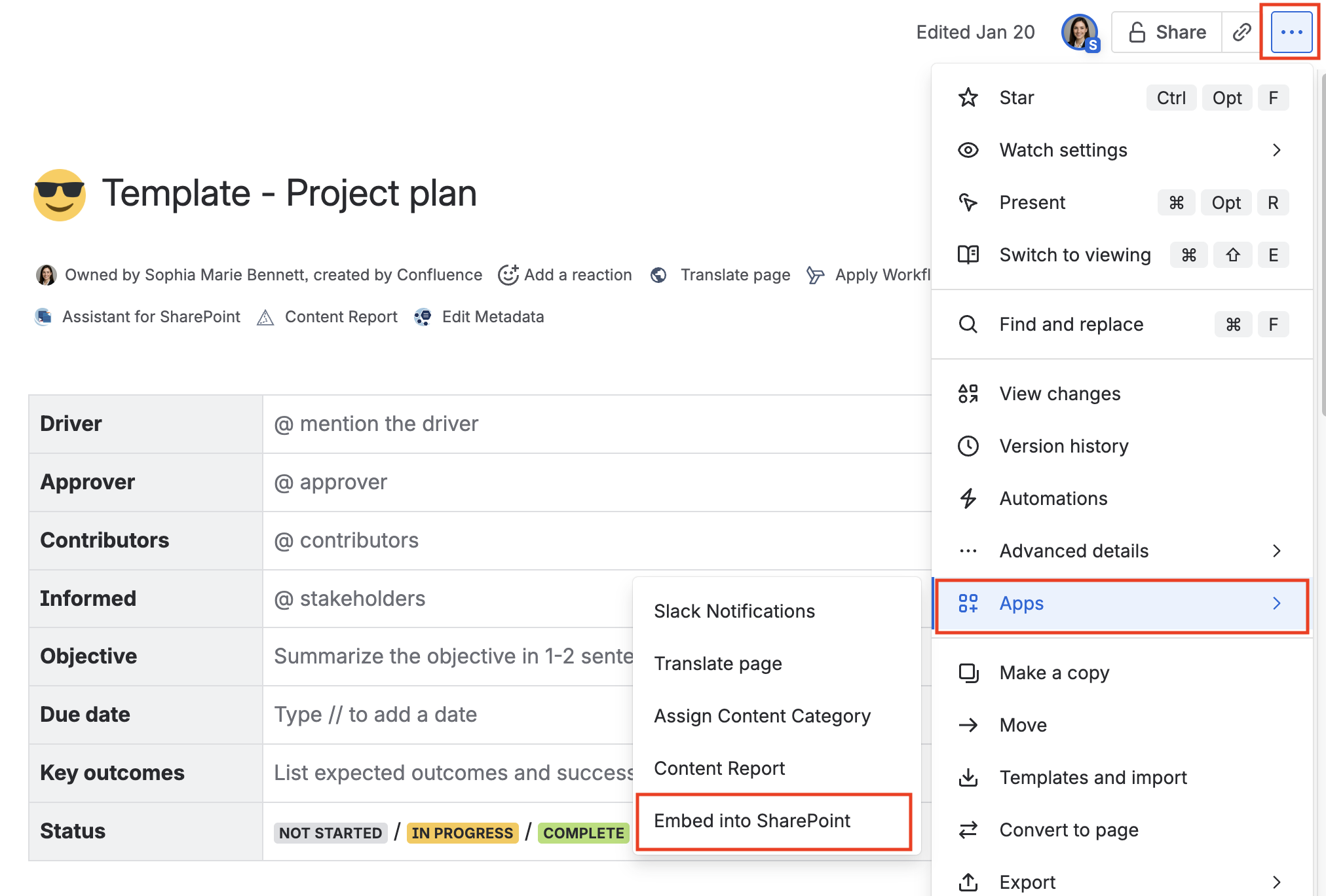
Select more actions, then Apps, then Embed into SharePoint.
-
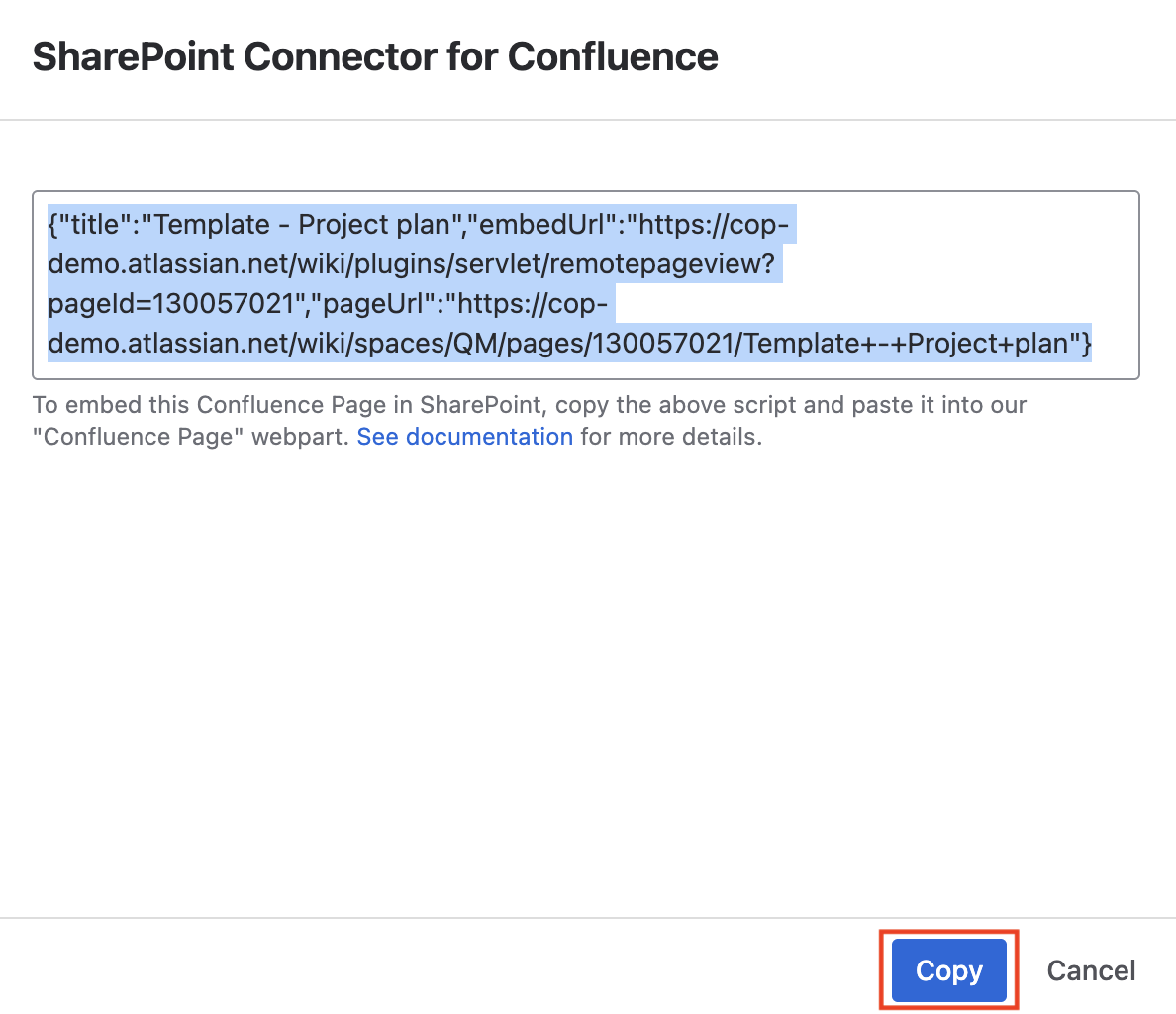
Copy the Confluence page embed script.
-
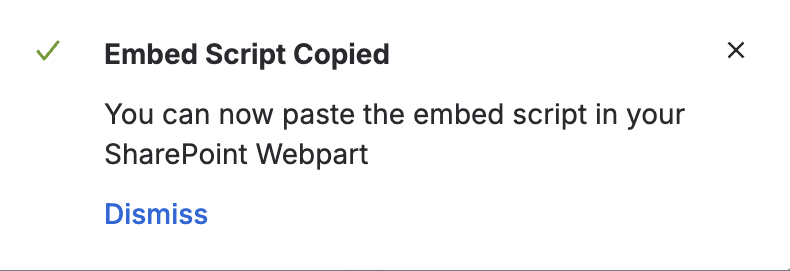
A pop-up appears when the script is copied successfully.
Add SharePoint web part
-
Edit the modern SharePoint page.
-
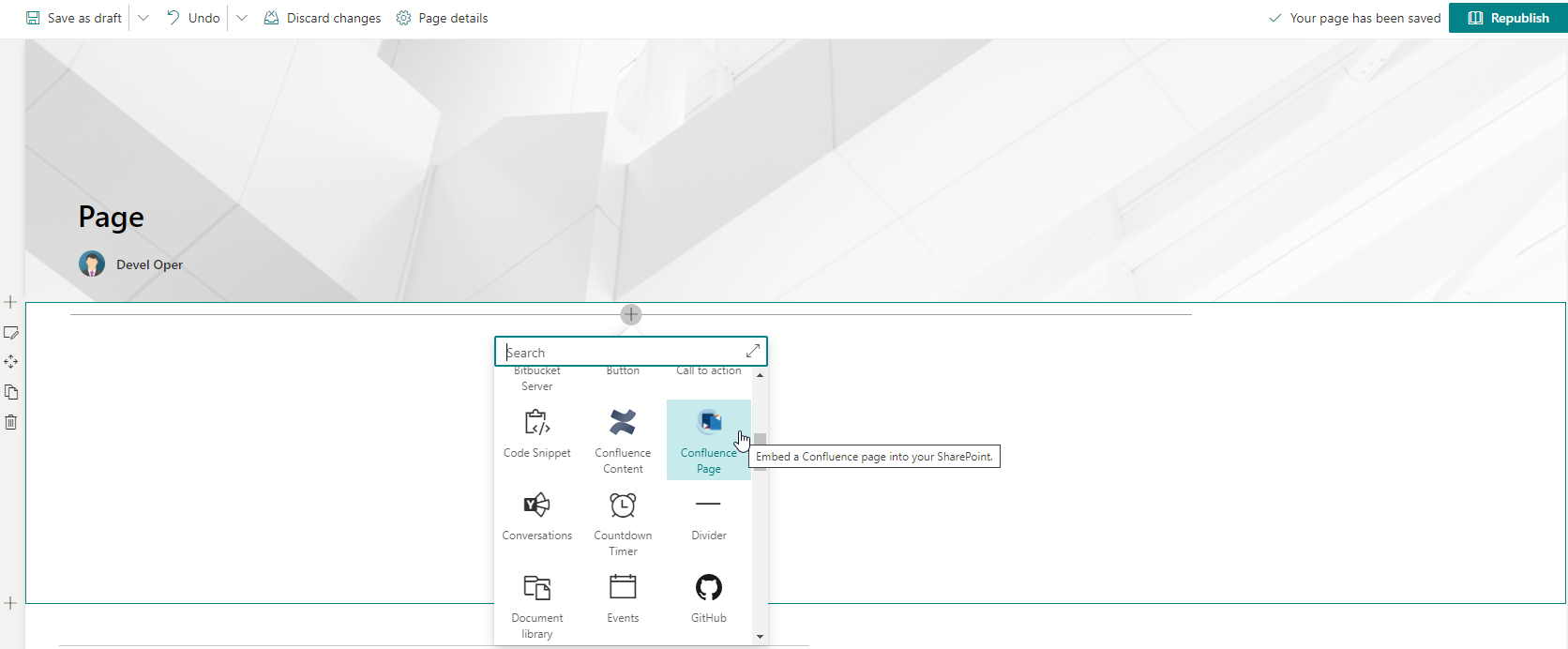
Select the + icon and choose Confluence Page.
Configure the web part
-
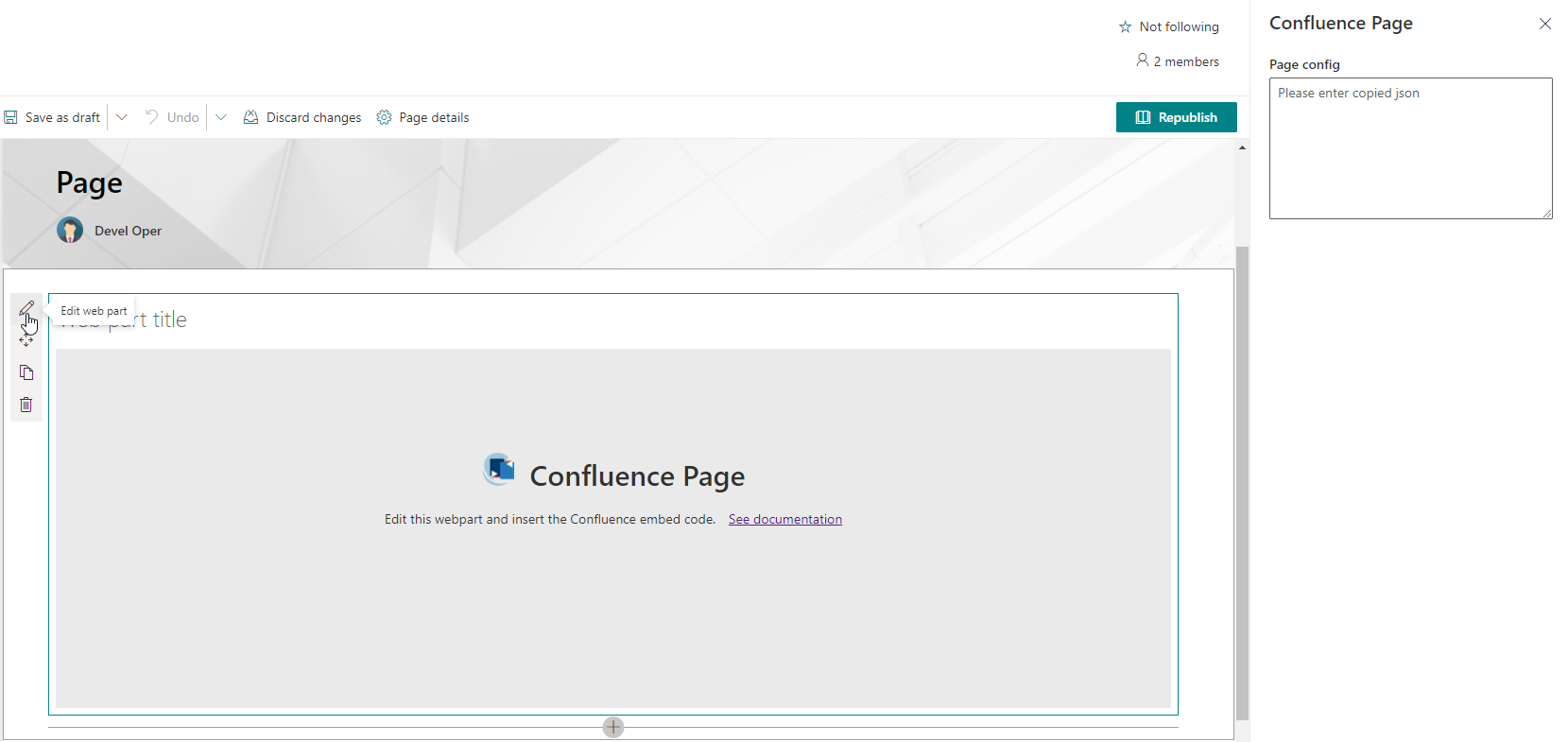
Select Edit web part.
-
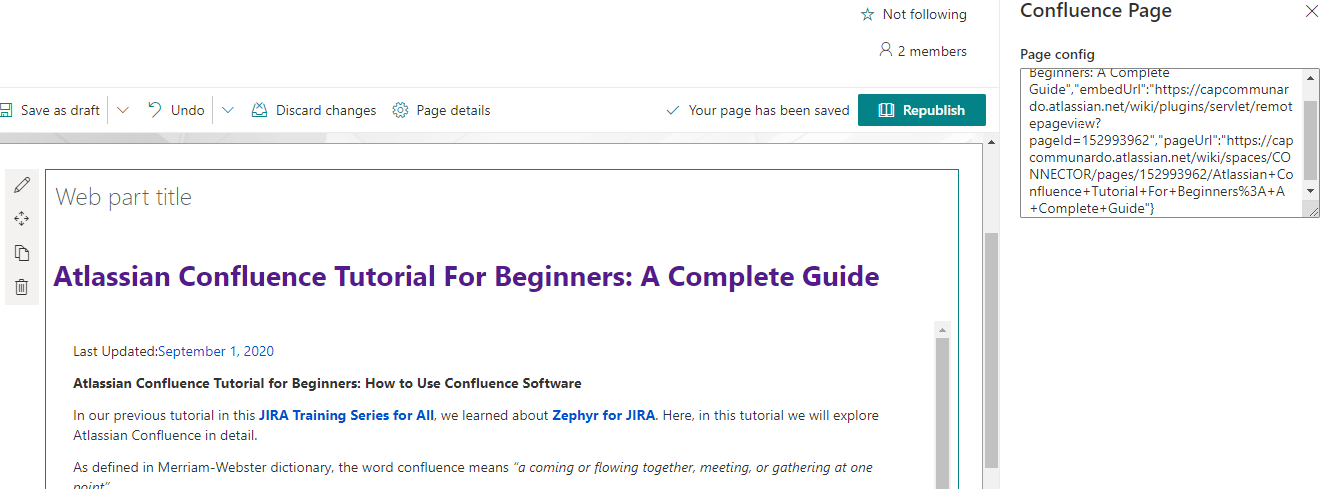
Paste the embed script into the Page config field. The Confluence page renders automatically.
-
Save the SharePoint page.
Limitations
-
You can add up to 10 web parts to a single SharePoint page.
-
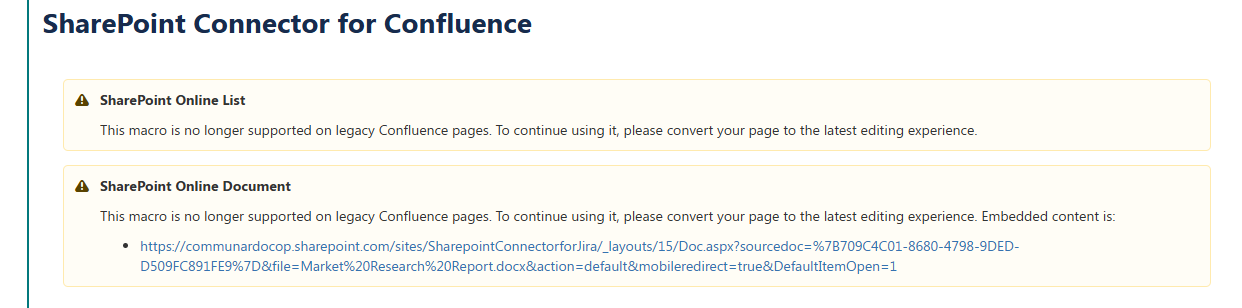
Dynamic content is not rendered. Confluence pages containing SharePoint Connector macros display a warning that the macro is no longer supported.
-
Confluence blog posts are not supported.
If the page doesn’t appear
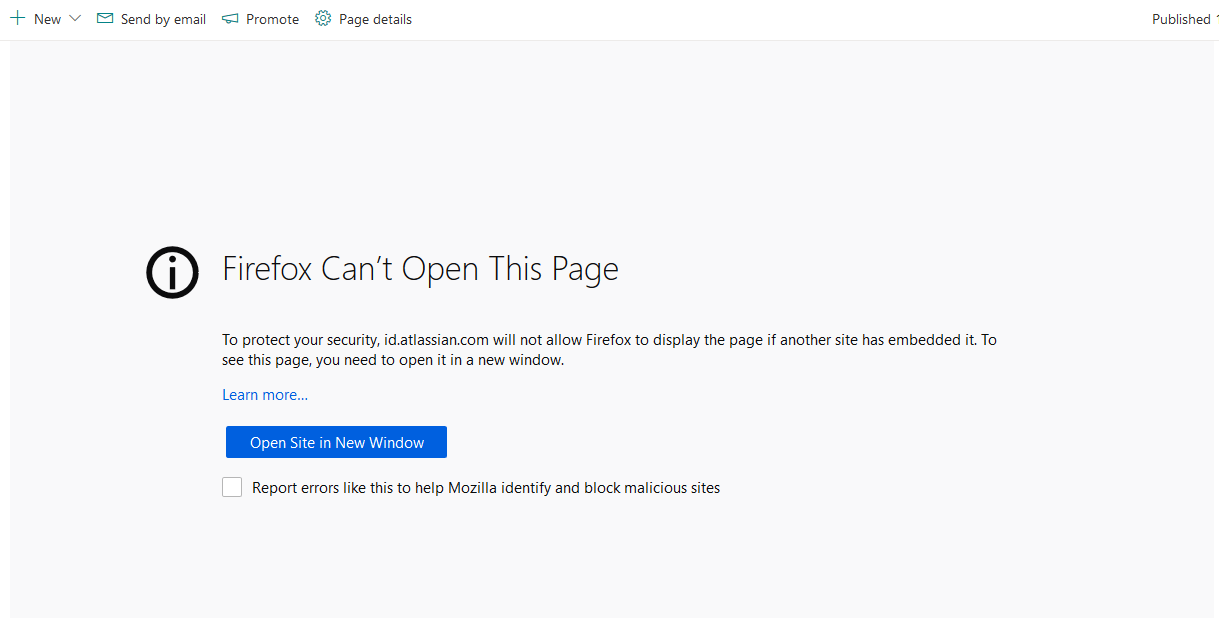
If the page doesn’t appear, you might not be signed in to Confluence; depending on your browser, you will see an error message like the one below. Sign in to Confluence in the same browser, and make sure your browser accepts third-party cookies. See the User guide for details.