
Overview
This guide explains how to work with SharePoint Connector for Confluence Cloud content directly in Confluence, so you can keep Microsoft 365 content close to the pages where your team collaborates.
What you can do
Use the app to embed SharePoint Online documents, lists, and folders on Confluence pages. You can also ask the Smart Assistant about a document and embed Confluence pages back in SharePoint without switching between systems.
Who this guide is for
Confluence users who work with Microsoft 365 content in their daily work. You do not need admin rights to follow it.
Before you can use the app, a Confluence global admin installs it. For embedding Confluence pages in SharePoint, a SharePoint admin completes a one-time setup. If the app is not yet available to you, contact your admin or see the Admin guide.
What you need
Access
You need an active Confluence Cloud account and access to SharePoint Online. You must be signed in to both in the same browser. If you are not signed in to SharePoint, the app shows an authentication message instead of your content.
Sign in and grant access
The first time you use the app, you grant it access to your SharePoint content. Select Login to SharePoint and complete the Microsoft consent dialog.
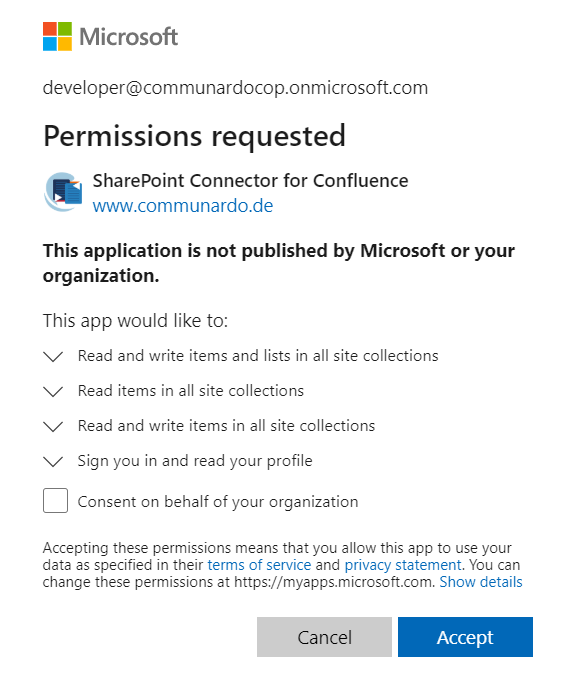
The app operates within your account, so you only ever see content you are already allowed to open in SharePoint. You can revoke this access at any time from your Atlassian connected apps.
Browser and cookies
Use a browser that Atlassian officially supports for its Cloud products. The mobile view does not support edit mode or adding macros.
|
Requirement |
Details |
|---|---|
|
Third-party cookies |
Your browser must accept third-party cookies. If you block them, allow |
|
Privacy extensions |
Blockers can cause authentication errors. Make sure they are disabled for these domains. |
Get help
For common questions, see the frequently asked questions. If you need more help, contact Elevatic support.