
Decide which SharePoint Connector for Confluence features are available to your users. You can turn AI features, the Assistant for SharePoint byline, and SharePoint Folders on or off, and control usage telemetry.
Before you begin
You need Confluence global admin permissions.
Open the configuration
-
Open the Confluence administration.
-
In the Apps section, select the SharePoint Connector for Confluence entry.
-
Adjust the settings described below.
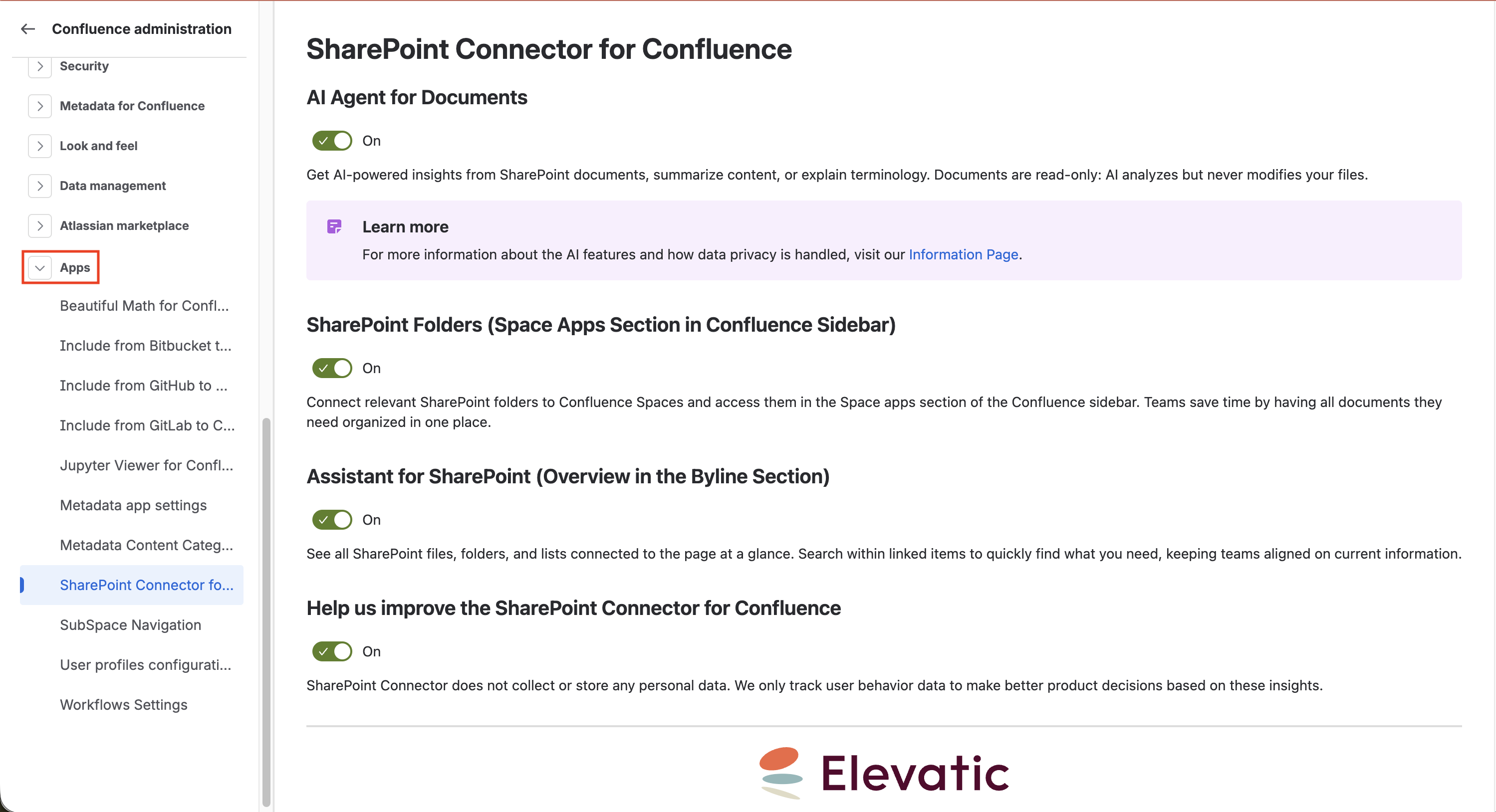
Settings
AI Agent for Documents
AI features are enabled by default. Turn them off if you don't want users to use the Smart Assistant. For how AI data is handled, see AI features data privacy.
SharePoint Folders
SharePoint Folders let teams browse and upload selected folders from within a Confluence space. Turn this on or off for all users. SharePoint permissions are always respected. Users reach SharePoint Folders through the Space Apps section in the space sidebar.
Assistant for SharePoint
The Assistant for SharePoint displays SharePoint documents, folders, and lists connected to a Confluence page in the page’s byline. When you turn it off, the app is no longer visible in the byline.
Application Insights
Application Insights is enabled by default and sends anonymous usage data that helps improve the app. To opt out, adjust the Help us improve the SharePoint Connector for Confluence setting. It collects no personal data.
Your changes apply to all users. Disabled features no longer appear for them.