
As a rule of thumb, only users who have direct access to information in SharePoint Online also have access to it when the information is embedded in Jira Cloud.
How it works
For authorization within the app, the app does not use the user directories of SharePoint Online and Jira Cloud (for example, Azure AD and Atlassian accounts) directly. This means that the user bases in Jira and Azure AD can differ.
In the background, the app uses OAuth 2.0 to authenticate with the Microsoft identity provider. This lets the app access the Microsoft Graph API on your behalf, with the scopes listed in the Admin guide. Because the app is built on Atlassian Forge, Atlassian's backend infrastructure handles this authentication flow, as described in Providers in the Atlassian developer documentation.
After you complete authentication and authorization once, the app does not ask you to consent again the next time you use it.
For an overview of the app's architecture, see How SharePoint Connector for Jira works.
How your permissions affect the Jira integration
You also have to consent to the app before you can use its features.
You are not signed in to Microsoft
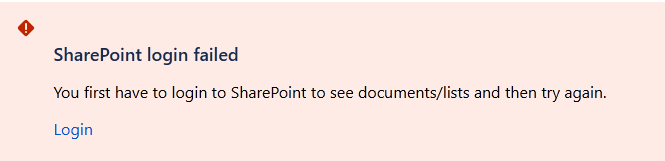
If you are signed in to Jira but not to Microsoft, you do not see any SharePoint content. Instead, the app shows the following message:
You are signed in to Jira and Microsoft
If you are signed in to both Jira and Microsoft, the app panel on the work item shows only the SharePoint content that your Microsoft account can see in SharePoint.
This applies especially to document libraries: if your SharePoint account has access to only some of the folders in a library, the app shows only those folders.
You are signed in without permission
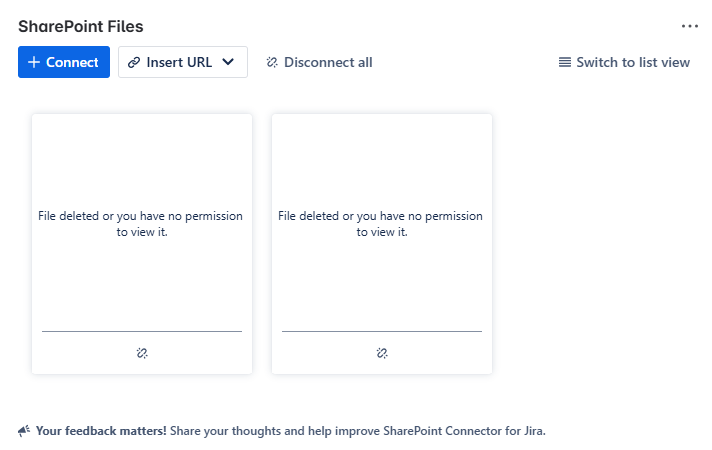
If the panel is configured to show files or folders that your SharePoint account is not allowed to see, the app shows the following hint:
Guest access
Guest access is not currently supported.