
There are three ways to synchronize user profile elements with a central storage:
-
Full synchronization via scheduled job (periodic, automatic)
-
Full synchronization via manual start (on demand, for all users)
-
Login synchronization (on demand, for one user when logging in)
During any synchronization, the values of the configured user profile elements are updated from the configured LDAP repositories according to the mapping you defined when configuring the profile elements.
Important Notes
One-way synchronization
Synchronization works in one direction only: data is pulled from the repository and written into the user profile elements. It is never written back to the repository – even if the repository is configured as “Read/Write”.
No support for delegated authentication
Synchronization does not work for internal directories for LDAP authentication (delegated authentication).
1. Synchronization via Scheduled Jobs
Full synchronization for all users can be performed periodically via a scheduled job.
By default, the app is configured to start this synchronization at 1:11 a.m. every night.
You can configure this behavior here:
Administration Console > Users & Security > User Profile Configuration > Advanced Options

Image 1: Advanced Options - Synchronization via Scheduled Jobs
Editing the Scheduled Job
From the Advanced Options screen:
-
Click Edit Scheduled Jobs to open the configuration of all scheduled jobs.
-
Look for the job named “External User Directory Sync Job”.
-
Use this job to:
-
Enable or disable periodic synchronizations.
-
Adjust the schedule (time and interval) for full synchronization.
-
Behavior in Read-only Mode
If your Confluence instance is in read-only mode, the “External User Directory Sync Job” is configured not to execute the synchronization, to prevent profile data from being updated.
2. Full Synchronization via Manual Start
You can also trigger a full synchronization manually from the Advanced Options:
Administration Console > Users & Security > User Profile Configuration > Advanced Options
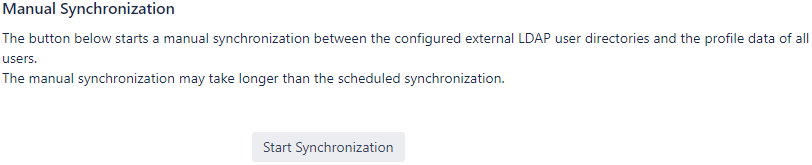
Image 2: Advanced Options - Manual Synchronization
On this screen, you will find a Start Synchronization button in the synchronization section.
-
Clicking Start Synchronization triggers a full synchronization for all users, as configured.
-
After completion, a short summary of the synchronization is displayed.
Since a full synchronization is a resource-consuming task, it should not be started during business hours!
3. Login Synchronization
With login synchronization, a user’s profile data is synchronized when that specific user logs in.
Since version 1.10, this setting is disabled by default because it can negatively impact login performance.
You can change this in:
Administration Console > Users & Security > User Profile Configuration > Advanced Options
Enabling Login Synchronization
On the Advanced Options screen:
-
Activate the toggle Enable Login Synchronization.
When enabled:
-
Each time a user logs in, their profile data is synchronized with the user repository.
-
Only the user who is logging in is synchronized during that login.

Image 3: Advanced Options - Login Synchronization
Behavior in Read-only Mode
If your Confluence instance is in read-only mode, login synchronization will not run, and the user’s profile data will not be updated during login.
User Policies
This page section explains how the app determines which users it treats as active and how it handles unlicensed users.
Only active users are:
-
Synchronized
-
Exported
-
Considered in organization charts
This is helpful if your user repositories contain non-person entries (e.g., rooms or computers) that should not be treated as regular users.
You can configure these settings here:
Administration Console > Users & Security > User Profile Configuration > Advanced Options → Active User Policy
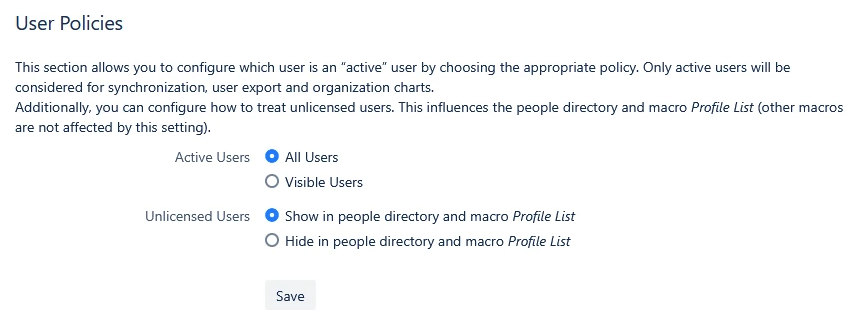
Image 4: Advanced Options - Active User Policy
Active Users
The Active Users setting controls which users the app considers “active”. It offers two policies:
-
All Users
All users present in the system, i.e., all users synchronized from the configured User Directories, even if they are not visible everywhere (for example, not yet listed in the People Directory).
These are the users you see when you:-
Navigate to Manage Users in global administration, and
-
Click Show all Users
-
-
Visible Users
Only users that are currently visible, for example:-
In the People Directory
-
Via user search
-
Unlicensed Users
In some setups, a user can exist in the directory (and therefore be known to Confluence) but does not currently have a license. The Unlicensed Users setting controls whether those users are displayed in user-facing locations.
This setting influences:
-
The People Directory
-
The macro Profile List
The Unlicensed Users configuration offers two policies:
-
Show in People Directory and Profile List
Use this if you want the People Directory and Profile List to reflect everyone who exists in the directory—regardless of current licensing. -
Hide in People Directory and Profile List
Use this if you want the People Directory and Profile List to only show users who are currently licensed. This can reduce clutter in large directories and prevent accounts from appearing in user-facing lists that are not meant to appear there.