
You can add data from one or several GitHub Enterprise instances. For each instance, follow the instructions below.
Requirements
To include data from GitHub Enterprise, it must fulfil these requirements:
-
It must be reachable via a public DNS entry and IP.
-
It must use HTTPS.
-
The HTTPS certificate must be valid. Self signed certificates or certificates signed by your own root certificate authority are not accepted.
-
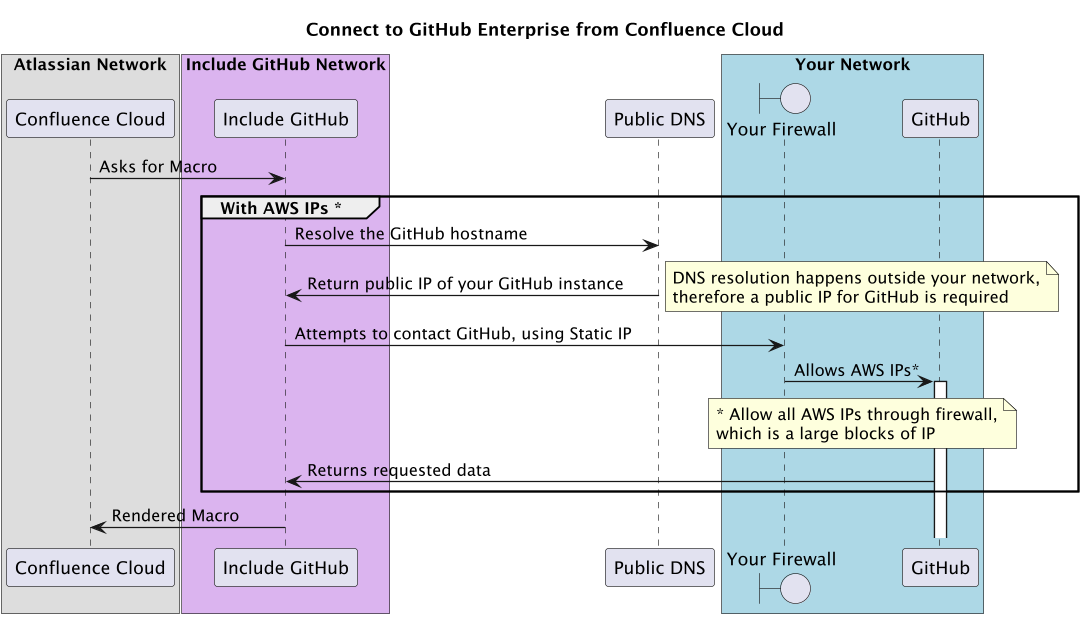
The firewall has to allow traffic from the public internet. Or you can choose to use a static IP, so you can white list the IPs in the firewall. The Static IPs are 3.251.32.127, 54.195.145.1. When using the static IP, QuotaGuard is used with its privacy and security policy.
Connection Options
You can choose how the app connects to your GitHub instance:
-
Default (AWS IP ranges):
Connections originate from dynamic AWS IP ranges, which may change over time. Your firewall must allow a broader set of IPs. -
Static IPs (optional):
Connections originate from fixed IP addresses, allowing you to restrict firewall access to a small, known set of IPs. These IPs are shared across customers and are used only for network-level access.-
Customer Isolation
-
Although static IPs are shared, customer access is fully isolated at the application level. Each request is tied to a specific Confluence instance and uses its configured credentials, ensuring access is limited strictly to the repositories and permissions defined by your setup.
-
-
Connect to GitHub Enterprise from AWS IP (default)
When GitHub Enterprise content is included in Confluence, Include GitHub will try to connect from the outside to your network. It will find the IP via public DNS and tries to connect to your GitHub instance. Therefore your firewall must allow traffic from the outside.
Connect to GitHub Enterprise from dedicated Static IP (optional)
The 'Static IP` option will ensure that Include GitHub connects the specified IPs, so that your firewall can limit incoming traffic to those IPs. The Static IPs are 3.251.32.127 and 54.195.145.1. When using the static IP option, QuotaGuard is used with its privacy and security policy. GitHub still must have a public IP and a public DNS entry.
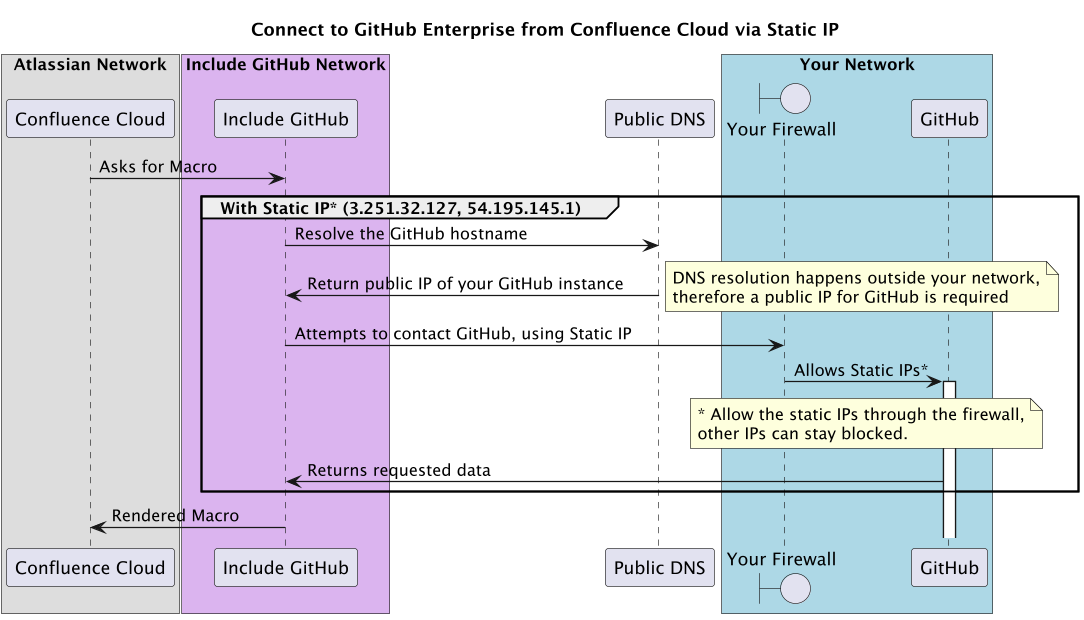
Please ensure your firewall allows incoming HTTPS traffic from these IPs on the following ports:
-
443(standard HTTPS) -
8443(alternative HTTPS)
Security & Data Handling
-
All communication is secured over HTTPS
-
Access is authenticated using the GitHub credentials you configure
-
Credentials are stored encrypted; no repository content is stored or replicated
-
Data is fetched on demand per request and only used to render content in Confluence
-
Your GitHub data remains in your own instance at all times
GitHub Enterprise Cloud vs. Server (GHES)
The app supports both GitHub Enterprise Server (GHES) and GitHub Enterprise Cloud (ghe.com). While the configuration in Confluence is broadly similar, the network and security model differs between the two.
GitHub Enterprise Server (GHES)
For GHES (self-hosted), the integration connects from the cloud into your network. This means:
-
Your instance must be publicly reachable (DNS + IP)
-
Your firewall must allow inbound HTTPS traffic
-
You can optionally use Static IPs to restrict access to specific IP addresses
GitHub Enterprise Cloud (ghe.com)
For GitHub Enterprise Cloud, communication is outbound only:
-
The app connects directly to GitHub’s API over HTTPS
-
No inbound access to your network is required
-
No firewall or DNS configuration is needed on your side
-
However, if your organization enforces GitHub IP allow lists, then you would use the static IP option and would need to allowlist the IPs
3.251.32.127and54.195.145.1in GitHub to permit API access.
Configuration Steps
You can use one of two authentication method to access resources from a GitHub Enterprise instance: Personal OAuth Authentication or Shared Access Token.
Personal OAuth Authentication
Every Confluence user needs to authenticate via OAuth to this GitHub site in order to access included private repository files. OAuth authentication with GitHub Enterprise and a GitHub account for each user is required. Users can only access files they can view on GitHub Enterprise.
Step 1: Get configuration information for the app in Confluence
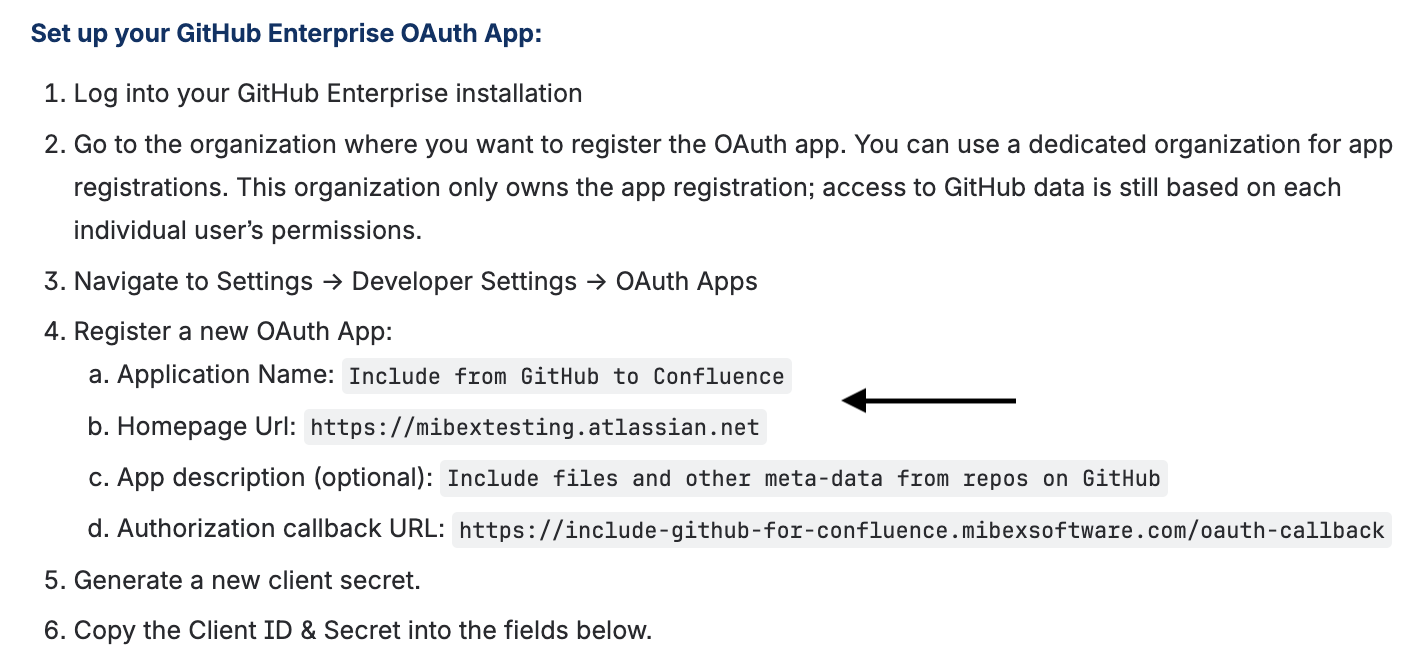
Within Confluence, navigate to the app configuration panel (Confluence administration → Apps → Include from GitHub to Confluence → GitHub Enterprise → Add+ → Personal OAuth for each Confluence user) to obtain the configuration information needed to register the app in GitHub. A configuration guide will be provided in this panel.
Step 2: Register the app as an OAuth app in GitHub
You need to register the app as an OAuth app in GitHub:
-
Navigate to the organization where Include GitHub for Confluence should be registered.
-
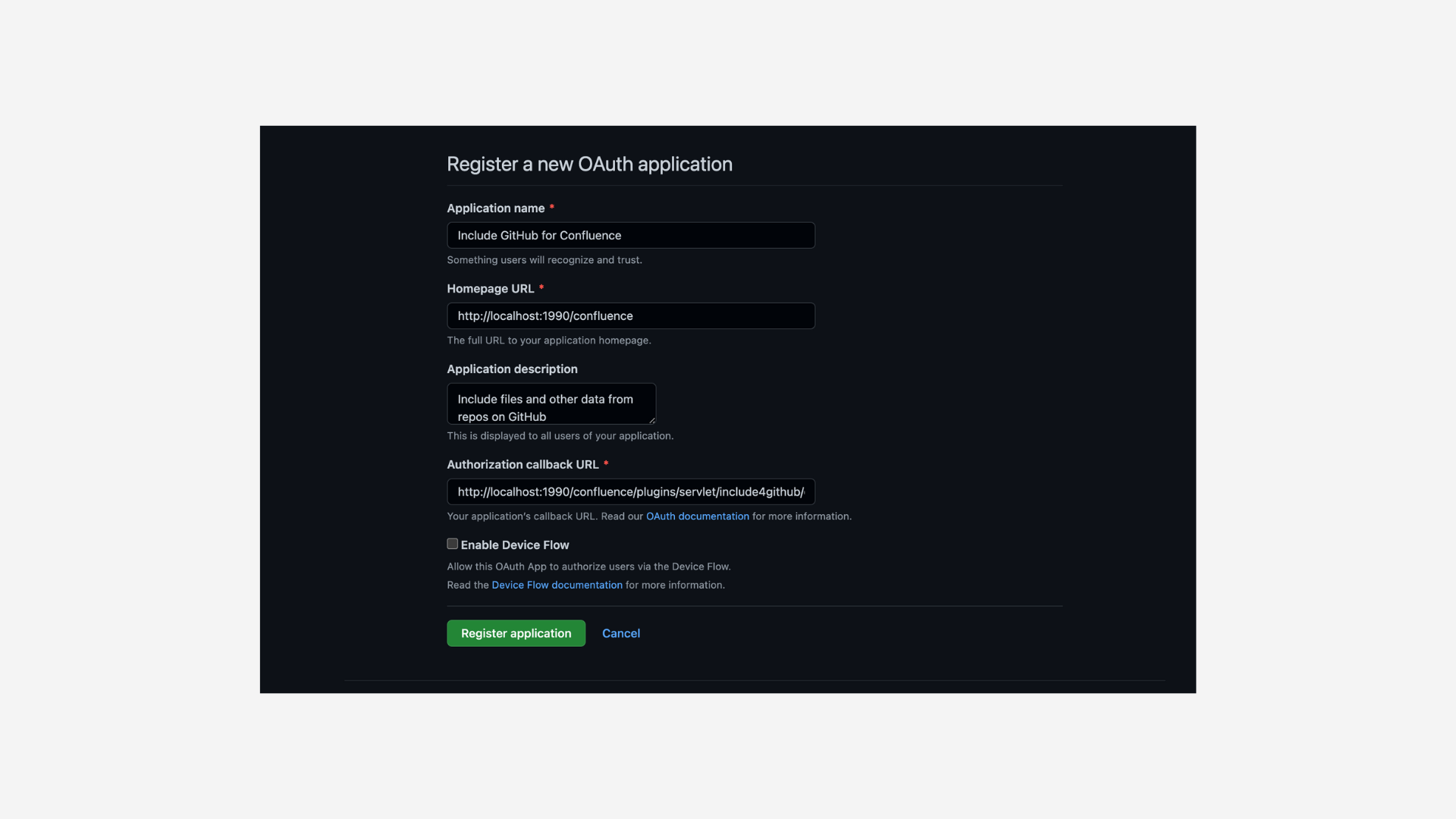
Navigate to the organisation settings to register a new OAuth app (Found under Settings → Developer Settings → OAuth Apps).
-
Enter the information obtained from the Include from GitHub to Confluence app settings in Step 1
-
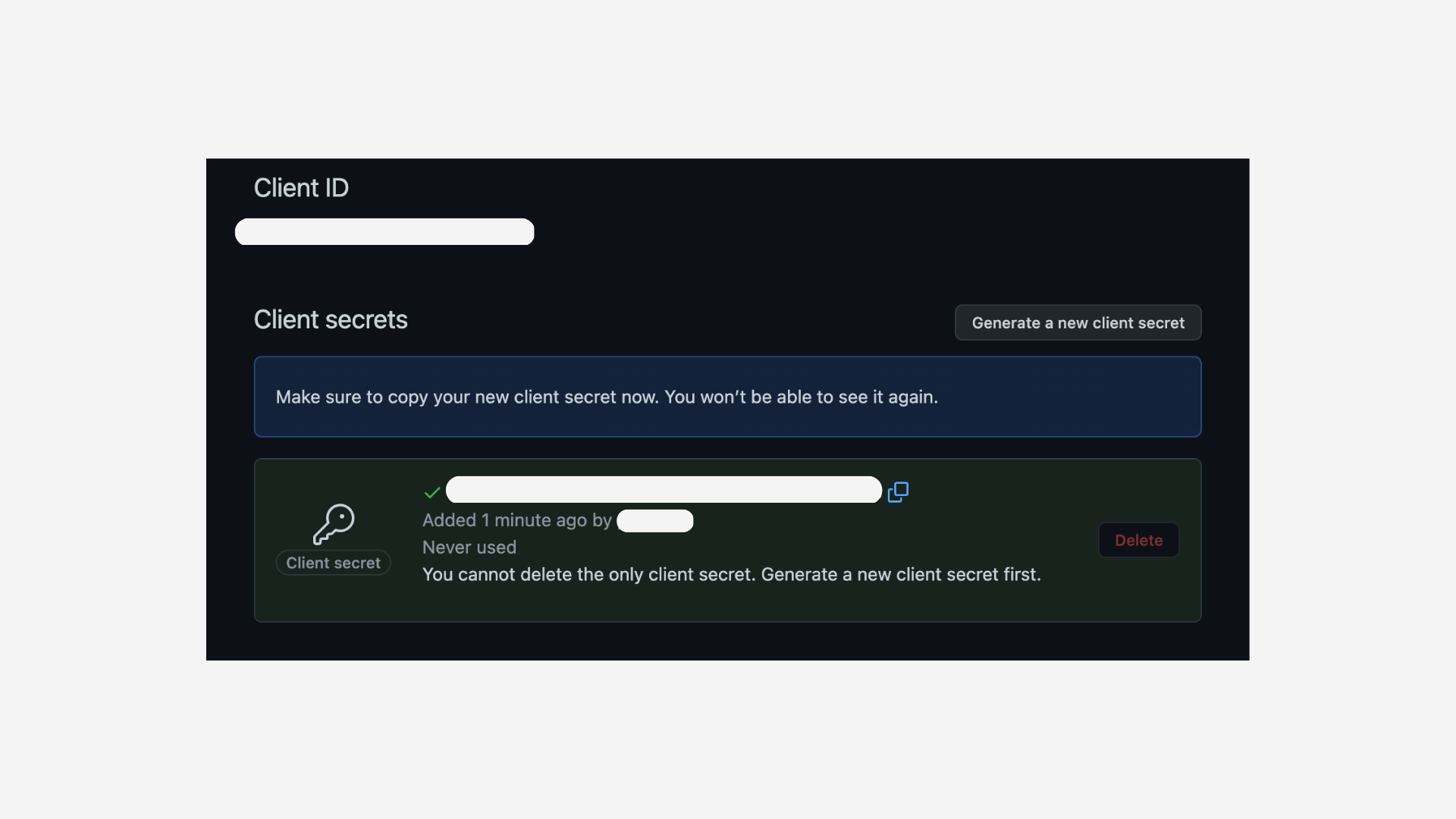
Complete the registration and create a client secret.
-
Copy the client id and client secret that will be used for the app config in Confluence.
Step 3: Add the GitHub credentials in the app configuration panel
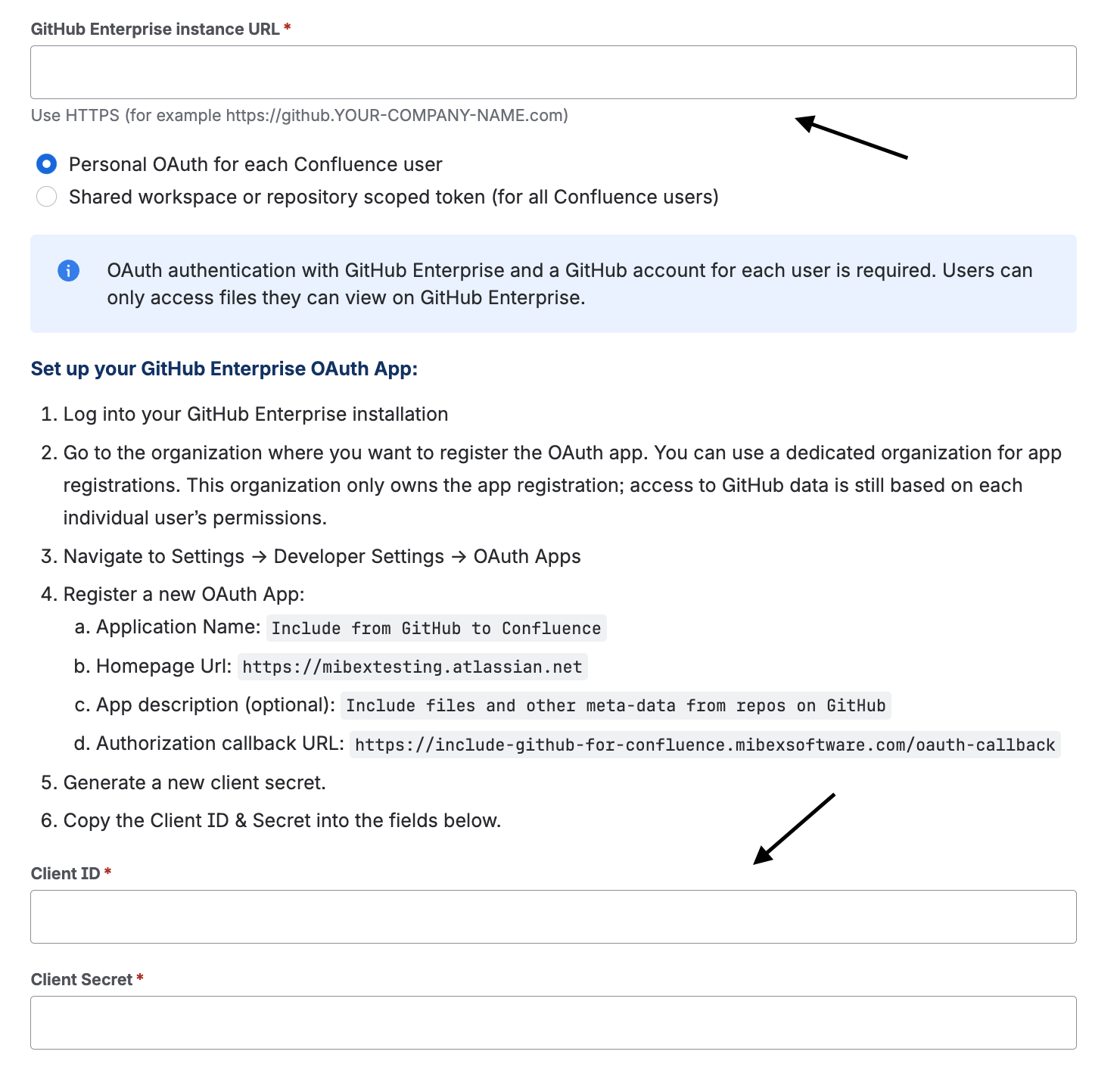
Within the app config panel from step 1, add the GitHub instance url, client id and client secret obtained in step 2.
Step 4: Access GitHub content through the macro
You will now be able to add files from your GitHub instance through the macro. Users will simply need to authenticate with the GitHub instance (so that user can only view files for repos that they have permissions for).
The file will be rendered for the user if he has the relevant permission to access it.
Shared Access Token
All Confluence users access this site with this configured access token. They do not need any account on GitHub. They see included files which the token has access to.
1. Create the Access Token
-
Log into GitHub: On GitHub Enterprise, navigate to User (click on Avatar) → Settings → Developer Settings → Personal access tokens → Fine-grained tokens
-
Generate a new fine-grained token
-
Select the Resource owner:
-
Choose your personal account or
-
Choose your organization (available if the organization allows fine-grained tokens)
-
-
Select the repositories you want to grant access to
-
Use the following permissions:
-
Contents: Read-only
-
Pull requests: Read-only
-
Issues: Read-only
-
-
Set an expiration date
-
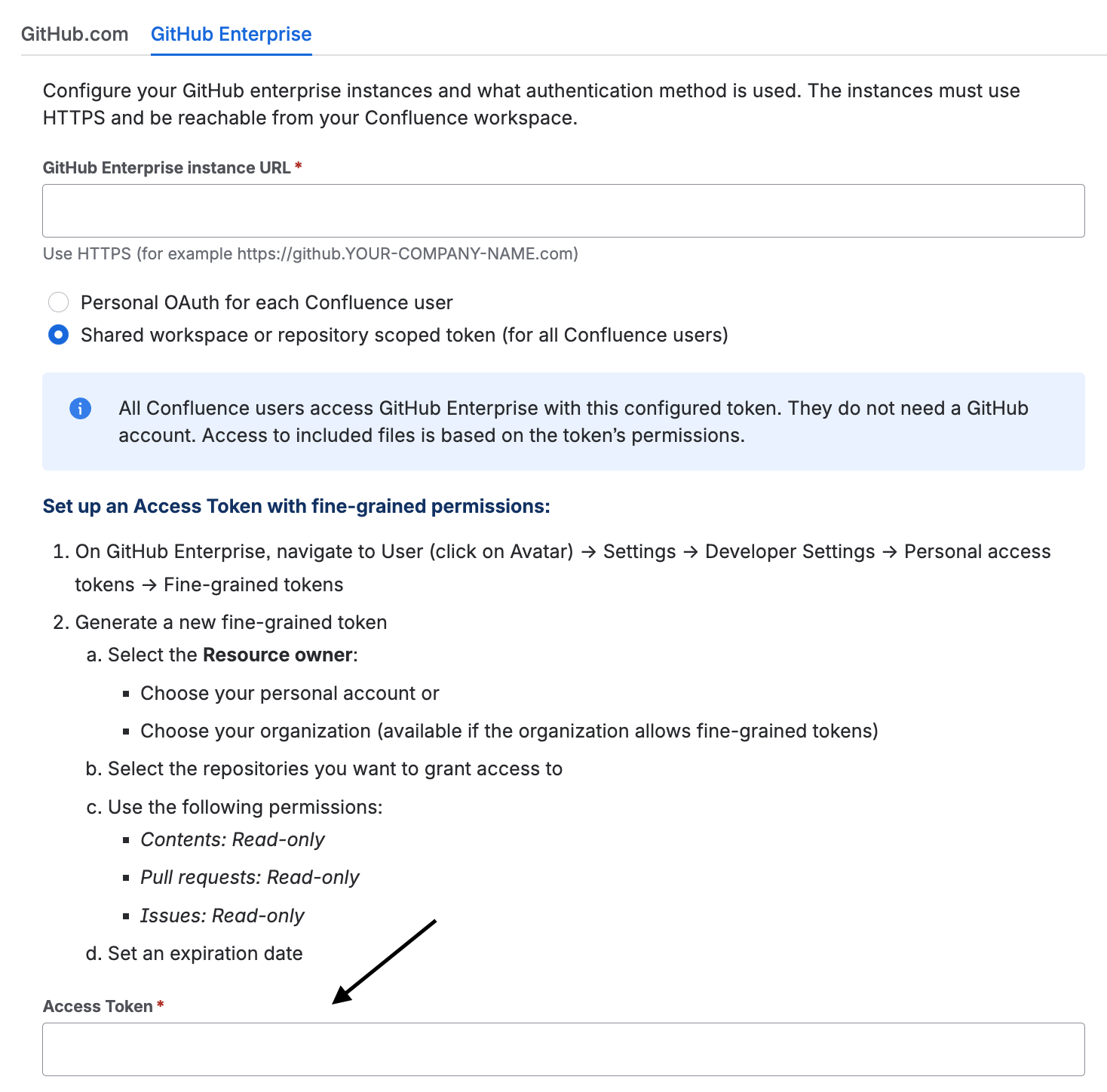
2. Add the GitHub access token to configuration panel
Add the created access panel to the app configuration:
Configuration in Isolated Cloud environments
Note for Isolated Cloud environments:
Domain approval is required before the app can access content from your GitHub Enterprise instance.
In most cases, domain approval is completed automatically when a GitHub Enterprise instance is added.
If repository content is inaccessible or a domain approval warning is displayed, verify that the instance domain access has been approved:
-
Go to Confluence Administration → Apps.
-
Select Include from GitHub to Confluence.
-
Check for a warning message prompting you to Update Access to your GitHub Enterprise domain.
You can also review the approved domains:
-
Go to Confluence Administration → Manage apps → Connected apps.
-
Select Include from GitHub to Confluence.
-
Click Data management to view the approved domains and permissions.
Your GitHub Enterprise instance must be either publicly accessible or reachable from the Isolated Cloud environment. If you have any questions or concerns, please contact us via the Support Portal.