
Confluence Administration Options
We’ve added several options to configure which features and capabilities are being displayed to users for the SharePoint Connector.
For each of these options, to turn them off or on, follow these steps:
-
Open the Confluence administration
-
Navigate to the SharePoint Connector for Confluence entry located in the Atlassian Marketplace section
-
Adjust the settings as needed
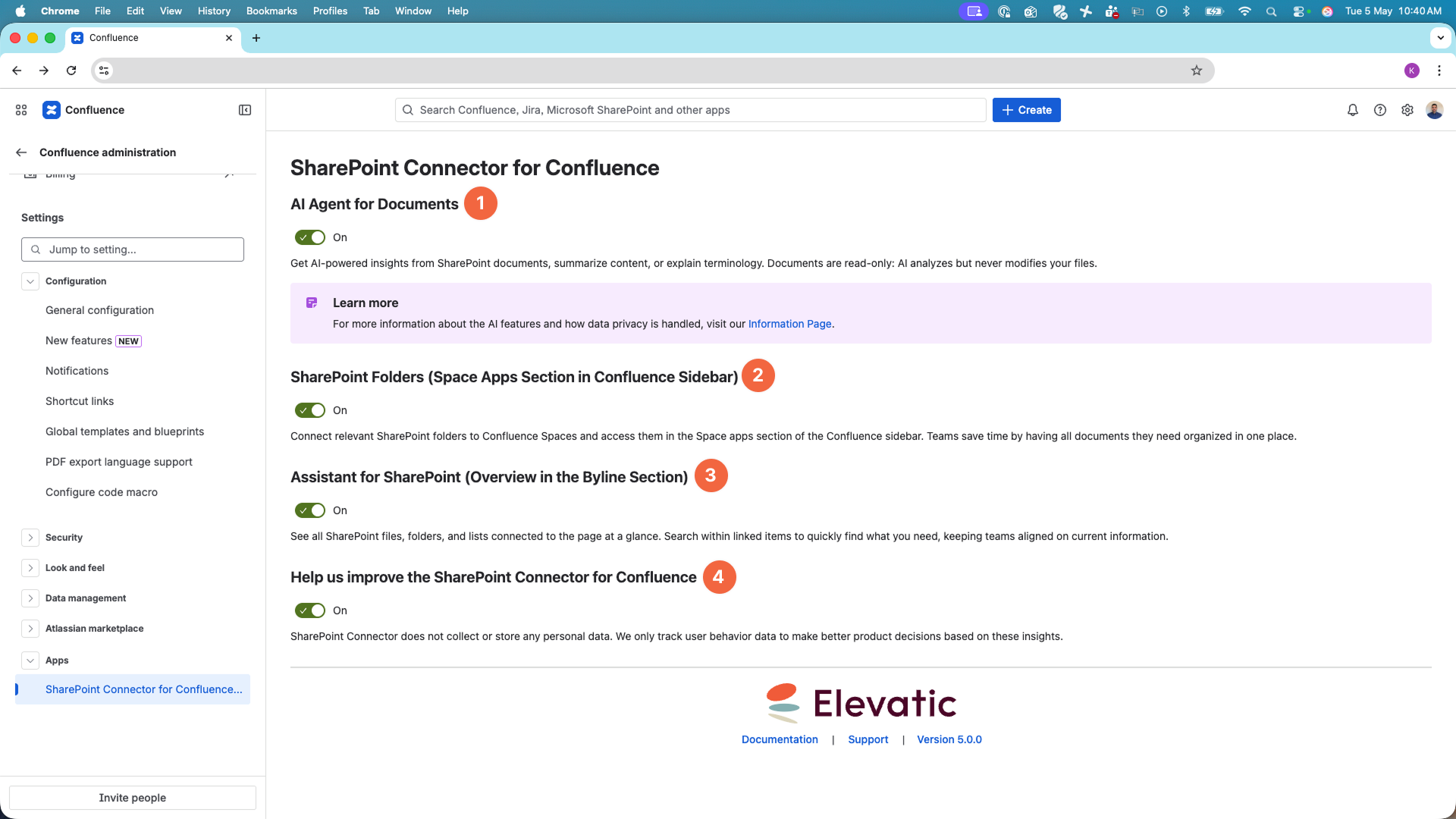
1. Enable/Disable AI Features
By default, AI features are enabled. However, you have the flexibility to opt-in or opt-out of these features based on your preferences. To manage these settings:
With the release of version 1.11.24-AC, we have introduced several AI-powered features designed to enhance your experience. For a detailed overview of all the new features included, please visit Confluence: AI features (Cloud) .
Data Privacy Information
We prioritize your data privacy and security. For more information on how we handle your data, please refer to AI features data privacy .
2. Assistant for SharePoint
The Assistant for SharePoint displays connected SharePoint files, folders, and lists directly on the Confluence page byline. SharePoint Connector for Confluence provides the flexibility to opt-in or opt-out of this feature based on your preferences.
When disabled, the Assistant for SharePoint will not be visible on the Confluence page byline.
3. SharePoint Folders
Bring selected SharePoint Folders into Confluence spaces so teams can browse and upload without switching tools. Admins can toggle this feature on/off in the Admin Panel.
Users access SharePoint Folders through the Space Apps section in the Confluence space sidebar.
Use this configuration to enable or disable the SharePoint Folders feature for all users (permissions are always respected).
4. Application Insight
For information about application insights, please refer to Confluence: Configure Application Insights .