
Administration
All users with the global permission "Confluence Administrator" can administer the navigation. Initially, all of these are members of groups with admin access. As an authorized user, you will see a configuration icon in the SubSpace Menu. Click the cog icon on the right to edit the Menu.

From the menu, select Menu configuration to open the Menu Overview. The overview lists all menus you’ve created. From there, you can create and manage custom menus.
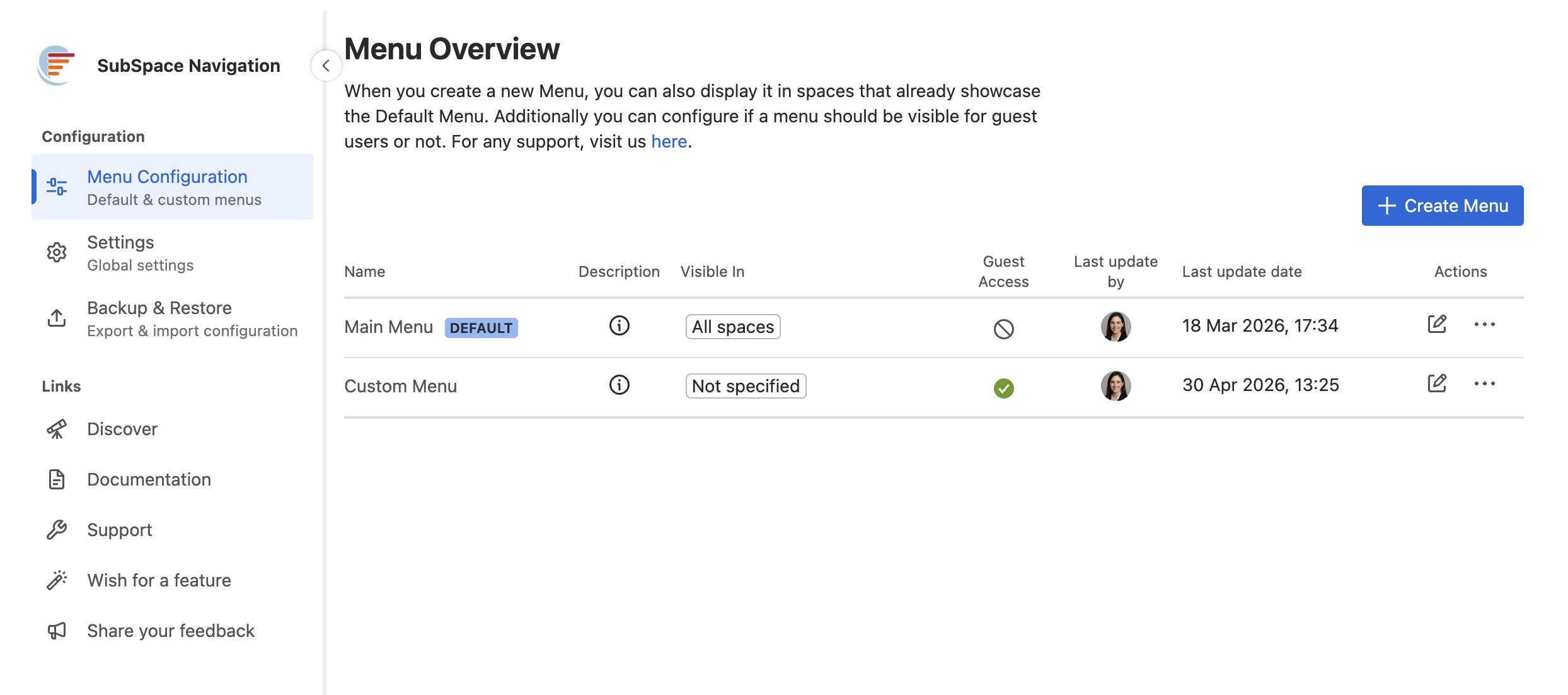
Table Overview
In the table, you will see all menus and the following details:
Name
The Menu Name, which you specify when you first create a Menu. It will not be displayed anywhere; it’s just a helper to help you stay organized with the Menus you have created.
Description
On the right of each Menu Name, you will find an info icon (i). This icon serves as a quick reference tool providing additional details about each menu, such as the Menu Name title and description. This description is what was entered during menu creation or last updated during menu editing.
Visible in
Depending on what you have specified, it will display which spaces your Menu is showing in (or not). Here are the types of labels you will see:
|
Label Name |
Description |
|---|---|
|
All spaces |
This label is only available for the Default Menu. Even though the label says “All spaces”, if you create a new Menu and display it in the same space as the Default Menu, the new Menu will be shown there instead. You can read more about the Default Menu's visibility rules below. |
|
≠ Space Name |
This label means that the Default Menu is not visible in that space. You can click on the space name label to be redirected to the space. |
|
Space Name |
This label means that the Menu is visible in that space. You can click on the space name label to be redirected to the space. |
|
Not specified |
This label means that your Menu is not being displayed anywhere. |
|
Inaccessible (Space Key) |
This label means that the Space/Space Key may have been deleted or that you don't have access to it. |
Guest Access
Indicates whether the menu is visible to Guest users (see SubSpace Navigation for Anonymous and Guest Users for more details).
Last updated by
Shows which Confluence user last modified the menu. Modifications include changes to the following: Menu Configuration, menu Name or menu Visibility.
Last update date
Shows the date and time at which the menu was last modified. Modifications include changes to the following: Menu Configuration, menu Name or menu Visibility.
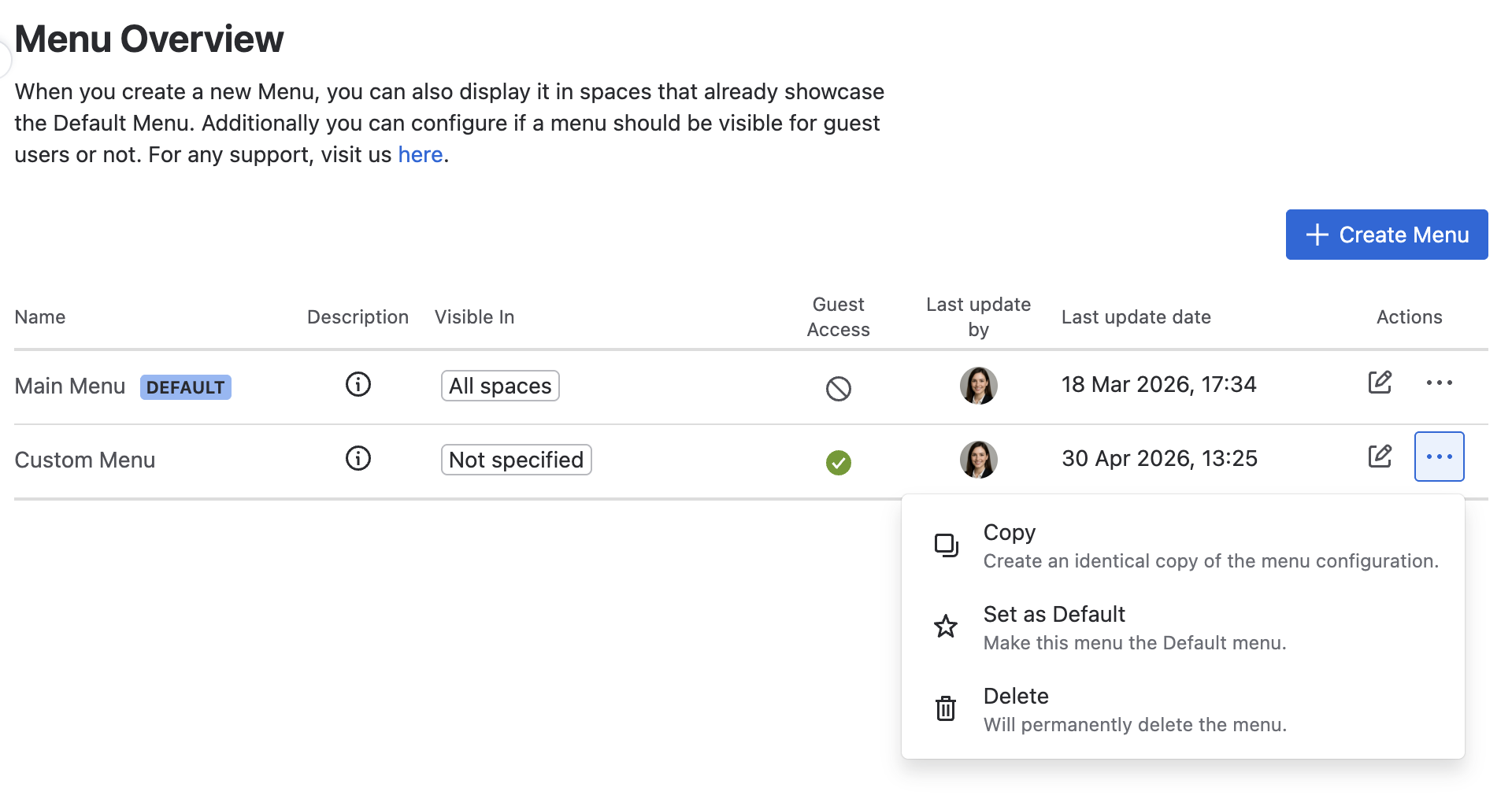
Actions
|
Action |
Description |
|---|---|
|
Configuration Icon (Pen) |
Opens up the Menu Configuration dialog, where you can change the Structure and Style of a Menu. You can also change the Menus Name, description and visibility there. Read more about it here. |
|
Additional Actions (three dots) |
|
The Default Menu can not be deleted. However, you can adjust its visibility as needed, and any new Menu you create can be displayed in spaces that already showcase your Default Menu.
Editing Menus
Use the Create menu button (upper-right) to open the Editing Menus dialog. In this dialog, you can configure a new menu and update the menu name, description, and visibility
You can also access this menu by clicking the Configuration icon (pen) behind the existing menus to make changes. Find more about Editing Menus in our guide.