
What can it do?
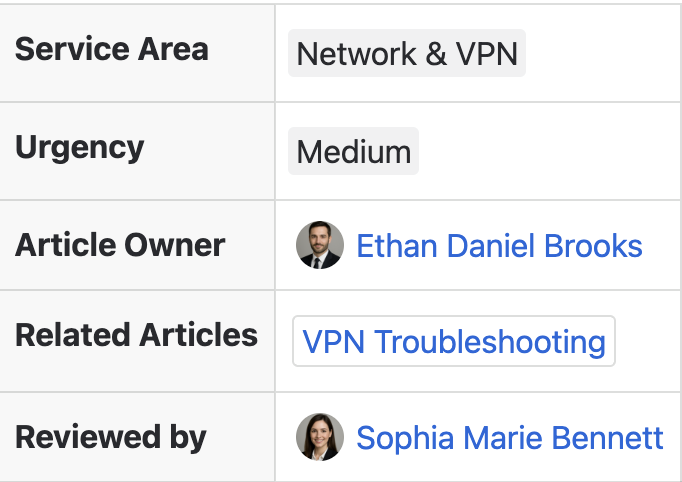
You can now embed the Display Metadata macro in a Confluence page.
By including it, you can choose to:
- Display all the metadata you’ve assigned to the page
- Display all the metadata you’ve assigned to other pages
- Select and display only the metadata you need from the page
- Display Confluence page attributes, such as the owner, the status, or the date of the last update, alongside your metadata
Metadata fields and page attributes are both optional. You can show only Metadata fields, only page attributes, or both in one table. Because page attributes don't depend on Metadata, you can also use the macro on pages without a Content Category.
Display your macro in three easy steps:
To add the macro to a page, follow the steps below:
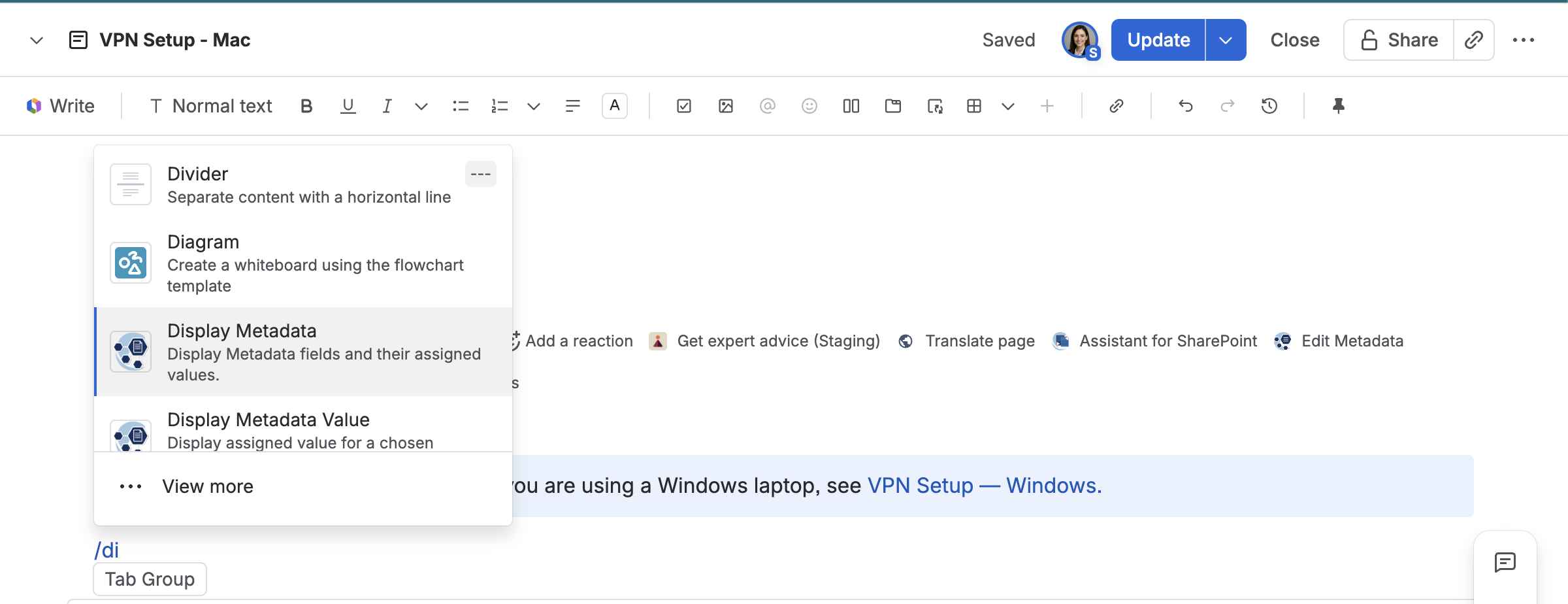
1. Click on the plus sign to access the Macro Browser, and write “Display Metadata”.
-
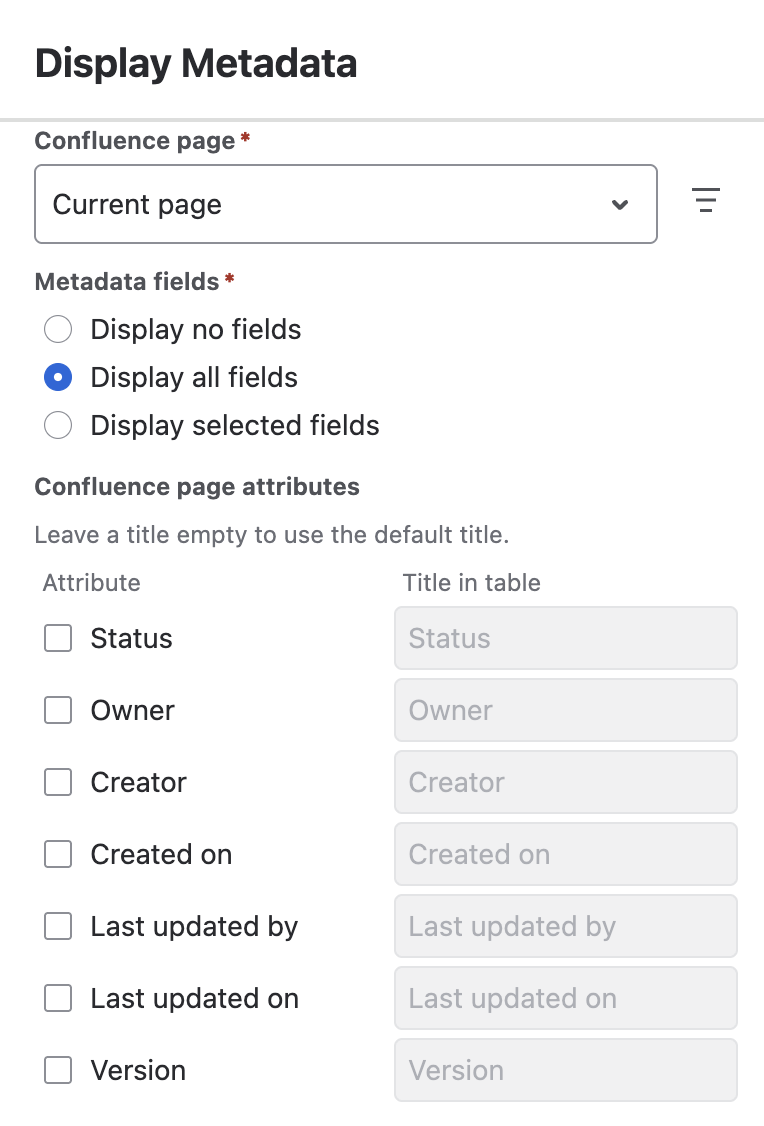
If the page you are currently working on has a Content Category assigned, the option to display the corresponding metadata will be available automatically. Select the Metadata fields you'd like to display. You can choose between all the Metadata fields assigned to the page or only the ones you need. You can click on the small "x" sign to remove a Metadata field. If you want to show only page attributes without any Metadata fields, select Display no fields.
-
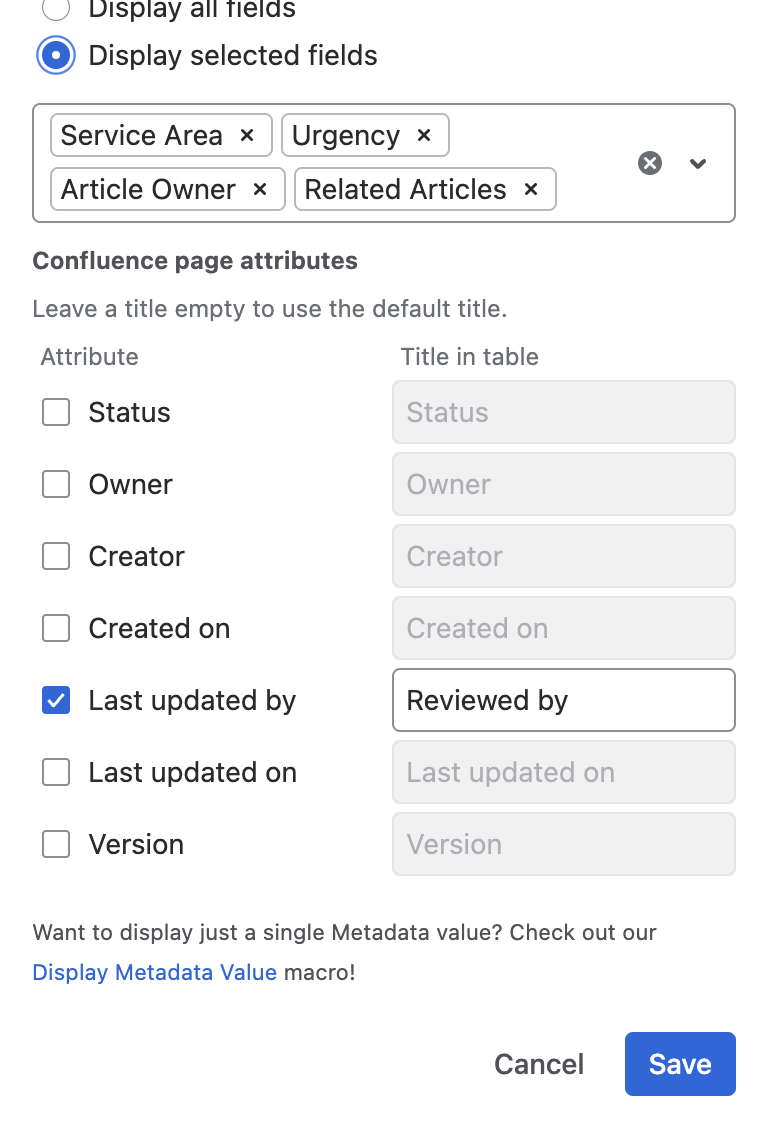
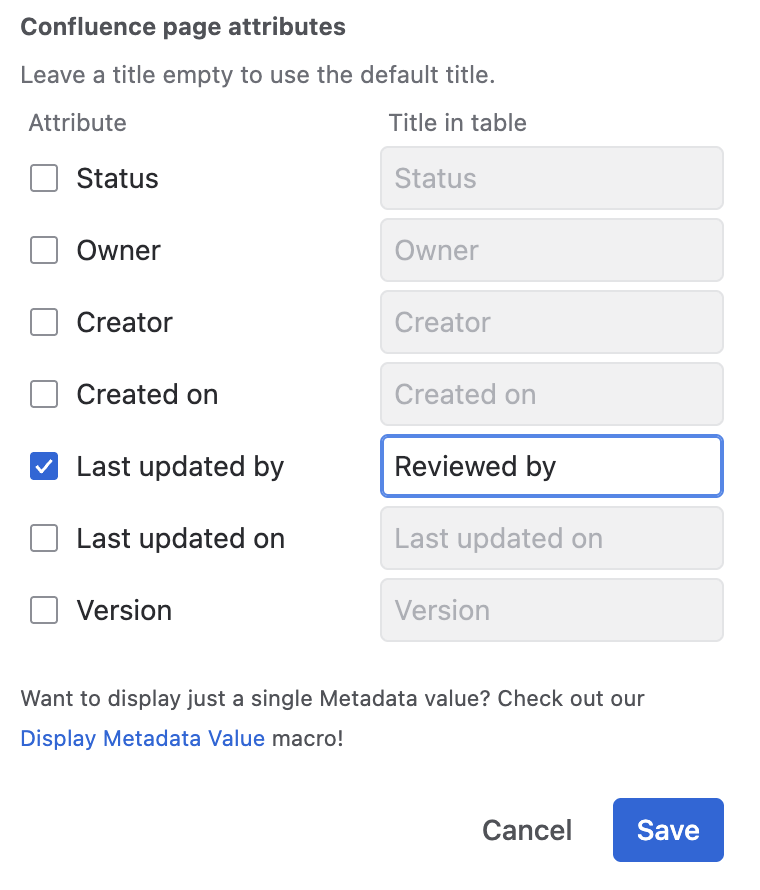
To show Confluence page attributes, select the checkbox for each attribute in the page attributes section of the macro dialog. You can give each attribute a custom title, for example, Reviewed by instead of Last updated by. The title is shown in the table instead of the attribute name.
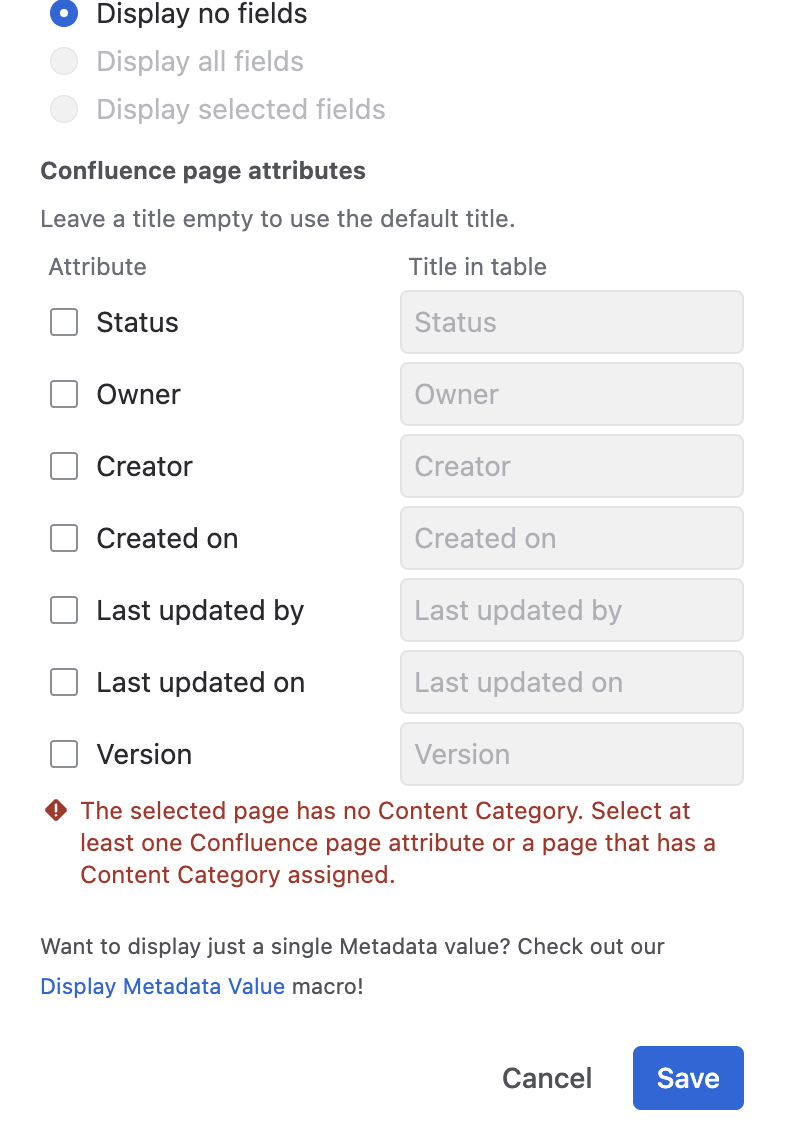
Note: you must select at least one Metadata field or one page attribute before saving. If nothing is selected, the macro will show an error and the dialog will stay open.
4. See your Display Metadata Macro in action!
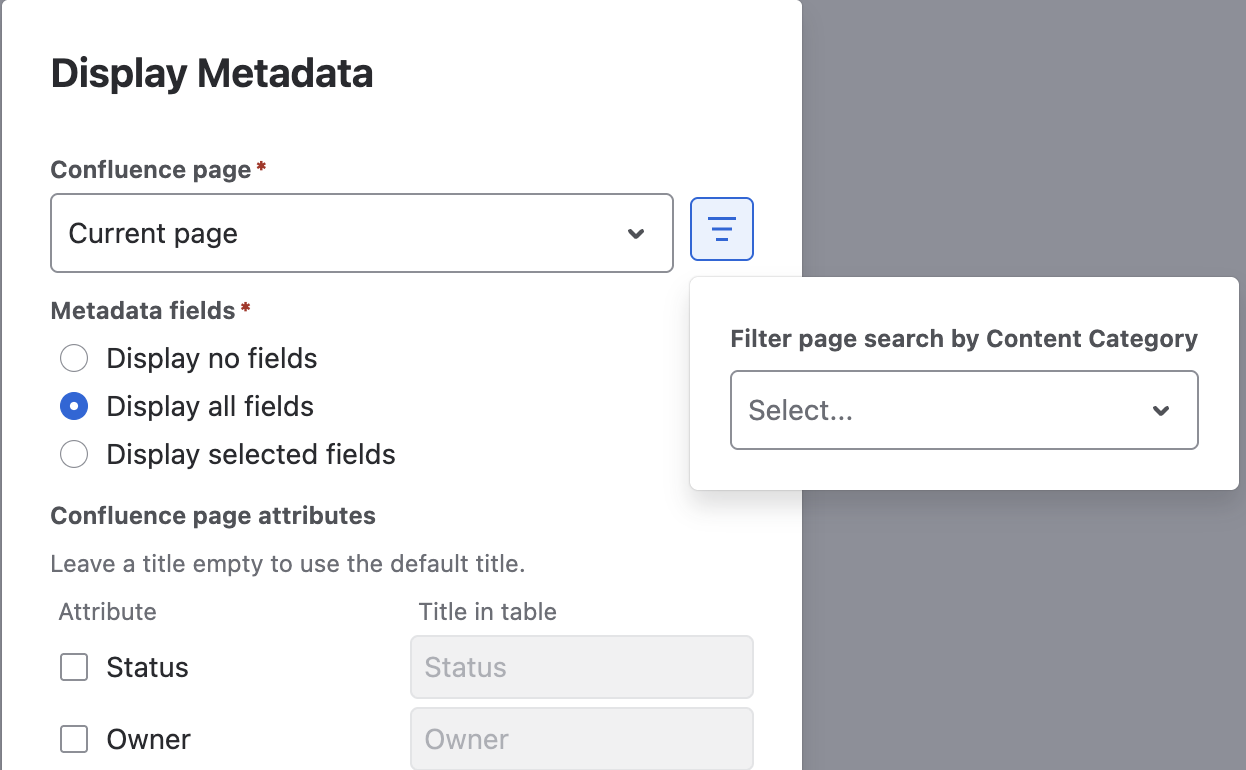
To make it easier to find the pages you're interested in, there's a filter option located next to Confluence page search. You can use this filter to select a specific Content Category that is assigned to the page you're looking for. This helps narrow down the results and makes it quicker to locate the content you need.
If you attempt to include the Display Metadata macro on a Confluence page that is not assigned to a Content Category, you will have the option to search for other pages. However, if the selected page also does not have a Content Category assigned, an error message will be displayed.
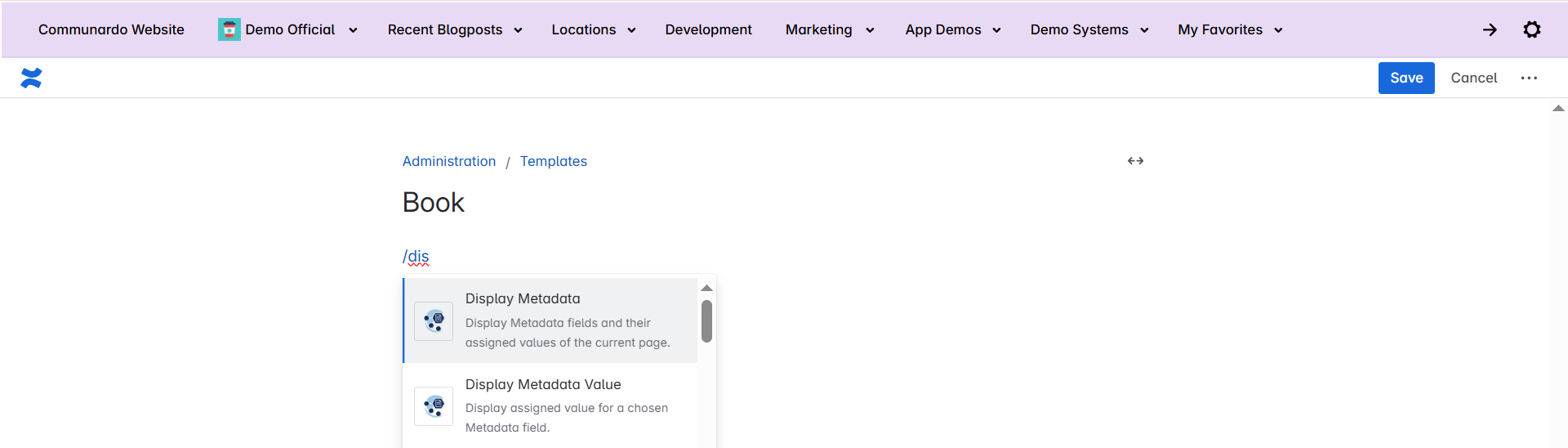
Display Metadata macro is also supported in templates linked to a Content Category. You can choose which metadata to display, following the same instructions described above.
Available page attributes
You can show the following Confluence page attributes:
-
Status: the Confluence page status, shown as a coloured lozenge
-
Owner: the page owner
-
Creator: the user who created the page
-
Created on: the date the page was created
-
Last updated by: the user who last updated the page
-
Last updated on: the date of the last update
-
Version: the current page version
Page attributes are read-only and always show the page's current state. To change them, use the Confluence page settings.
But why should you use it? Some use case examples:
It’s a great way to build and insert your documentation header. Some examples include:
-
The header of your process documentation (role, document type, version, normative reference, etc.).
-
The header of your release documentation (software version, responsible person, user documentation, new features, etc.).
-
The header of your product/project documentation (product manager, software architect, version, user documentation, etc.).
-
A governance header that shows the page owner, status, and last update next to your own Metadata, such as the next review date.
-
A simple page information box on pages without a Content Category, for example, owner, status, and version.
But don’t limit yourself to the header option only! You can choose to include the macro in any part of the page you’d prefer.