
What can it do?
The Display Metadata Value macro allows you to display the value of a Metadata field associated with the Content Category assigned to a page.
This can be useful for showing a specific Metadata Value directly on the page content. Unlike the Display Metadata macro, this macro allows you to directly integrate the selected field value into the content.
❔ How to use it?
Adding the Macro to a Page
Insert the Macro
-
Edit the page.
-
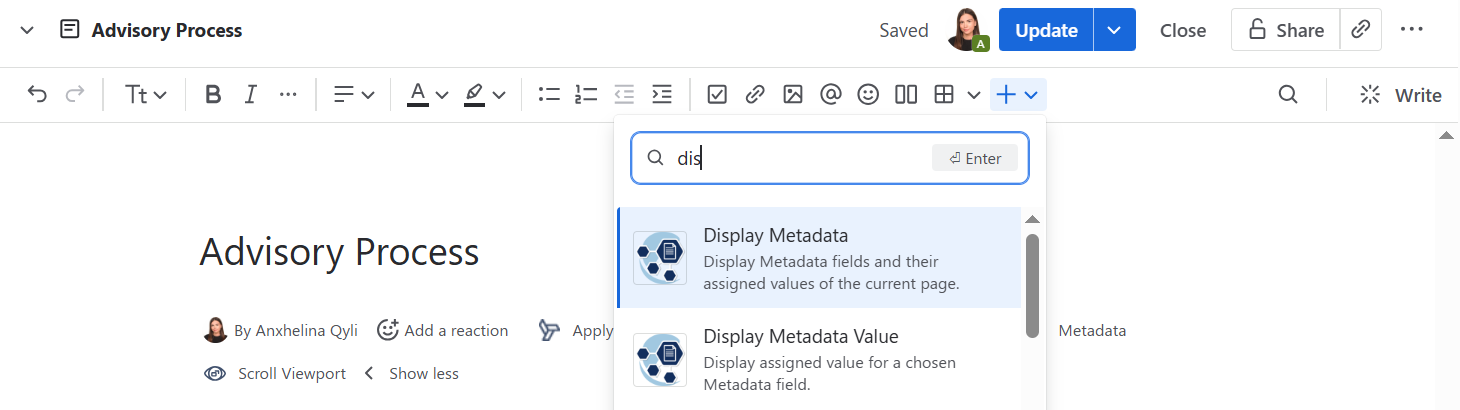
Choose the “+” to add the macro.
-
Search for Display Metadata Value macro.
-
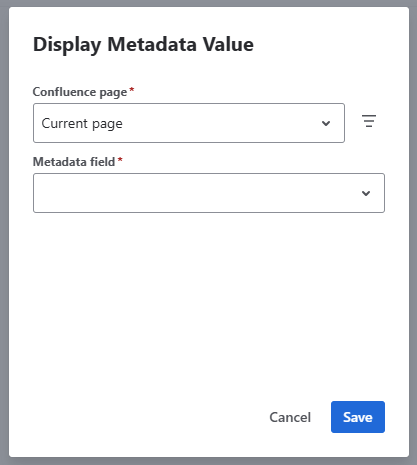
The macro dialog will appear.
Configure the Macro
-
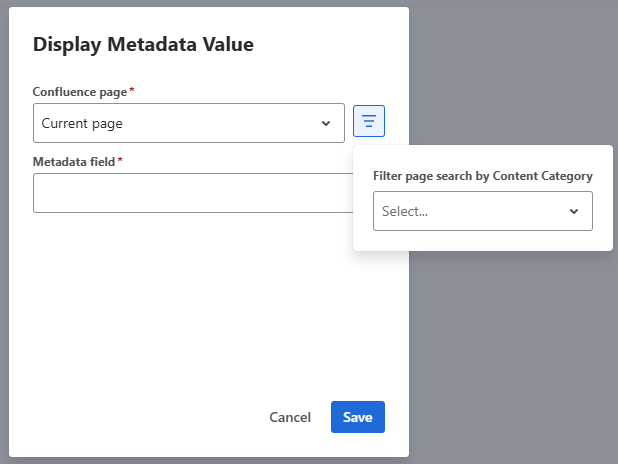
Decide whether you want to show a Metadata value of the current or another page. When going for the second option, you can use the filter control to select a specific Content Category which is assigned to the page you are looking for. This narrows down the search results and makes it easier to find the correct content.
-
Select a Metadata field from the dropdown menu
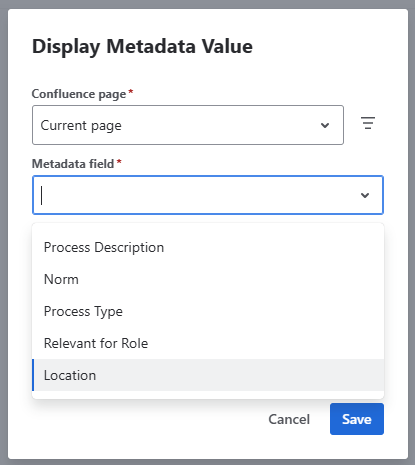
This menu lists only Metadata fields associated with the same Content Category assigned to the page.
-
Click Save to insert the macro into the page.
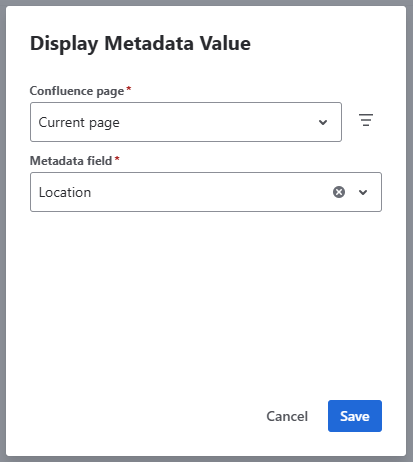
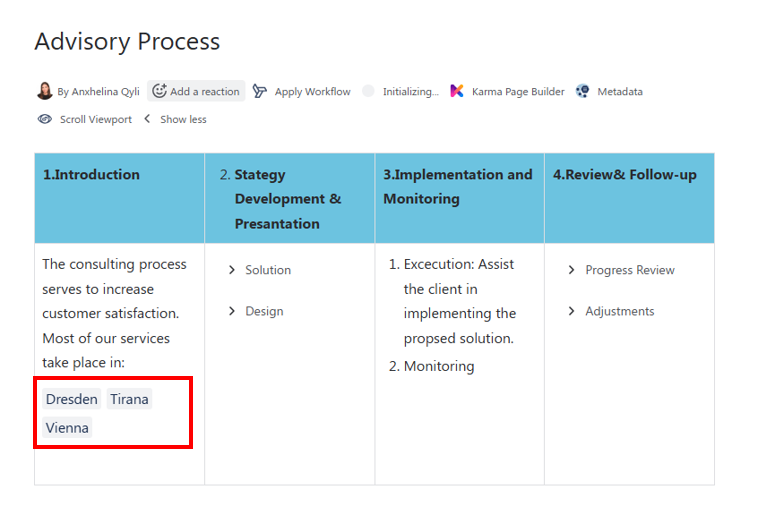
When you edit a template which is linked to a Content Category, you can use the Display Metadata Value macro within the template and configure it show a specific Metadata value from that Content Category. This works in the same way as described above.
 But why should you use it?
The Display Metadata Value macro offers a great way to integrate specific Metadata values directly into your page content, enhancing visibility and accessibility.
-
Easy Integration: Select the metadata field you want to display and insert the metadata value anywhere on the Confluence page without any restrictions.
-
Customization: With the ability to choose from various Metadata fields associated with the Content Category assigned to the page, you can tailor the displayed information to meet specific requirements.
-
Batch Editing: Update key metadata values across multiple locations in the same Confluence page simultaneously, avoiding repetitive edits and ensuring consistency.
🧭 Use Cases:
-
Process Documentation: Display the process owner, location, or title directly within the documentation, providing users with essential information.
-
Reporting: Integrate key metrics directly into performance dashboards for real-time tracking.
-
Project Management: Embed metadata values like project milestones directly into Gantt charts or timelines; Allow team members to easily see up-to-date information and update relevant project details without clutter.