
The content of a page can be enriched with Metadata. To do that, a Content Category collects metadata fields. A Content Category can link to one or more Confluence page templates, or none. When you use one of those templates to create a new page, the connected Content Category is assigned to the page, and you can provide Metadata.
Because Content Categories are linked to global page templates, they are also available globally in all spaces.
Content Categories overview
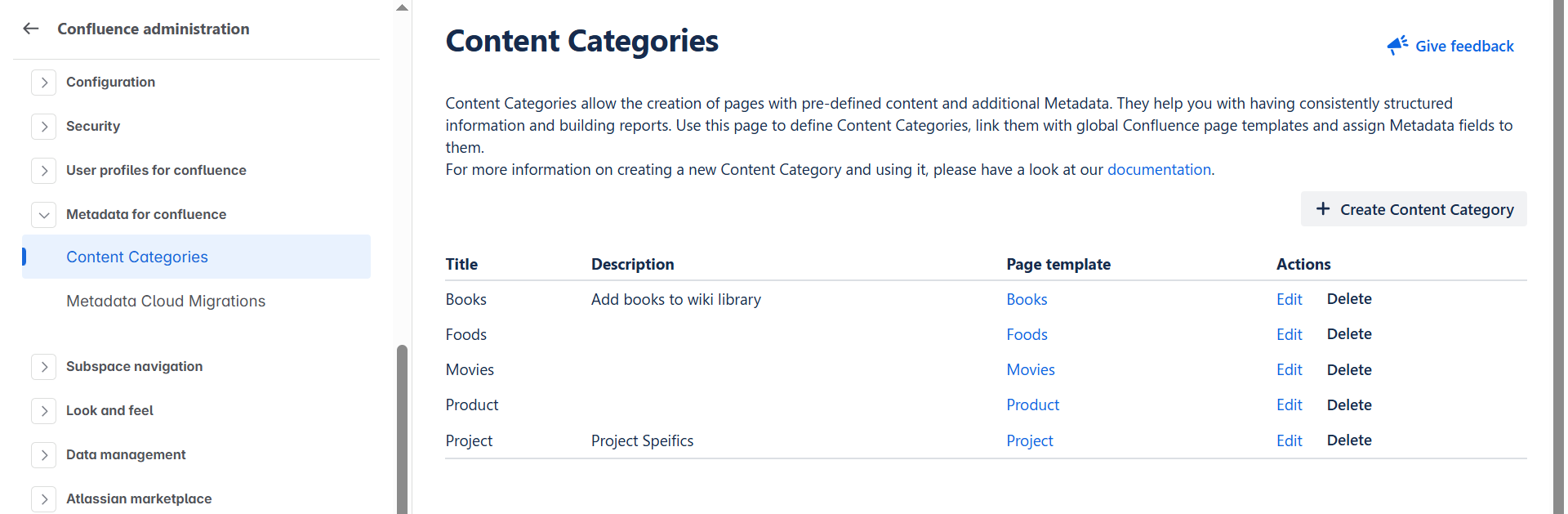
The starting point for managing Content Categories and their Metadata is the Content Categories overview page, which can be reached in the Confluence administration area. There, look for an entry named “Metadata Content Categories” in the left navigation menu under “Apps” and select it.
The overview page lets you create new Content Categories and lists all existing ones, which you can edit or delete by choosing the appropriate action. For more details, see the next sections.
Create a Content Category
To create a new Content Category, click Create new Content Category in the overview. You will be directed to a configuration page where you can define the following details:
-
Title: Enter a unique name for your category.
-
Description: Provide a short summary (max. 255 characters) to help users understand the purpose of this category.
-
Page templates: Choose how this Content Category should be linked to Confluence templates:
-
Create new page template: Metadata Cloud automatically creates a new global template. It will use the Title and Description provided above.
-
No page template: The category will be created without a template link. Users can still assign this category manually to existing pages.
-
Select existing templates: Choose one or more existing global templates from a list.
-
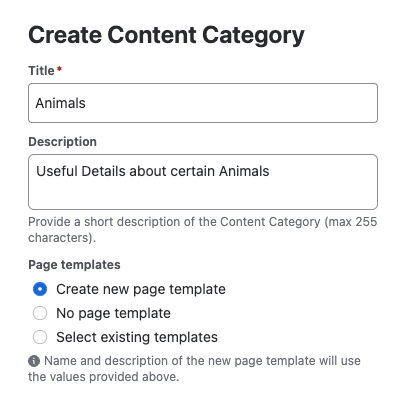
Here you can name it, add a short description and link it to a page template.
You can choose to either create a new global page template or use an existing one. If you decide on a new template, it will be named like the Content Category and receive the provided description. If you choose the second option, the selected template's title and description will be updated to match your Content Category values. This way, you and your users can easily find the template belonging to this Content Category when creating a new page.
Metadata
In the last section of the form, you can add Metadata fields to your Content Category. These fields store the additional information you want to add to a Confluence page. As an administrator, you have the authority to determine which Metadata fields are mandatory for users to complete within this Content Category page, simply by selecting the checkbox. You can mark a Metadata field as not required at any time.
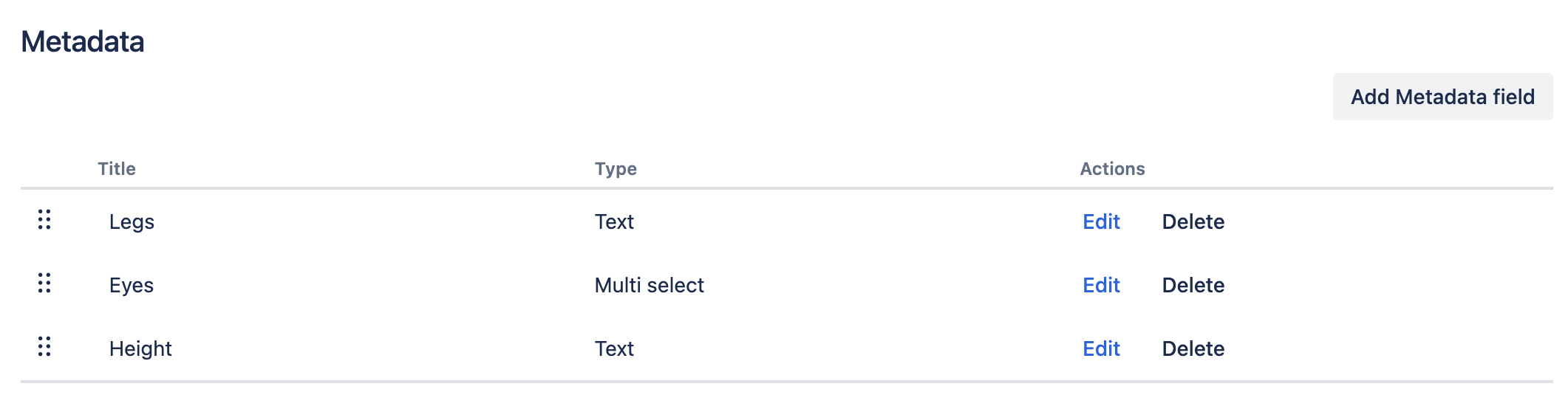
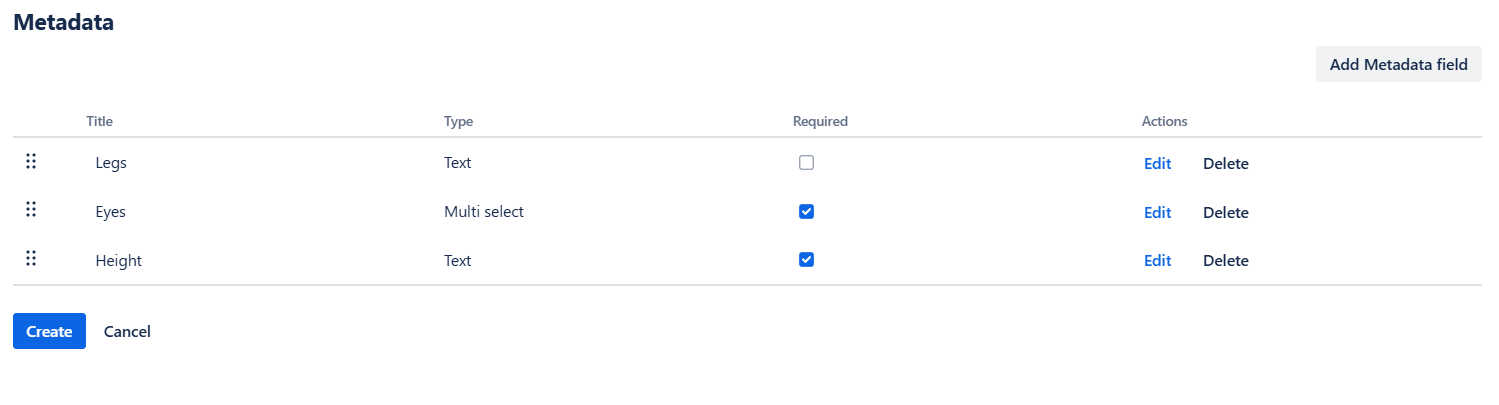
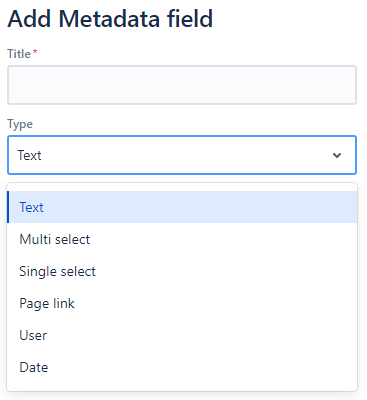
To add a new field, just click “Add Metadata field”, give it a title and select its type. Depending on the type, different data can be assigned as a value to the field.
Currently, the following types are available:
-
Text: allows users to provide arbitrary text
-
Multi-select: allows users to select one or more items from a predefined list of options. Admins can configure the options when adding or editing fields of this type.
-
Single select: allows users to select only one item from a predefined list of options. The options can be configured by admins when adding or editing fields of this type
-
Page link: allows users to select one or more Confluence pages
-
User: when creating a User field, the admin can choose between a Single user and a Multi user field. Later, only a Single user field can be converted to a Multi user field. As a value, users can select any available Atlassian users with site access.
-
Date: allows users to select a date from the past or the future. Every user can easily recognize the date format, as it is based on the user’s account locale.
When you are done with the definition of the Metadata, press “Create” to finish your work. The new Content Category will appear in the overview and can be used when creating a new page. To find out how, please have a look at Create a Content Category page. You can of course also assign this Category to existing pages and enrich them with Metadata. More information is available in Assign a Content Category and Metadata to an existing page.
Be careful when you enable anonymous access. This will expose the definitions of Content Categories, including the Metadata fields and their configuration, to anonymous users when accessing public pages. If this behavior interferes with your use case, please contact us right here.
Edit a Content Category
To edit an existing Content Category, use the Edit action on the overview page. You can modify the title, description, templates, and Metadata fields.
-
Managing templates: You can add or remove template links at any time.
-
Reordering fields: Use the drag handler icon to reorder Metadata fields. This order is reflected in the Metadata dialog and the Metadata Report macro.
Click Save to apply your changes.
The selected fields order will be reflected in the Metadata dialog and Display Metadata macro.
When you rename the Content Category and change its description, the linked template's name and description will also update with the new values.
Delete a Content Category
If you no longer need a Content Category, you can delete it from the overview page.
-
Template handling: During deletion, you can choose whether to keep linked templates as standard Confluence templates or delete them along with the category.
-
Data loss warning: Please be aware that deleting a Content Category will result in the loss of all Metadata values assigned to pages using this category. This action cannot be undone.