
For general instructions on migrating Elevatic apps, see the main documentation for the Cloud Migration Assistant. This page covers everything that is specific to Navitabs - Navigation Macros for Confluence.
If you are switching to Navitabs from another tab app, see Migrating from other tab solutions to Navitabs.
Migration checklist
Use this checklist to prepare, run, and verify the migration of Navitabs - Navigation Macros for Confluence from Confluence Data Center to Confluence Cloud. Most Navitabs migration problems come from a skipped preparation step, so work through every item before you start the Confluence Cloud Migration Assistant (CCMA). The checklist applies to Commercial Cloud, Atlassian Government Cloud, and Isolated Cloud.
Before the migration
Complete these items on your Data Center instance and your Cloud site before you start CCMA. Each item names what happens if you skip it. For general migration preparation, such as backups, test migrations, and planning the migration window, follow Atlassian's guide Use the Confluence Cloud Migration Assistant to migrate.
- Update Navitabs Data Center. Install the latest Navitabs Data Center version that is compatible with your Confluence version. Cloud migrations aren't supported for Confluence 8 and earlier. If you skip this, CCMA can't transfer the Navitabs app data, and Tab Wizard macros lose their page references.
- Install Navitabs on your Cloud site. Install the latest version of Navitabs - Navigation Macros for Confluence from the Atlassian Marketplace before you start the migration. If you skip this, Navitabs macros on migrated pages can't render.
- Set Navitabs to Needed in cloud in CCMA. Do this in the CCMA app assessment. If you skip this or select Not needed in cloud, CCMA doesn't migrate the Navitabs app data.
- Allow the Forge domain in your firewall or proxy. If your network restricts internet access, allow
*.cdn.prod.atlassian-dev.netas a wildcard, plus the Navitabs domains listed in Which URL's should be whitelisted?. If you skip this, Navitabs macros stay in a loading state after the migration. - Review macros nested in Navitabs macros. Confluence Cloud limits which macros can sit inside other macros. Remove macros you don't need, and move the others out of the tabs. If you skip this, pages with unsupported nesting need manual rework in Cloud. See Nesting macros in Navitabs for supported combinations.
- Flatten nested tab groups. Confluence Cloud doesn't support Localtab-Group macros inside other Localtab-Group macros. Move the inner tabs to the top level or to a separate page. If you skip this, the nested tab groups still display after the migration because they sit inside the Legacy Content macro. Atlassian doesn't support this, and it can stop working at any time.
- Remove HTML macros and iFrames from tab groups. Confluence Cloud doesn't support HTML macros or iFrames inside Localtab-Group and Localtab macros (Tab Group and Tab in Cloud). Move this content out of the tab group or replace it. If you skip this, the tabs show the message This macro (<key>) isn't supported inside Tab Group in Cloud.
During the migration
- Include the spaces with Navitabs macros. Select the spaces in CCMA as described in Atlassian's guide Use the Confluence Cloud Migration Assistant to migrate. Navitabs macros and their content are stored in the page content and migrate with the pages.
- Keep the migration running until the app data migration finishes. CCMA shows the app data migration as a separate step after the content migration.
After the migration
- Open pages with Navitabs macros. Check at least one page per macro type: Tab Group, Childtabs, Labeltabs, and Tab Wizard. Every tab shows its content.
- Convert legacy Navitabs macros. The Navitabs Macro is deprecated in Navitabs Cloud. Migrated Navitabs macros show a warning message with a Migrate button. Click Migrate to convert the macro into a Tab Wizard macro.
- Review the CCMA migration log. Open the migration in CCMA and download the log. The page IDs in the log are Cloud page IDs. Search for them on your Cloud site, not on your Data Center instance.
- Convert legacy Tab Group macros. Migrated Tab Group and Localtab macros arrive inside the Legacy Content macro. Use the Legacy macro migration to convert them in bulk: Run a scan first, then run the migration. Pages marked Manual review required need manual rework.
- Set the height of Childtabs and Labeltabs macros. In Cloud, both macros use a default height of 750 pixels. Adjust the height where the content needs more or less space.
- Inform your users. Tell your users that Navitabs is ready to use in Cloud, and point them to the differences between Navitabs Data Center and Cloud described below.
Differences between Navitabs Data Center and Cloud macros
Some Navitabs macros have a different name or work differently in Cloud. The table shows the Cloud equivalent of each Data Center macro.
|
Data Center |
Cloud |
Notes |
|---|---|---|
|
Navitabs (deprecated) |
Navitabs Cloud no longer supports the Navitabs macro. After the migration, Navitabs macros show a warning message with a Migrate button. Click Migrate to convert the macro into a Tab Wizard macro. You can't add new Navitabs macros in Cloud. Use Childtabs, Labeltabs, or the Tab Wizard instead. |
|
|
||
|
||
|
The macro has a different name in Cloud but works the same way. Migrated Localtab-Group macros are renamed to Tab Group automatically. Alternatively, copy your content into a Tab Wizard macro with the option Create your own tabs. |
||
|
The macro has a different name in Cloud but works the same way. Use Tab macros inside a Tab Group macro to create your own tabs. Migrated Localtab macros are renamed to Tab (Deprecated) automatically. See Migrating from Data Center to the legacy Cloud editor. |
|
|
Migrated Handpicked Tabs macros are replaced by the Tab Wizard option Select existing pages automatically. |
||
|
Tab Wizard |
Tab Wizard |
The three Tab Wizard options migrate to their Cloud equivalents automatically. |
|
Not available |
Available only in Cloud. Create and name your tabs in one interface instead of combining Tab Group and Tab macros. A good alternative to Tab (Deprecated) when you switch to the new editor. See Switching from the legacy editor to the new Cloud editor. |
Migrating from Data Center to the legacy Cloud editor
CCMA moves all migrated pages to the legacy Cloud editor. After the migration, all tabs display and work as before, and no data is lost. The only special case is the Tab (Deprecated) macro.
The Tab (Deprecated) macro appears in two cases:
-
You migrated Localtab macros.
-
You insert more tab macros on a migrated page that still uses the legacy editor.
You can still edit Tab (Deprecated) macros and add content to them, but you can't create new ones.
Switching from the legacy editor to the new Cloud editor
Atlassian's Legacy Content macro supports deprecated macros in the new editor. You don't need to replace Tab (Deprecated) macros manually: They keep working in view and edit mode inside the Legacy Content macro.
Alternatively, replace each Tab (Deprecated) macro with a Tab macro. Copy the content into the new Tab macro first, otherwise the content of the tab gets lost.
You can also remove the Tab Group macro completely and use the Tab Wizard option Create your own tabs with its own editor instead.
To check which third-party macros work inside Navitabs macros, see Nesting macros in Navitabs.
Other differences between Navitabs Data Center and Cloud
Navitabs Data Center offers a built-in library of icons for tabs. During the migration, these icons are mapped to the icon library in Navitabs Cloud, so your tabs keep their icons. You can also use emojis in tab titles. See Can I use emojis in tabs?
Common problems after the migration
|
Message or symptom |
Cause |
What to do |
|---|---|---|
|
Navitabs macros show a loading spinner and never load. |
Your firewall or proxy blocks the Forge domain. |
Allow |
|
Tab Wizard or Handpicked Tabs macros show no pages. |
CCMA didn't migrate the Navitabs app data. Navitabs was set to Not needed in cloud, or the Navitabs Data Center version was too old. |
Select the pages or the parent page again in the macro settings. For many affected pages, contact Elevatic support. |
|
This macro (<key>) isn't supported inside Tab Group |
The tab group contains an HTML macro or an iFrame. Confluence Cloud doesn't support these macros inside a tab group. |
Edit the page and move the macro out of the tab group, or replace it. |
|
Confluence 500 error while updating page … |
Confluence Cloud rejects the page content. This happens when legacy content, such as internal links or attachments, is nested in Navitabs macros. |
Search for the page ID on your Cloud site and rework the affected macro manually. |
|
The migrated page content does not pass Confluence Cloud ADF validation and needs manual migration. |
The Legacy macro migration found a page structure that Confluence Cloud doesn't support, usually nested macros. |
Edit the page and rebuild the tabs with supported macros. |
|
The page ID from the CCMA log doesn't exist. |
The log lists Cloud page IDs, not Data Center page IDs. |
Search for the page ID on your Cloud site. |
Error: Migration path could not be determined
During the app migration, CCMA can show the error message Migration has failed as the migration path of this app could not be determined.
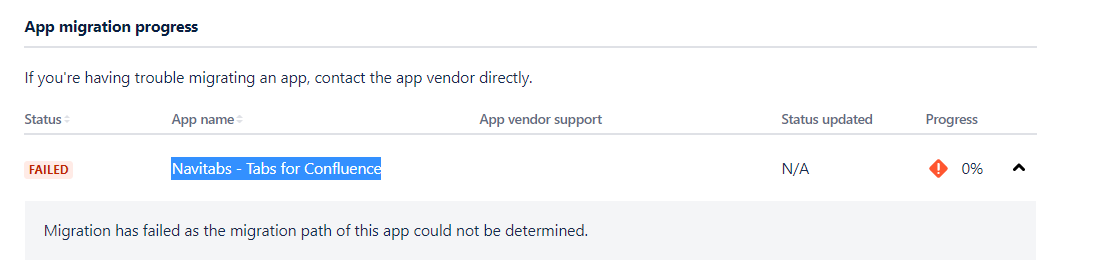
The cause of this error on the Atlassian side is unclear. Navitabs stores its macros in the Confluence page content, so they migrate with the regular content migration.
If you see this error, open several migrated pages with Navitabs macros and check their content:
-
If the Navitabs macros display their content as expected, ignore the error message. Some macros have a different name in Cloud, see the differences between Data Center and Cloud macros.
-
If they don't, create a support ticket.