
Always keep both sides of the integration up to date: the app in Jira and the Jira web part in SharePoint.
Update the app in Jira
You can update the app to the current version directly in the Jira administration. You only need to do this for major updates. Minor updates install automatically.
To install a major update:
-
In Jira, go to Administration.
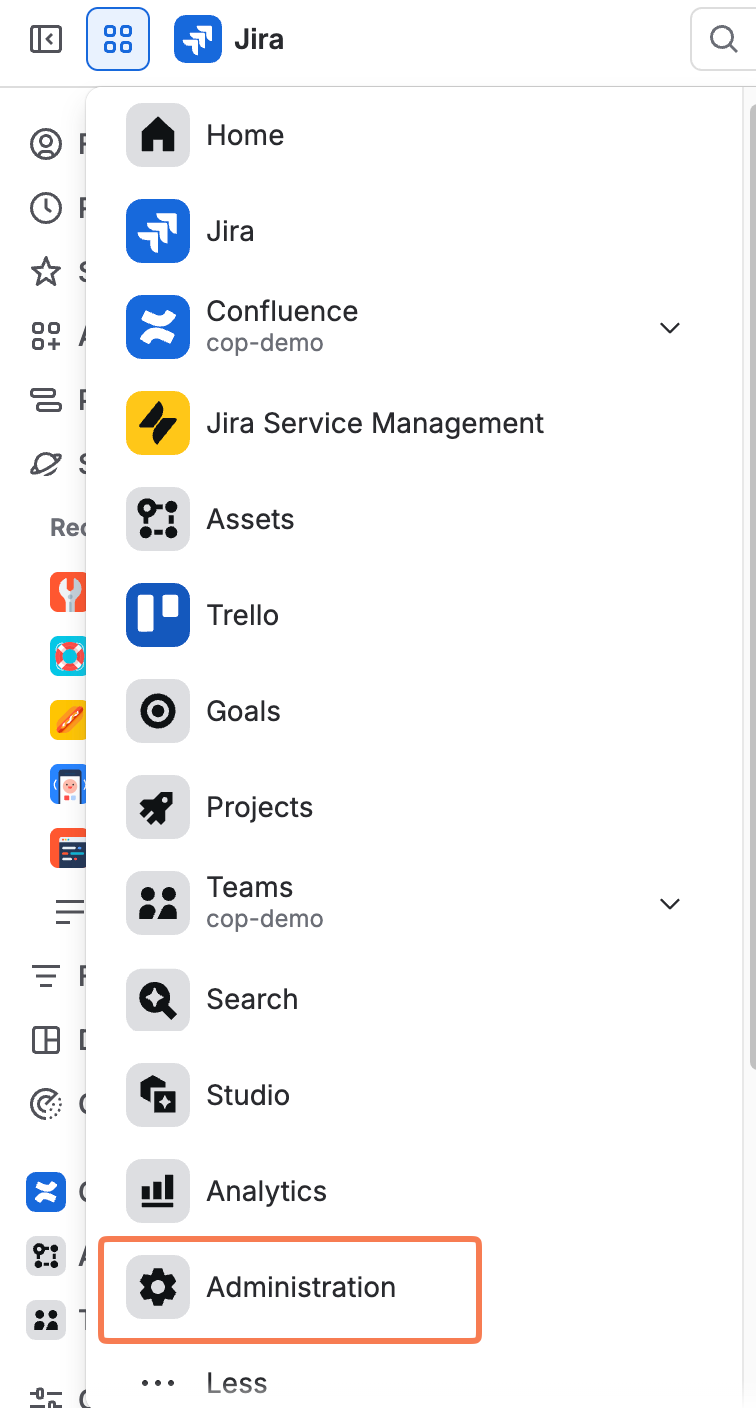
Administration -
In Administration, go to Connected apps.
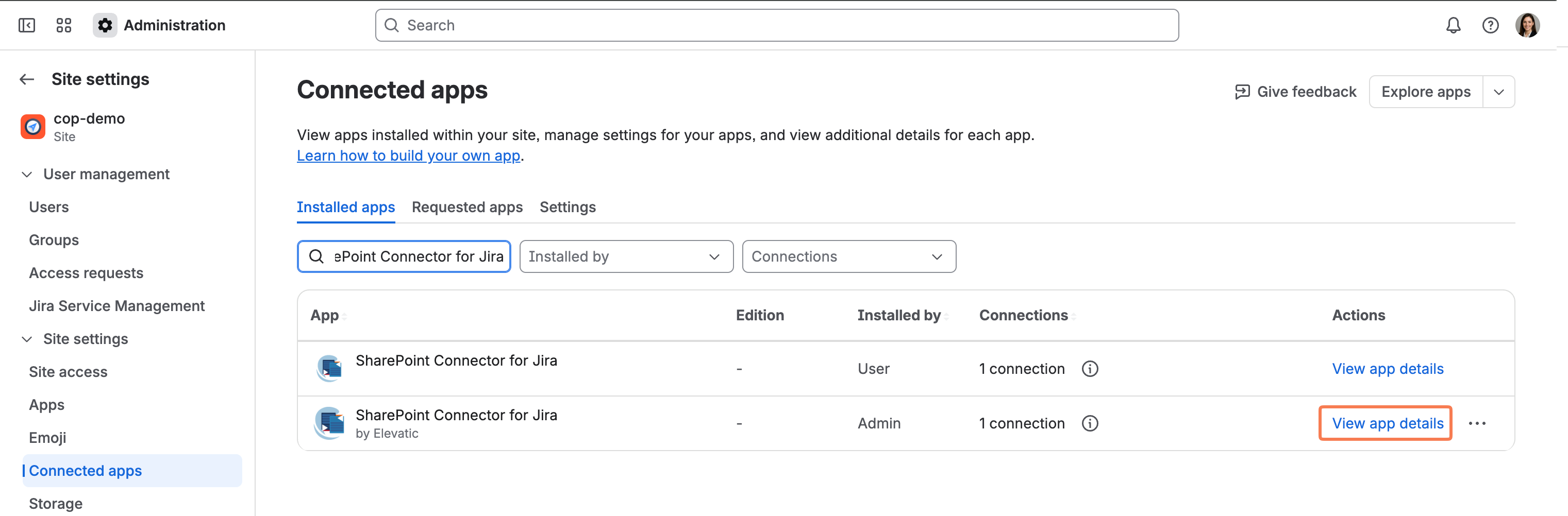
Connected apps -
Search for SharePoint Connector for Jira.
-
Click View app details.
-
On the Details tab, check Version. If the app is up to date, it shows Up to date and the installed version, and you do not need to do anything.
-
If an update is available, click Update in the upper-right corner of the page, next to Uninstall. The button appears only when an update is available.
Update the Jira web part in SharePoint
Only a SharePoint administrator can update the web part.
Check for an available update
Open the Jira web part. If a new version is available, a notification banner appears at the top. The About section of the property pane also shows the currently installed version and a notification if an update is available.
Before you start, find out how the app was installed: through the Tenant App Catalog (available to all site collections) or through a Site Collection App Catalog (one site collection only).
If the app is deployed to all site collections
-
Go to the SharePoint Admin Center.
-
In the left-hand menu, select More features.
-
Under Apps, click Open.
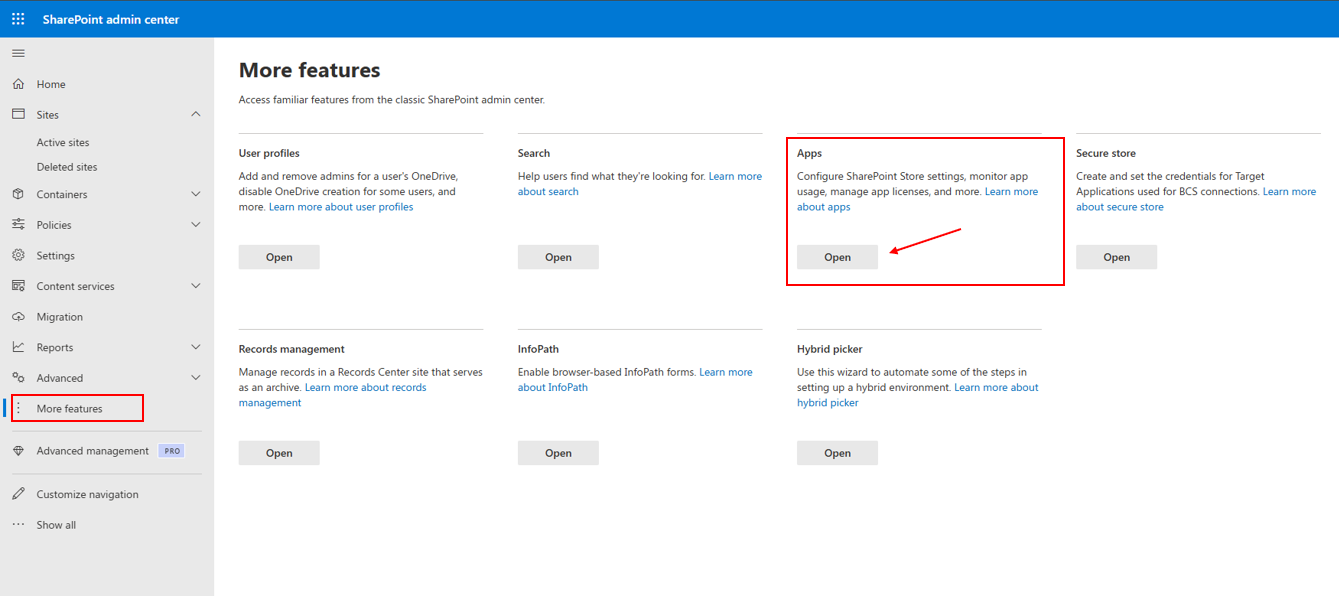
SharePoint Admin Center -
Switch the App Catalog to the classic experience.
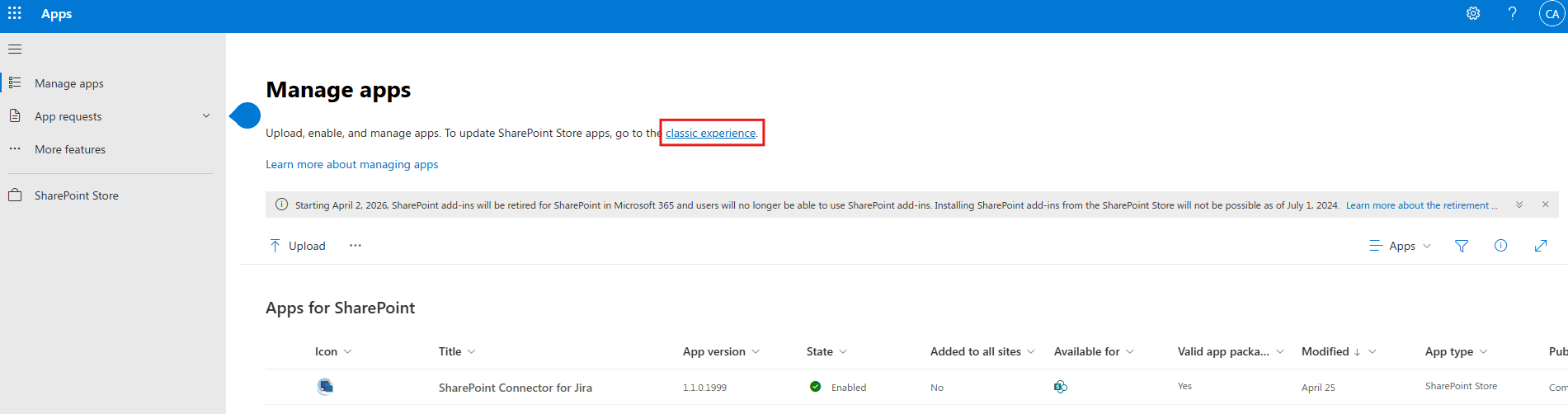
Classic experience -
Select the app.
-
Click Upgrade Store App.
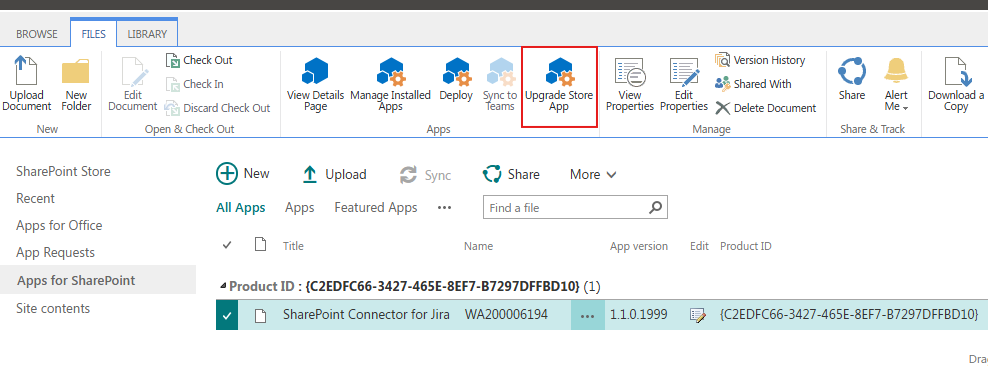
Upgrade Store App -
On the next screen, select Make this solution available to all sites in the organization.
-
Click Deploy.
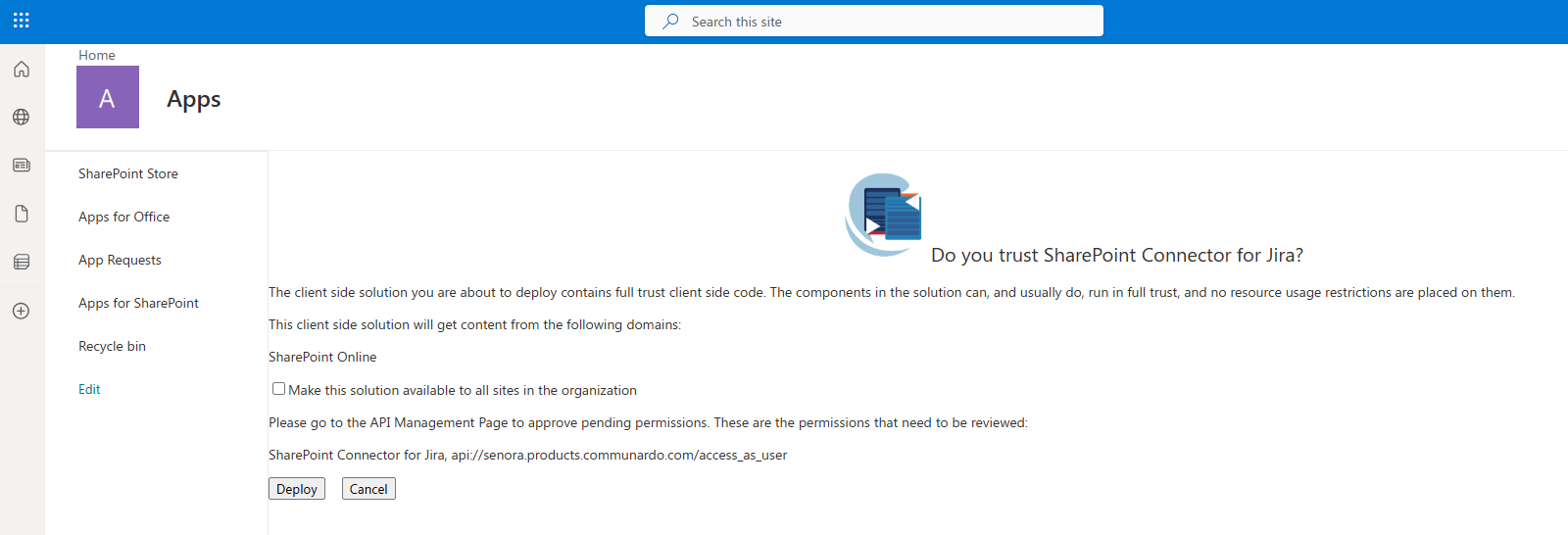
Deploy
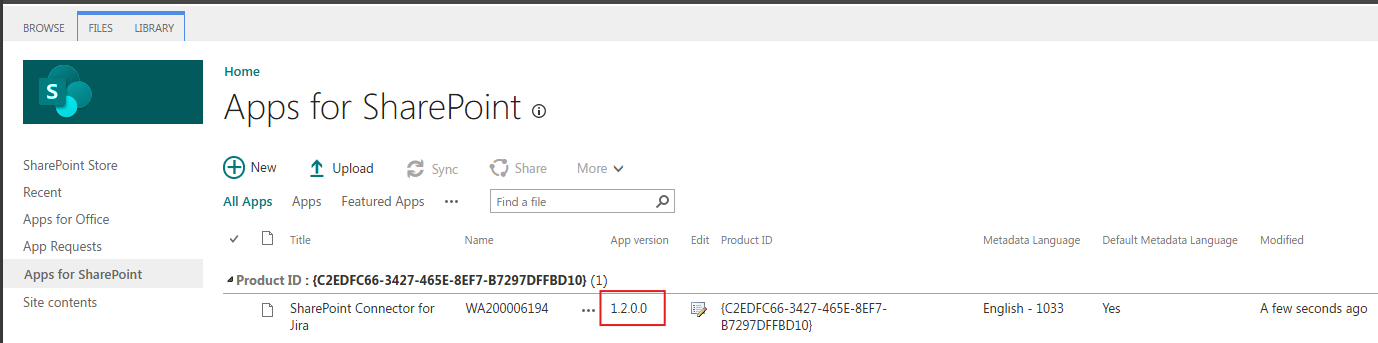
You are redirected to the App Catalog, where the new version of the app is listed.
If the app is installed on a specific site collection
Do the steps above, then also do the following for each site collection where the app is installed:
-
Go to a site collection where the app is installed.
-
Open Site Contents.
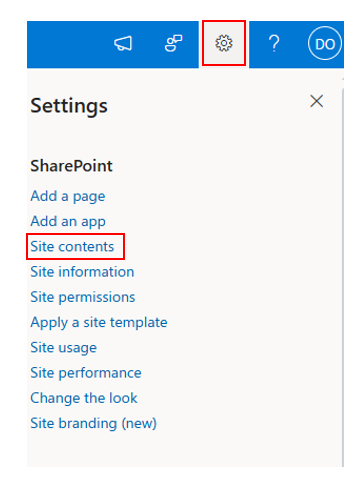
Site Contents -
In the library, select the app.
-
From the dropdown menu, click Details.
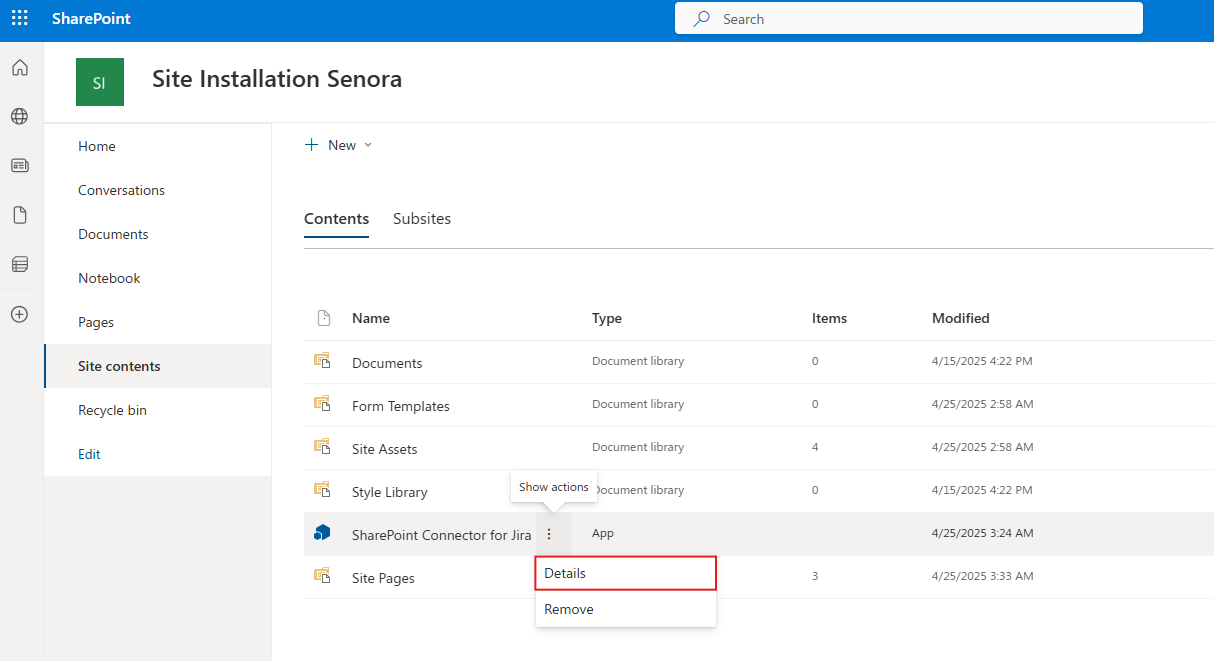
Select Details -
On the Details page, click GET IT to apply the update.
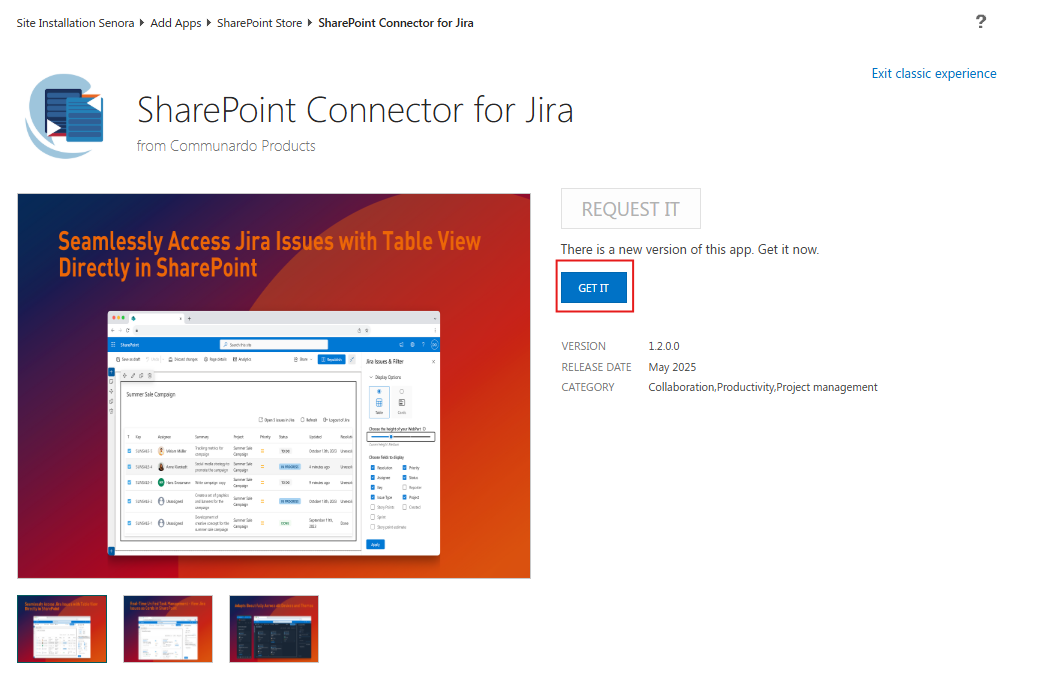
Select GET IT -
Wait a few minutes for the update to finish.
Repeat these steps for all site collections where you installed the app.
Both the Jira app and the SharePoint web part are up to date.