
The app needs your consent to access SharePoint content on your behalf. You grant consent on first use and can remove it at any time. Removing consent stops the app for that account until you grant it again.
Grant consent
When you use the app for the first time, or when the required permissions of the app have changed, a dialog shows all delegated permissions that the app requires to work.
You have to grant these permissions to get the app working.
You can remove these permissions at any time.
If your current user is an administrator, you see the additional checkbox Consent on behalf of your organization.
Selecting this checkbox consents to the app for every user in your organization. In this case, individual users do not have to grant the permissions themselves.
Revoke consent in Atlassian
To remove the app permissions for the current user in Atlassian, follow these steps:
-
Go to your profile and open Connected apps.
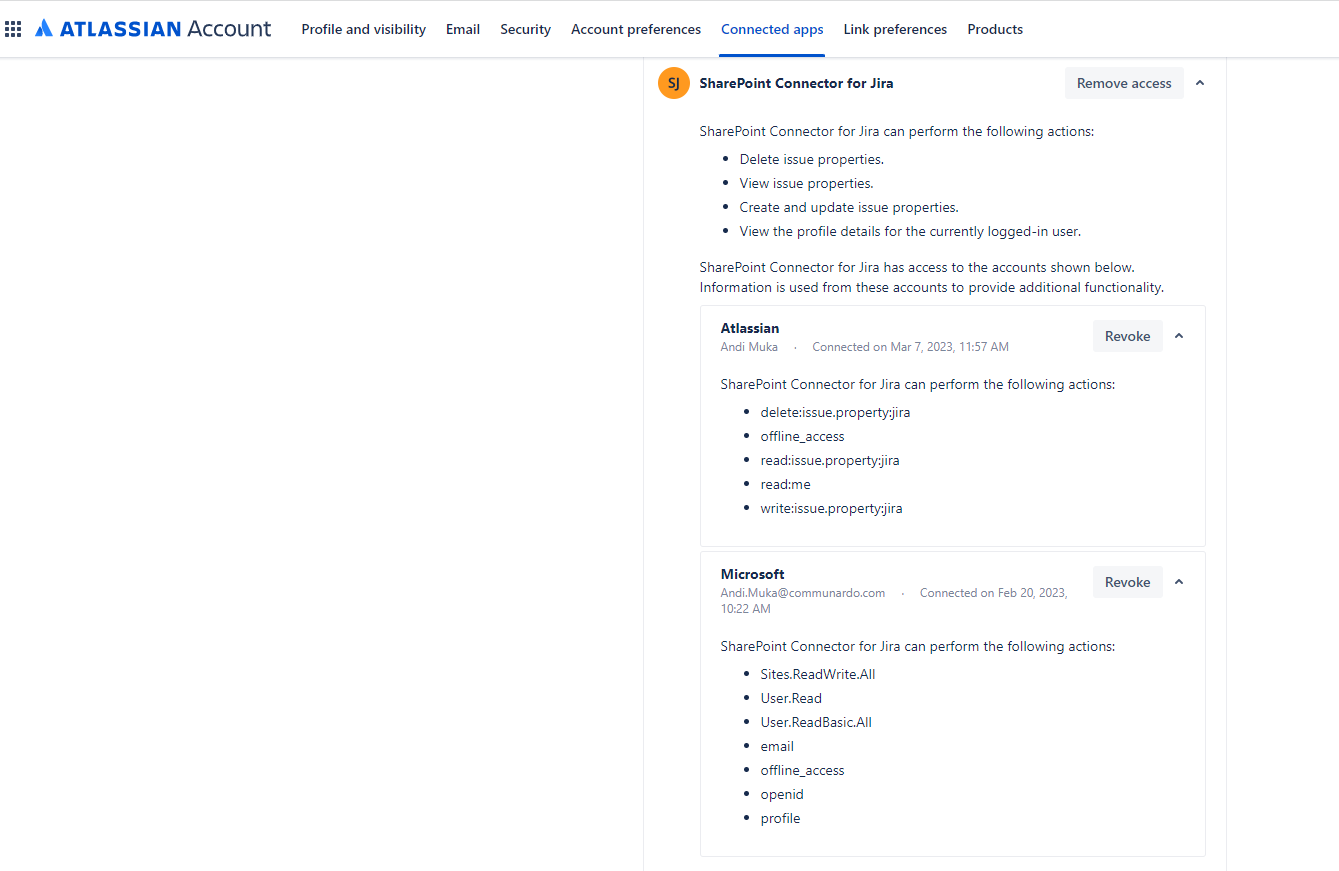
Revoke consent in Atlassian -
Click Remove access. This completely removes access for the app.
Alternatively, click Revoke for the corresponding system (Atlassian or Microsoft). This removes access only for that system.
Revoke consent in Microsoft
To remove the app permissions for your current user in Microsoft, follow these steps:
-
In a browser of your choice, go to https://myapps.microsoft.com .
-
Search for the app SharePoint Connector for Jira.
-
Remove the app using its context menu.
For the full guide, see the official Microsoft documentation: Edit or revoke application permissions in the My Apps portal
If you used the wrong account to give permissions to the app, you can sign out of the app by revoking the consent as described above. Then sign in again with the correct account.