
Install SharePoint Connector for Jira from the Atlassian Marketplace and make sure your Jira site has a valid license.
You need Jira administrator permissions for these steps.
Install the app
-
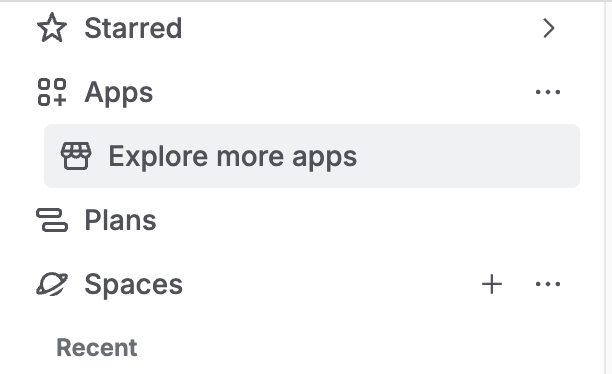
In Jira, go to the left-hand menu and select Apps > Explore more apps.
-
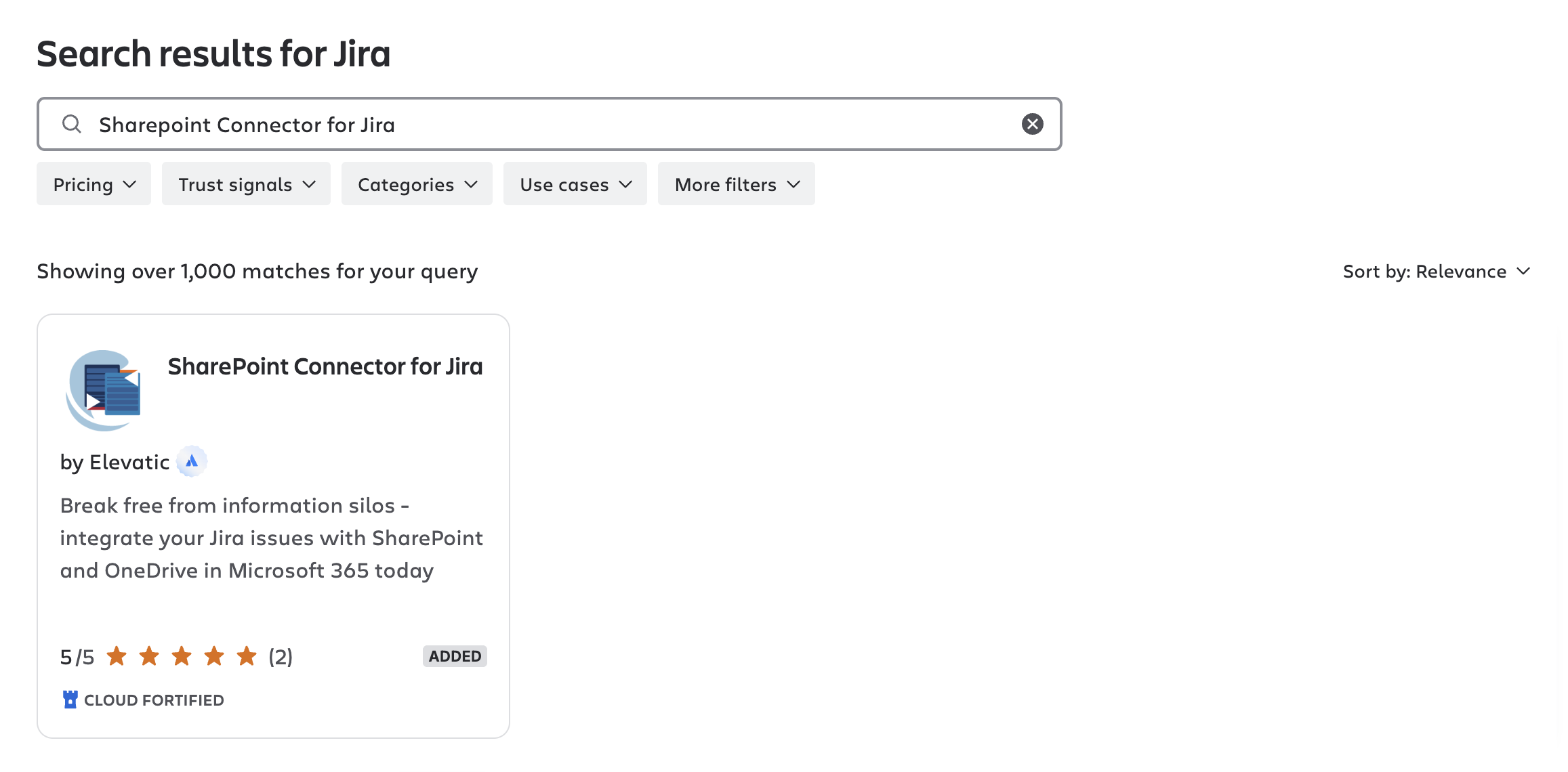
Search for
SharePoint Connector for Jira.
-
Select the app.
-
Click Try it free.
-
Follow the prompts to finish the installation.
The app is installed on your Jira site.
For more details about managing apps, see Manage your apps in the Atlassian documentation.
Start a trial or subscribe
The app needs a valid license. Without one, features might not work. The license model is the same one Atlassian uses for its products. For more information, see the Atlassian licensing documentation.
To start a trial or subscribe, click Try it free on the app's Atlassian Marketplace listing.
If you don't end the trial within the trial period, a subscription for the app starts automatically. Trials last for a month from the start of your next billing date. After you start a trial, you can stop it on the app administration page.
You can re-enable the trial within the original trial period, but you can't start it again after the original trial period has ended. From then on, you can only subscribe to the app.
Manage or cancel your subscription
-
Go to Administration > Connected apps.
-
Search for
SharePoint Connector for Jira.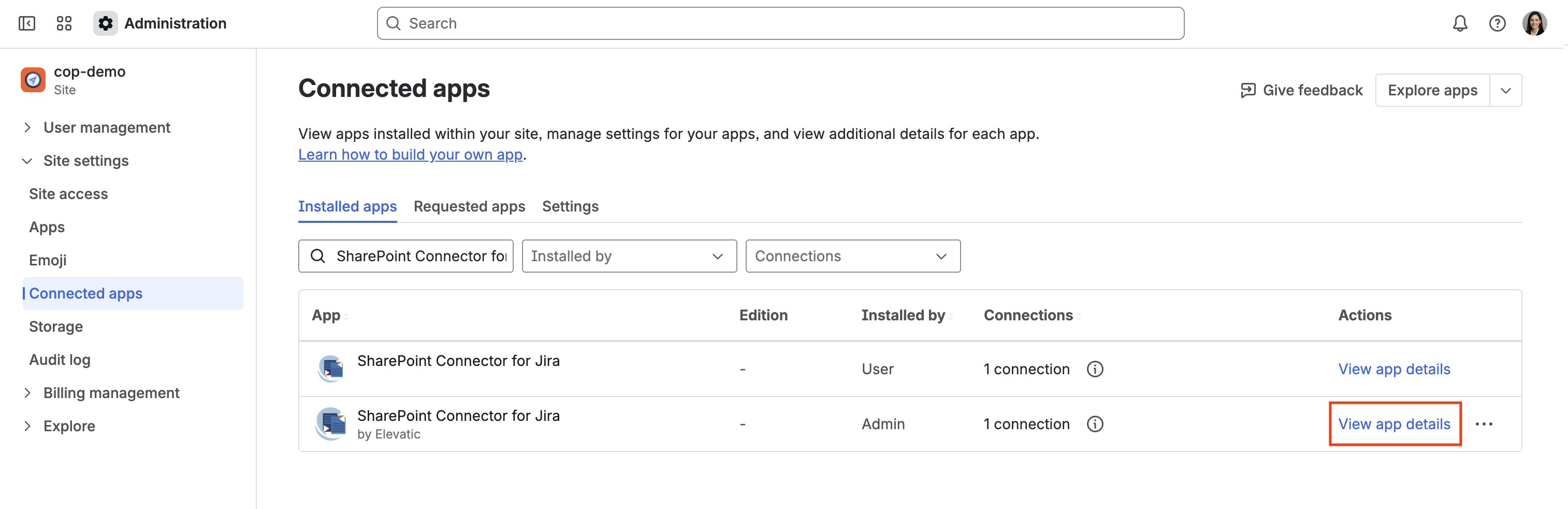
Connected apps -
Click View app details.
-
Click Unsubscribe to end the license, or Uninstall to remove the app from your site completely.
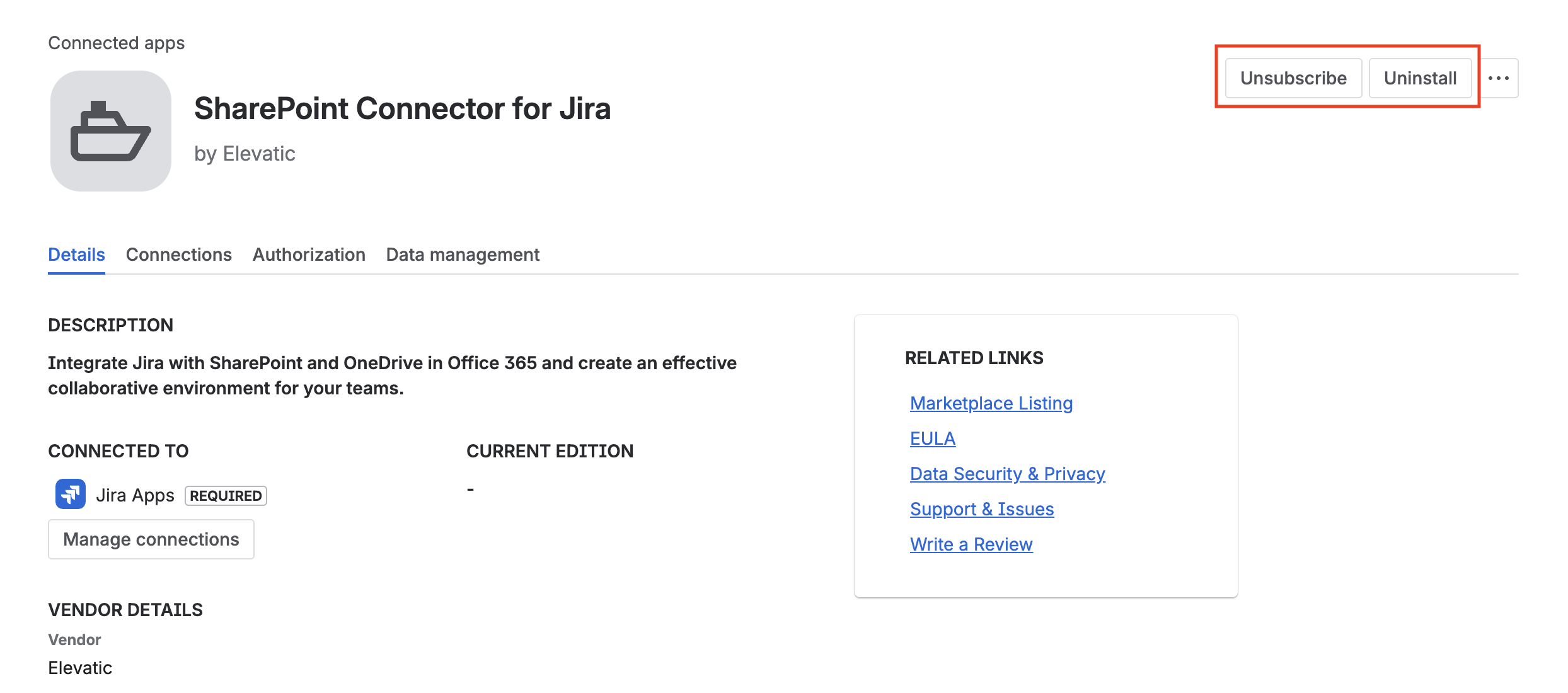
Unsubscribe or Uninstall
Your subscription is updated.
To update the app, see Update SharePoint Connector for Jira.