
The SharePoint Online Document macro displays a SharePoint or OneDrive document on a Confluence page, either as a live preview or as a link.
Before you start
The macro shows content based on each viewer's SharePoint permissions. Users only see documents they are authorized to access in SharePoint. You can embed documents from SharePoint Online and OneDrive for Business.
Add the macro
You can add a document in two ways.
Using the macro browser:
-
In the Confluence editor, open the macro browser by typing
/or clicking the + icon. -
Search for SharePoint Online Document and select it.
-
The macro editor opens.
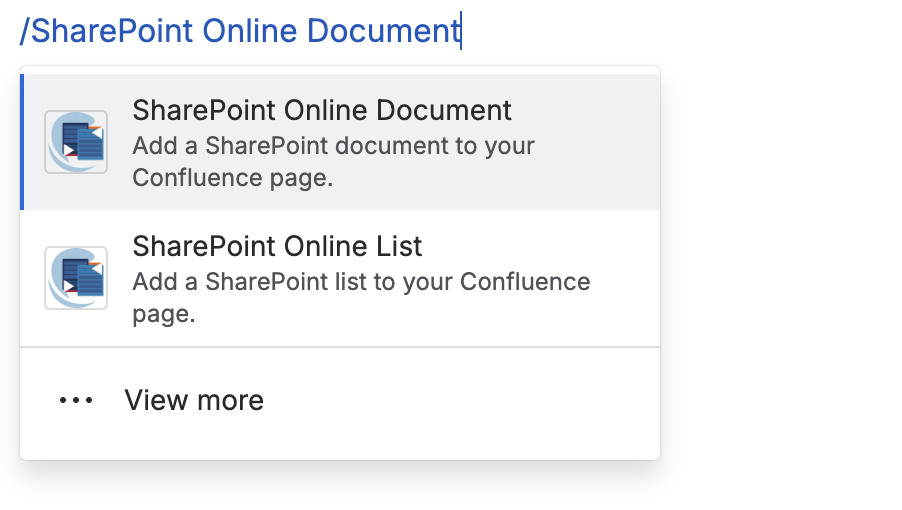
Image 1: Adding SharePoint Online Document (click to enlarge)
Using URL pasting:
-
Copy the link of a SharePoint or OneDrive document.
-
Paste it at the desired position on the page in edit mode. The macro is created automatically.
-
Publish the page. By default, the document is embedded as a link.
Configure the macro
Use the navigation in the macro editor to find your document:
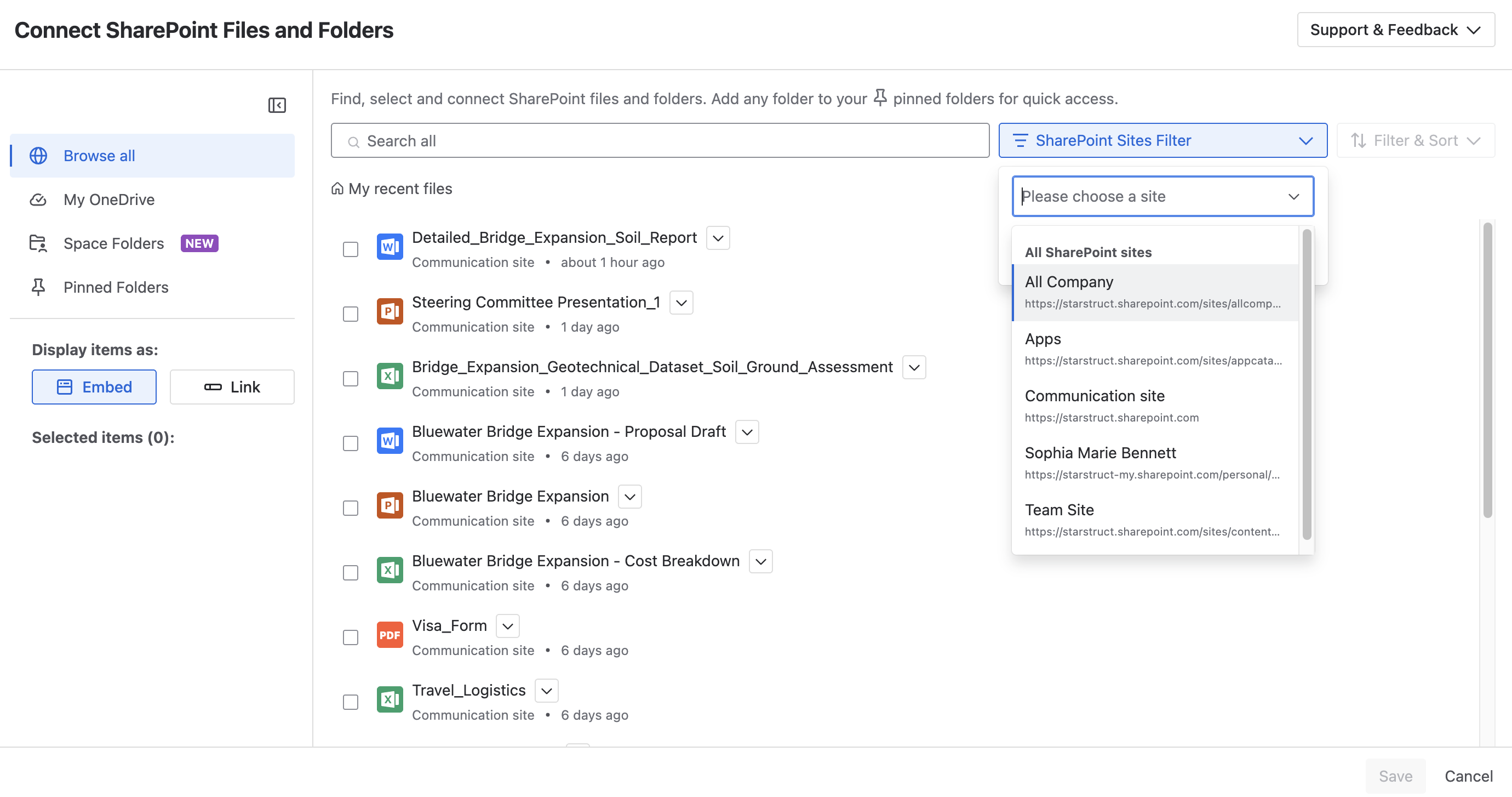
Browse All
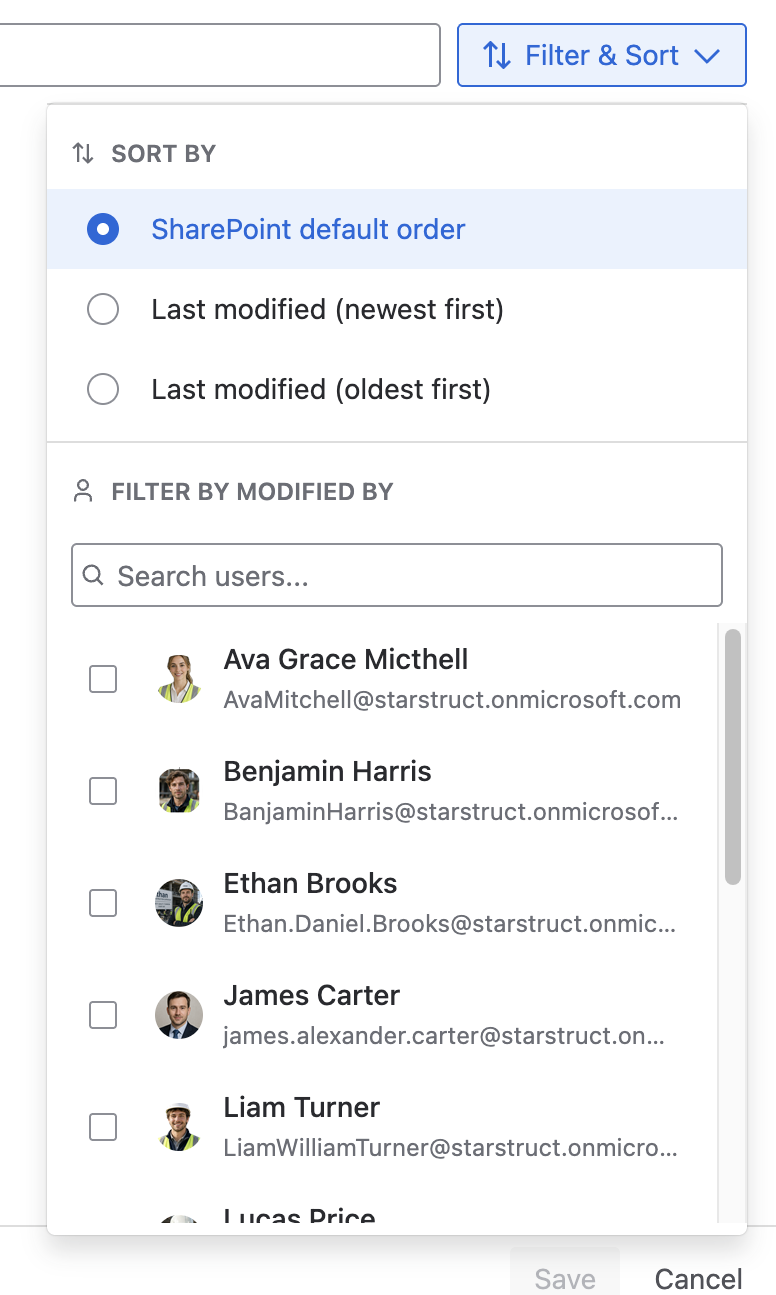
Shows your recent SharePoint files and lets you search all files and filter by sites. You can sort the list by SharePoint default order, last modified date (newest or oldest), or filter by the person who last modified the file. You can only see files you have at least read access to. Click the arrow next to a file for a preview. Clicking the square next to the document selects the item, which then appears in the selected items section on the left. Hovering over a folder lets you pin it (it appears in the Pinned Folders section for quick access) or upload documents to the folder.
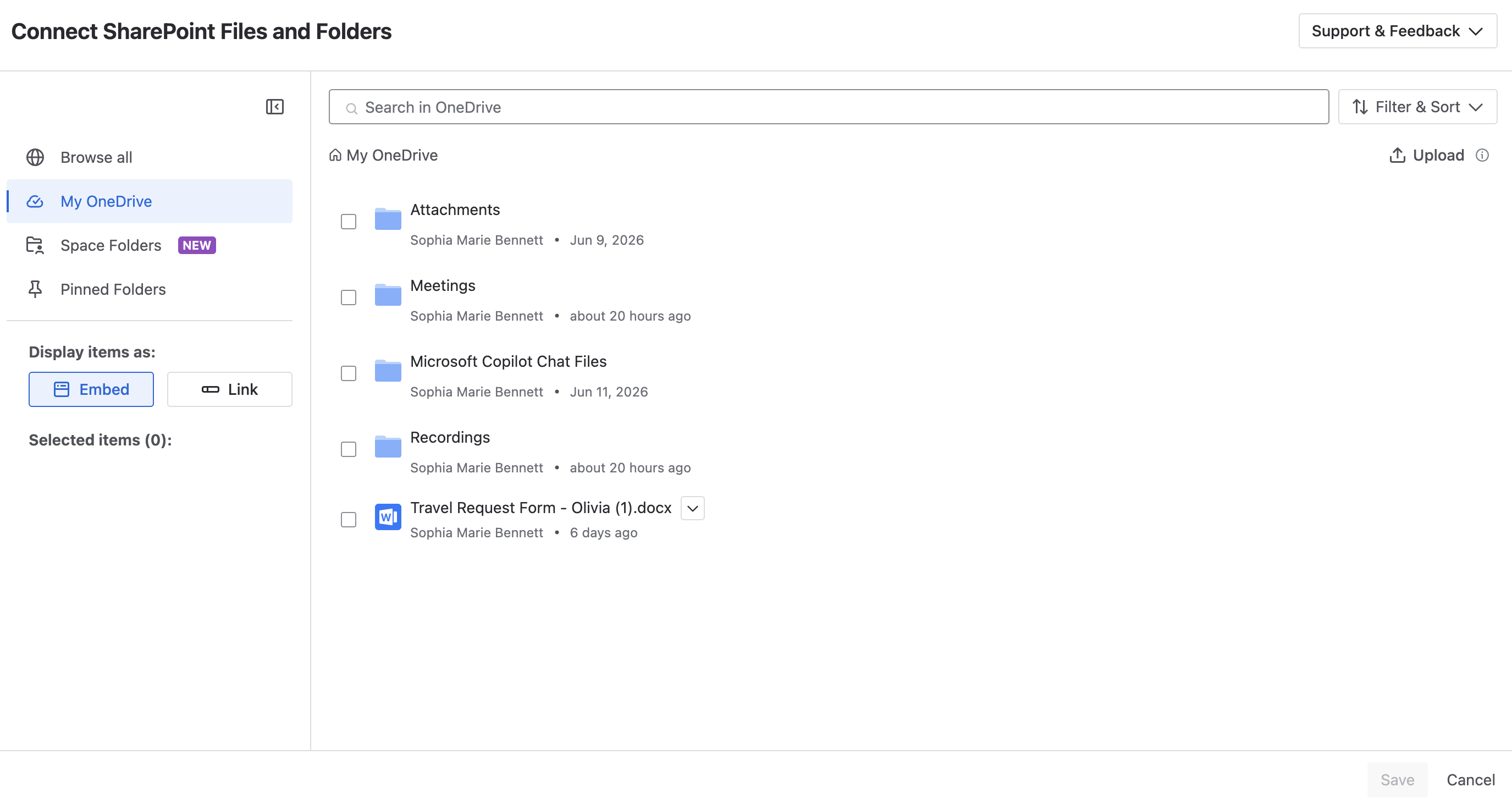
My OneDrive
Browse files and folders in your personal OneDrive. You can sort the list by SharePoint default order, last modified date (newest or oldest), or filter by the person who last modified the file.
You can upload one or more files from your device or drag and drop them into the table using the upload button on the right. Files are uploaded to the folder or library shown in the document table.
Hover over a folder to open a dialog with pin and upload buttons. The pin lets you pin the folder; it then appears in the pinned folders section below. The upload button lets you upload documents to the selected folder.
OneDrive files are private by default. Before other users can see an embedded file, share it in OneDrive. See Microsoft's guide on sharing OneDrive files and folders.
The default OneDrive library is named Documents, so to find it quickly, select the My OneDrive tab first.
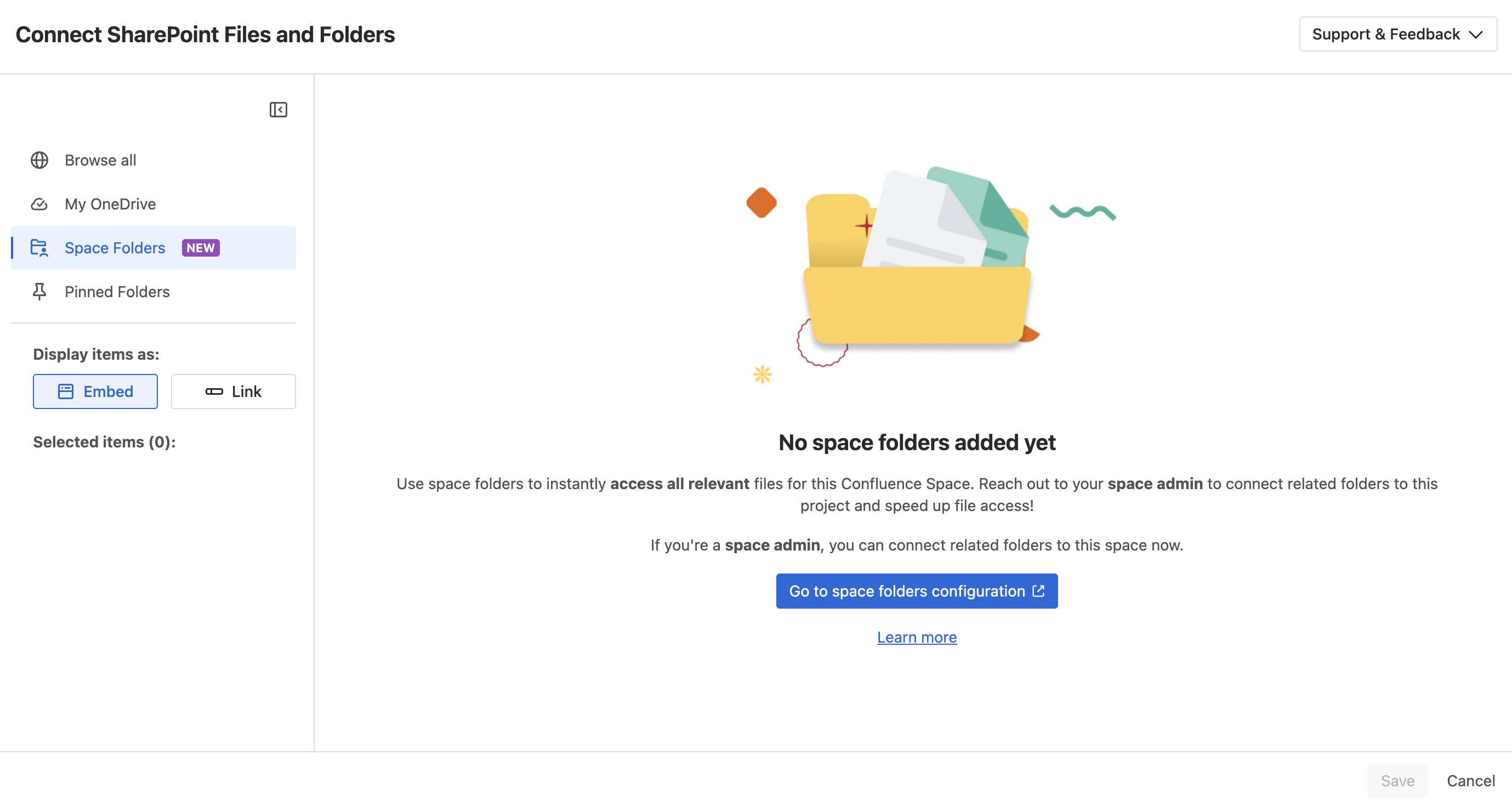
Space Folders
Select configured SharePoint folders as sources for your space.
-
No folders configured: An informational message provides links to the Space Apps – SharePoint Folders settings and documentation.
-
Folders available: All accessible folders appear as selectable and pinnable sources.
-
Search and filter: Use the search bar to filter the folder list or search within a specific folder's contents.
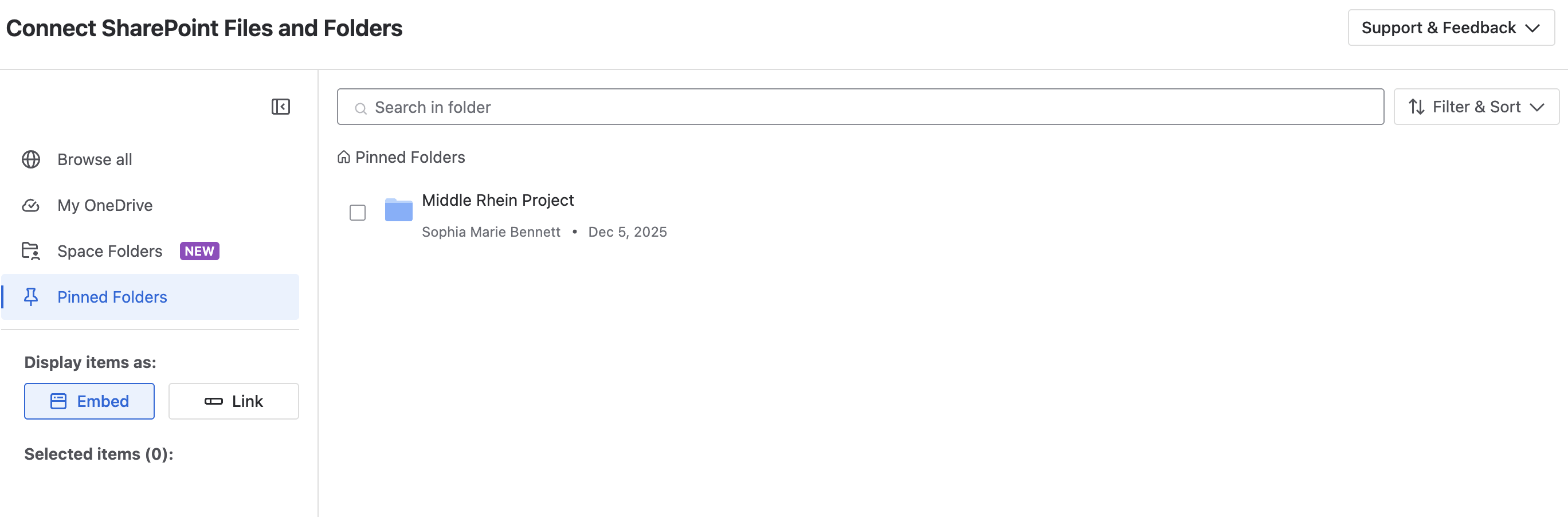
Pinned Folders
Folders you pinned for quick access.
Display options
Choose how you would like the document to appear:
-
Embed: shows a preview on the page. The default is the responsive view. Multiple embedded files appear as a carousel.
-
Link: shows a persistent link that opens in the Office web app, even if the document is renamed or moved. Multiple links appear as a list.
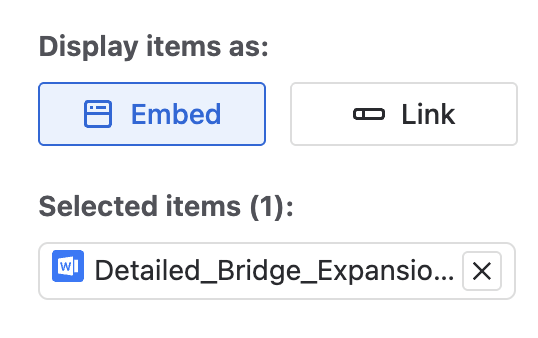
Select your items and click Save on the bottom right of the screen.
Use the macro

On an embedded document, you can:
-
Open the Smart Assistant to ask AI questions about the document. See Use the Smart Assistant.
-
Edit in SharePoint to open the document in SharePoint in a new tab.
-
Full-screen to open the document in a full-screen view.
-
Open parent folder to go to the document's folder in SharePoint.
-
Adapt display options to switch between embed and link view.
-
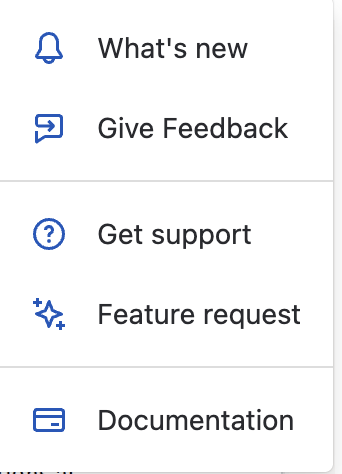
Support and feedback to open the support menu. In the support menu, you can choose between:
-
What’s new to look at new features.
-
Give Feedback to open our feedback form.
-
Get support to be redirected to our support portal.
-
Feature request to request new features.
-
Documentation to be directed to our apps documentation.
-
The same actions are available for the entries in a multiple-links list.
Limitations
-
Moving an item between two different SharePoint document libraries breaks its display on the page. Moving within the same library, including OneDrive, continues to work.
-
Previews for password-protected documents are not supported.
-
Adding special permissions through a sharing link is not supported.