
Connect SharePoint folders to a Confluence space so everyone in the space can reach them. Connected folders also appear in the document macro editor under Space Folders.
Before you start
You need to be a space admin or have permission to view and edit the space settings.
Connect a folder
-
Open the space you want to configure.
-
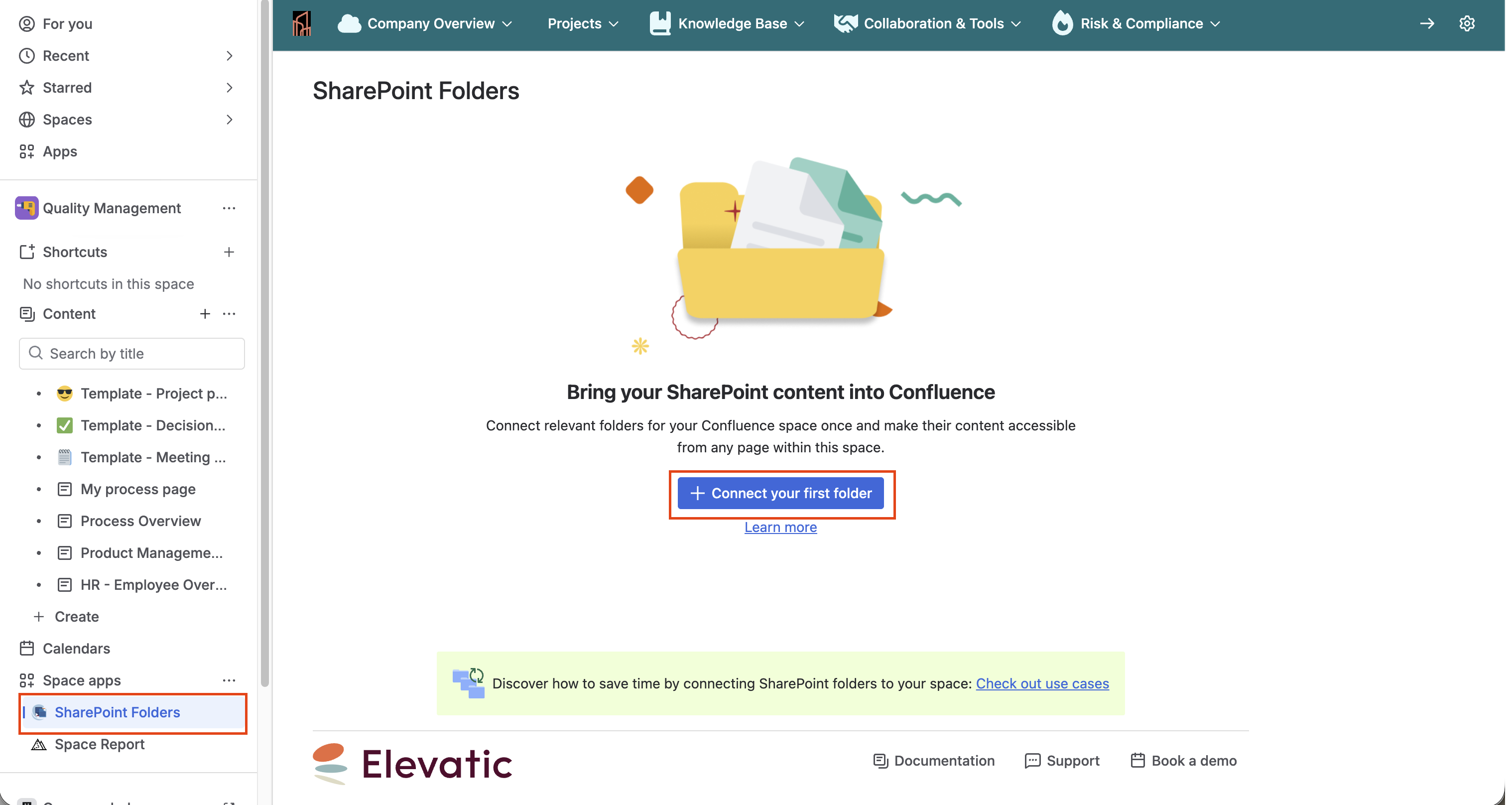
In the space sidebar, open the app under Space apps.
-
Select Connect your first folder.
-
This opens a dialog that lets you connect folders to your space.
The connected folders appear on the same page and are available to the space.
Configure space folders
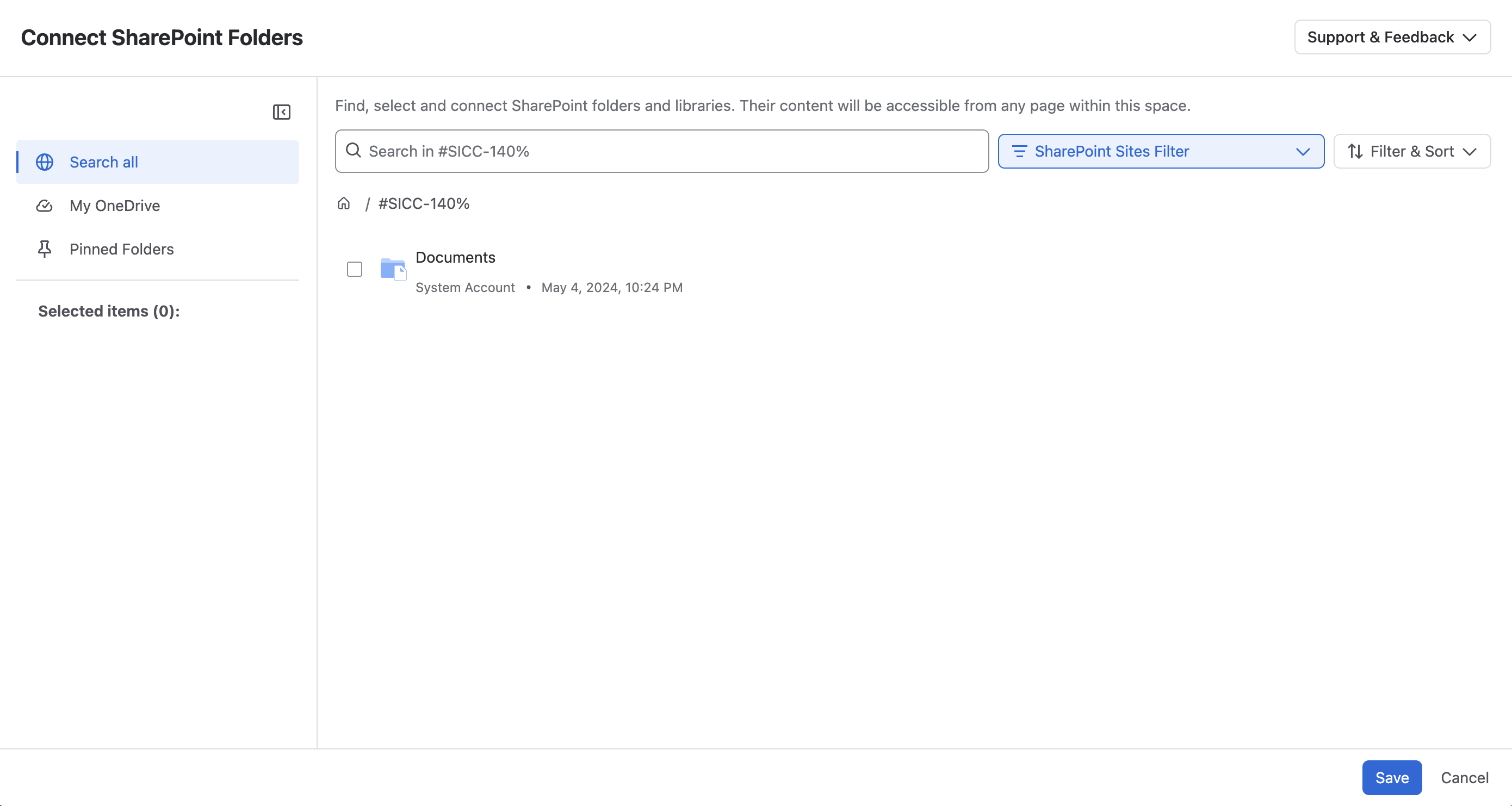
The menu that lets you connect folders to your Space is divided into four sections:
Search all
The Search all section lets you search for folders, search all files and filter by sites. You can sort the list by SharePoint default order, last modified date (newest or oldest), or filter by the person who last modified the file.
Hover over a folder to open a dialog with pin and upload buttons. The pin lets you pin the folder; it then appears in the pinned folders section below.
My OneDrive
Browse files and folders in your personal OneDrive. You can sort the list by SharePoint default order, last modified date (newest or oldest), or filter by the person who last modified the file.
You can upload one or more files from your device or drag and drop them into the table using the upload button on the right. Files are uploaded to the folder or library shown in the document table.
Hover over a folder to open a dialogue with pin and upload buttons. The pin lets you pin the folder; it then appears in the pinned folders section below.
Pinned Folders
Folders you pinned for quick access.
Selected Items
Selected items display your choices from the menus on the right.
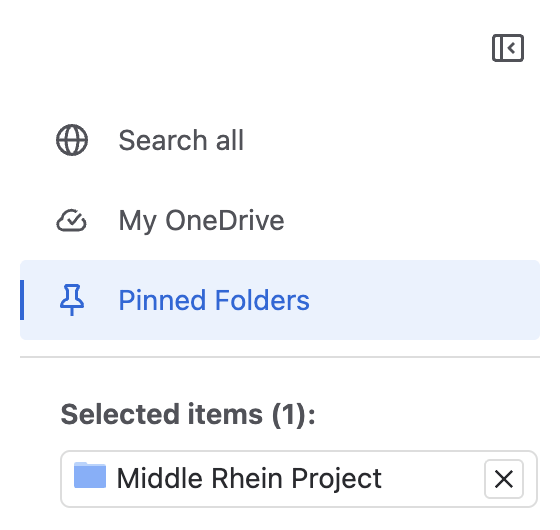
Click Save to connect your selected folders to your Confluence Space.
Manage connected folders
Going to Space apps and selecting SharePoint folders will now lead you to a new overview. It will show all the folders you connected to the space. With the menu points behind each connected folder, you can now upload files, copy the folder link, jump to the folder in SharePoint, or disconnect it.
A disconnected folder no longer appears in the macro editor's Space Folders section.
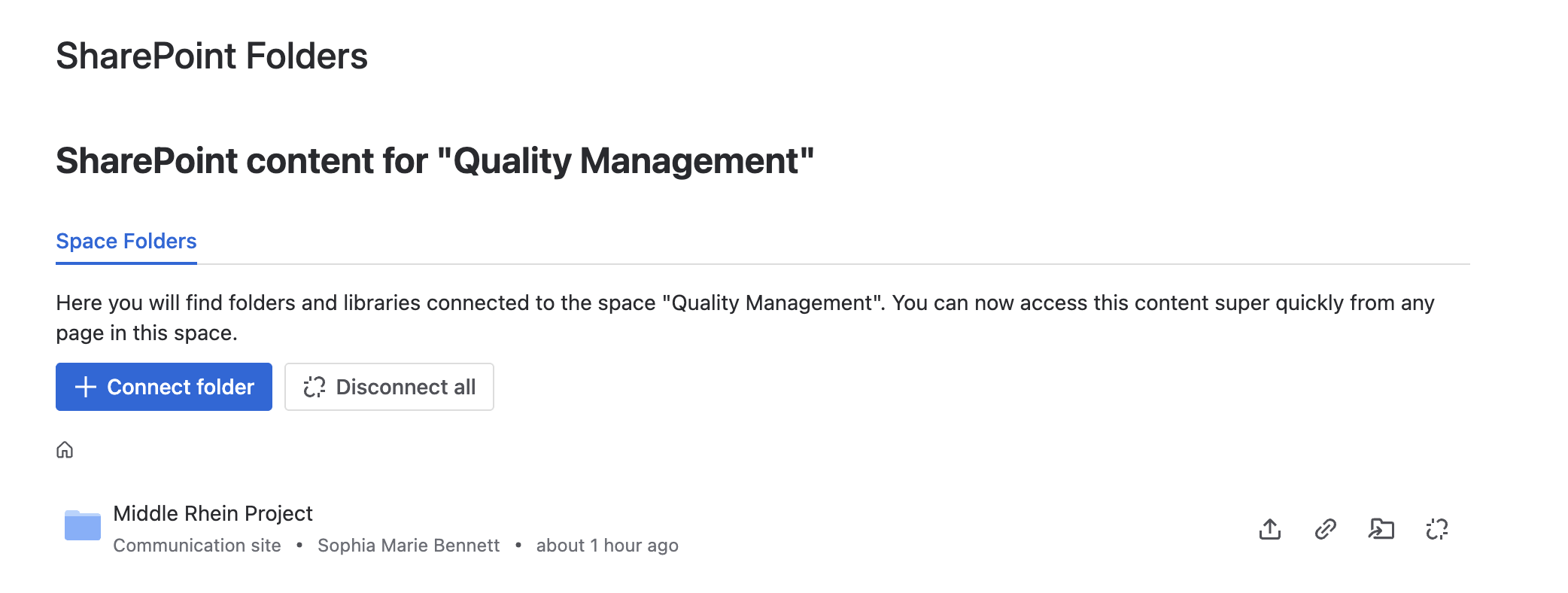
Files in a connected folder can be opened full screen, edited in the browser, copied as a link, or jumped to the parent folder.

Clicking Connect folder at the top lets you add additional folders to the space. Selecting Disconnect all disconnects all folders from the space.