
The app accesses SharePoint content in the context of the signed-in user, which requires Microsoft consent. This page is for admins who want to grant consent once for the whole organization, so individual users don't have to.
Before you begin
You need a Microsoft Entra ID administrator role to consent on behalf of your organization. The Microsoft Graph permissions the app requests are listed on the Admin guide landing page.
How consent works
The app uses delegated Microsoft Graph permissions that normally do not require admin consent, so each user can approve them individually. Some organizations enforce stricter Microsoft Entra ID policies that restrict user consent. In that case, users see a Request approval option instead of being able to grant consent, and an admin has to approve.
Grant consent for your organization
You have two options.
Option 1: Consent during the app login
-
Start the consent flow in the app by selecting Login to SharePoint.
-
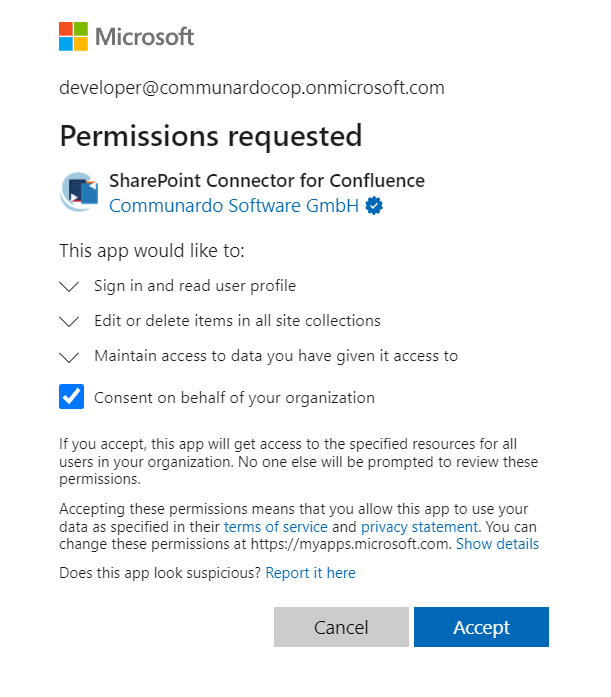
In the Microsoft dialog, select Consent on behalf of your organization. This checkbox appears only for accounts with admin privileges.
-
Complete the dialog.
Option 2: Approve requests in Microsoft Entra ID
-
Open the Microsoft Entra ID Admin Center.
-
Go to Enterprise Applications, then Consent and Permissions, then Admin Consent Requests.
-
Approve the requests from your users.
Result
All users in your organization can use the app without granting consent individually. Users can still review or revoke the app's access for their own account, as described in the User guide.