
Install SharePoint Connector for Confluence from the Atlassian Marketplace and activate a trial or license. This is the first step every admin completes before anyone can use the app.
Before you begin
You need Confluence global admin permissions. Roles, platforms, and the HTTPS requirement are listed on the Admin guide landing page.
Install the app
-
Log in to Confluence as a global admin.
-
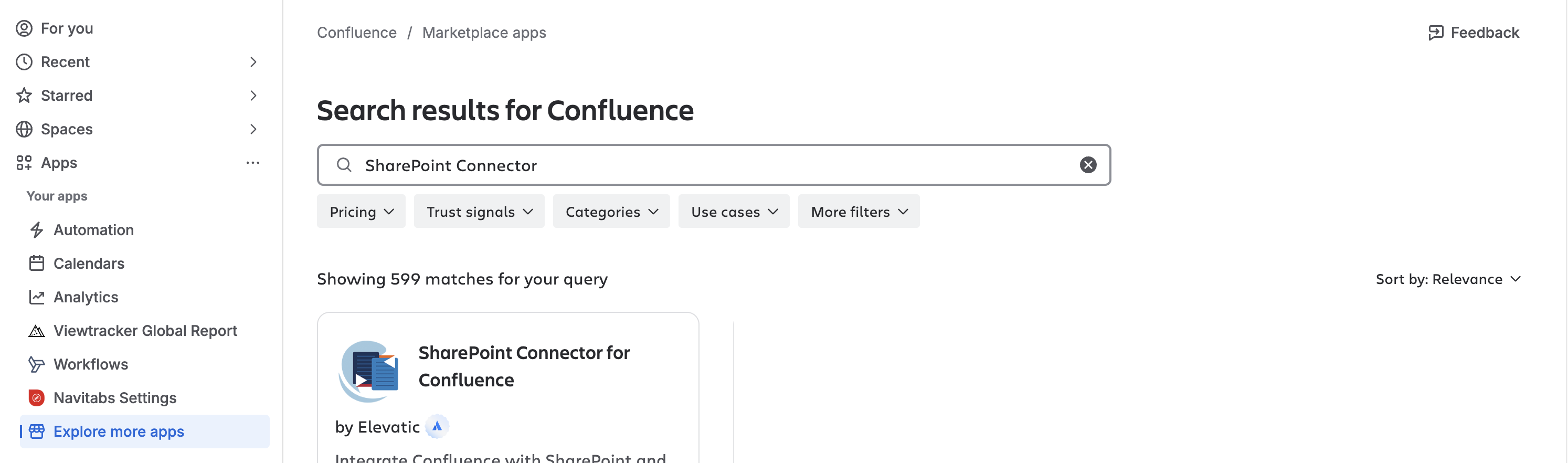
Go to Apps on the left-hand bar and select Explore more apps.
-
In the search field, enter
SharePoint Connector for Confluence. -
Select the app and click Try it free.
-
Confirm the subscription for your Confluence site and follow the on-screen steps until the app is installed.
You can also install the app directly from the Atlassian Marketplace listing.
The trial runs for 30 days. If you don't cancel before it ends, it converts to a paid subscription.
Manage or cancel the subscription
-
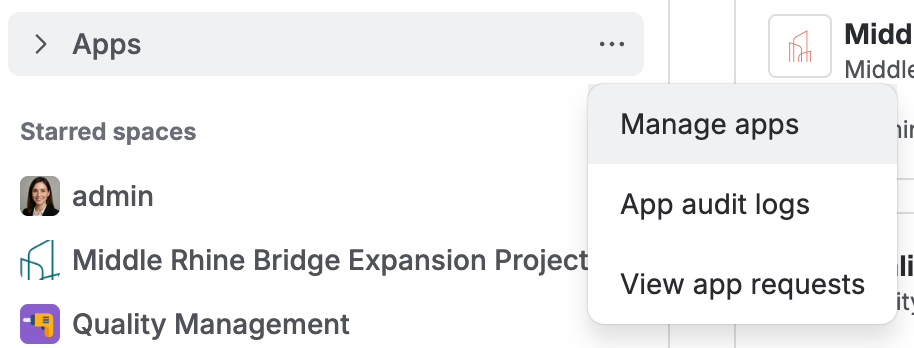
In Confluence, go to Apps on the left-hand bar and select Manage apps.
-
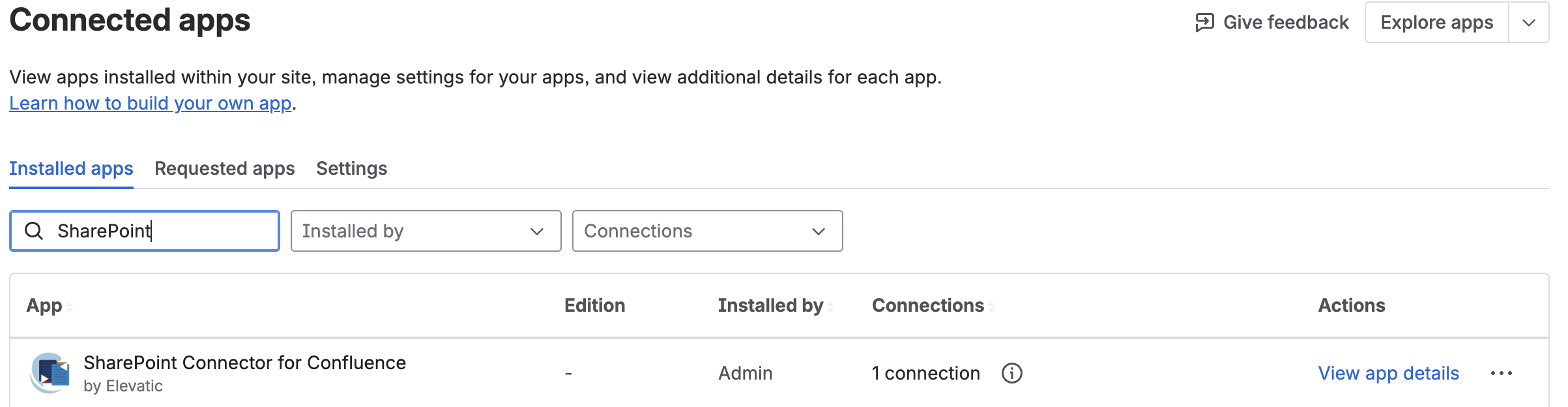
Find SharePoint Connector for Confluence in the list.
-
By clicking View app details, you can view the license status and renewal date, stop a running trial, or unsubscribe.
You can re-enable a trial only within the original trial period. After that, you can subscribe but not start a new trial.
Update the app
Confluence Cloud apps update automatically through the Atlassian Marketplace, so in most cases you don't need to do anything. To check for an update manually, go to Apps, select Manage apps, find SharePoint Connector for Confluence, and click Update if one is available.
Result
The app is installed and licensed. Next, grant Microsoft consent so users can access SharePoint content.