
Use this page to back up your panelbox designs, move them to another Confluence instance, or bring a set across from Confluence Data Center. The app holds the whole set as one JSON document, which you copy out or paste in.
Without a copy, rebuilding a design set on a second instance means entering every color by hand.
Open the import and export page
-
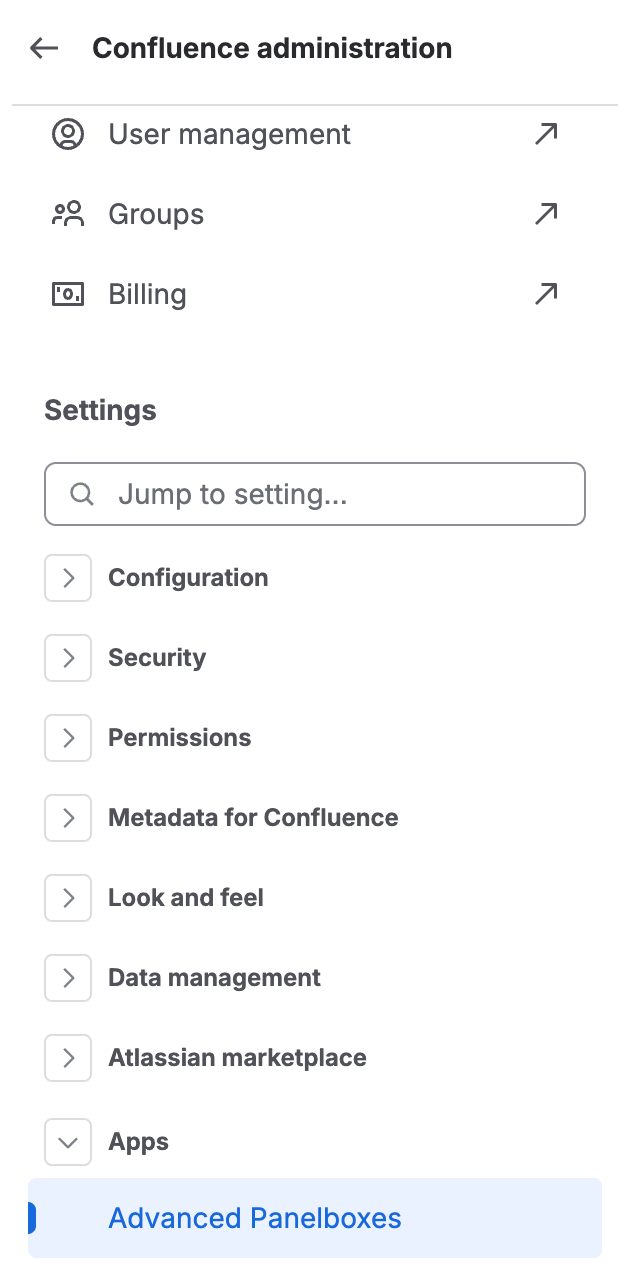
Navigate to the Confluence general settings.
-
In Confluence Administration, go to Apps and select Advanced Panelboxes to access the settings.
-
Select Import & Export in the left navigation.
The text area is pre-filled with your current design set as JSON.
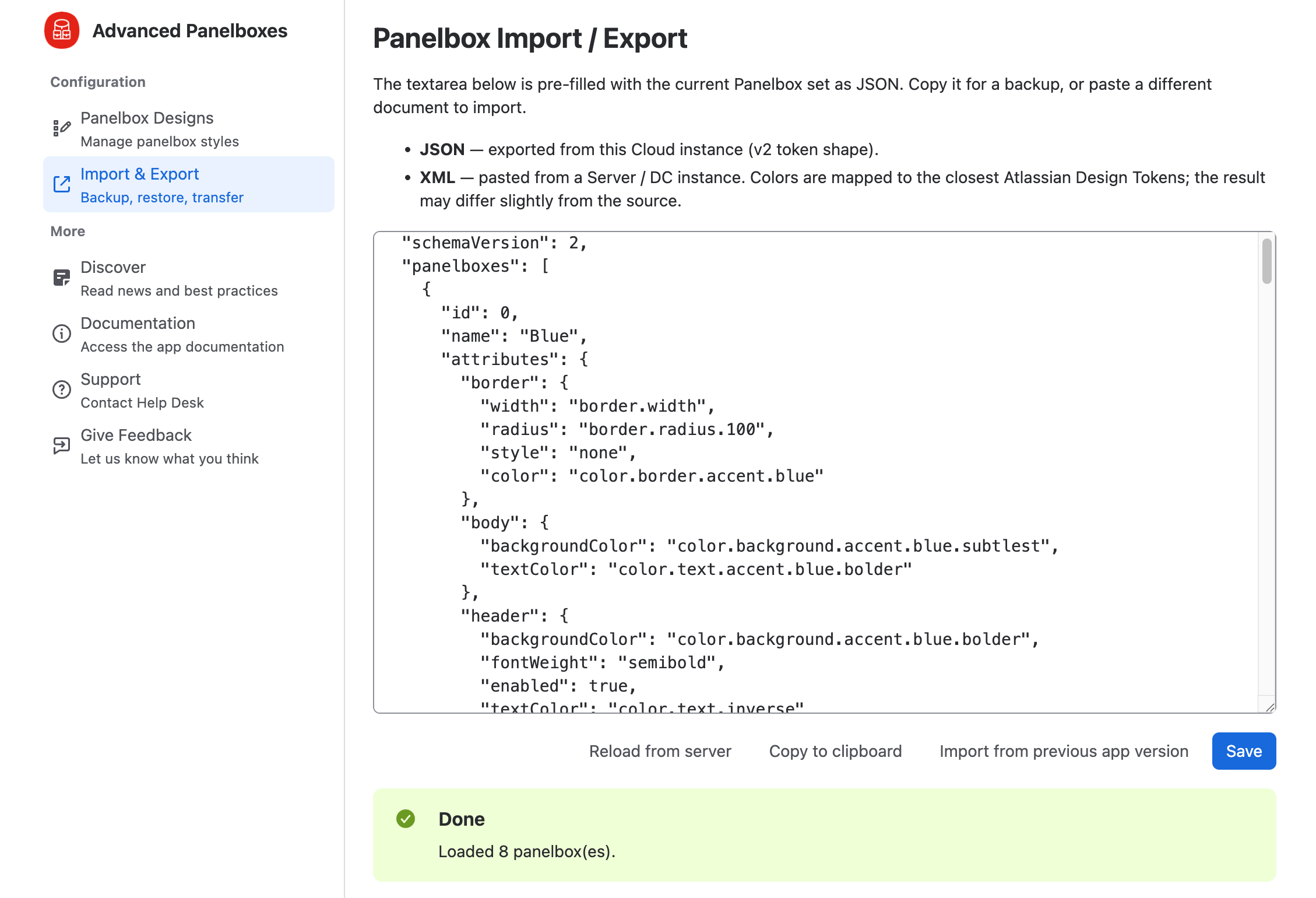
If you have changed the text and want the stored version back, click Reload from server. This discards your edits in the text area and loads the currently saved set.
Back up the current design set
-
Click Copy to clipboard.

Backup design set -
Paste the JSON into a file and store it where your team keeps configuration backups.
You hold a complete copy of every design in this instance. Import it later on this instance or on another one.
Import a design set
The text area accepts two formats.
|
Format |
Where it comes from |
|---|---|
|
JSON |
An export from a Confluence Cloud instance. |
|
XML |
The configuration from a Confluence Server or Data Center instance. Colors map to the closest Atlassian design tokens, so the result may differ slightly from the source. |
-
Replace the text area content with the document you want to import.
-
Click Save.
Saving replaces the whole set. Designs that exist only in this instance are gone afterward, and panelboxes that used them fall back to a default frame. Copy the current set to a file first.
A confirmation states how many designs were read; for example, Loaded 8 panelbox(es). The list under Panelbox Designs now matches the imported document, and authors select from the imported designs.
Bring designs across from the previous app version
If designs are missing, read them from the previous app version again
-
Click Import from previous app version.

Import from previous app version
The app reads the designs from the previous version and writes them into its own storage. The confirmation states how many designs it loaded.
Related tasks
-
Configure the panelbox designs to change a design after an import.
-
Migrate Advanced Panelboxes to Cloud from Data Center.