
Use this procedure to place a panel on a page in one of the designs your administrator defined. Pick this macro when the panel should mean the same thing as the same panel on every other page, for example, a red box for a warning.
How to add a Panelbox
-
Open the page in the editor.
-
Enter
/panelbox. -
Select Panelbox.
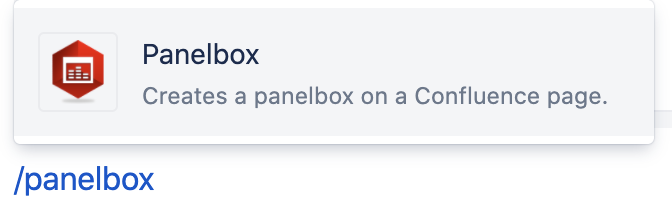
Panelbox Macro -
Select a design, for example
Red.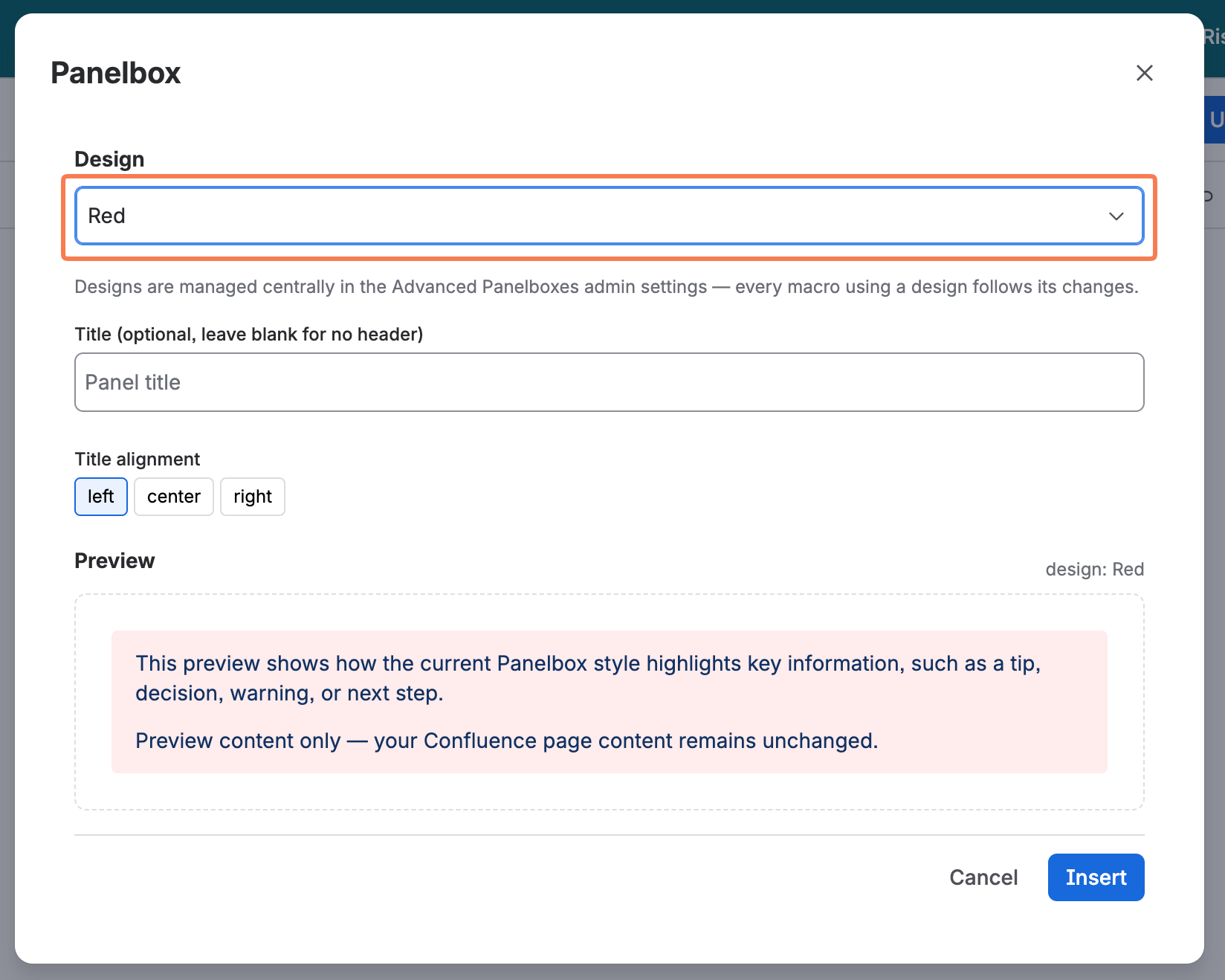
Select design -
Optional: Enter a title for the panel and select alignment. The Preview shows your live changes.
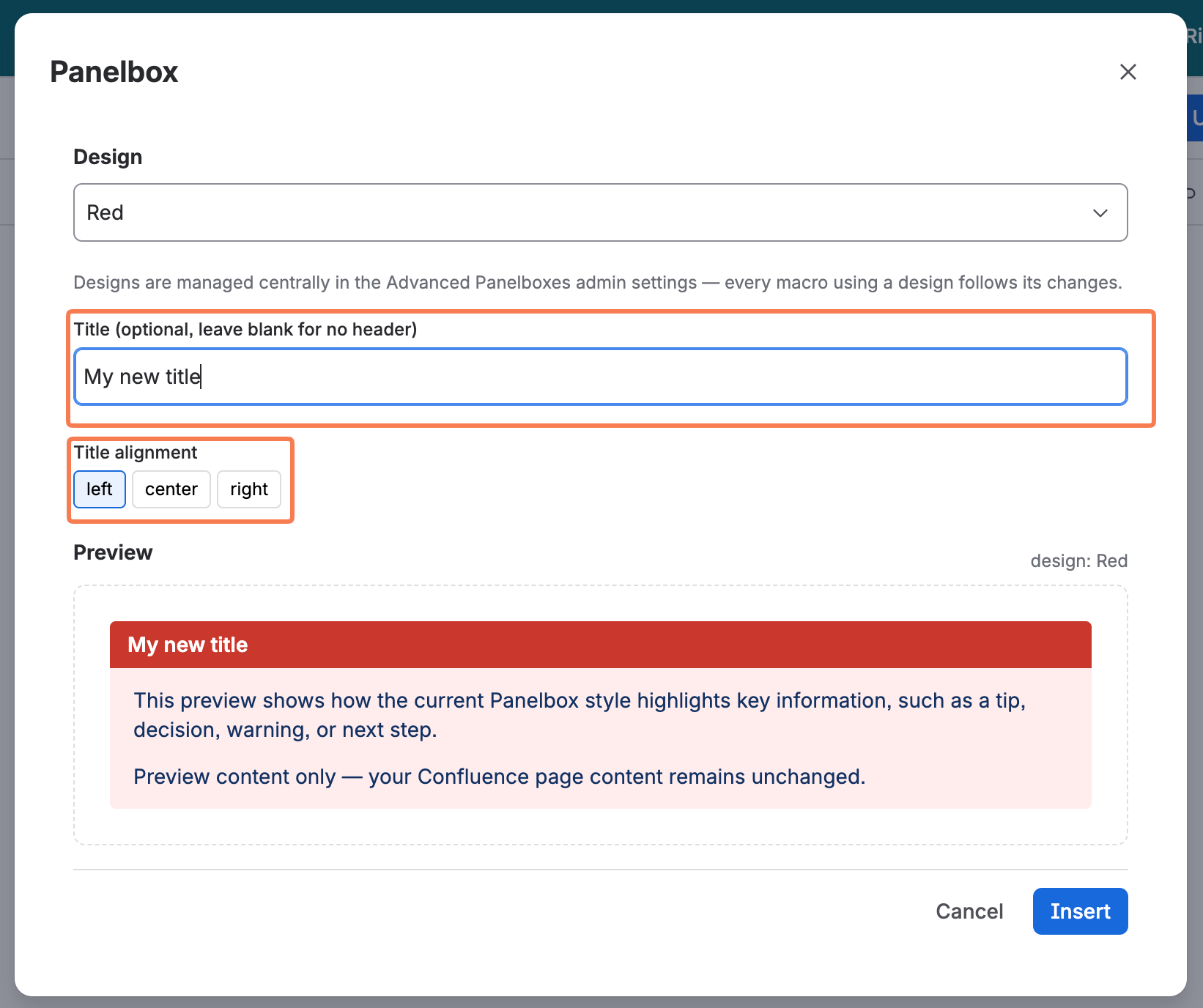
Enter title and alignment -
Click Insert.
-
Enter your content in the panel.
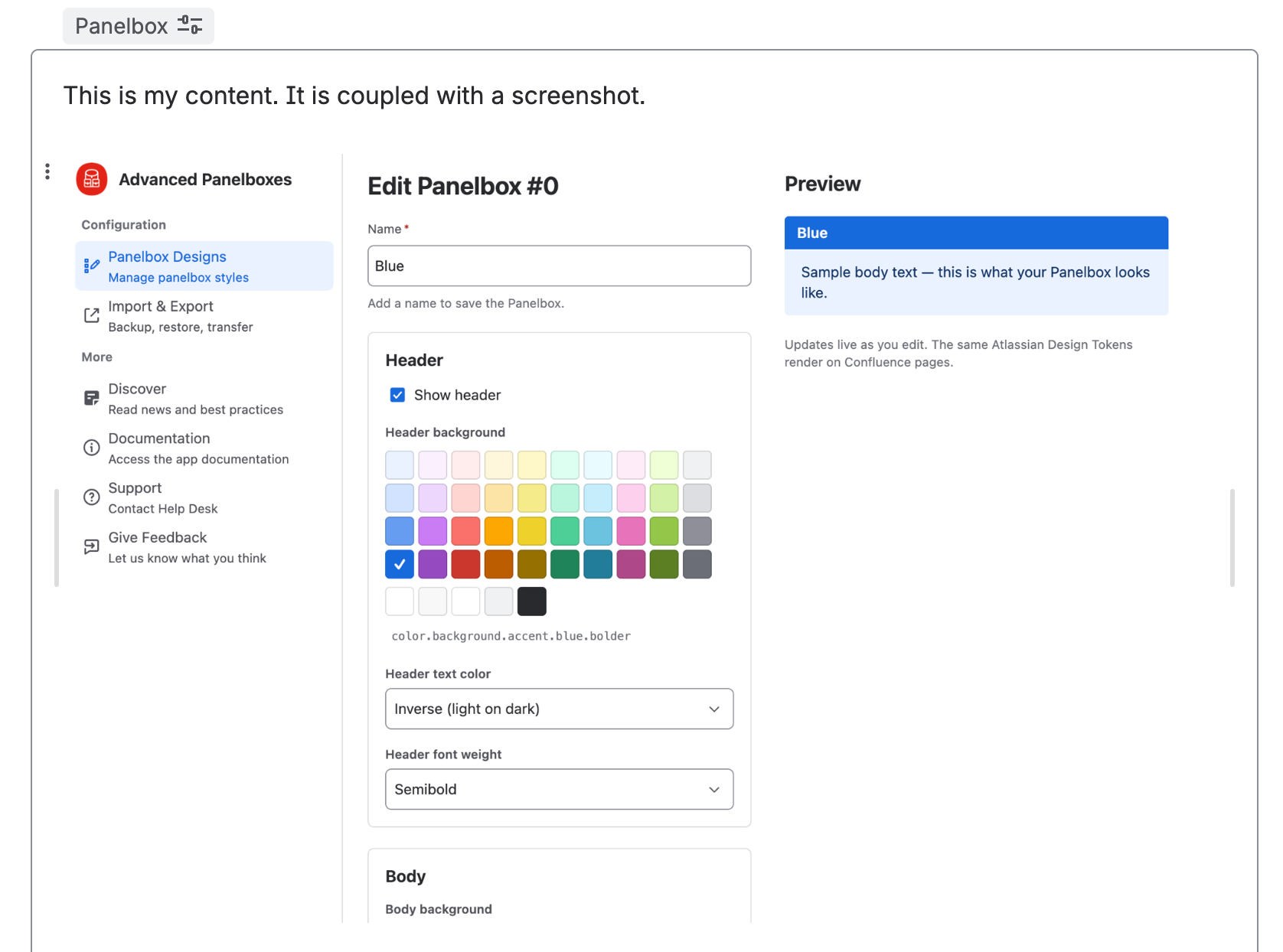
Enter your content into the panel -
Publish or update the page.
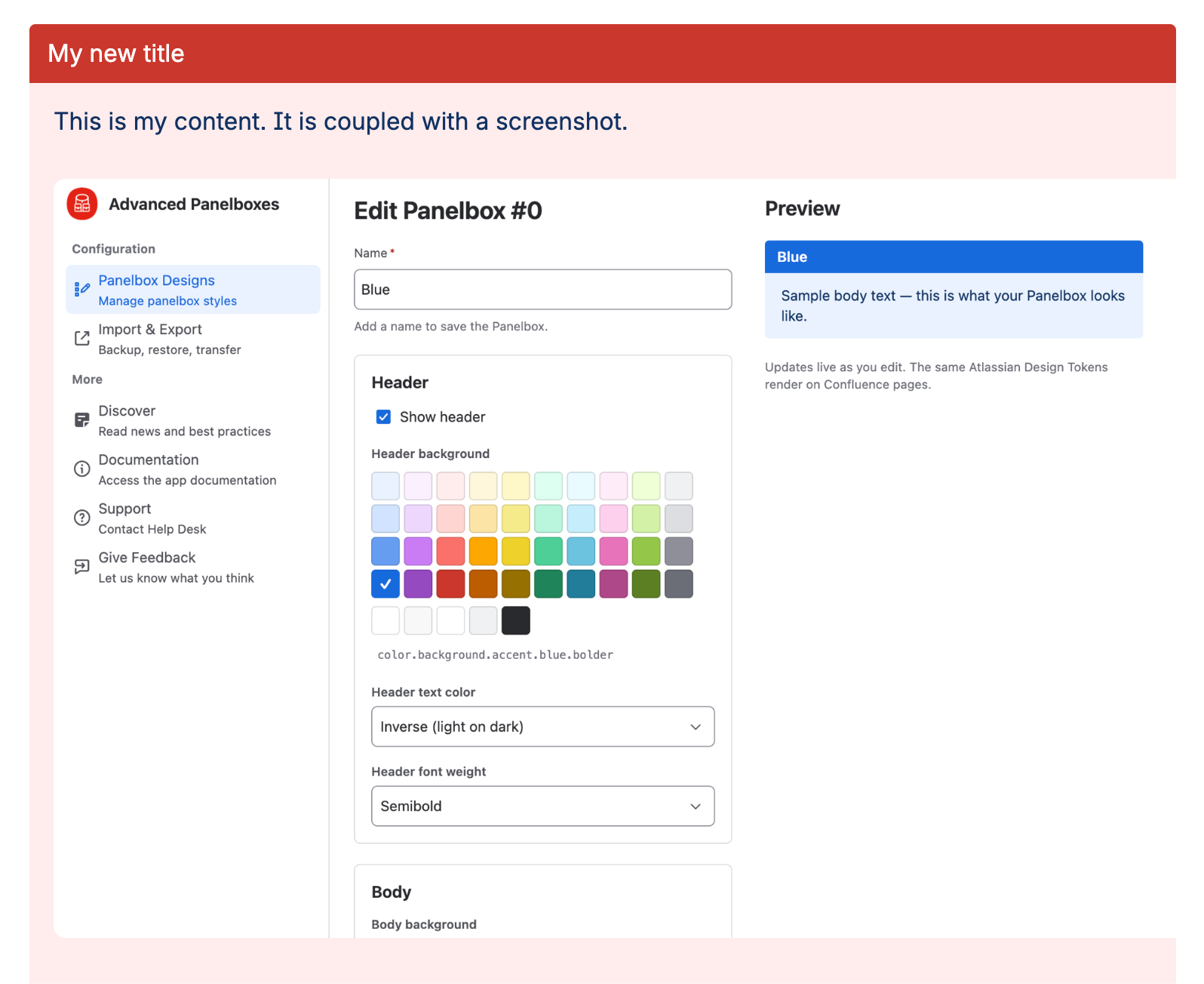
End result on published page
The published page shows your content in the selected design. The panel follows each reader's light or dark theme.
If an administrator changes that design later, your panel changes with it. You don't have to edit the page.
Change a panel afterward
-
Open the page in the editor.
-
Select the panel.
-
Click the edit control to change the design, title, or alignment.

Edit control -
Publish the page.