
This guide is for Jira global admins who install Meridian People & Skills Hub and set it up for their organization. Setting up the app is short: Install it, review what it can reach, confirm that review, then choose the one setting that cannot be changed afterwards.
Prerequisites
-
Your site is enabled for the Early Access Program. The app is currently invite only. See Join the Early Access Program.
-
Jira Cloud. The app requires Jira. Confluence Cloud is optional and adds Confluence pages as a second source for skill derivation.
-
Jira global admin rights. Only a user with Jira admin permission can save the profile population mode. Anyone else sees the setting but cannot save it.
-
A valid app license. Without a valid license, the app locks itself and shows a license notice instead of content. Nothing is deleted, and everything is available again once the license is valid.
What you configure
The configuration page has two panels. First, a Content access panel shows what the app can reach in Jira and Confluence and lets you connect Confluence. Then you save the one permanent setting, Profile population mode, which decides whether people confirm every derived skill or whether the app writes skills straight to their profile.
Once you save it, the mode is locked. To change it later, you must uninstall and reinstall the app, which removes the collected skills. Read Choose a profile population mode before you save.
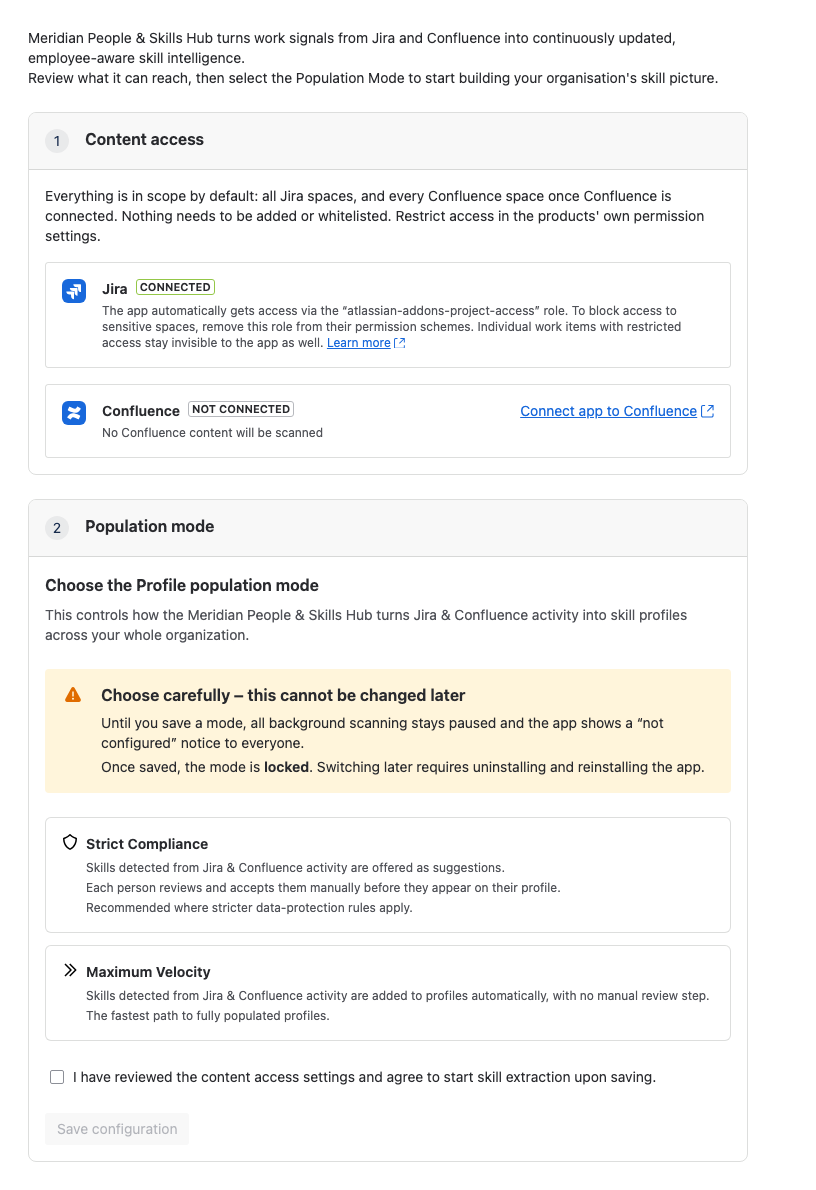
Until you save a mode, the app collects nothing, and both the hub and the Jira issue panel show a notice that an admin must configure it.
Scan schedules, time windows, and volume limits are fixed, and you cannot start a scan by hand. Before you save, you can keep sensitive projects, spaces, pages, or issues out of scope through Jira's and Confluence's permission settings; see Control what Meridian People & Skills Hub can access.
In this guide
See the following pages to learn more about the admin topics in this app.