
The profile population mode decides how Meridian People & Skills Hub turns Jira and Confluence activity into skills profiles for your whole organization. Until you save a mode, the app collects nothing, and both the hub and the Jira issue panel show a notice that an admin has to configure it.
It is the app's one permanent decision, so take a few minutes to read both options before you save.
The two modes
|
|
Strict Compliance |
Maximum Velocity |
|---|---|---|
|
What happens to a derived skill |
It becomes a suggestion and waits for the person |
It goes onto the person's profile right away |
|
Who confirms |
The person, skill by skill |
Nobody; there is no review step |
|
The Suggested tab in the profile |
Visible |
Not available |
|
Review dialog |
People see a dialog with their top suggestion, once at the start and about once a month after that |
People see one dialog once, telling them their profile was filled in |
|
Profiles fill up |
Slower, and only with confirmed skills |
Fast, and without waiting for people to act |
|
Choose it when |
Stricter data protection rules apply, or you want people to own every entry on their profile |
You want a usable skills overview quickly and your organization is comfortable with automatic entries |
In both modes, people keep the same control after the fact: They can change a level, and they can remove a skill, which also blocks it from being added or suggested again.
Before you save: Review content access
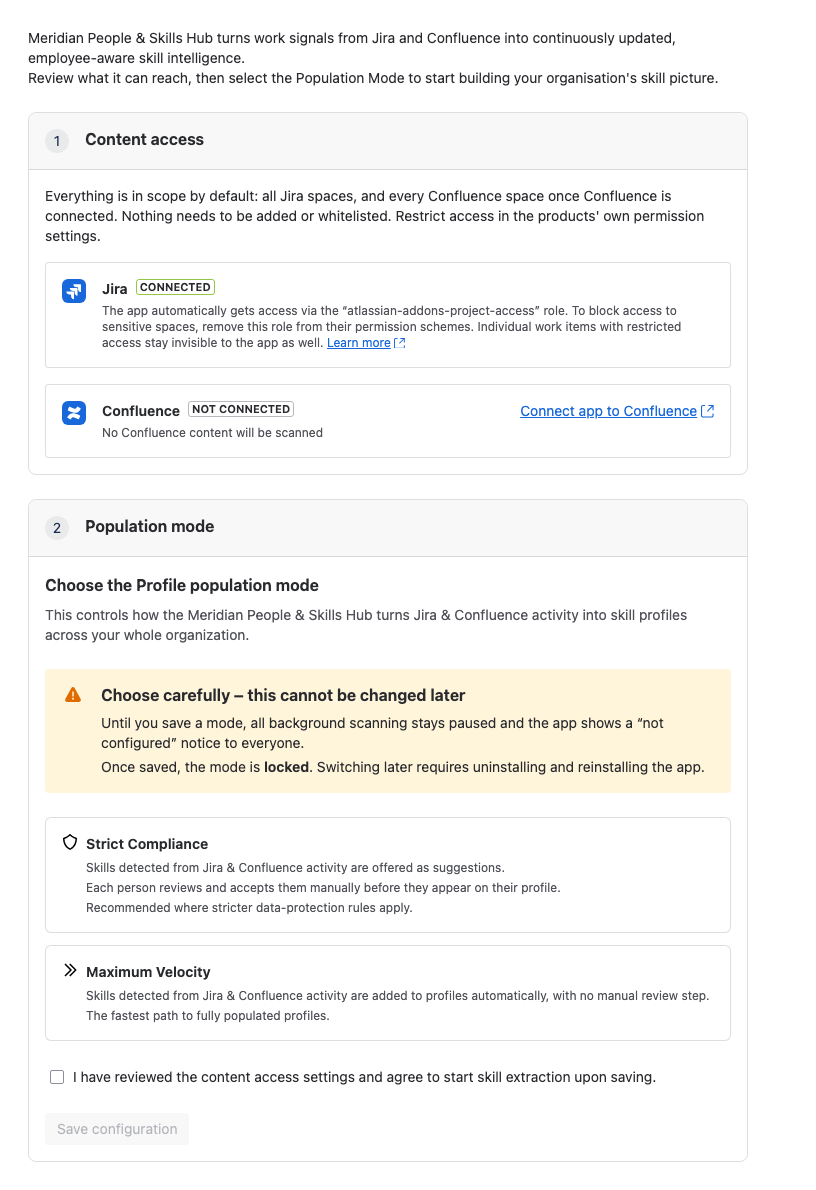
The configuration page opens with a Content access panel above the mode chooser. Jira is always connected. Confluence shows its connection status; if it is Not connected and you want Confluence pages scanned, select Connect app to Confluence. Connecting Confluence is optional.
Everything the app can see is in scope by default. To keep sensitive projects, spaces, pages, or issues out, adjust the permissions first in Jira and Confluence. See Control what Meridian People & Skills Hub can access.
How to choose a profile population mode
You need Jira global admin rights to save the mode.
-
In Jira, go to Settings, then Apps.
-
Select People & Skills Hub in the sidebar (or click Configure on the app entry in Manage apps, which leads to the exact same page).
-
Under Content access, review what the app can reach. Connect Confluence if you want its pages scanned; this step is optional.
-
Under Population mode, read the warning. It states that you can't change the choice later.
-
Select Strict Compliance or Maximum Velocity.
-
Tick I have reviewed the content access settings and agree to start skill extraction upon saving. Until you do, Save configuration stays disabled.
-
Click Save configuration.
-
In the confirmation dialog, check the mode name, then click Confirm & lock.
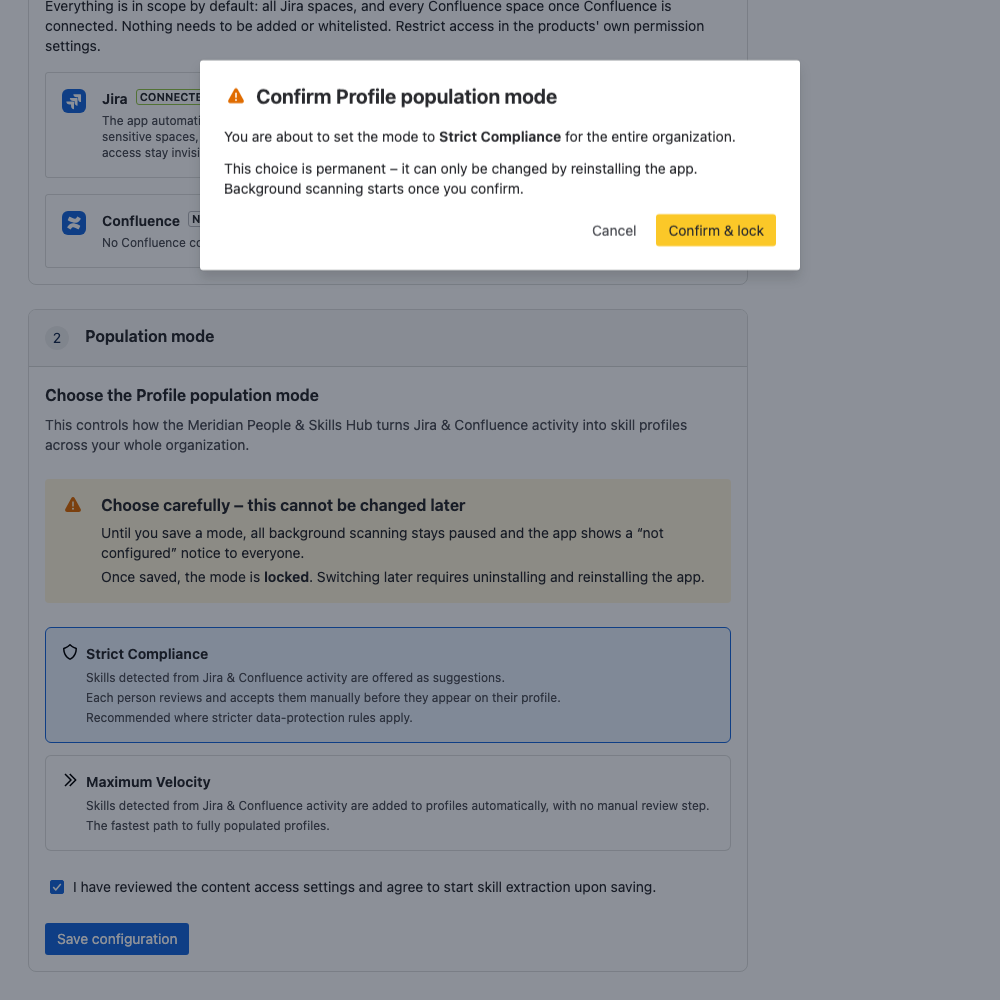
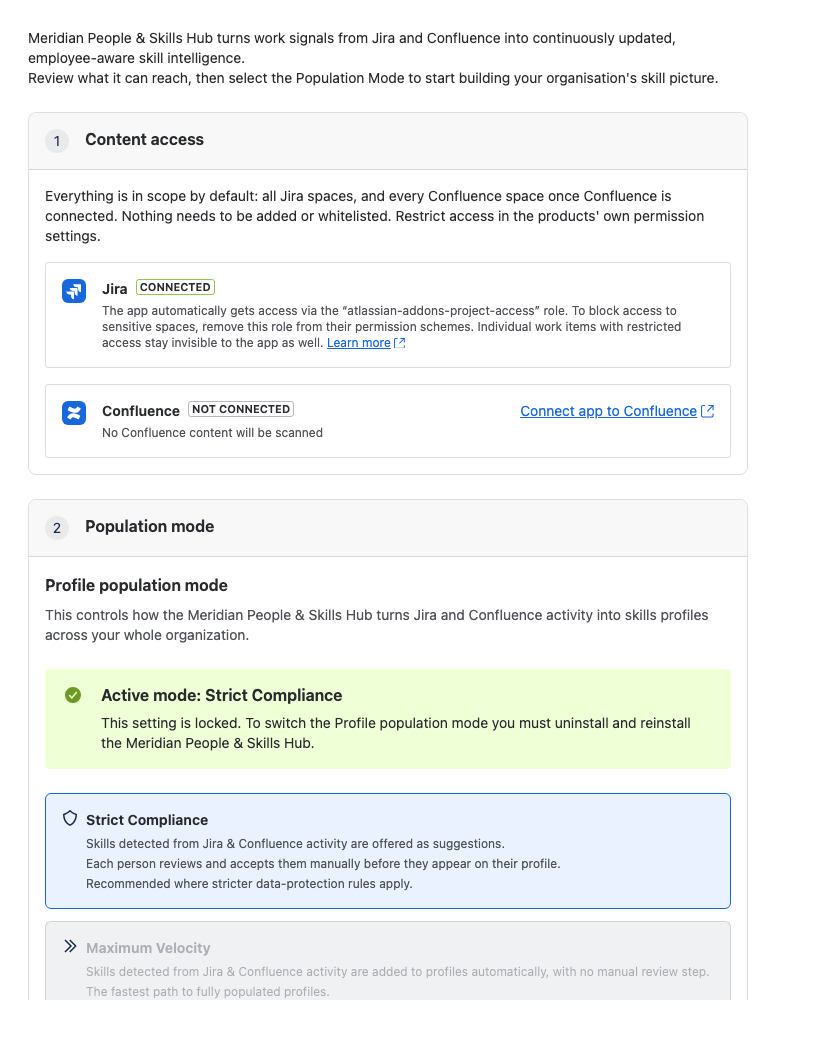
The page now shows the active mode and a message that the setting is locked.
After locking the setting, scanning starts:
-
Jira issues resolved in the last 30 days are scanned first, then new resolved issues follow hourly.
-
If Confluence is on the same site and connected to the app, it scans Confluence pages edited in the last 30 days first, then scans new pages and edits hourly.
People don't see a dialog straight away. The app waits at least 24 hours after the first scan before it shows anyone their first suggestion or notification. Skills appear in profiles as the scans work through your content, so expect the first days after the decision to look sparse.
If you chose the wrong mode
There is no way to switch. Uninstall and reinstall the app, then choose the other mode. Assume that the skills, suggestions, and blocked skills collected so far are gone, and that scanning starts from scratch with the 30-day window.