
For the following steps, you need Confluence Administrator permissions.
Confluence must be accessed via HTTPS (SSL)
This page provides more detailed information for Confluence Administrators about:
-
Installing the app from the Atlassian Marketplace
-
Managing licenses and trials
-
Updating the app
For a quick, end‑to‑end overview of all steps, see the Installation Guide.
1. Installing the App in Confluence
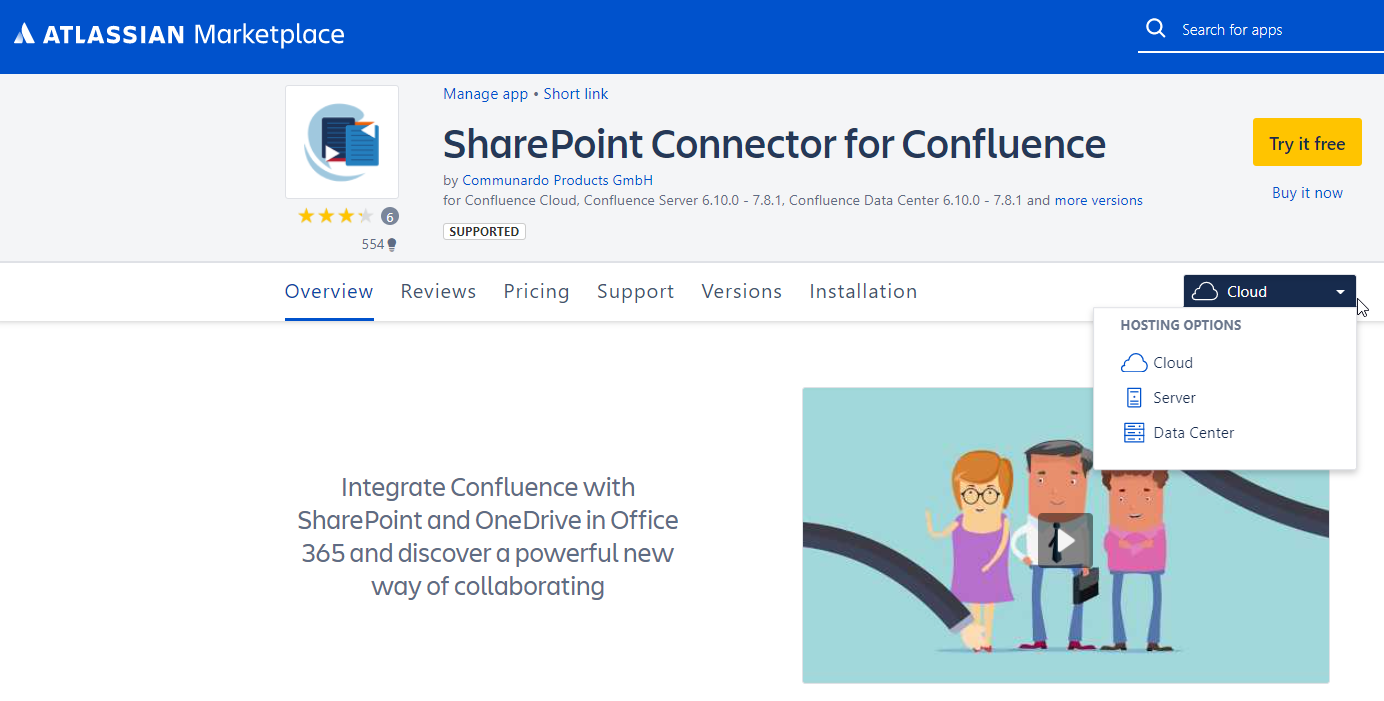
The app is available at the Atlassian Marketplace.
-
Log in to Confluence as a Confluence Administrator.
-
Go to Apps → Find new apps (Universal Plugin Manager).
-
In the search field, enter:
SharePoint Connector for Confluence -
In Hosting options, make sure Cloud is selected.
-
Select the app and click Install.
-
Follow the on‑screen steps until the app is installed.
For detailed installation instructions, see the Installation Guide.
After installing the app, continue with the Installation Guide to complete configuration and consent in Azure.
2. Licensing and trials
Licensing is handled through the Atlassian Marketplace.
2.1. Start a free trial
-
Open the app on the Atlassian Marketplace.
-
Click Free trial.
-
Confirm the subscription for your Confluence site.
How long does the trial last?
-
We offer a 30-day trial.
-
If you don’t cancel before it ends, the trial converts to a paid subscription.
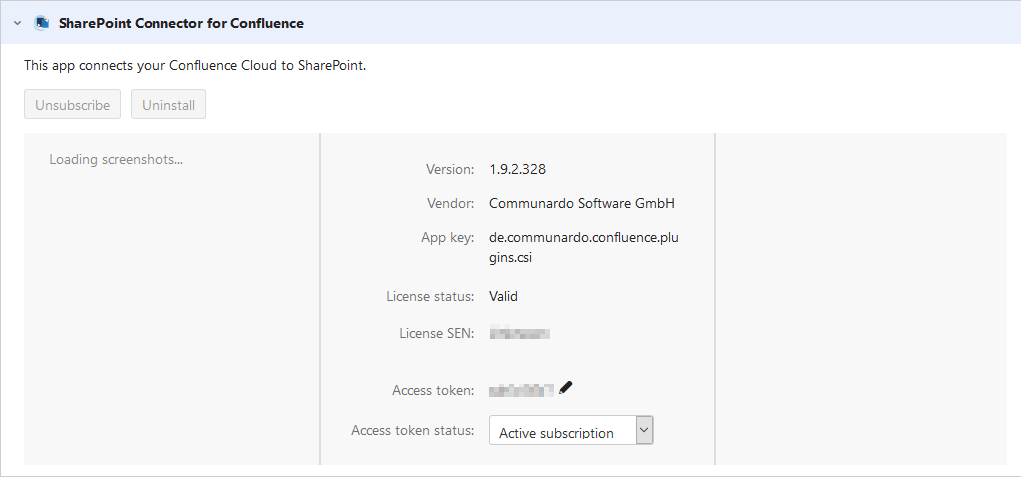
Image 2: Add-on Manager
2.2 Manage or cancel the subscription
-
In Confluence, go to Settings → Manage apps.
-
Find SharePoint Connector for Confluence in the list.
-
From here you can:
-
View license status and renewal date
-
Stop a running trial
-
Unsubscribe from the app
-
You can re‑enable a trial only within the original trial period. After that, you can no longer start a new trial – you can only subscribe.
3. Updating the App
Confluence Cloud apps are usually updated automatically via the Atlassian Marketplace. In most cases, no manual action is required. If there are major improvements in SharePoint, you will have to update the app manually.
To check the update status for the app:
-
Go to Settings → Manage apps.
-
Find SharePoint Connector for Confluence.
-
If an update is available, click Update and follow the prompts.
We recommend always using the latest version to benefit from new features and fixes.
4. Embed Confluence pages into SharePoint pages
This step is not required for using SharePoint content in Confluence.
It is only needed if you also want to embed Confluence Cloud pages inside SharePoint pages.
Download the Confluence Page Embedder Package, deploy it to the App Catalog, and configure it.
Now you can return to the Installation Guide and continue with Step 3: Consent in Azure.