
This guide is for SharePoint Administrators. When you complete this page, the Confluence Page Embedder web part will be available for use in your SharePoint sites.
Before you start
-
Make sure you have SharePoint Administrator permissions.
-
Download the latest version of the app package (.sppkg).
Installation Guide
1. Deploy the package to the App Catalog
If you don’t have an App Catalog yet, create one using Microsoft’s documentation:
-
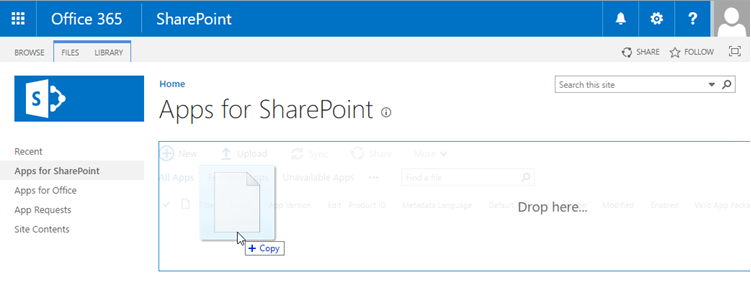
Go to the App Catalog.
-
Upload or drag-and-drop the
.sppkgfile into the App Catalog.
-
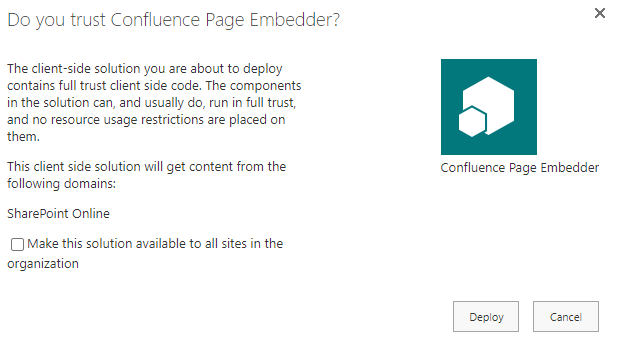
SharePoint will show a dialog asking you to trust and deploy the solution.
-
Click Deploy.
If you select “Make this solution available to all sites in the organization”, you do not have to add the app per site collection. The web part will be available automatically.
2. Add app to site collection
-
Navigate to the site collection where you want to use the Confluence Page web part.
-
Go to the home page of your site collection.
-
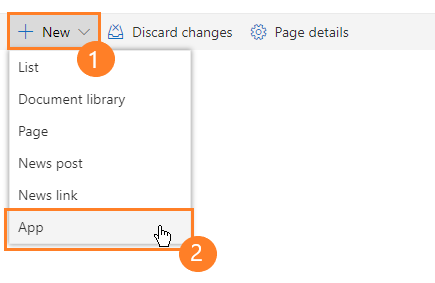
Click New in the top bar and select App.
-
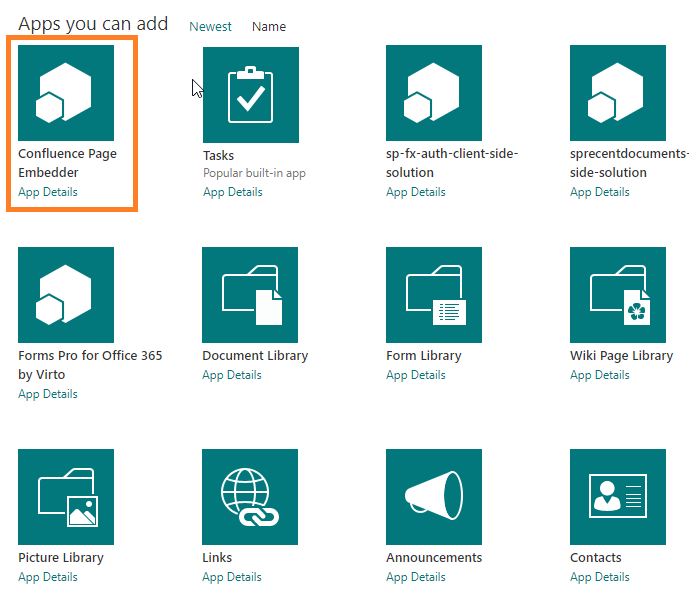
Select the Confluence Page Embedder app. The app will be added to your site collection.
3. Whitelist Confluence Cloud domain
To display Confluence pages in SharePoint, you must allow the Confluence domain.
-
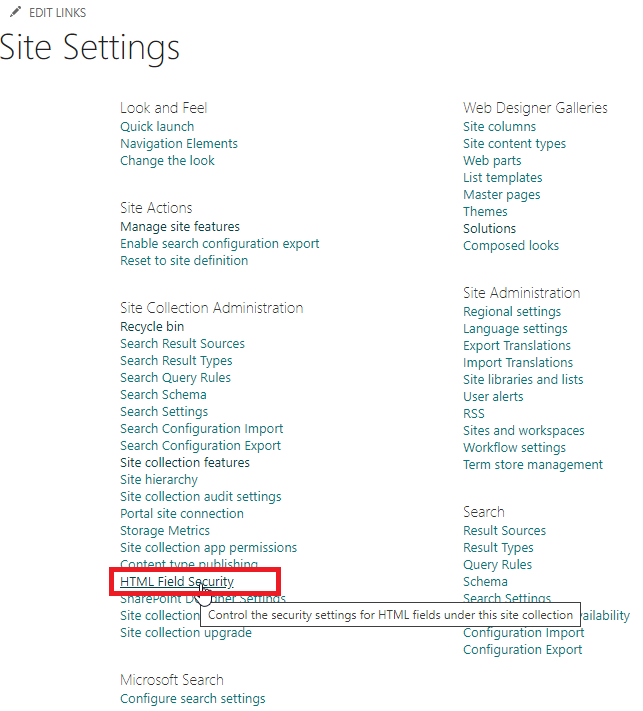
Go to Site settings for your site collection.
-
Under Site Collection Administration, click HTML Field Security.
-
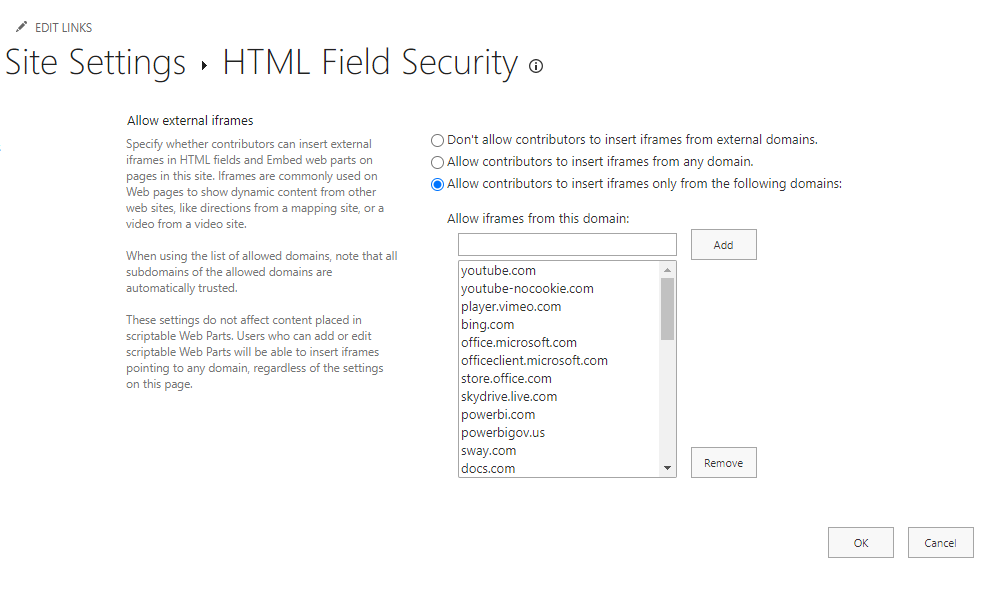
Add your Confluence Cloud domain (e.g.,
https://yourdomain.atlassian.net) to the allowed domains.
-
Save your changes.
Without this step, Confluence pages will not be visible inside SharePoint.
Now you can follow the embedding guide to place Confluence pages on SharePoint pages.