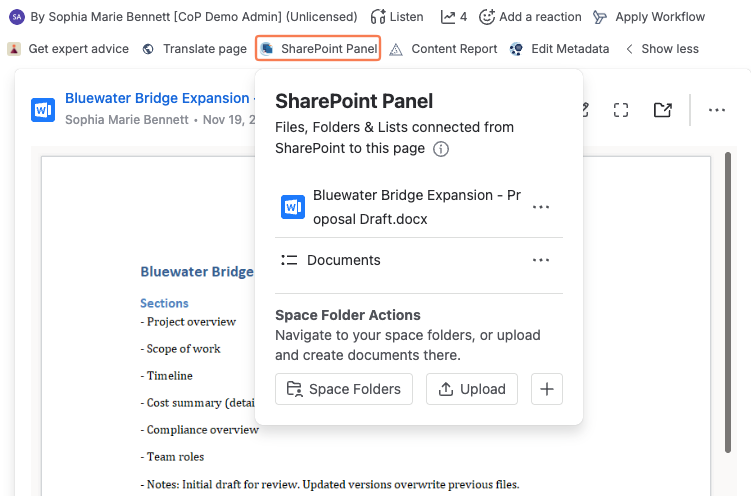
The SharePoint Panel provides an overview of all SharePoint documents, folders, and lists associated with the current Confluence page. Open it from the byline below the page title.
What is shown
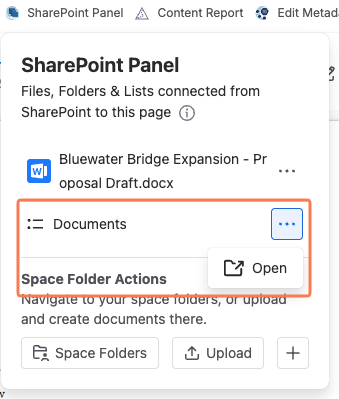
The SharePoint Panel aggregates the content of all SharePoint Online Document macros and all SharePoint Online List macros on the page.
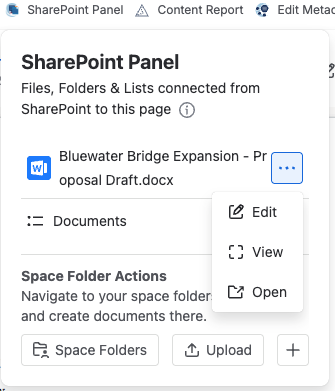
Actions on listed items
Select the three-dot menu next to an item to act on it:
-
Edit: Open the document in edit mode in a new tab.
-
View: Open the document in full screen.
-
Open: Open the folder that contains the document.
List items currently support only the Open action.
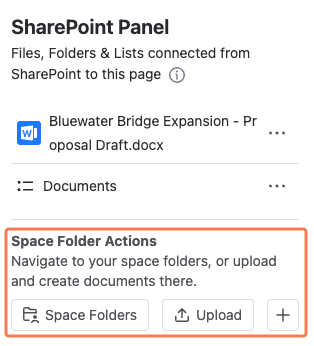
Space Folder actions
The SharePoint Panel also gives you quick access to your space folders:
-
Space Folders: Opens the folders configured for the current space. To set these up, see Connect SharePoint folders to a space.
-
Upload: Uploads one or more documents to a connected space folder. Choose a file or drag and drop it into the upload area.
-
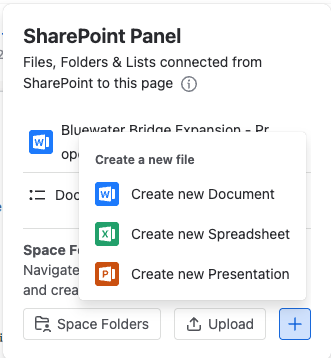
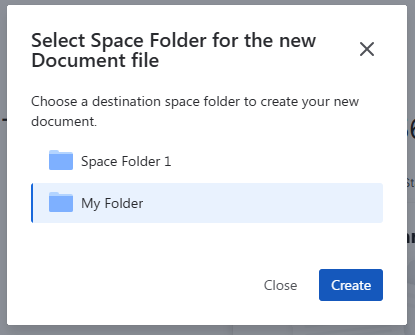
Create (+): Creates a new empty document in a connected space folder. You can choose Word, PowerPoint, or Excel. If only one space folder is connected, the file is created there; otherwise, you pick the folder in a pop-up.