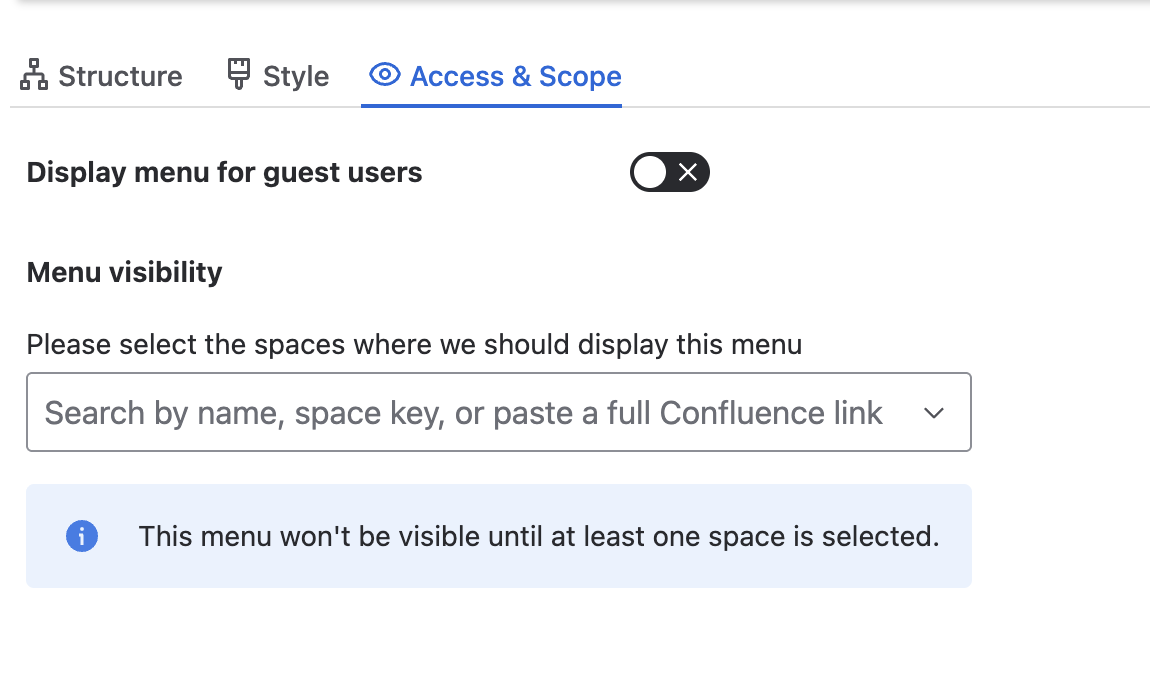
In Editing Menus, open Access & Scope to control menu visibility for guest users and define where the menu appears.
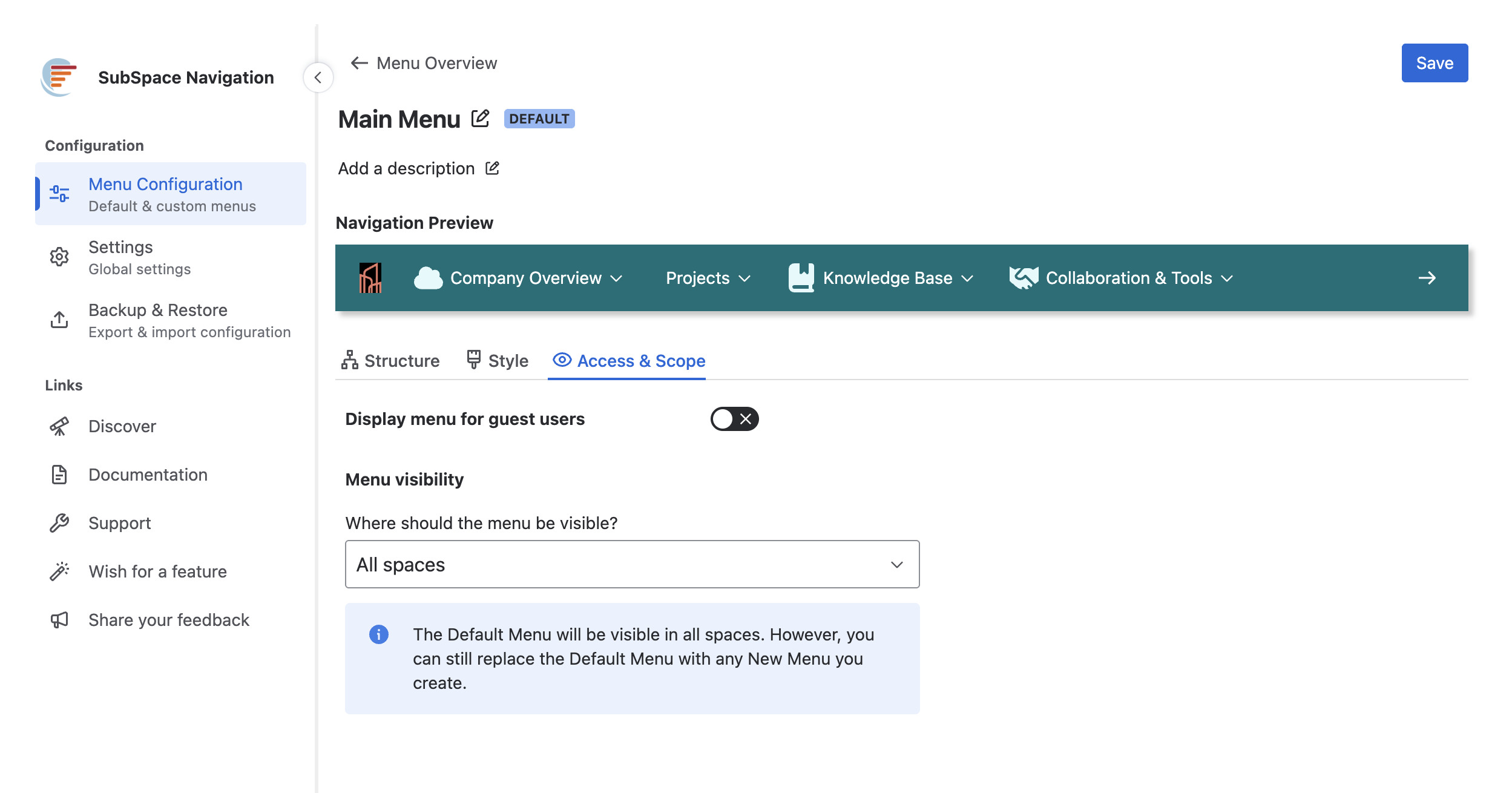
Display Menu for Guest Users
To make the menu available to guest users, toggle the option on. It is off by default.
Menu Visibility in Default Menu
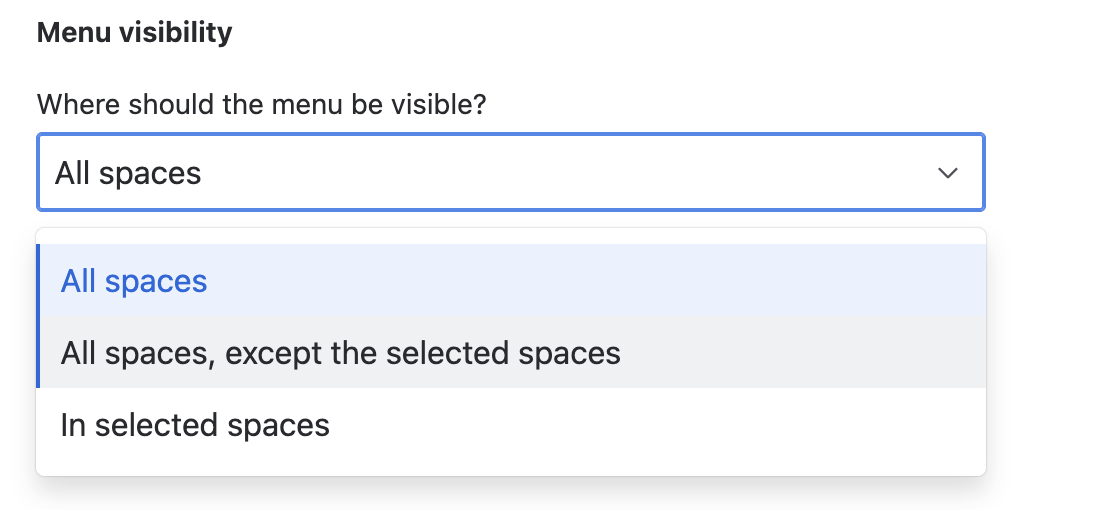
Select in the drop-down, where the menu should be visible:
-
If you select All spaces, the default menu is visible in every space. (See image 2)
-
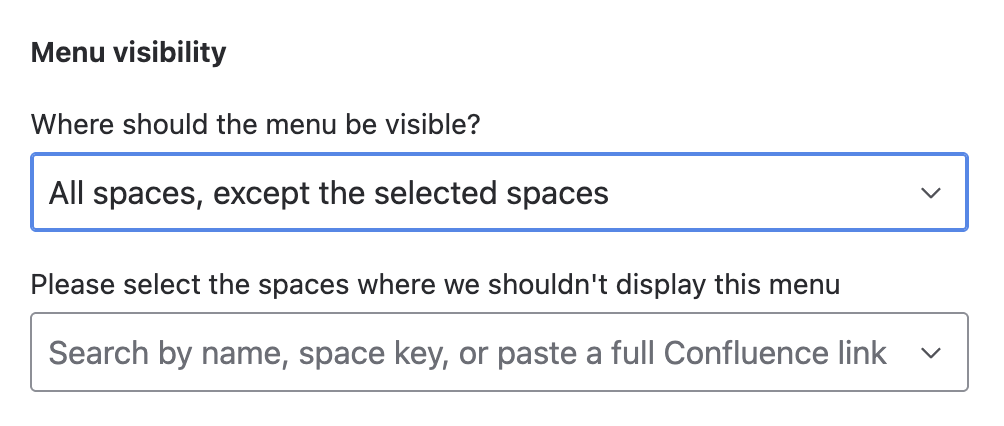
If you select All spaces, except the selected spaces, a dropdown will show up, you can now select spaces you want to exclude from your menu bar (you can search by Name, space key or post a full Confluence link) (See image 3)
-
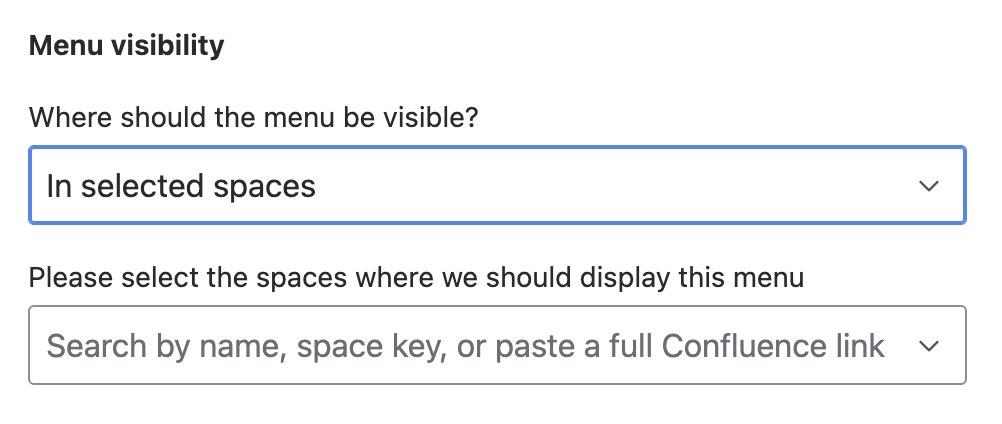
If you select In selected spaces, you can now select specific spaces. The menu should show a dropdown (you can search by Name, space key or post a full Confluence link). (See image 4)
Menu Visibility in Custom Menu
Custom menus use a different interface from the default menu. Visibility cannot be set to All spaces; custom menus can only be shown in selected spaces. If no spaces are selected, the custom menu is not displayed. If more than one menu (default and custom menu) is selected for a single space, the custom menu will be displayed in that space.