
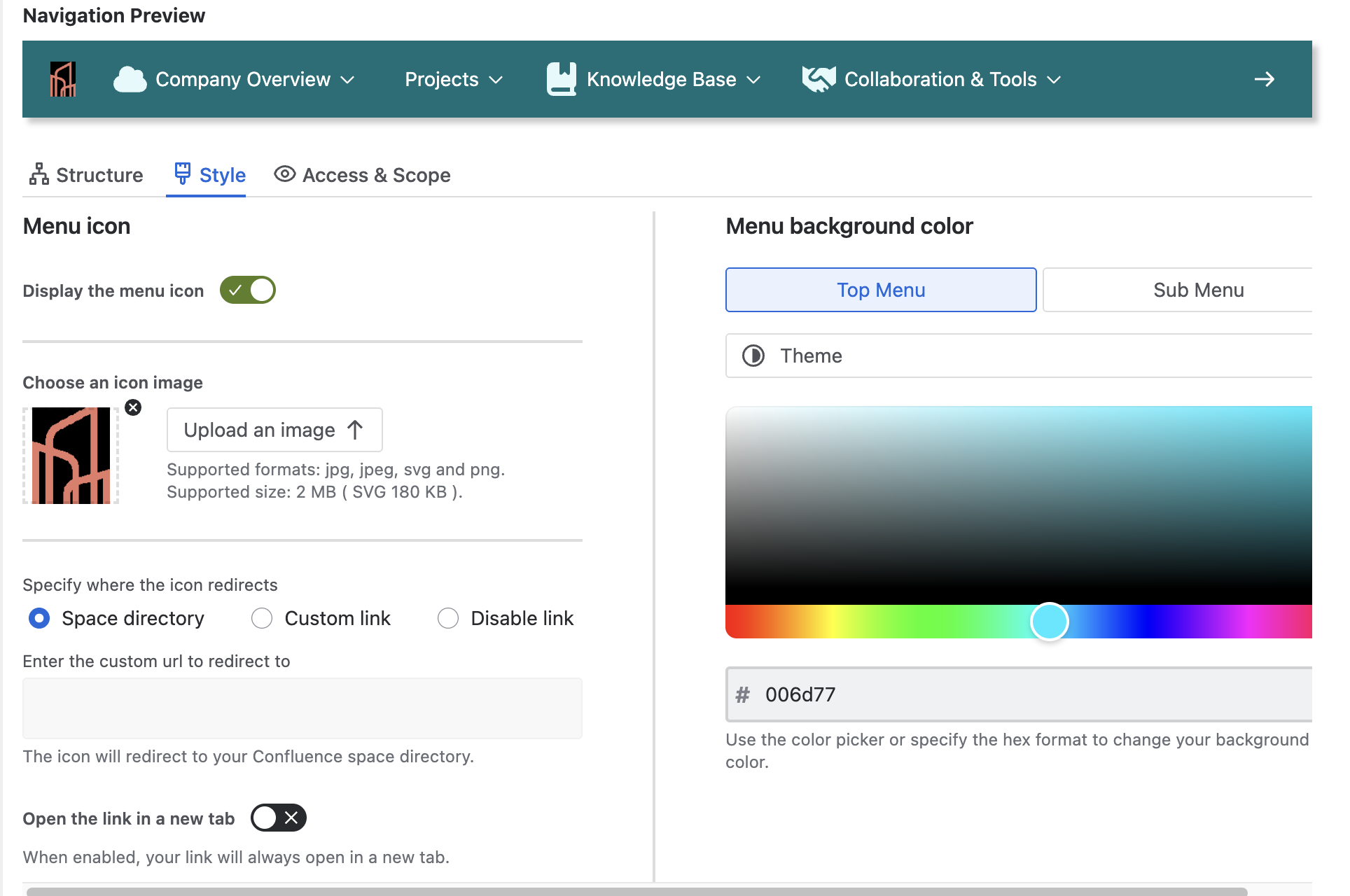
In the "Menu Style" section of Menu Configuration, you can configure the Menu icon and also choose the Menu background color for different themes.
Menu Icon
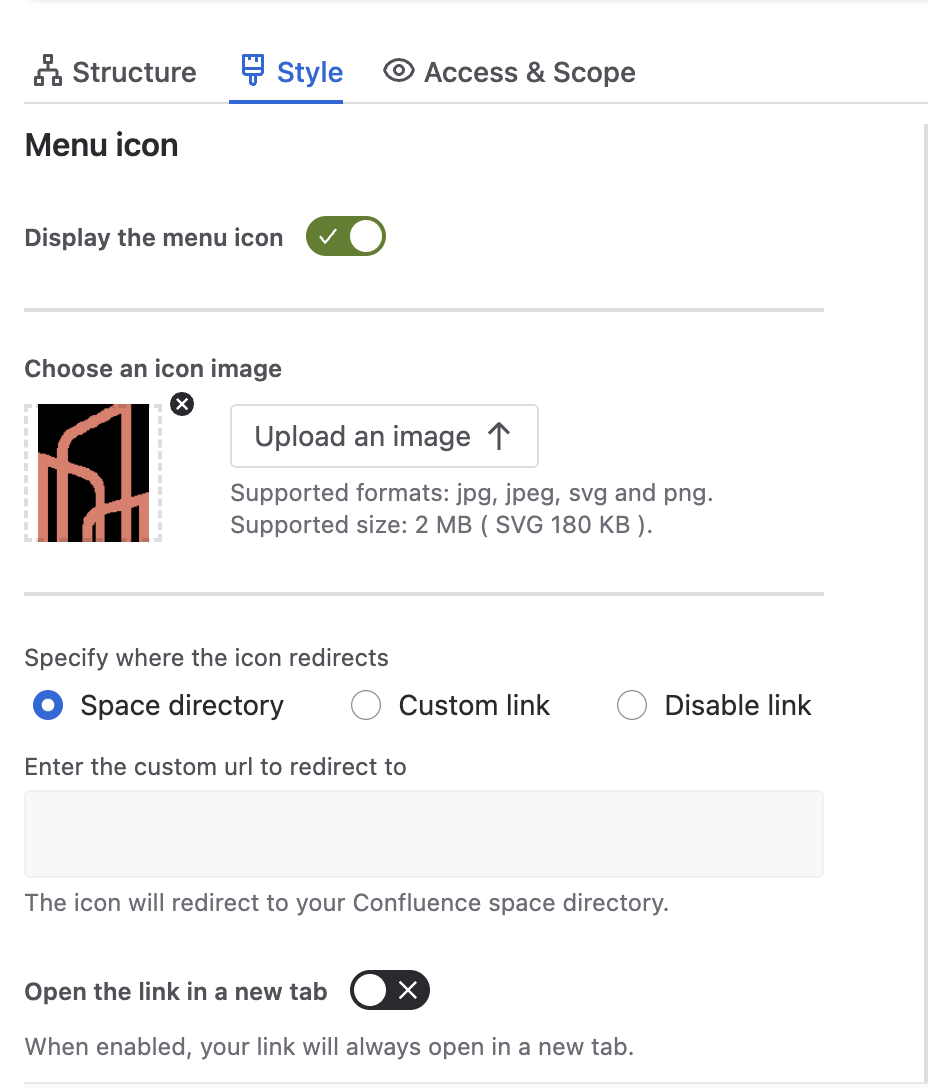
Use the Display the menu icon toggle to show or hide the icon.
Upload or remove an icon
-
Click Upload an image to add a custom icon.
-
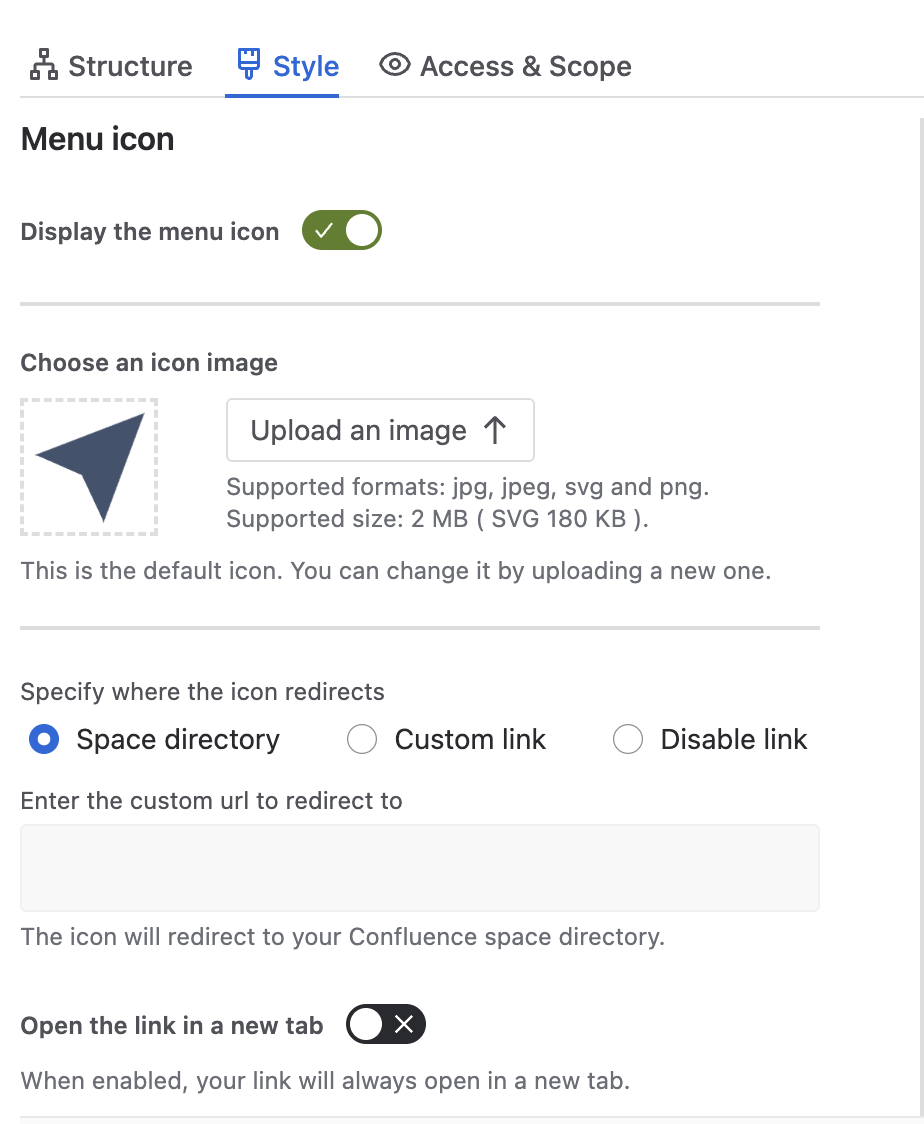
To remove a custom icon, click the × (black cross). The default icon is restored (see image 3).
Configure the icon link
Choose what happens when users click the icon:
-
Space directory : Opens your Confluence space directory.
-
Custom link : Opens the URL you enter below.
-
Disable link : The icon is shown, but it is not clickable.
If you select Custom link, enter the URL in the field below.
Open the link in a new tab
Use the Open the link in a new tab toggle to decide whether the link opens in the current tab or a new tab.
You can also choose whether the link opens in the same tab or a new tab.
Menu Background Color
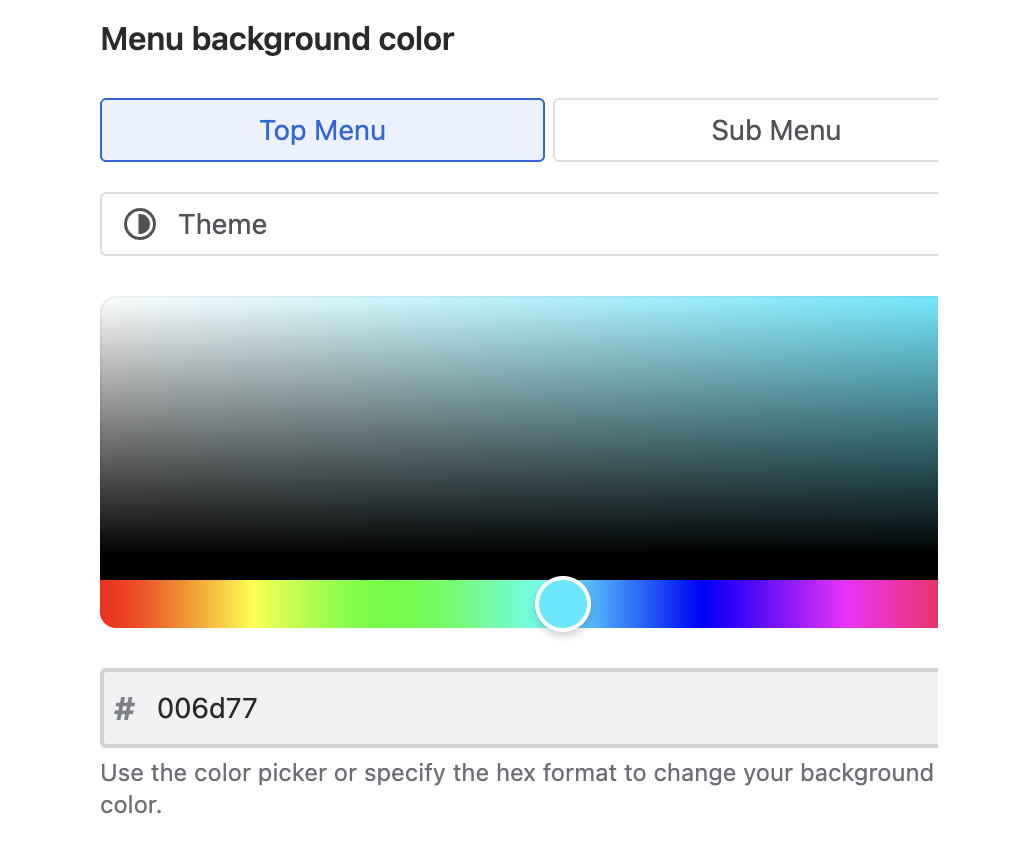
On the right, you can select the background color for your Top Menu and Sub Menu.
To change the background color:
-
Select the theme (Light or Dark)
-
Use the color picker or specify the hex format