
Atlassian is ending support for Confluence Data Center by March 2029.
This page explains how Include from Bitbucket will be migrated from Confluence Data Center to Confluence Cloud, what you need to prepare, and what you can expect.
🔎 Quick overview
|
Question |
Answer for Include from Bitbucket to Confluence |
|---|---|
|
Migration effort and automation level |
Migration effort:
Automation Level: Partially Automated. Install the Cloud version of the app, configure the app then migrate using the Confluence Migration Assistant. |
|
|
|
Best practices/Key prerequisites |
|
|
Available Cloud types |
Include from Bitbucket is available for Commercial Cloud |
 What Include from Bitbucket does
Include Git content securely from Bitbucket Cloud and Bitbucket Data Center into Confluence pages so teams can share up to date files, diagrams, code snippets, images, and documentation formats like Markdown and AsciiDoc.
🔄 How to migrate
Please unfold the sections below to view the complete, detailed instructions for the upcoming migration.
By expanding these folders, you will gain access to all the necessary steps and guidelines for a smooth, successful migration.
How the migration works
📖 Migration approach
-
Automatic vs manual parts
-
Automatically migrated: Bitbucket file macros only.
-
Configure Bitbucket integrations
-
Must be recreated in Cloud: all other macros such as pull request lists, branches lists, commits lists, and issues macros.
-
🔢 Step‑by‑step
1. Prepare Bitbucket instance
The Include Bitbucket for Confluence app supports both, Bitbucket Data Center and Cloud. You can choose to migrate to Bitbucket Cloud when migrating to Confluence Cloud as well, or keep the existing Bitbucket Data Center instance.
In case you keep your repositories on Bitbucket Data Center: it needs to be accessible via HTTPS on the public internet.
2. Configure Access to Bitbucket in Confluence Cloud
Configure access to Bitbucket in Confluence Cloud:
-
Configure Access to Bitbucket Cloud
-
Configure Access to Bitbucket Data Center
3. Migrate using the Confluence Cloud Migration Assistant
Use the Atlassian Cloud Migration Assistant to migrate the Confluence spaces.
4. Bitbucket Application Link replacement after migrating
After migrating from Confluence Data Center to Cloud, you must provide a fallback for the application link to Bitbucket for migrated macros.
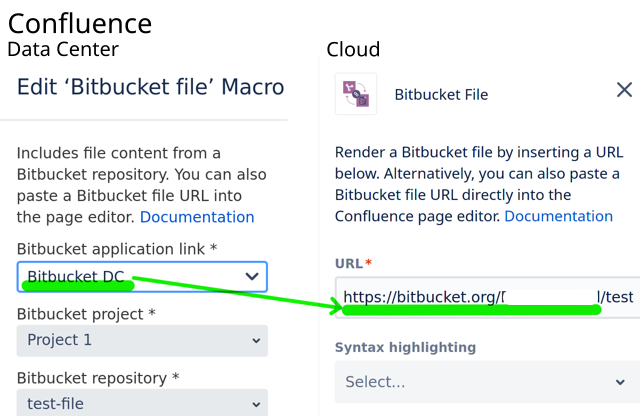
-
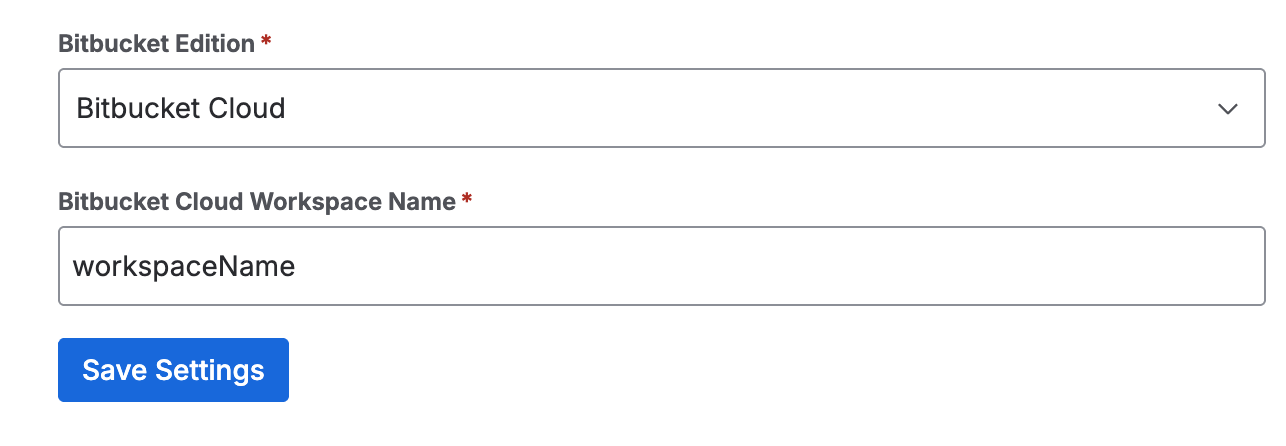
Selecting the Bitbucket Edition:
-
If the referenced repositories are still on your Bitbucket Data Center instance, then select Bitbucket Data Center and provide the public URL to it. Ensure the Bitbucket instance is also configured in the Connect to Bitbucket Data Center section in the configuration page in Confluence.
-
If the repositories are now on Bitbucket Cloud, then select Bitbucket Cloud. Then, configure the Bitbucket Workspace where the repositories reside. For example, when the repositories are on https://bitbucket.org/my-org , then configure it as my-org.
-
-
The repository must be named the same as before the migration.
-
Ensure it is the name of the workspace and not a URL.
-
🤝 Support & resources
-
Documentation for Include from Bitbucket/GitHub/GitLab to Confluence
-
Marketplace listing
-
Cloud Security Standards
-
Feature parity & known limitations
-
Need help with planning or running your migration?
❓ FAQ for Include from Bitbucket to Confluence migration
Can users continue working while the migration runs?
Confluence migrations are typically planned with a maintenance window to avoid content changes during the run. For app macros, validate pages after the migration and recreate non migrated macros as needed.
What is migrated automatically?
Only Bitbucket file macros.
What is not migrated
-
All other macros (pull requests, branches, commits, issues, and more) must be recreated in Cloud.
-
Bitbucket admin configuration
Why do migrated macros show as read only
That is a current limitation: to change parameters, recreate the macro in Cloud.
Are you a solution parter and have questions about licensing during migration?
Contact us via Partner Fast Lane