
Deploy the Confluence Page Embedder package so the web part becomes available in your SharePoint sites. When you finish, you can embed Confluence Cloud pages on SharePoint pages.
Before you begin
You need SharePoint admin permissions. First, download the latest package (.sppkg).
Deploy the package to the App Catalog
If you don't have an App Catalog yet, create one using Microsoft's documentation.
-
Go to the App Catalog.
-
Upload or drag the
.sppkgfile into the App Catalog.
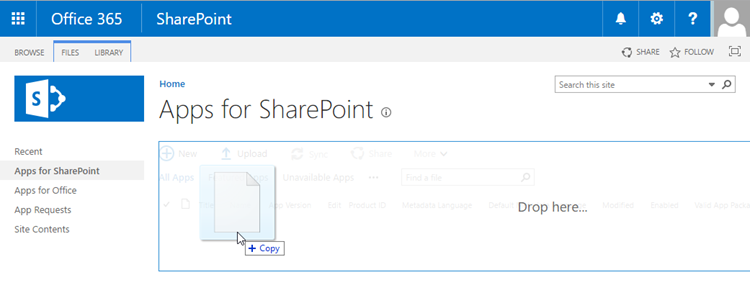
-
In the dialog that asks you to trust and deploy the solution, click Deploy.
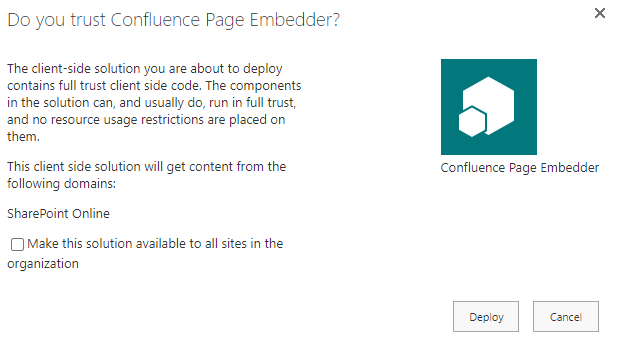
If you select Make this solution available to all sites in the organization, you don't have to add the app per site collection. The web part is available automatically.
Add the app to a site collection
-
Go to the home page of the site collection where you want to use the web part.
-
In the top bar, click New and select App.
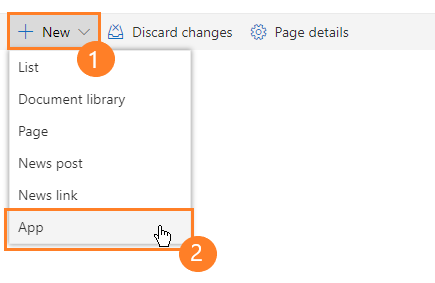
-
Select the Confluence Page Embedder app. It is added to your site collection.
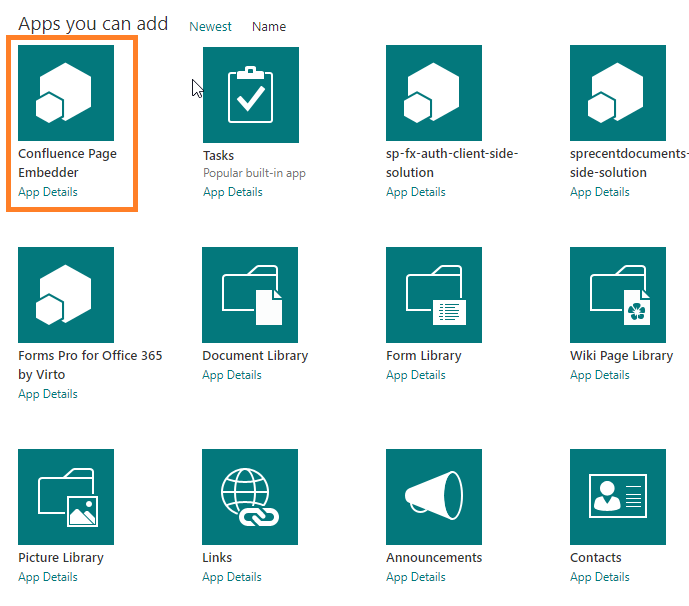
Allow your Confluence domain
To display Confluence pages, allow your Confluence domain in the site collection.
-
Go to Site settings for the site collection.
-
Under Site Collection Administration, click HTML Field Security.
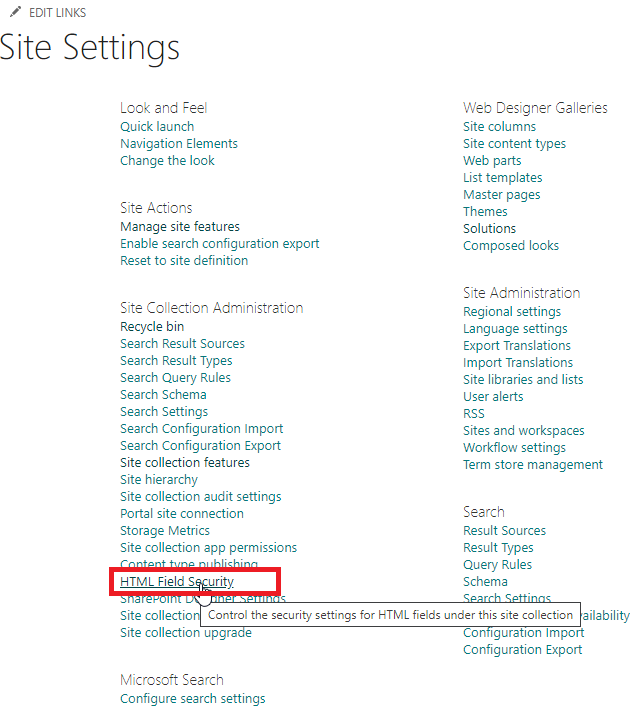
Image 5: Click HTML Field Security (click to enlarge) -
Add your Confluence Cloud domain, for example,
https://yourdomain.atlassian.net, to the allowed domains.
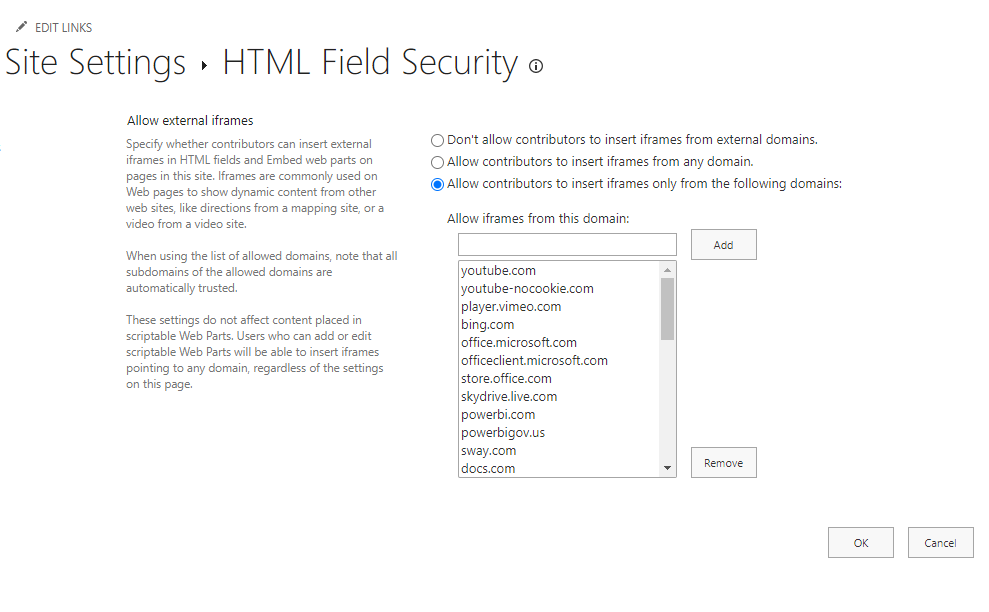
-
Save your changes.
Without this step, Confluence pages do not appear in SharePoint.
Result
The Confluence Page Embedder web part is available in your SharePoint sites. Users can now embed a Confluence page in SharePoint.