Connect SharePoint folders and libraries to a space to make them easily available to everyone who works in that space. Every folder you connect here can be accessed directly in each work item of the space, in the Space Folders tab of the connect dialog (see Connect SharePoint files and folders to a work item).
You can only do this if you are an administrator of the space or have permission to view and edit the space settings.
The space folders used to be in Space settings > Apps > SharePoint Connector Space Folders. That page now only shows a hint. To go to the new location in the space navigation, click Take me there.
Connect a folder to the space
-
In the navigation of your space, click SharePoint Connector Space Folders. If you do not see the tab, click More first and select it from the list.
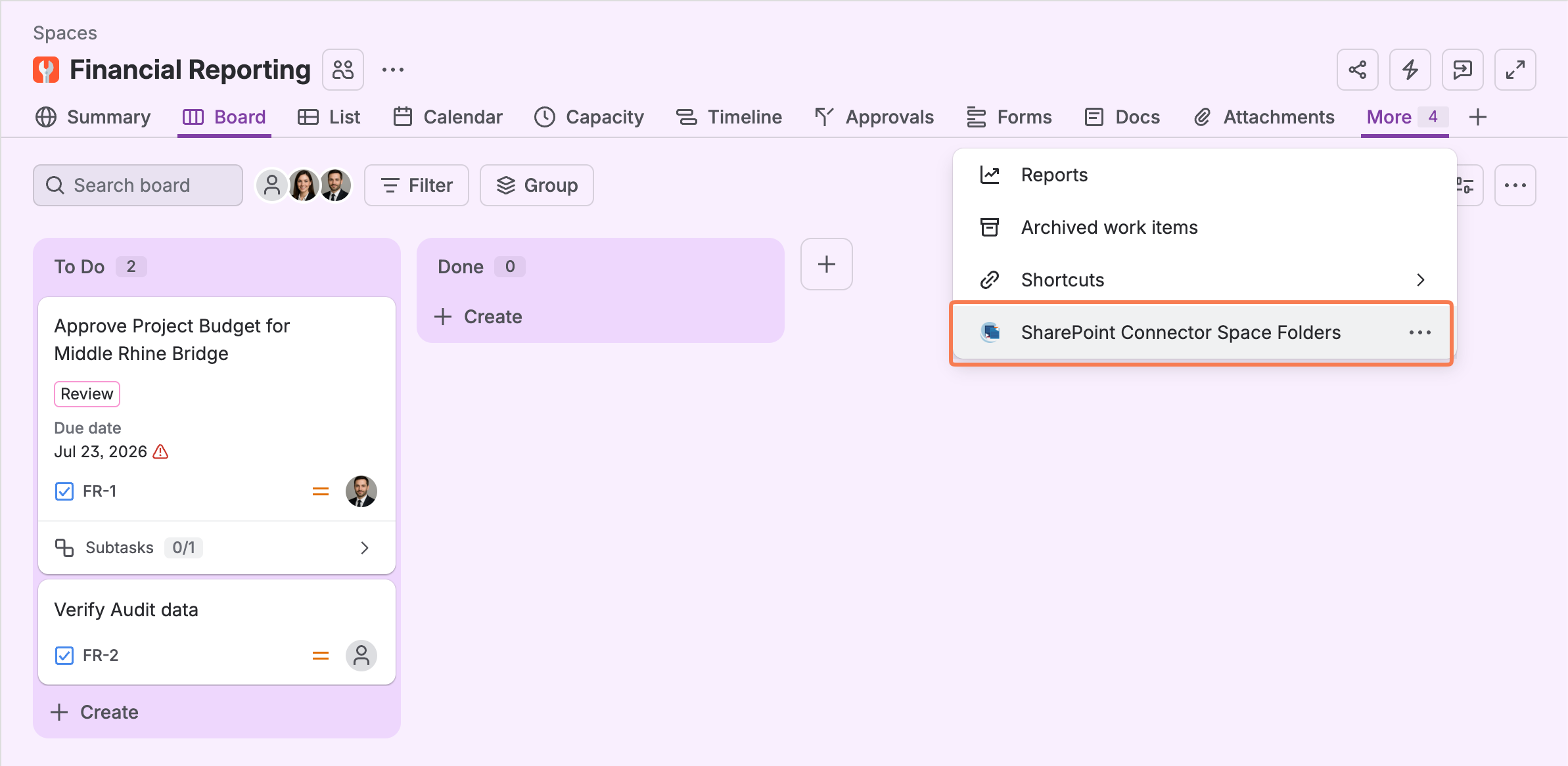
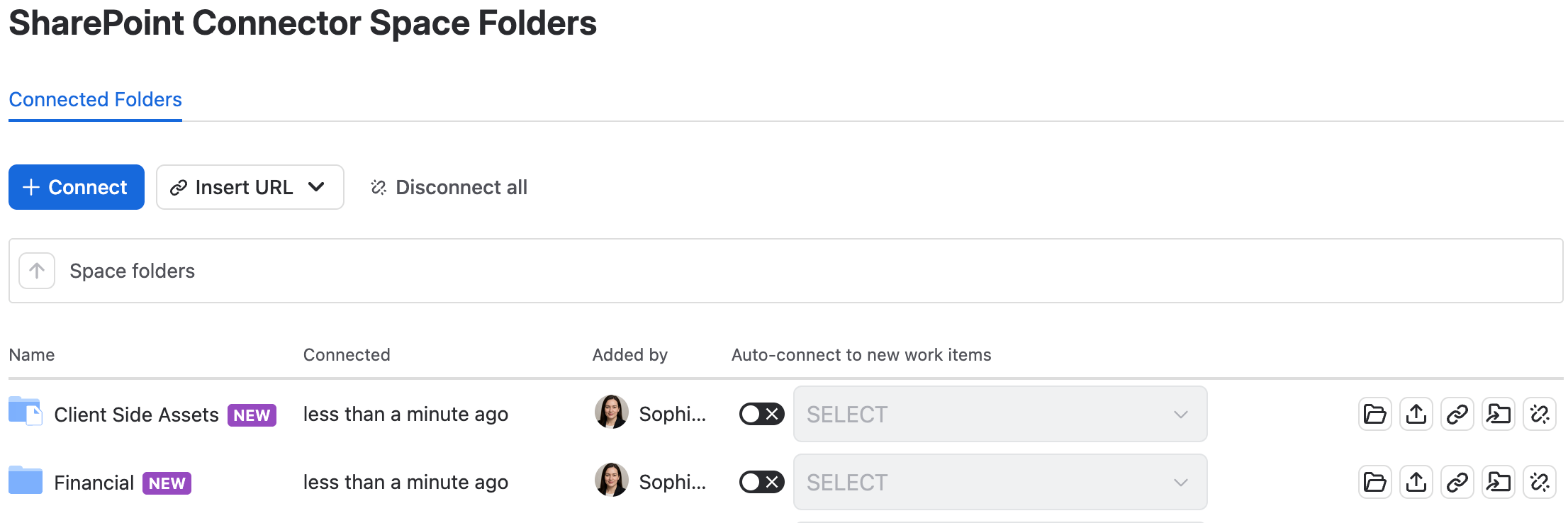
SharePoint Connector Space Folders in the space navigation The Connected Folders tab opens. It lists the folders and libraries already connected to the space.
Connected Folders -
Click Connect.
A dialog opens where you can search for any folder or library you want to connect to the space. The dialog works the same way as the connect dialog on a work item (see Find the items to connect).
-
Select the folders and libraries you want to connect.
-
Click Connect.
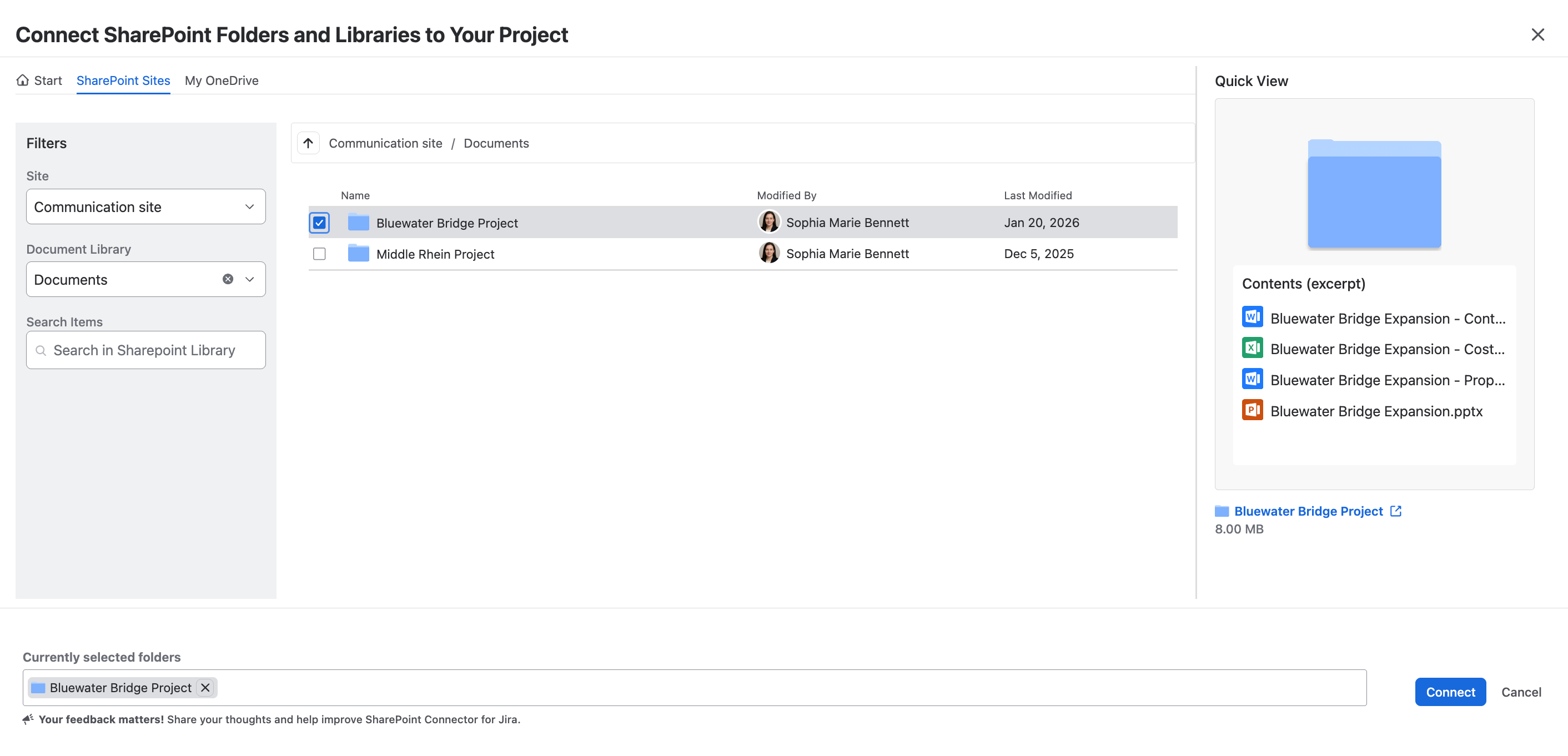
Select a folder and connect it
The connected folders and libraries appear on the Connected Folders tab. The table shows the name, the date the item was connected, and who added it.
You can connect only folders and libraries to a space. Individual files cannot be connected.
You can also connect an item by its URL with Insert URL, or disconnect all items at once with Disconnect all.
Work with connected folders
On the Connected Folders tab, you can use the folder actions and navigate inside folders and libraries. This works the same way as in the SharePoint Files section of a work item (see Work with connected items).
Auto-connect folders to new work items
You can set a folder to connect automatically to new work items of specific types.
-
On the Connected Folders tab, find the folder you want to auto-connect.
-
In the Auto-connect to new work items column, turn on the toggle.
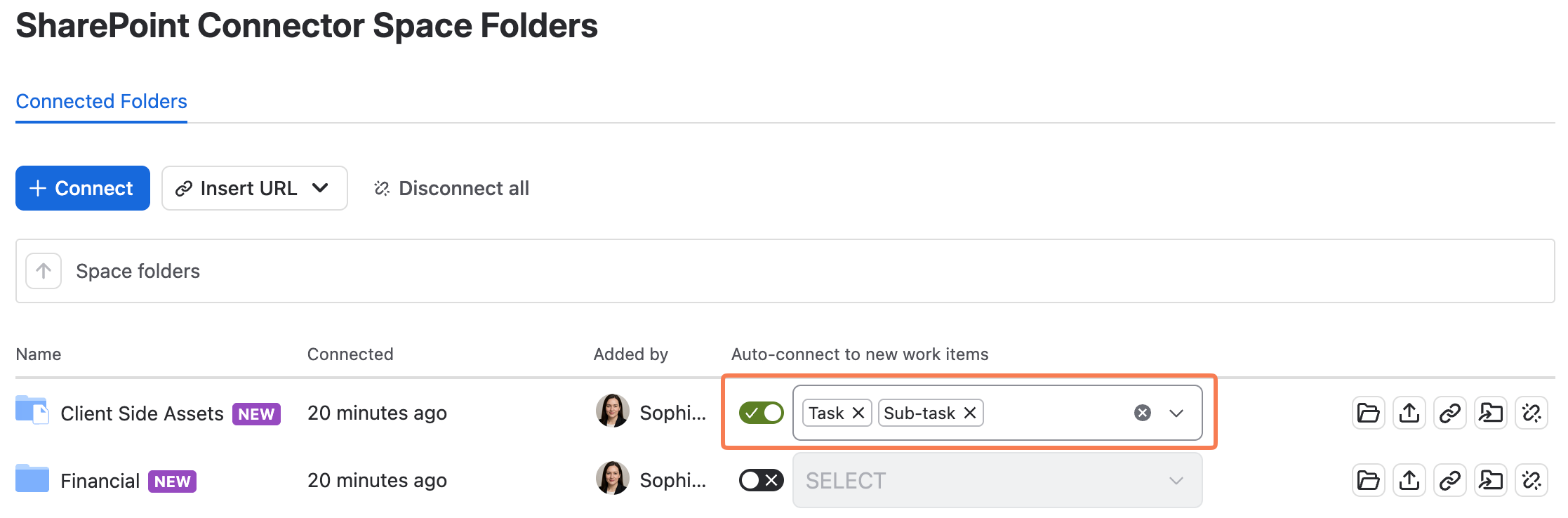
Auto-connect to new work items -
In the field next to the toggle, select the work item types, for example Epic, Task, or Sub-task. To remove a type, click the X next to it.
When a new work item of one of the selected types is created, the folder is automatically connected to it.
To see the connected folders in a work item, open the SharePoint Files section: click View app actions below the title of the work item and select SharePoint Files.