
Assistant for SharePoint is an agent for Atlassian Rovo. It helps you find SharePoint content and connect it with Jira, so you can access SharePoint files directly from your Jira work items. You can use it to find, connect, and summarize SharePoint documents that are relevant to your work items.
To use Assistant for SharePoint, your organization must enable Atlassian Rovo.
What the assistant can do
-
Get your recently used SharePoint files.
-
Summarize the content of a SharePoint file.
-
Suggest SharePoint files for a work item.
-
Search for SharePoint files based on your input.
-
Connect a SharePoint file to a work item.
-
Disconnect a SharePoint file from a work item.
Open Assistant for SharePoint
-
Click Ask Rovo in the upper right corner.
-
Open the Rovo menu on the left.
-
Click View all agents.
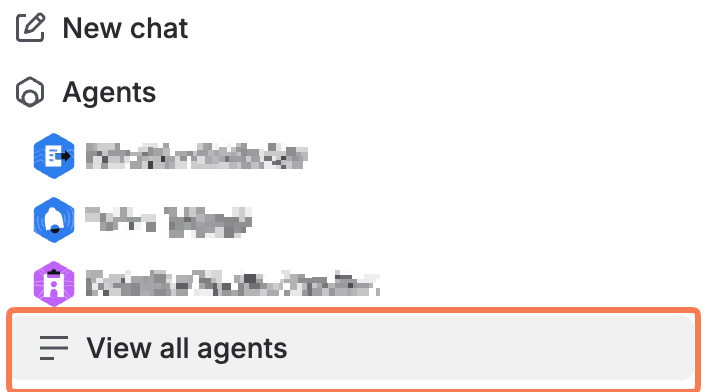
View all agents -
Search for Assistant for SharePoint.
-
Select Assistant for SharePoint.
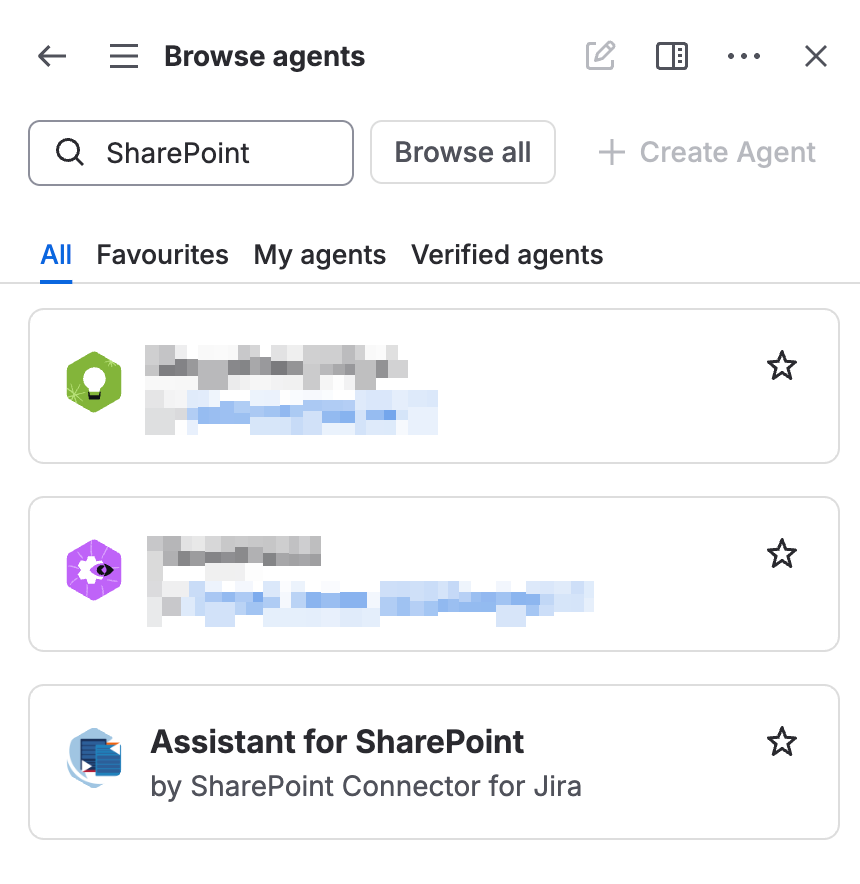
Select Assistant for SharePoint -
Optional: To add the assistant to your favorites, click the star.
-
Write your request in the Rovo window in plain language.
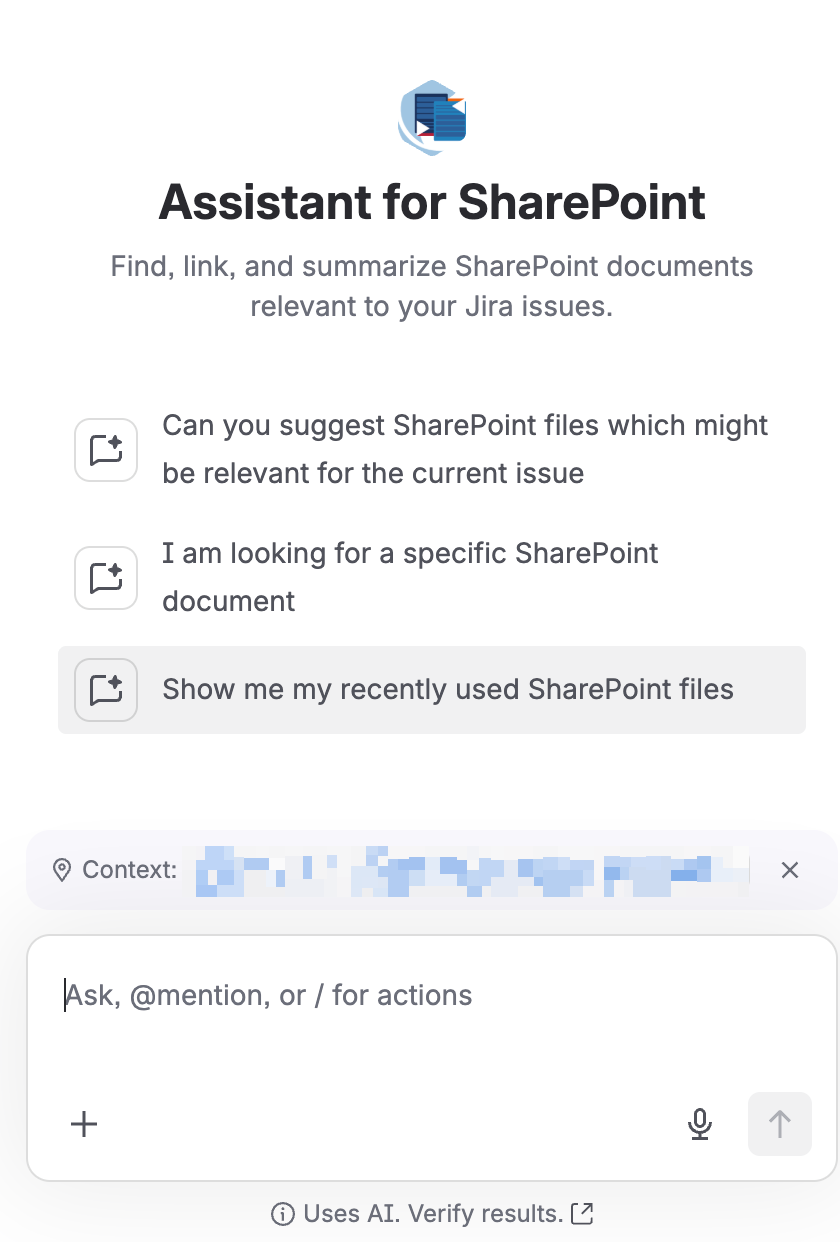
Use Assistant for SharePoint
Use Assistant for SharePoint
The following examples show what you can ask. You can phrase your requests in your own words.
Get recently used SharePoint files
To get a list of your recently used SharePoint files, ask:
Can you get my recently used SharePoint files?
The assistant returns a list of the files you accessed most recently.
Summarize the content of a SharePoint file
To get a summary of a SharePoint file, provide the file URL:
Can you summarize the content of this SharePoint file? [Provide URL]
If you don't have the URL, the assistant can suggest recently used files for you to choose from.
Get suggested SharePoint files for a work item
To get SharePoint files that are relevant to a work item, ask:
Can you get suggested SharePoint files for this work item?
The assistant analyzes the content of the work item and returns a list of relevant SharePoint files.
Search for SharePoint files
To search for specific SharePoint files, provide your search terms:
Can you search for SharePoint files related to [Your search terms]?
The assistant searches SharePoint and returns the files that match your criteria.
Connect a SharePoint file to a work item
To connect a SharePoint file to a work item, provide the file URL:
Can you connect this SharePoint file to the work item? [Provide URL]
The assistant asks you to confirm before it connects the file.
Disconnect a SharePoint file from a work item
To disconnect a SharePoint file from a work item, provide the file URL:
Can you disconnect this SharePoint file from the work item? [Provide URL]
The assistant disconnects the file and lets you know when it's done.
Tips
-
Make sure you have the correct work item key and SharePoint file URL when you ask the assistant to connect or disconnect files.
-
You can combine connecting and disconnecting with other requests. For example, after you receive file suggestions for the current work item, ask the assistant to connect the first file.
-
The quality of a summary depends on the layout of the document. For details, see Document layout analysis in Azure AI Document Intelligence.
-
If you need more results or further help, ask the assistant.