
Connect SharePoint documents, files, folders, and libraries to a Jira work item without leaving Jira. You can select items in the connect dialog or paste the URL of a file.
Open the connect dialog
-
Open the work item you want to connect files to.
-
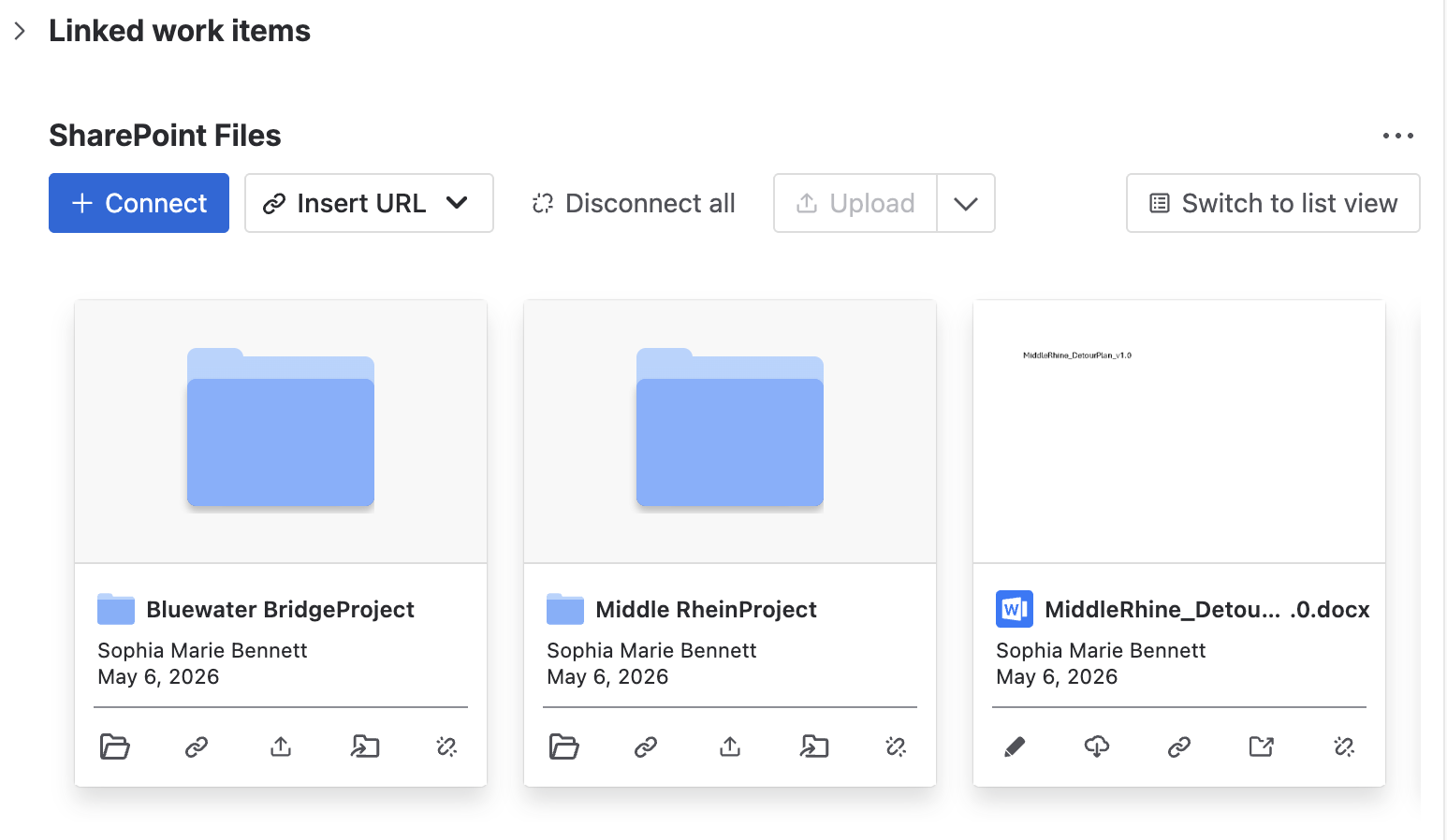
In the SharePoint Files section, click Connect.
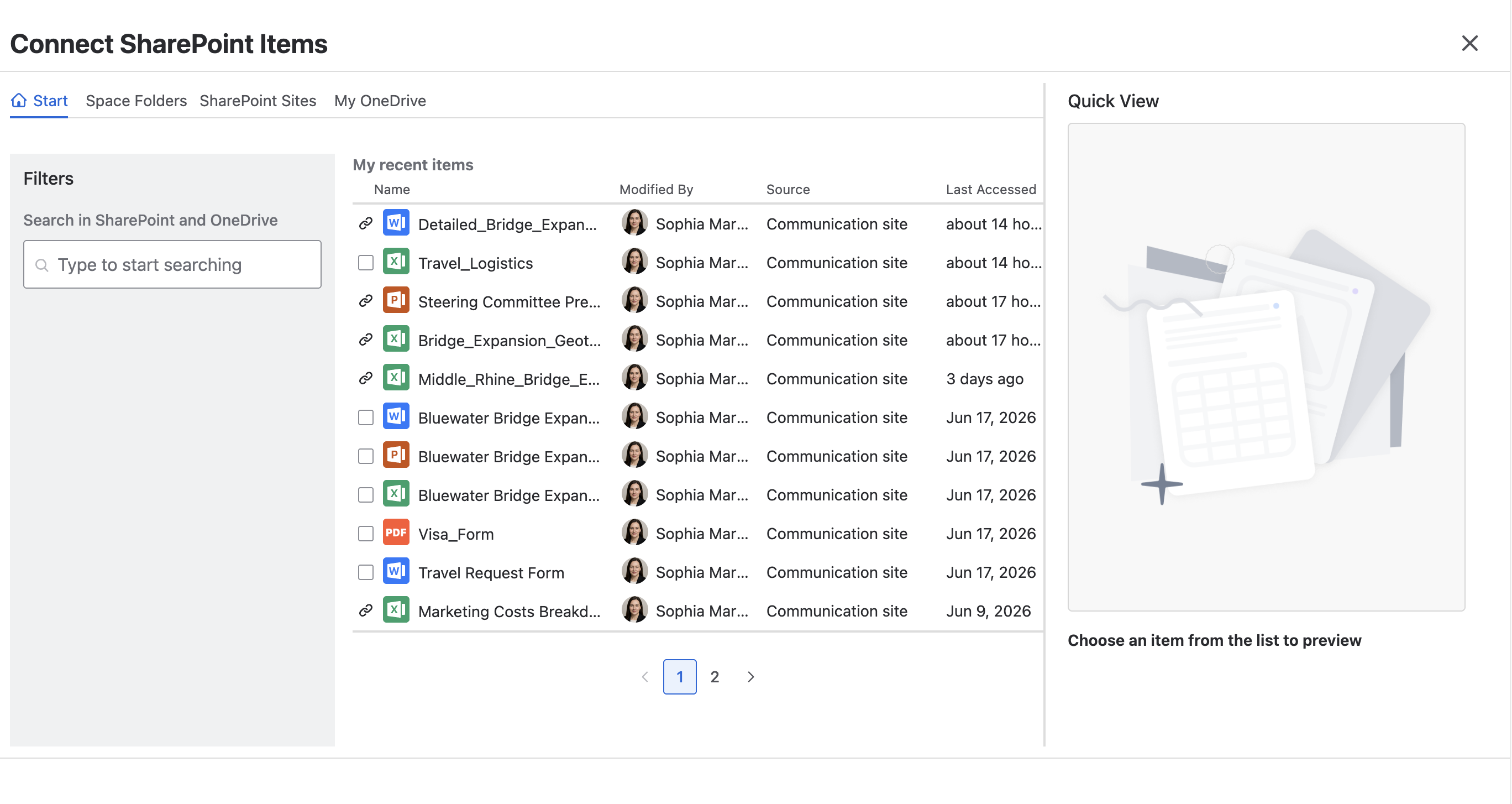
The Connect SharePoint Items dialog opens.
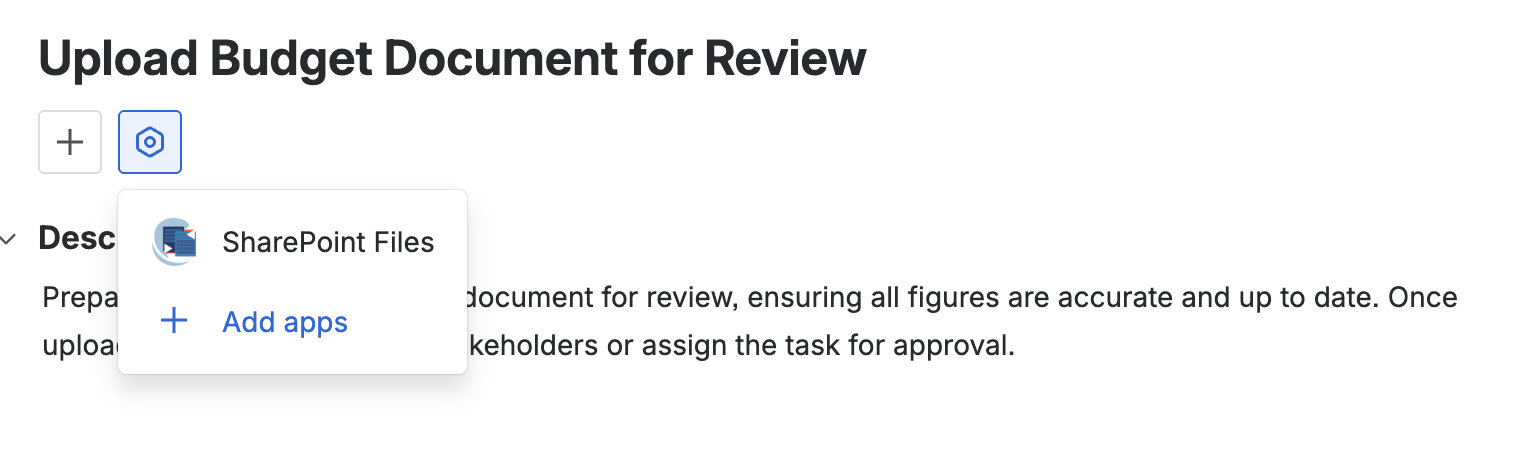
If the SharePoint Files section is not visible, click View app actions below the title of the work item and select SharePoint Files. The section then appears on the work item.
Find the items to connect
The connect dialog offers several tabs to find items in Microsoft 365. You can select items in different tabs and connect them all at once.
Start: recent items and search
The Start tab opens first. Under My recent items, it lists the files you recently worked on in Microsoft 365, with the columns Name, Modified By, Source, and Last Accessed. If there are many items, the list is split into pages.
To search for files, folders, and libraries across SharePoint and OneDrive, enter a search term under Filters > Search in SharePoint and OneDrive.
Space Folders
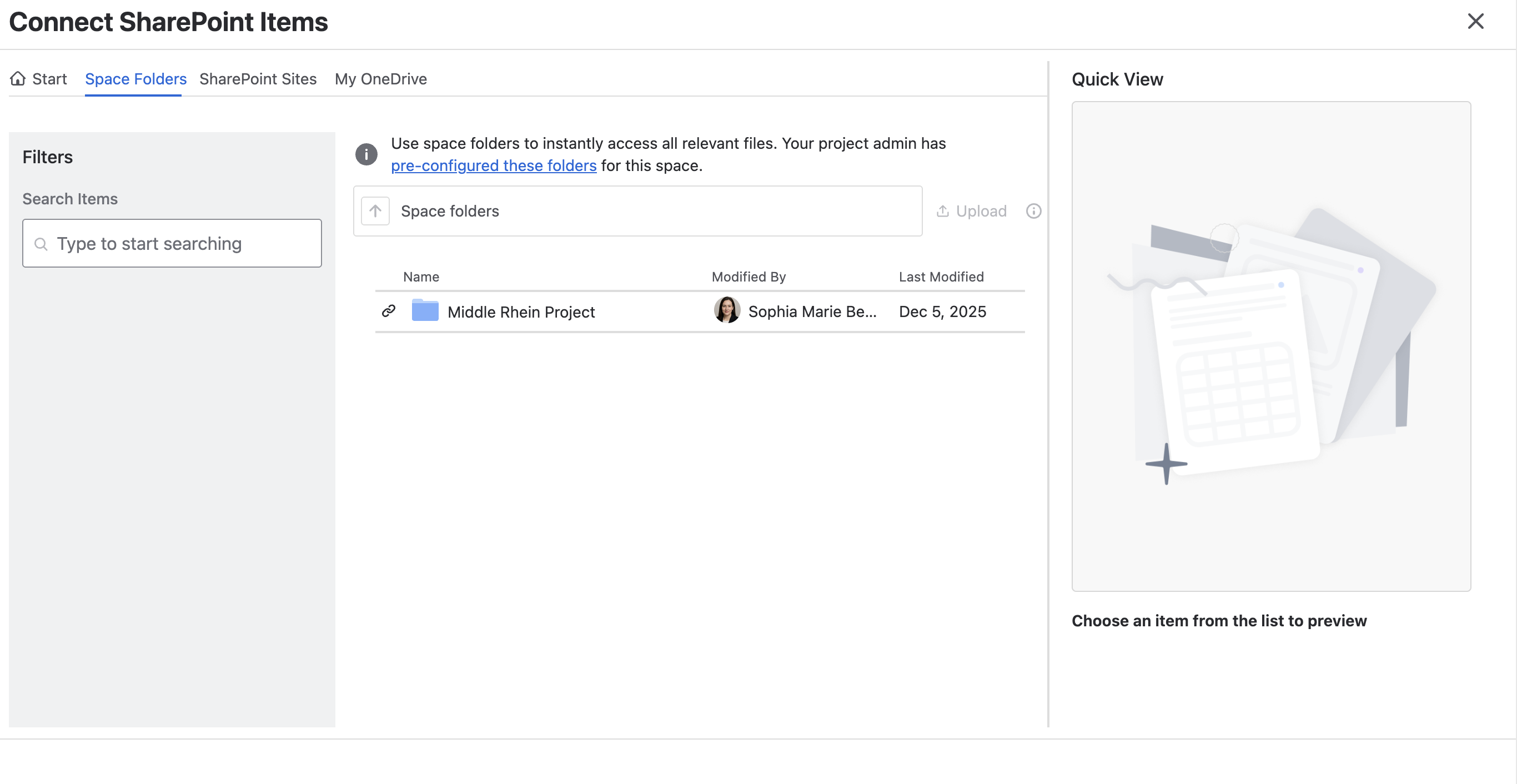
The Space Folders tab shows the folders connected to the current space (see Connect folders to a space). You can navigate these folders and connect items to the work item directly. To search the space folders, enter a search term under Filters > Search Items.
SharePoint Sites
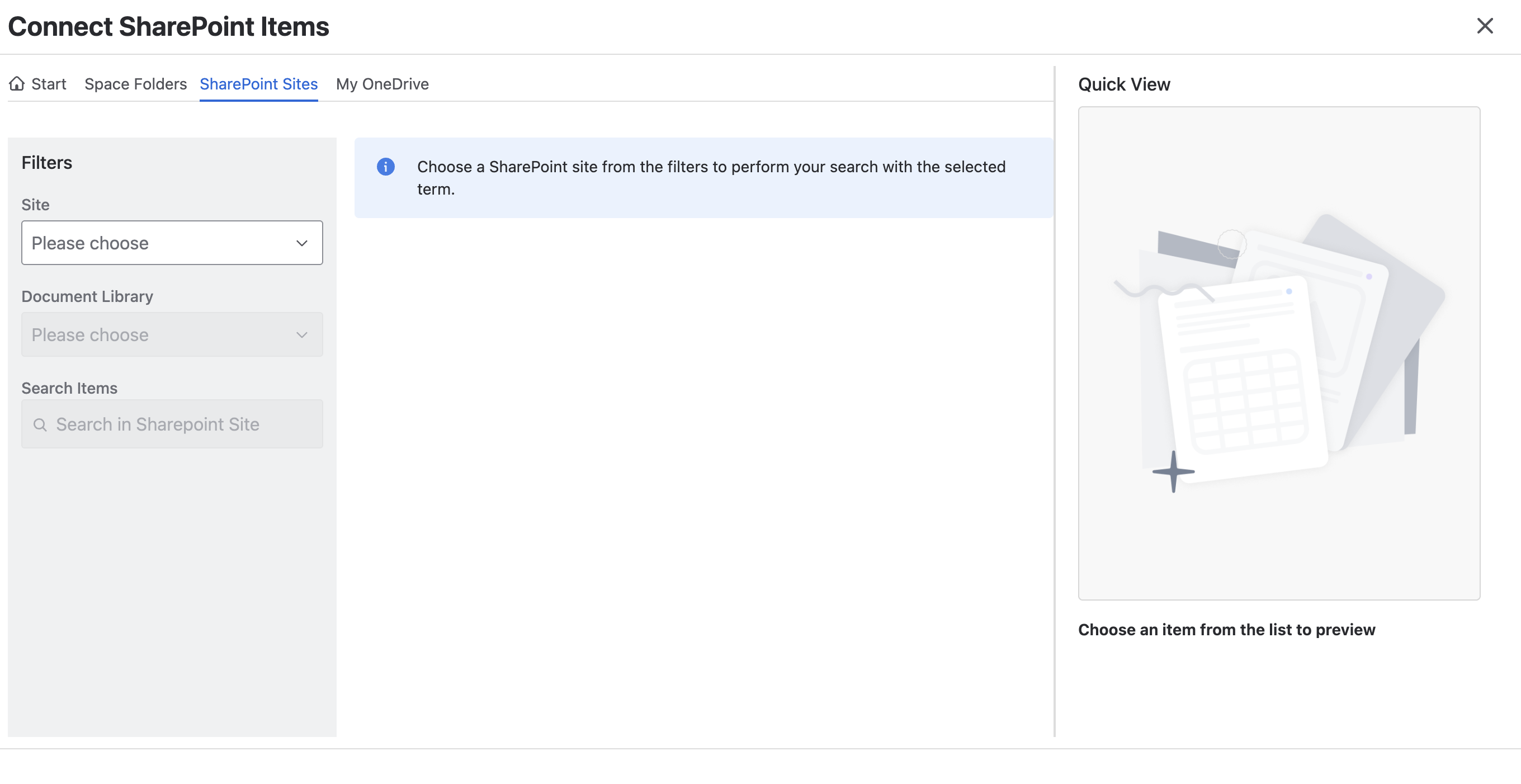
The SharePoint Sites tab lets you browse the libraries and folders of any SharePoint site. Until you select a site, the tab shows the hint to choose a site first.
-
Under Filters > Site, select a SharePoint site from the drop-down list. The list shows the name and URL of each site. If the site is not in the list, enter its name in the drop-down field to search for it. A loading spinner shows while the search runs.
-
Optional: To filter by document library, select a library from the list.
The table shows all files and folders. Click a folder to list the files in it. The breadcrumbs at the top show the current path. Click a breadcrumb to navigate back.
My OneDrive
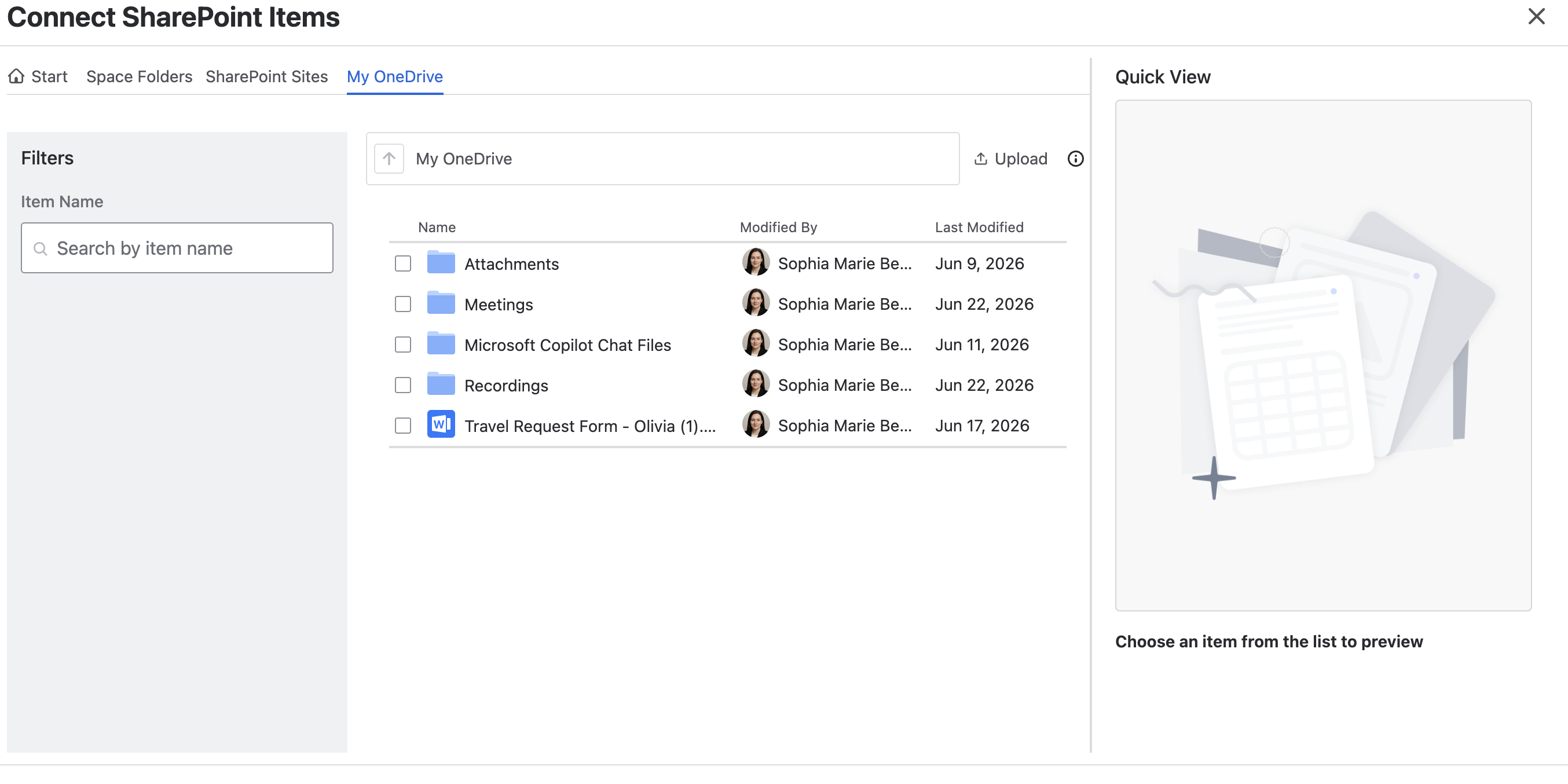
The My OneDrive tab lists your own files and folders in OneDrive. Scroll through the table to find the items you need. To narrow the list, enter a name under Filters > Item Name.
Preview an item
The Quick View on the right side of the dialog shows a preview of the selected item. For files, you see a thumbnail. For folders and libraries, you see an excerpt of their contents. Below the preview, the dialog shows the item name with a link to open it, and its size.
You can also show a preview by selecting an item under Currently selected items at the bottom of the dialog.
To preview a folder or library, select it under Currently selected items, or select its row by clicking on the right side of the row. If you click the folder icon, the dialog opens the folder instead.
Select and connect
-
Select the checkbox of each item you want to connect. You can select items in several tabs. Items that are already connected to the work item show a link icon instead of a checkbox.
-
Check your selection under Currently selected items at the bottom of the dialog. To remove an item from the selection, click the X next to its name.
-
Click Connect.

Connect a file by URL
Instead of browsing in the connect dialog, you can connect a single file by its URL.
-
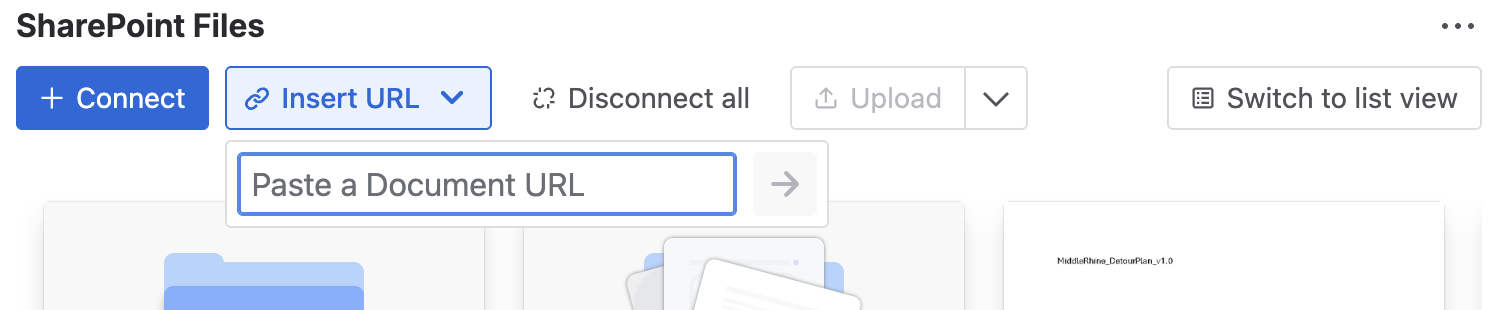
In the SharePoint Files section, click Insert URL.
-
Paste the SharePoint file URL into the Paste a Document URL field.
-
Click the arrow button.
Limitations
A work item can have up to 100 connected files, regardless of file size.
Result
The connected items appear in the SharePoint Files section of the work item. To learn what you can do with them, see Work with connected items.