
After you connect SharePoint items to a work item, you work with them in the SharePoint Files section of the work item. You can switch the view, open folders, use file and folder actions, and disconnect items.
Choose a view
The SharePoint Files section offers two views. To switch, click Switch to list view or Switch to card view in the upper right of the section. The view you choose applies only to you. It is not stored on the work item.
-
Card view: Works like the attachments section in Jira. Each card shows a preview of the item and its actions.
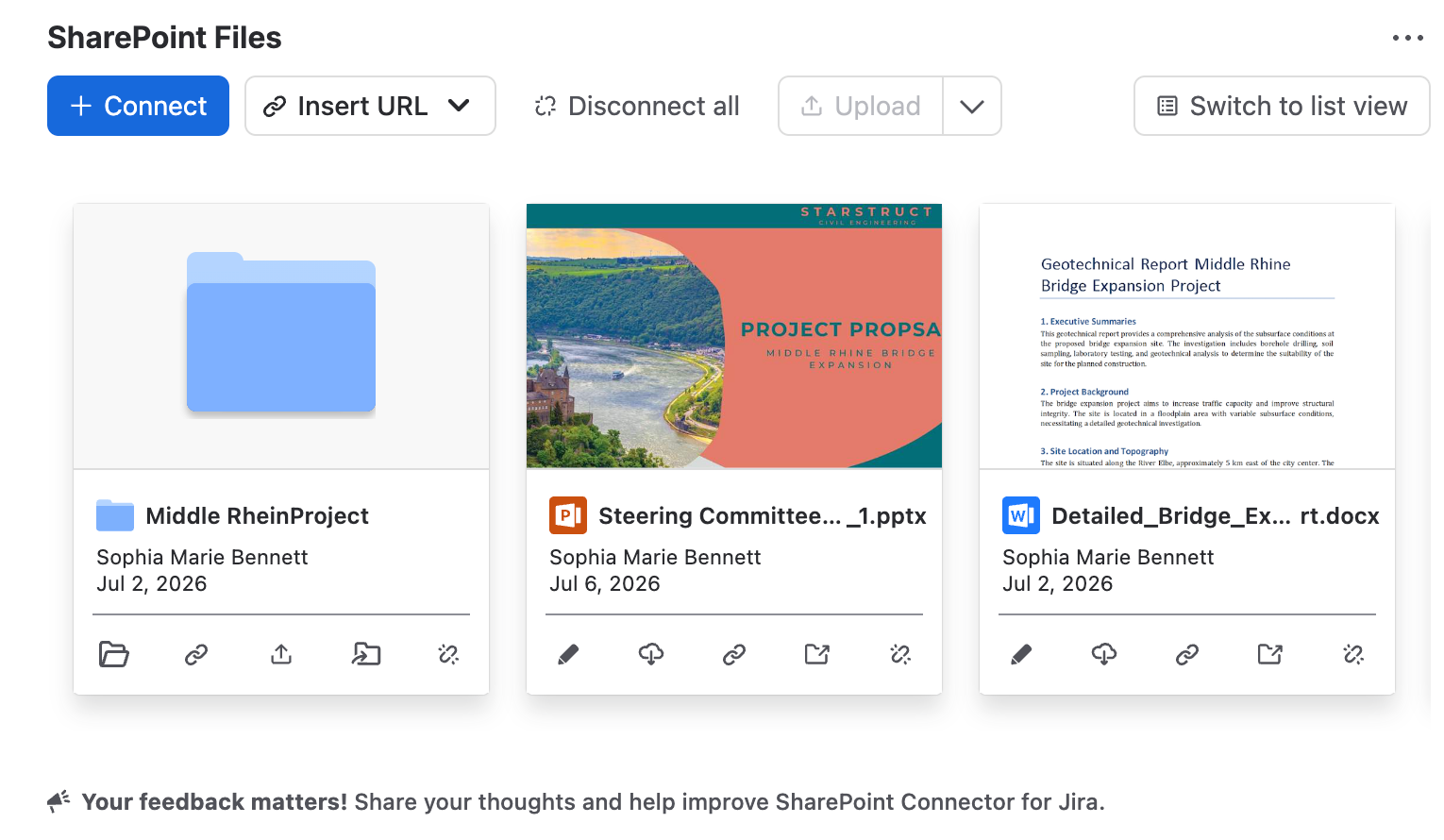
Card view -
List view: Shows the items in a table with the columns Name, Connected, and Added by, and gives fast access to actions. If many items are connected, the list is split into pages.
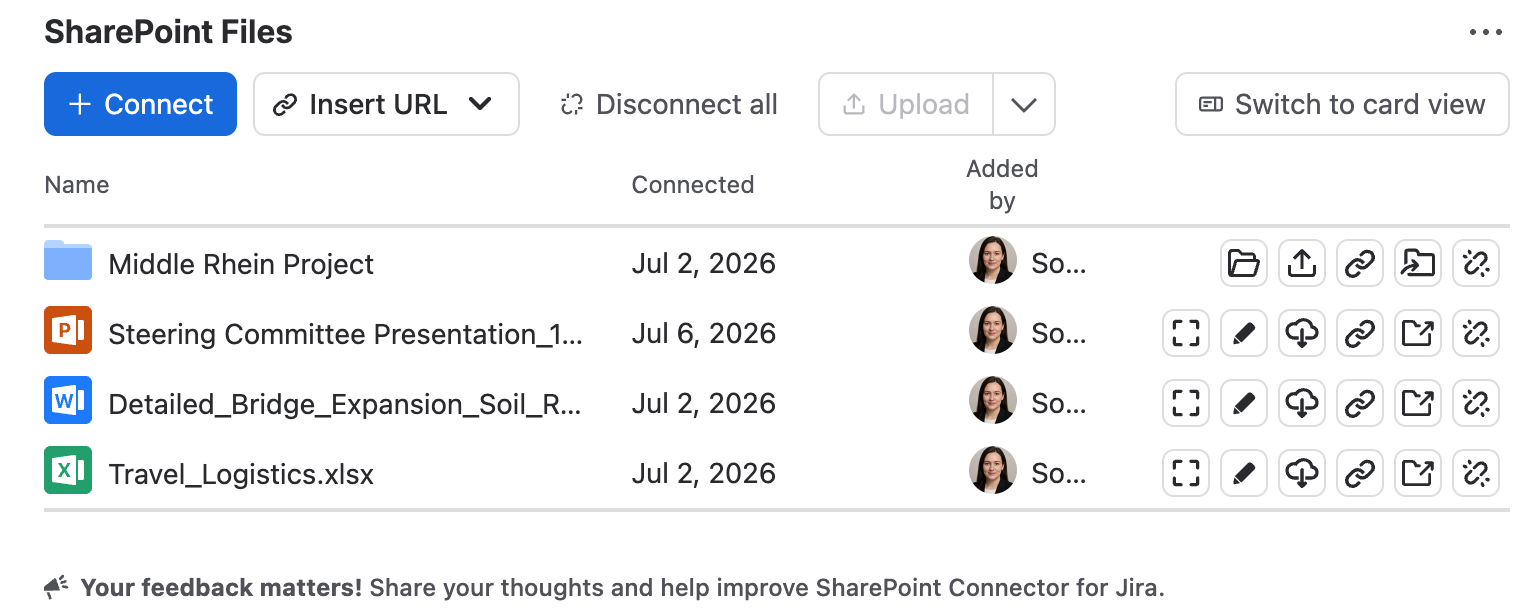
List view
Open folders and libraries
-
In card view, click the folder image on the card, or click Open folder.
-
In list view, click the name of the folder, or click Open folder.
Inside a folder, the breadcrumbs at the top show the current path. Click a breadcrumb to navigate the content. To return to the connected items, click the home icon. To open a file in full screen, click it.
File actions
The actions are always visible: below each card in card view, and at the end of each row in list view.

|
Action |
What it does |
|---|---|
|
Opens the document for editing in SharePoint in a new browser tab. |
|
Downloads the file to your computer. |
|
Copies the link to the file to the clipboard. |
|
Opens the parent folder of the file in SharePoint in a new browser tab. |
|
Disconnects the file from the work item. The file stays in SharePoint. You can undo this (see Undo a disconnect). |
|
Opens a full preview of the file. In card view, click the preview image. In list view, click the full screen icon. The preview works only for file types your browser can display. |
Folder actions
|
Action |
What it does |
|---|---|
|
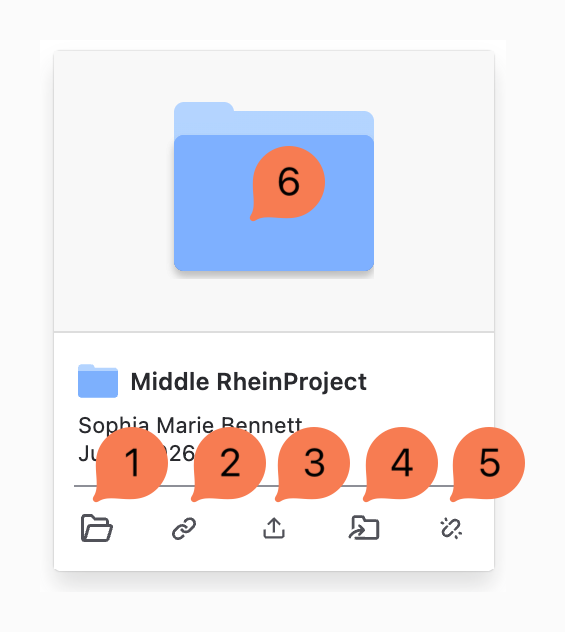
Opens the folder or library and shows its content. |
|
Copies the link to the folder or library to the clipboard. |
|
Opens your computer's file browser so you can upload files to this folder. The files are also synced to the corresponding location in your connected SharePoint. |
|
|
Opens the folder or library in SharePoint in a new browser tab. |
|
Disconnects the folder or library from the work item. The folder or library stays in SharePoint. You can undo this (see Undo a disconnect). |
|
Click the folder image to open the folder. This works like Open folder. |
Disconnect items
Disconnecting removes only the connection to the work item. The files, folders, and libraries stay in SharePoint.
-
To disconnect a single item, click Disconnect File or Disconnect Folder on the item.
-
To disconnect everything at once, click Disconnect all in the SharePoint Files section. This disconnects all connected files, folders, and libraries from the work item.

You cannot disconnect items while you are inside a folder or library. Return to the connected items first.
Undo a disconnect
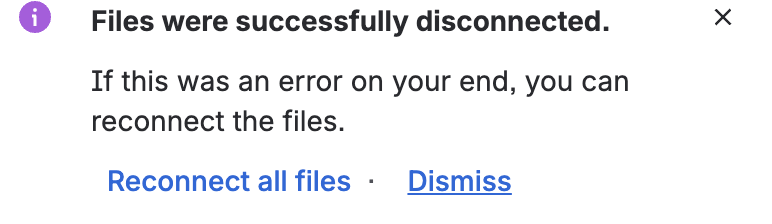
After you disconnect an item, a notification appears: File was successfully disconnected. To undo, click Reconnect in the notification. This works for single items and for Disconnect all.
Hide or show the SharePoint Files section
You can remove the SharePoint Files section from a work item. Removing the section only hides it. The connected items stay connected and appear again when you show the section.
To remove the section:
-
In the SharePoint Files section, click •••.
-
Select Remove.
To show the section again:
-
Below the work item title, click View app actions.
-
Select SharePoint Files.
To collapse the section without removing it, click ••• and select Collapse.