
TUTORIAL 2 OF 6 5 MIN BEGINNER SPACE ADMIN
Every attachment added to a work item is copied to the work item’s SharePoint folder, where your team can open, share, and co-edit it.
This tutorial builds on A SharePoint folder for every new work item.
What you’ll learn
-
React to new attachments with a trigger
-
Find an existing folder with Get SharePoint item
-
Copy an attachment to SharePoint and show it on the work item
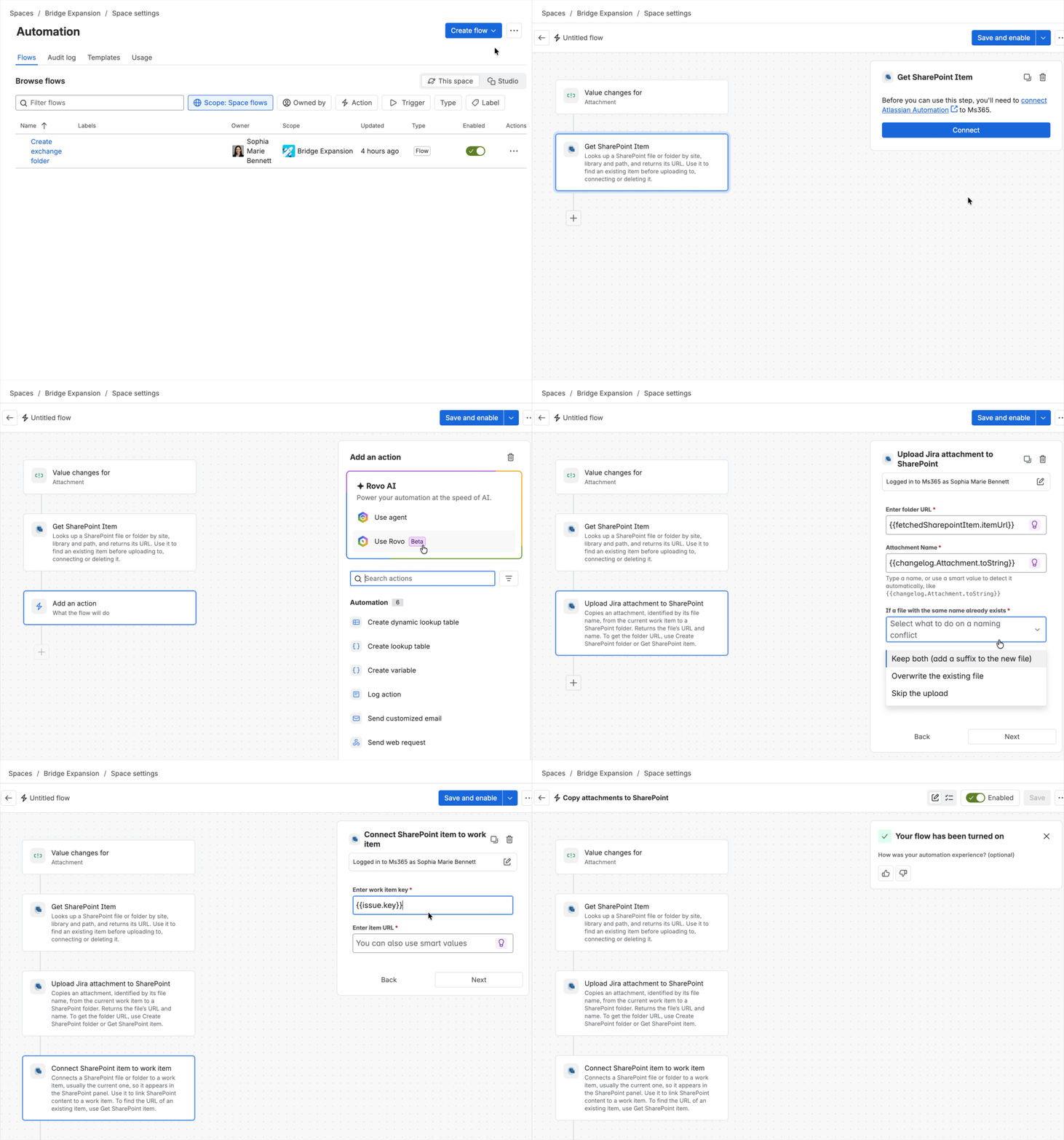
Outcome: When someone adds an attachment to a work item, a copy appears in the work item’s SharePoint folder.
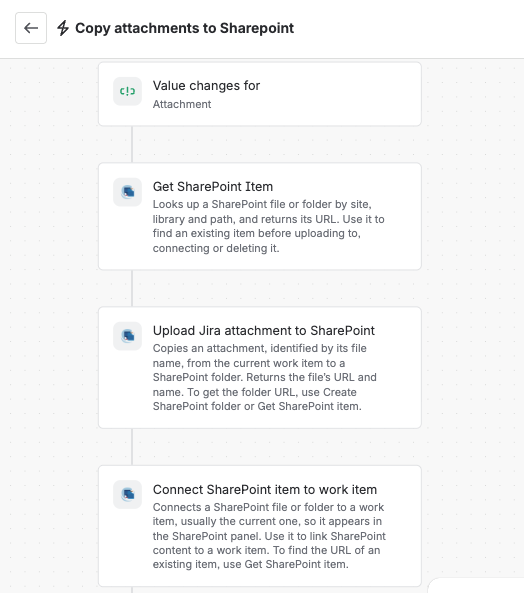
Rule at a glance
-
TRIGGER Field value changed: Attachment
-
ACTION Get SharePoint item
-
ACTION Upload Jira attachment to SharePoint
-
ACTION Connect SharePoint item to work item
Step-by-step setup
1. Create the rule
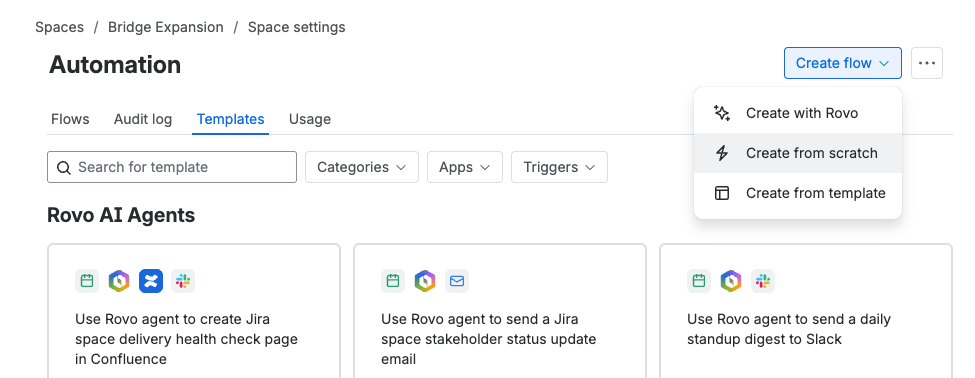
Go to Space settings > Automation, then select Create flow. Choose Create from scratch.
2. Add the trigger
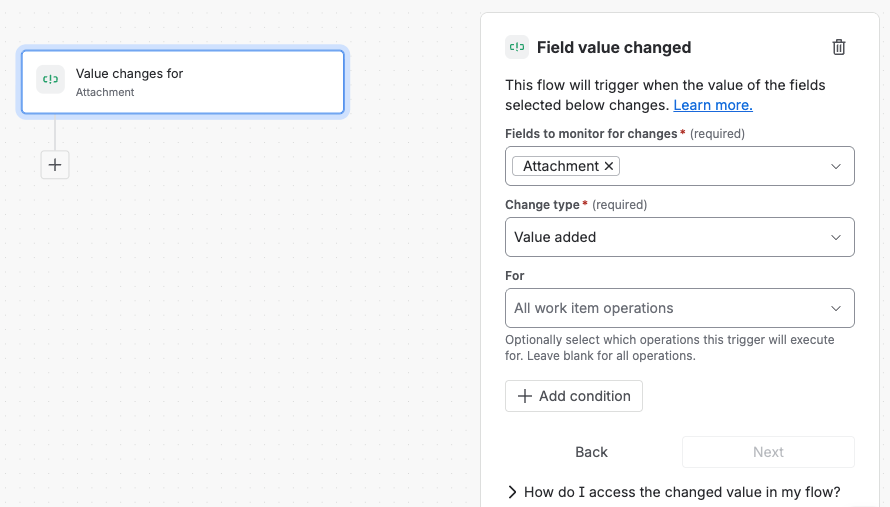
Select the trigger Field value changed. Set Field to Attachment and Change type to Value added.
This trigger only reacts to attachments added after the work item exists. For attachments added during creation, see Copy attachments from new work items.
3. Find the work item’s folder
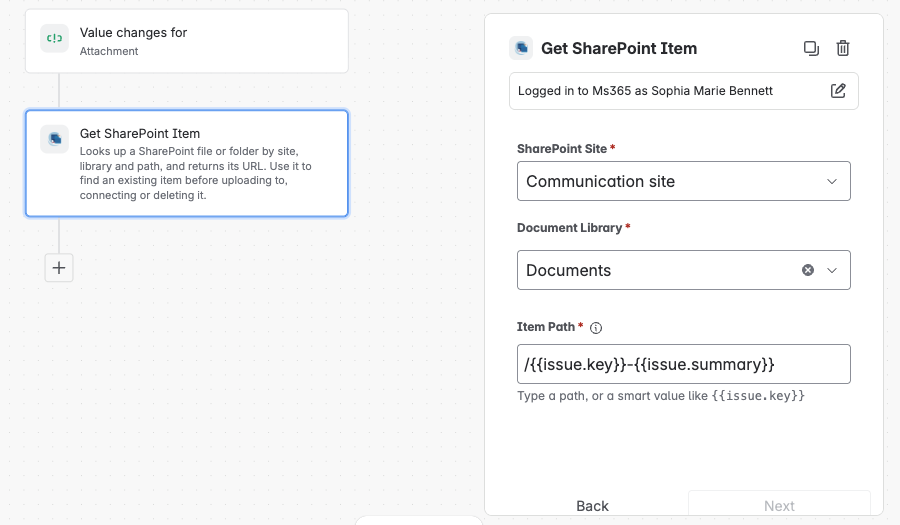
Add the action Get SharePoint item and fill in the fields.
|
Field |
Value |
|---|---|
|
Site |
The site from A SharePoint folder for every new work item |
|
Document library |
The library from A SharePoint folder for every new work item |
|
Item path |
Folder path and folder name from A SharePoint folder for every new work item, for example |
The item path must exactly match the folder path and name. If you named your folders with the key and the summary, the folder isn’t found after someone edits the summary.
4. Copy the attachment
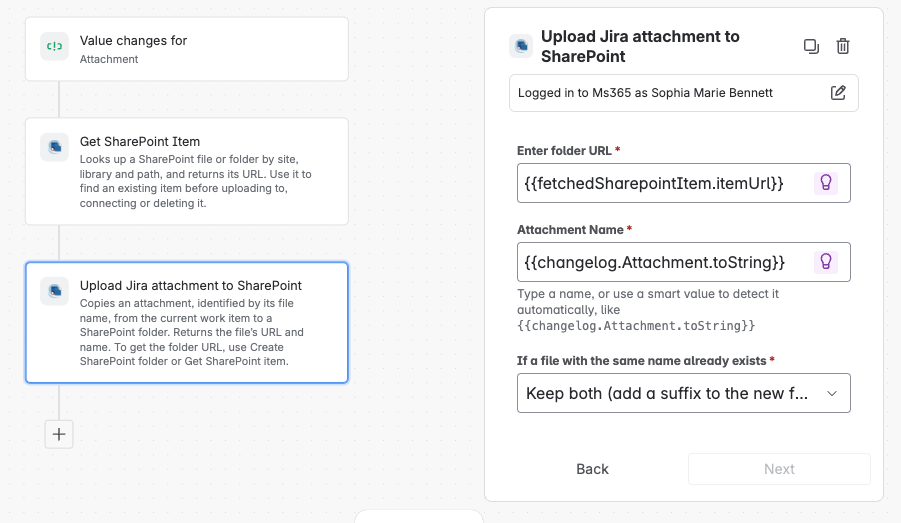
Add the action Upload Jira attachment to SharePoint and fill in the fields.
|
Field |
Value |
|---|---|
|
Location |
|
|
Attachment name |
|
|
Conflict behavior |
Keep both |
{{fetchedSharepointItem.itemUrl}} contains the URL of the folder that step 3 found. {{changelog.Attachment.toString}} contains the name of the attachment that was just added.
Keep both is the safe choice. If a file with the same name already exists in the folder, for example, a new version of contract.pdf, it’s stored as contract_1.pdf. Overwrite replaces the existing file. Skip doesn’t upload the file.
5. Show the file on the work item
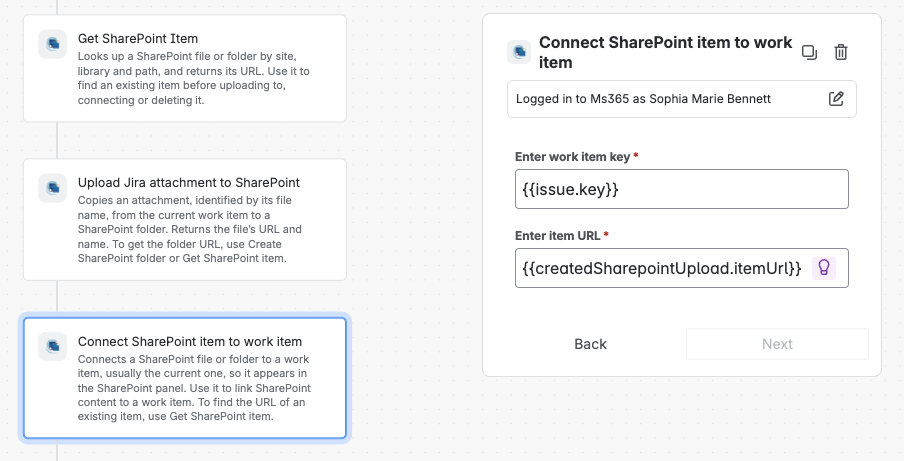
Add the action Connect SharePoint item to work item and fill in the fields.
|
Field |
Value |
|---|---|
|
Work item |
|
|
Item URL |
|
{{createdSharepointUpload.itemUrl}} contains the URL of the file uploaded in step 4.
6. Turn it on
Name the rule (for example, Copy attachments to SharePoint), then turn it on.
Try it
Add an attachment to a work item that has a folder. A copy appears in the folder and in the work item’s SharePoint panel. If it doesn’t, check the rule’s audit log.
Make it yours
|
Recipe |
Change |
|---|---|
|
FALLBACK Work items without a folder |
Replace Get SharePoint item with Create SharePoint folder, using the same folder name. It returns the existing folder or creates a new one. Set Location to |
|
PANEL Folder only |
Remove step 5 if the connected folder in the SharePoint panel is enough. |
|
CLEANUP Remove the file from Jira |
After the upload, add Jira’s Delete attachments action with |
|
NOTIFY Post the link in a comment |
After the upload, add Jira’s Comment on work item action, for example: |