
For the SharePoint integration to work correctly, the admin of the SharePoint tenant must grant the app API access before users can start using the app. First, create a service principal for the app with PowerShell. Then approve the API access in the SharePoint Admin Center. If the Admin Center does not allow you to grant access, approve it with PowerShell instead.
Create the service principal
First, create a new service principal for the app with the following PowerShell script:
Prerequisite: The AzureAD PowerShell module must be installed. If it is not installed yet, install it:
-
Install-Module AzureAD
Connect-AzureAD -TenantId "<yourTenantID>";
New-AzureADServicePrincipal -AppId "7a24742e-0a1c-4225-844f-4d0948d515c4";
Approve in the SharePoint Admin Center
After you create the enterprise application in your tenant, approve the API access in the SharePoint Admin Center.
-
In the SharePoint Admin Center, go to API access:
https://<tenantName>-admin.sharepoint.com/_layouts/15/online/AdminHome.aspx#/webApiPermissionManagement. -
Find the SharePoint Connector for Jira entry. It is listed once the SharePoint solution is installed.
-
Click Approve. Approving the API access allows the app to start communicating with our APIs.
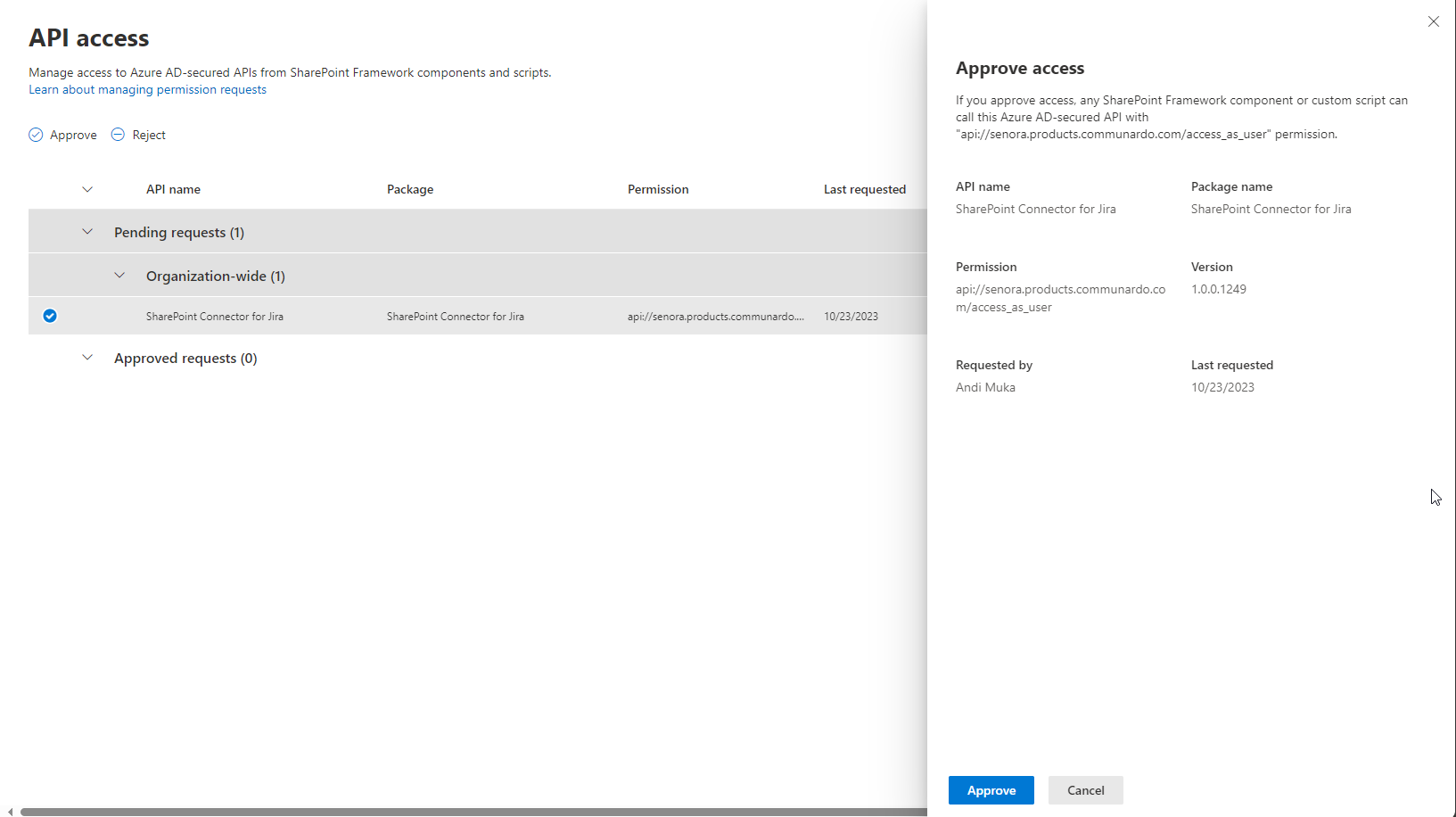
Approval in SharePoint Admin Center -
In the pop-up that appears, consent to the app. After you accept, the pop-up redirects you.
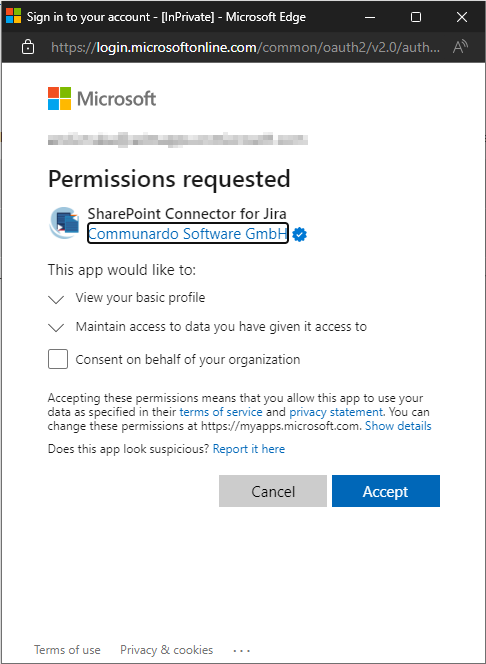
Microsoft permission request -
Close the pop-up.
After you give consent, users can start using the app.
Microsoft is currently changing how it handles API access for SharePoint web parts. If you receive an error during the approval process, grant the permission manually with the PowerShell script in the following section.
Approve via PowerShell (fallback)
If the UI does not allow you to grant access, you can grant API access manually with a PowerShell script.
Provide the following parameters for the script:
-
appID:7a24742e-0a1c-4225-844f-4d0948d515c4 -
scope:api://senora.products.communardo.com/access_as_user -
tenantId:<your tenant id>
The script uses the Microsoft Graph SDK, which must be installed on your machine. Find an installation guide here.
<#
.SYNOPSIS
This cmdlet privovides a way for developer and system administrators to add permissions to AAD protected APIs for SharePoint Framework custom code.

.PARAMETER appID
the ID of the app to set permissions for
.PARAMETER scope
the scope of the permission request to add

.EXAMPLE
AddSPFxPermissions -appID "00000003-0000-0000-c000-000000000000" -scope "Sites.Read.All"

.NOTES
requires Graph SDK to be installed. Follow documentation here: https://learn.microsoft.com/en-us/powershell/microsoftgraph/installation?view=graph-powershell-1.0
#>

[CmdletBinding()]
param(
    [Parameter(Mandatory=$true)]
    [string] $appID,

    [Parameter(Mandatory=$true)]
    [string] $scope,

    [Parameter(Mandatory=$true)]
    [string] $tenantId
)
# when the app is still not working use following sPFxAppID instead 6326b94e-cdee-4c5c-809b-00830522ca86
$sPFxAppID = "08e18876-6177-487e-b8b5-cf950c1e598c"
$objectGrant = $null

connect-MgGraph -scopes "Application.ReadWrite.All", "Directory.ReadWrite.All" -TenantId $tenantId -NoWelcome
try{
    #Get the SPFx Service Principal
    $sPFxSP =  Get-MgServicePrincipal -Filter "appid eq '$spfxAppID'"
    #get the endpoint service princpal (required to identify the object ID)
    $resourceSP =  Get-MgServicePrincipal -Filter "appid eq '$appID'"

    #check if some scopes have been already added for the endpoint
    $oGrants = Get-MgServicePrincipalOauth2PermissionGrant -ServicePrincipalId $sPFxSP.Id
    foreach ($item in $oGrants)
    {
        if( $item.ResourceId -eq $resourceSP.Id)
        {
            $objectGrant = $item
            break
        }
    }

    #if $objectGrant is not null, we check if the scope already exists there
    if ($null -ne $objectGrant)
    {
        if ($objectGrant.Scope | Select-String $scope -Quiet ){
            throw "Scope has already been granted"
        }
        #The scope was not added, added it to the $objectGrant and update it
        $objectGrant.Scope += " $scope"
        Update-MgOauth2PermissionGrant -OAuth2PermissionGrantId $objectGrant.Id -Scope $objectGrant.Scope -ErrorAction Stop | Out-Null
    }
    #otherwise, we just create the new object witht the scope
    else{
        $params = @{
            "clientId" = $sPFxSP.id
            "ConsentType" = "AllPrincipals"
            "ResourceId" = $resourceSP.id
            "scope" = $scope
          }
        New-MgOauth2PermissionGrant -BodyParameter $params -ErrorAction Stop | Out-Null
    }

    Write-Host "Permissions set for SPFx app with ID $appID"
}
catch{
    Write-Host "the following error occurred: $_.Exception" -ForegroundColor Red
}
finally{
    Disconnect-MgGraph
    Write-Host "Command completed."
}
Starting from the second week of March 2025, Microsoft started to transition to the "SharePoint Online Web Client Extensibility" application principal for SPFx permission management. If the app is still not working after you run the script above, your tenant might still use the old SPFx permission management. In this case, change sPFxAppID in the script to 6326b94e-cdee-4c5c-809b-00830522ca86 and run the script again.
Find more information about the changes here: https://devblogs.microsoft.com/microsoft365dev/changes-on-sharepoint-framework-spfx-permission-grants-in-microsoft-entra-id/