
In the prerequisites for the SharePoint Connector for Confluence app, it is noted that 3rd-party cookies must be enabled to view embedded content.
Google Chrome
To enable cookies in Google Chrome (PC):
-
In the top-right corner, click More > Settings.
-
Under "Privacy and security," click Cookies and other site data.
-
Select one of the two options:
-
“Allow all cookies”.
-
"Block third-party cookies in Incognito".
-
To enable cookies in Google Chrome (Android):
-
At the top right, tap More and then Settings.
-
Tap Site Settings, then Website Settings > Cookies.
-
Next to “Cookies,” switch the setting on.
-
Select one of the two options:
-
“Allow all cookies”.
-
"Block third-party cookies in Incognito".
-
Microsoft Edge
-
Under edge://settings/content/cookies deactivate the option “Block 3rd party cookies”.
Mozilla Firefox
To enable cookies in Mozilla Firefox (PC):
-
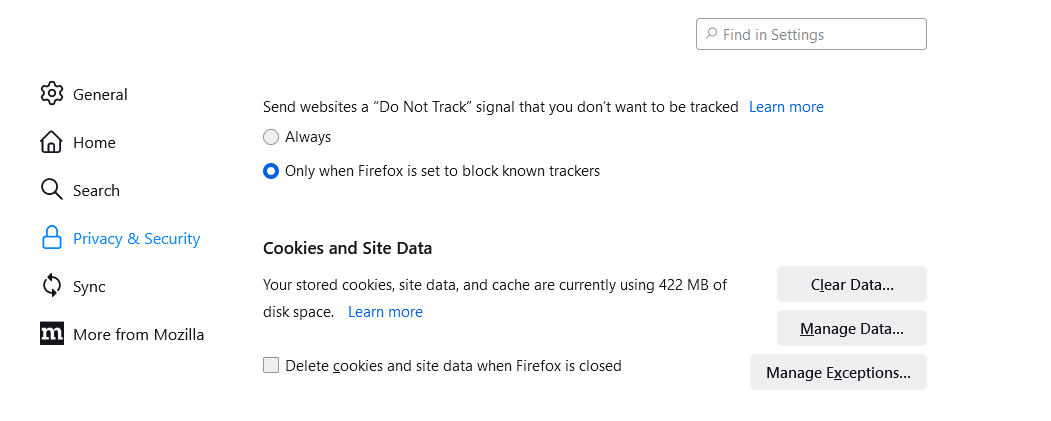
Open the burger menu and select Options.
-
Select Privacy & Security.
-
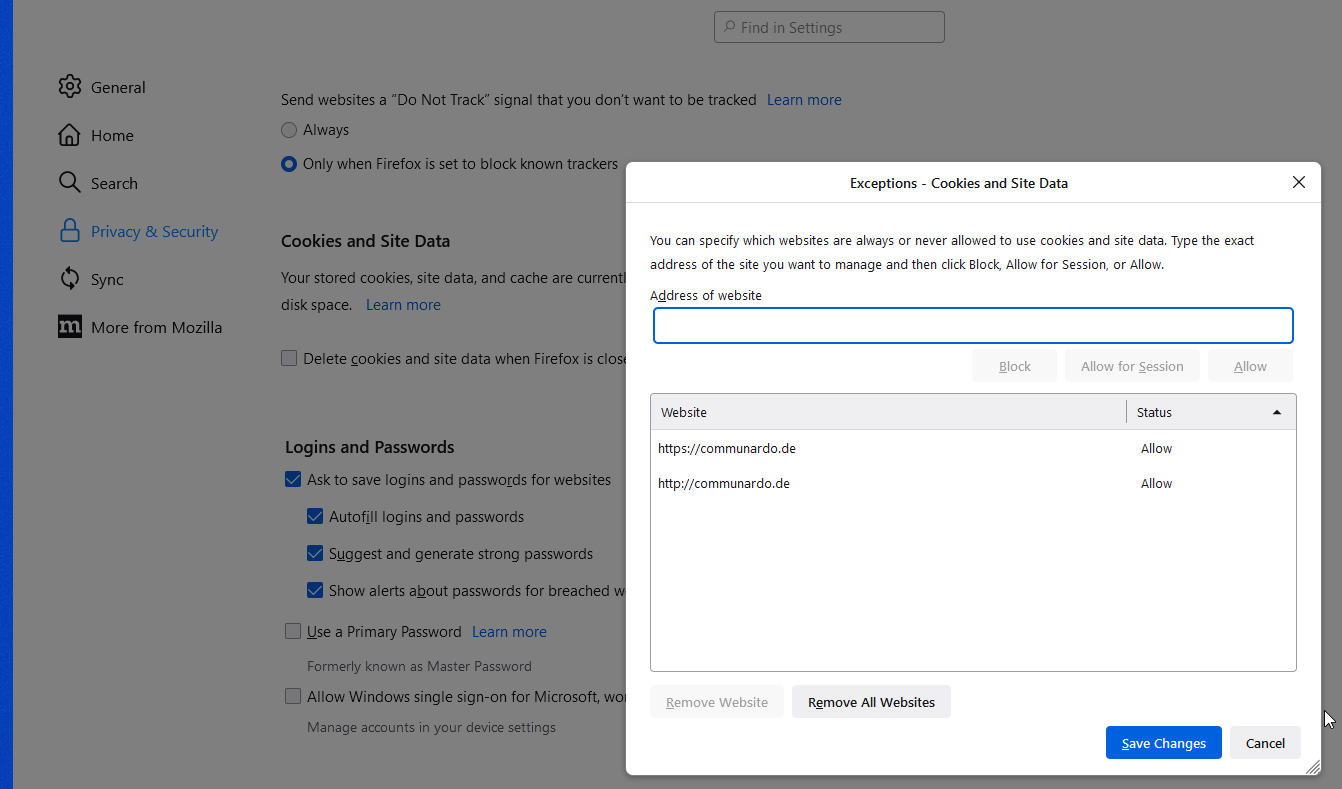
Under "Cookies and Site Data", click on "Manage Exceptions".
-
Add the domain of your Confluence (e.g., if your Confluence is under wiki.company.com then you have to add company.com).
Safari
To enable cookies in Safari:
-
Open your Settings.
-
Scroll down and select Safari.
-
Under Privacy & Security, turn off “Prevent Cross-Site Tracking” and “Block All Cookies”.