
Automation rules in Jira Cloud can enhance efficiency and productivity by automating repetitive tasks, streamlining workflows, and minimizing manual errors. One beneficial use case for using custom fields created by User Profiles for Jira Cloud is automatically assigning approvers based on the reporter's manager. This automated process ensures that the appropriate approver is assigned to a Jira issue without any manual effort.
If the auto-assigning action must take place during issue creation, it cannot be done with an automation rule triggered by “Issue created”. The reasoning is that during Jira issue creation, the values of custom fields created through the User Profiles for Jira application are empty. These values will be updated once the issue is created.
📘 Instructions
To have the assigning process of the Approvers field automated you could follow these steps:
-
Create a custom field that fetches the manager of the reporter
-
Start by creating a custom field with Manager as a Microsoft user attribute and Reporter as a reference user field. Follow Custom Field Configuration for more details on how to create the desired custom field.
-
-
Define the trigger condition
-
The trigger condition for this automation rule is “Field value changed”. The automation rule should monitor changes to the custom field created.
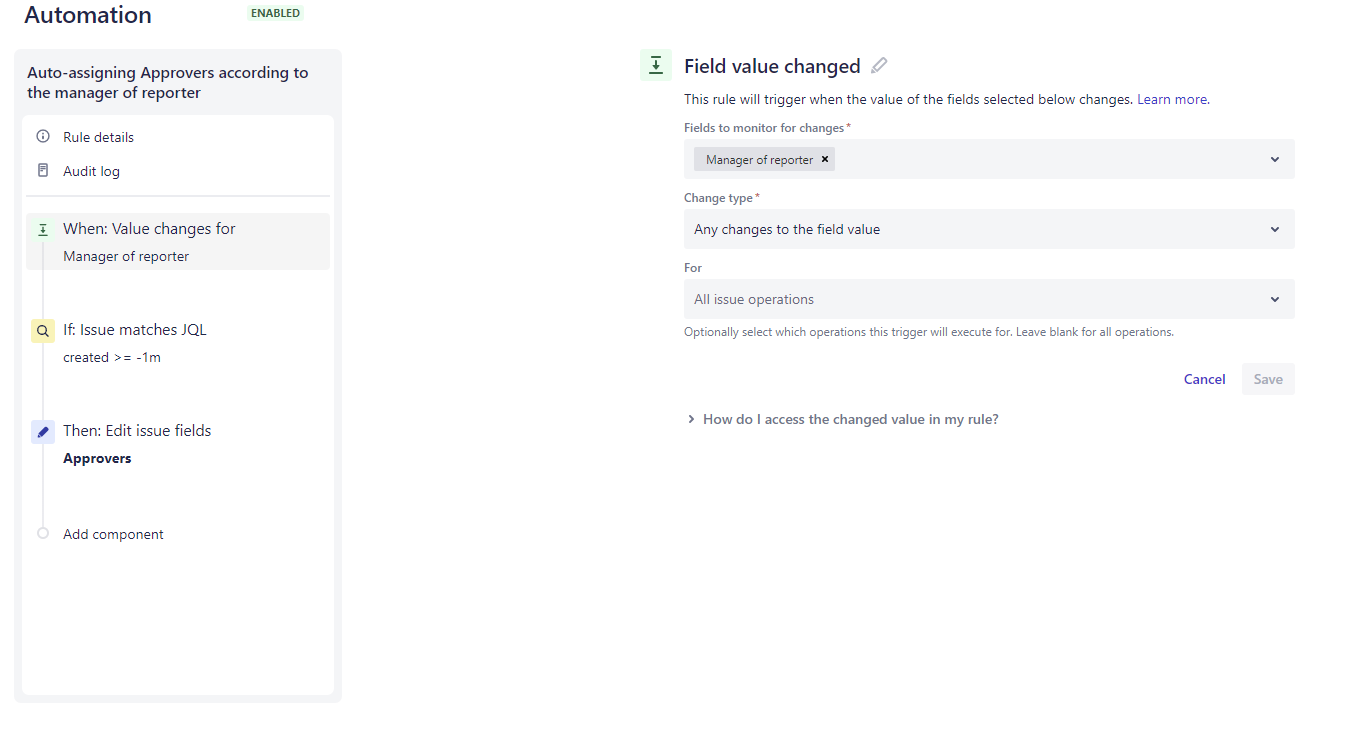
Image 1: ‘Field value changed’ condition
-
-
Define the condition
-
If you need the auto-assigning process to run directly after a Jira issue is created, you can use conditions to limit the automation rule to run only on the newly created Jira issues within a certain period of time, for example, less than one minute ago.
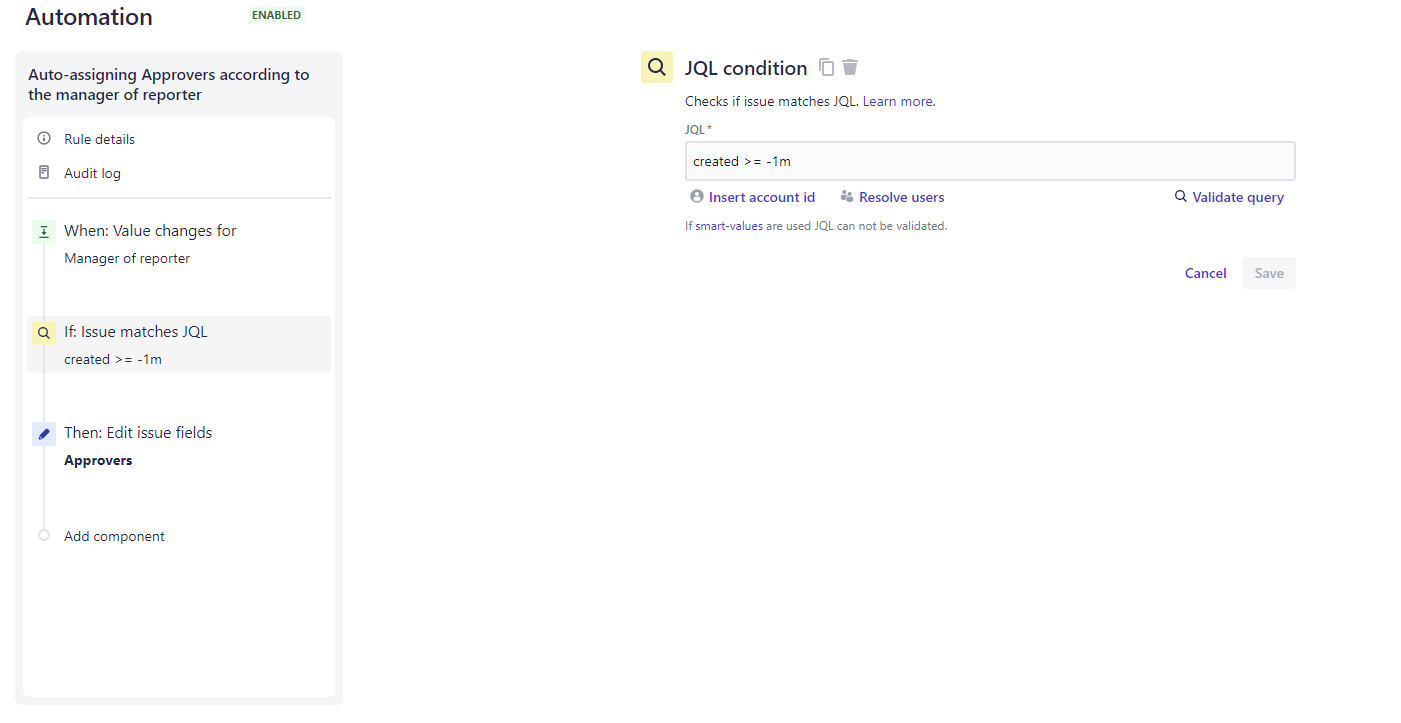
Image 2: Limit the automation rule for newly created Jira issues
-
-
Define the actions to be taken
-
Once the trigger condition is met, the automation rule should take the appropriate actions. In this case, the automation rule should set the approver value to the reporter's manager, using the smart value {{custom_field_name}} or {{custom_field_id}}.
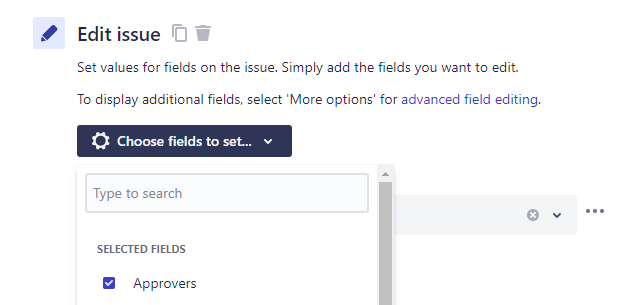
Image 3: Edit Approvers field -
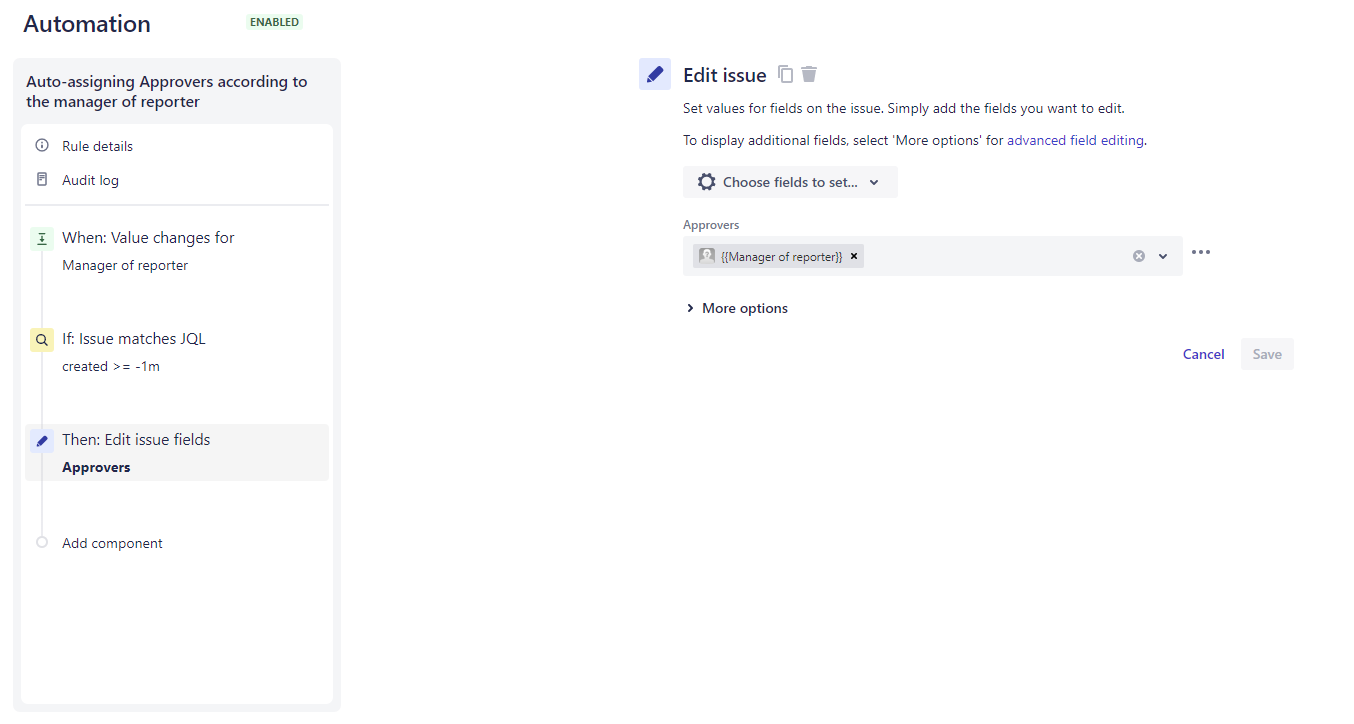
The article outlines how to automate approver assignment in Jira Cloud using custom fields and automation rules. It includes instructions for setting up the rule but notes that auto-assignment during issue creation cannot be achieved using the "Issue created" trigger.