This guide walks you through preparing User Profiles for Confluence (Microsoft Attributes Sync) for Cloud migration. It covers how to run the preparation, what content gets migrated, and how to find any remaining unmigrated macros.
Index
1. Prerequisites
Our Cloud version exclusively supports Microsoft Entra ID ↗ (previously Azure AD) as the User Directory. To migrate, your organization must already use or plan to use Microsoft Entra ID for identity management.
2. Prepare your macros for migration
Only our app's macros are prepared for migration — currently, the most important ones. We are continually expanding coverage, and this page documents which macros can be migrated successfully.
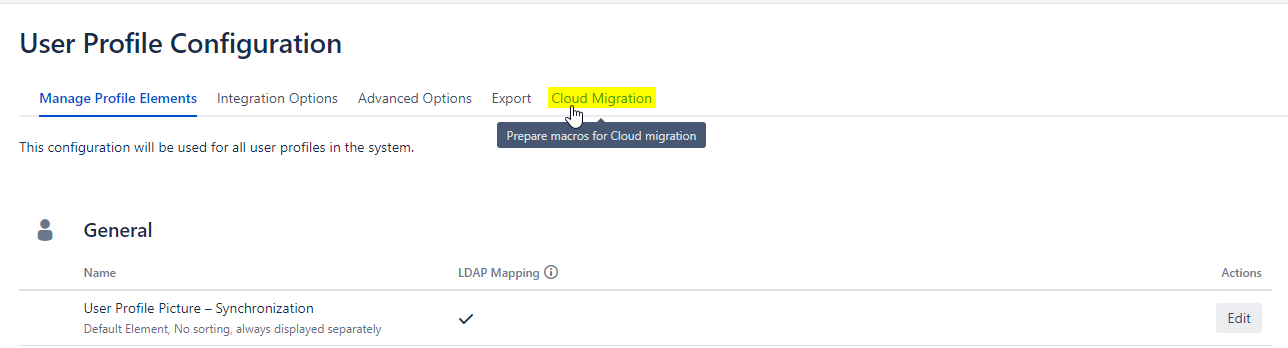
Step 1 – Open the Cloud Migration configuration
Go to the User Profiles Configuration ↗ in Confluence and navigate to the Cloud Migration section.
Step 2 – Select your spaces
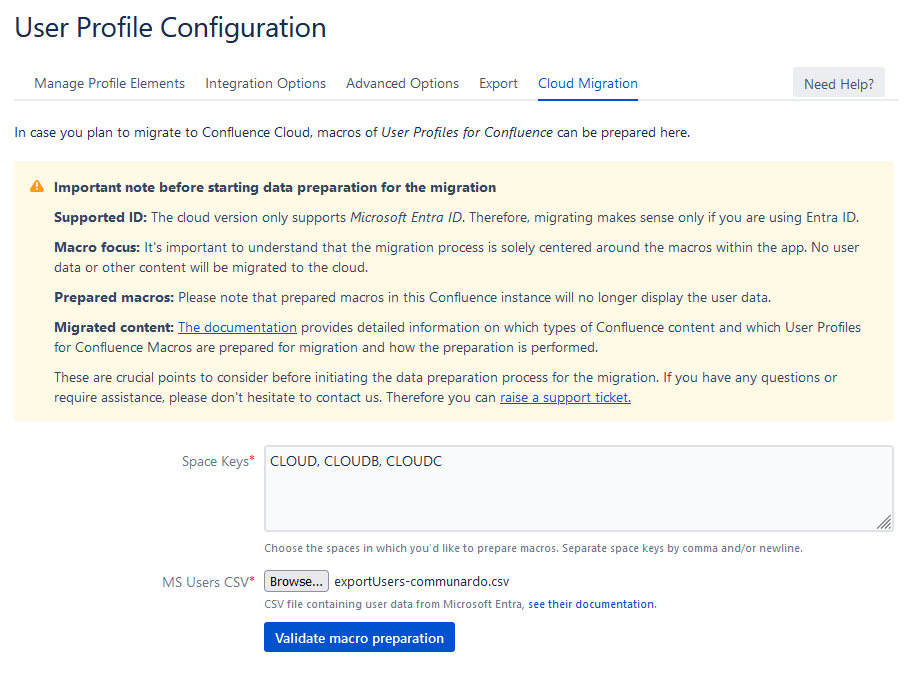
Specify the spaces you want to migrate as a comma-separated list of space keys.
Step 3 – Upload the user mapping CSV
Provide a CSV file that maps your users' email addresses to their Microsoft Entra ID account IDs. You create this file by exporting user data from Microsoft Entra ID — see Microsoft Entra's bulk download documentation ↗.
CSV requirements:
-
Separator: comma (
,) -
First row must contain column headers
-
Must include at least these two columns (exact header names):
-
mail— the user's email address -
id— the user's Microsoft Entra ID account ID
-
Example file:
id,displayName,userPrincipalName,userType,onPremisesSyncEnabled,identities,companyName,creationType
a1b2c3d4-e5f6-7890-abcd-ef1234567890,John Doe,John.Doe@contoso.com,Member,True,"[{""signInType"":""userPrincipalName"",""issuer"":""ContosoOnline.onmicrosoft.com"",""issuerAssignedId"":""John.Doe@contoso.com""}]",Contoso Ltd,
b2c3d4e5-f6a7-8901-bcde-f12345678901,Jane Smith,Jane.Smith@contoso.com,Member,True,"[{""signInType"":""userPrincipalName"",""issuer"":""ContosoOnline.onmicrosoft.com"",""issuerAssignedId"":""Jane.Smith@contoso.com""}]",Contoso Ltd,
c3d4e5f6-a7b8-9012-cdef-123456789012,Carlos Rivera,Carlos.Rivera@fabrikam.com,Member,False,"[{""signInType"":""userPrincipalName"",""issuer"":""FabrikamOnline.onmicrosoft.com"",""issuerAssignedId"":""Carlos.Rivera@fabrikam.com""}]",Fabrikam Inc,
This mapping is essential for macros to display the correct user data after migration. See What happens during preparation for technical details.
The uploaded CSV data stays within your Confluence instance. It is not sent to Atlassian or to us.
Step 4 – Validate
(Available since version 3.4.2)
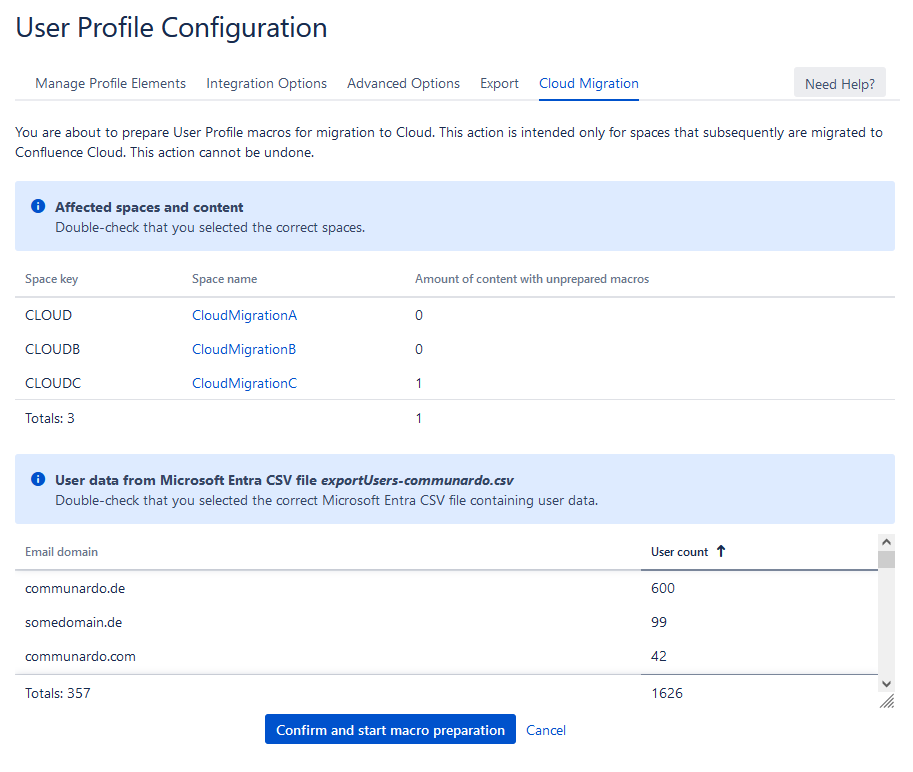
Click "Validate macro preparation". A summary will display the affected spaces and the matched user data from Microsoft Entra ID, so you can review them before proceeding.
Step 5 – Start the preparation process
Click Start to begin the preparation process.
What happens during preparation
-
Macro updates: All Enhanced Profile and Profile macro instances are updated for Cloud compatibility. Macro names are changed, and user mappings to Entra ID users are applied. Updated macros will show a badge indicating Cloud-readiness.
-
Version history: A new version of each affected page or blog post is created, documented in the page history.
3. What gets prepared
Confluence content types
|
Prepared |
Not prepared |
|---|---|
|
Pages |
History of pages and blog posts |
|
Blog posts |
Shared drafts |
|
Comments |
Custom templates |
App macros
|
Prepared |
Not prepared |
|---|---|
|
Enhanced Profile macro (always) |
Organization Chart macro |
|
Profile macro (if overriding of the default Profile macro is enabled — Administration → User Profile Configuration → Advanced Options → Enable Enhanced Profile Macro) |
Organization Chart (compact) macro |
|
Profile List macro (always) |
Any data not specific to macros |
4. Find unmigrated content
Enhanced Profile / Profile macro
In Confluence Data Center (before migration):
Use the search query:
macroName:enhanced-profile OR macroName:profile
Go to Confluence search, enter this query, and optionally filter by space. If no results are found, all macros in your spaces are prepared, and you're ready to migrate.
In Confluence Cloud (after migration):
Use an advanced CQL search ↗ with the query:
macro IN ("enhanced-profile", "profile")
CQL is not available on the Confluence search page. Access it directly via URL, e.g., for site my-site:
https://my-site.atlassian.net/wiki/search?cql=macro%20IN%20(%22enhanced-profile%22%2C%20%22profile%22)
Profile List macro
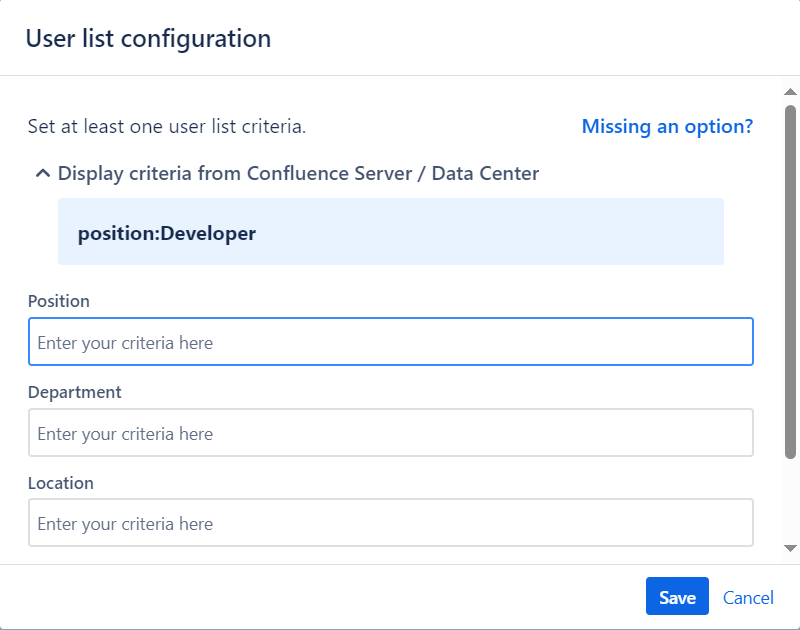
Profile List macros will be in an unmigrated state after moving content to the Cloud.
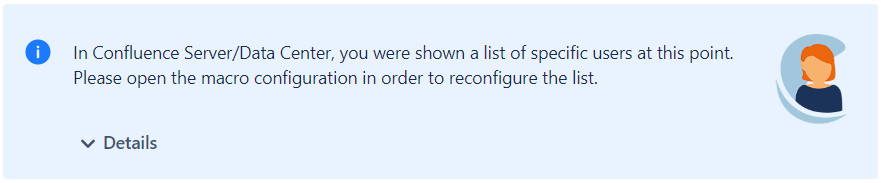
The macro's "criteria" parameter contains a Lucene query that must be migrated manually to the new filter of the Contact List macro. During this process, the original value from the on-premise environment will be shown. After saving the macro, the migration-specific messages will disappear.