A blocked issue often needs a person, not another comment. Get expert advice: The Meridian People & Skills Hub panel on the Jira issue view suggests colleagues whose skills match the issue you are looking at, without you having to describe the problem again.
The panel works from the issue content. An issue that only says Fix bug gives the app nothing to work with.
How to get expert advice on a Jira issue
-
Open the Jira issue.
-
In the context section on the right, find Get expert advice.
-
Click Show matching experts.
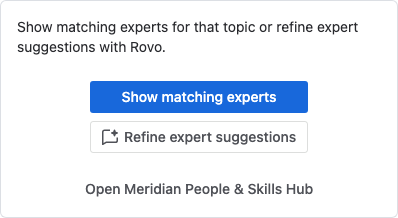
Image 1: Show matching experts (click to enlarge)
To describe the problem in your own words instead, click Refine expert suggestions. That opens a Rovo chat with the Skills Navigator agent, where you name the skills yourself. See Ask the Skills Navigator agent for experts.
The app reads the issue summary, the description and the most recent comments, derives the skills the work needs, and shows up to two colleagues with the highest match scores. Select a card to open that person's skills profile.
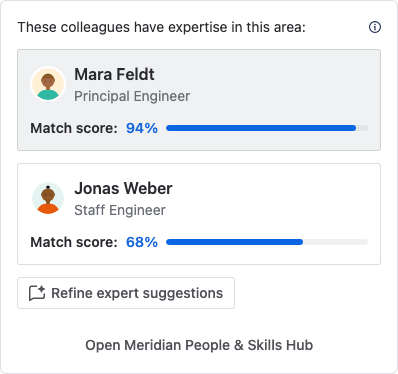
The suggestions always exclude three people: The assignee, the reporter, and you. The Skills Navigator agent doesn't apply this exclusion, so you can name one of them in a chat with the agent.
To see more than two people, use Open Meridian People & Skills Hub at the bottom of the panel and search there. See Find an expert for a topic.
The result isn't stored. When you reload the issue, the panel returns to its initial state.
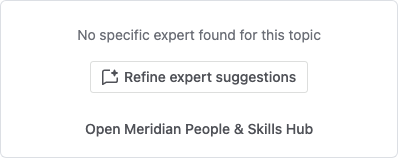
If no expert is found
The panel says that no specific expert was found for this topic. This usually means the issue carries too little text, or nobody has recorded the skills it needs. Click Refine expert suggestions to continue in a Rovo chat and name the skills yourself.